|
HALINE  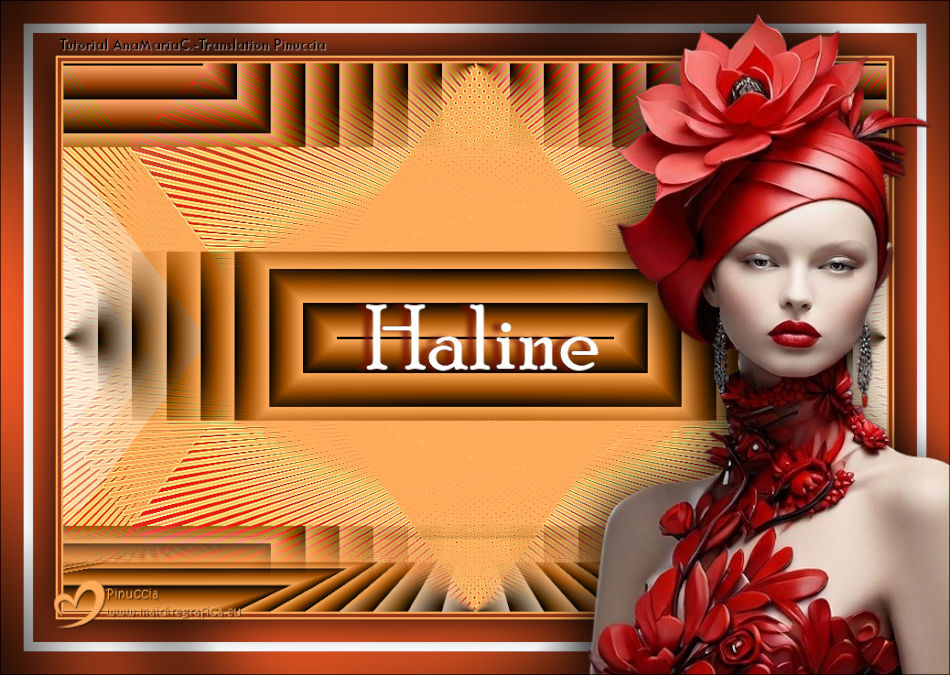
This tutorial was written and translated with Psp2020, but it can also be made using other versions of PSP.
 For this tutorial, you will need:  Material by Ana Maria C. (The links of the tubemakers here).  Filters Unlimited 2.0 here Mura's Meister - Perspective Tiling, Cloud, Copies here &<Bkg Designer sf10II> - Downstairs (to import in Unlimited) here Graphics Plus - Cross Shadow here Filters Graphics plus can be used alone or imported into Filters Unlimited. (How do, you see here) If a plugin supplied appears with this icon  it must necessarily be imported into Unlimited it must necessarily be imported into Unlimited You can change Blend Modes according to your colors. In the newest versions of PSP, you don't find the foreground/background gradient (Corel_06_029). You can use the gradients of the older versions. The Gradient of CorelX here  Colors 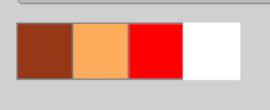 1. Set your foreground color to #963817, and your background color to #feac5c 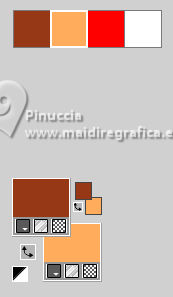 color 3: #ff0000 color 4: #ffffff 2. Open AlphaChannel_byAnaMariaC Window>Duplicate or, on the keyboard, shift+D to make a copy. Close the original. The copy, that will be the basis of your work, is not empty, but contains a selection saved to alpha channel. 3. Effects>Plugins>Mura's Meister - Cloud 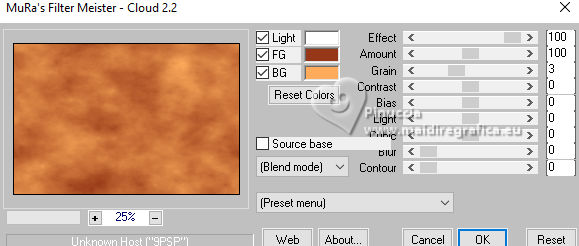 The result of this effects is random, so it won't be the same as mine. If you want to change the appearance of the clouds, click on the preview window, until you'll see the result you like better. Adjust>Blur>Gaussian Blur - radius 20 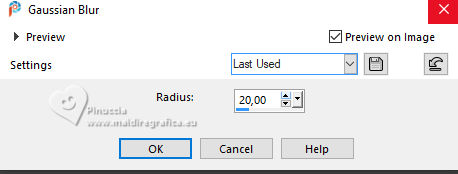 Layers >New Raster Layer. Flood Fill  the layer with your background color #feac5c. the layer with your background color #feac5c.4. Effects>Geometric Effects>Perspective horizontal 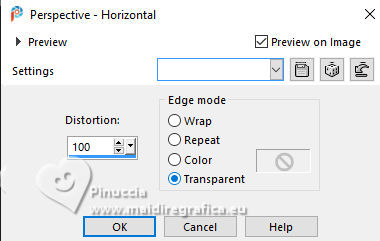 Effects>Geometric Effects>Perspective horizontal 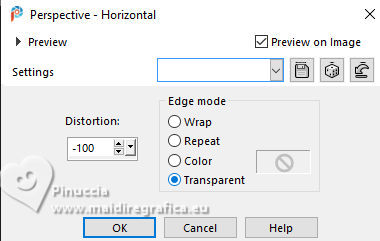 Result 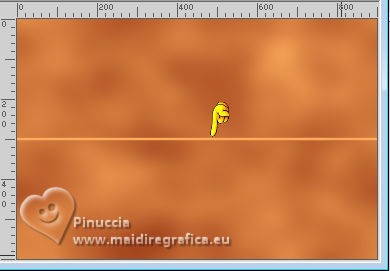 5. Effects>Plugins>Mura's Meister - Copies. 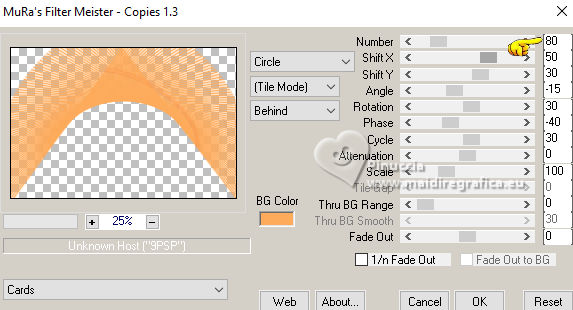 Adjust>Sharpness>Sharpen. Image>Mirror>Mirror Horizontal. 6. Layers>Duplicate. Image>Mirror>Mirror Vertical (Image>Flip) Layers>Merge>Merge Down. Adjust>Sharpness>Sharpen More. 7. Selections>Load/Save Selections>Load Selection from Alpha Channel. The selection Selection #1 is immediately available. You just have to click Load. 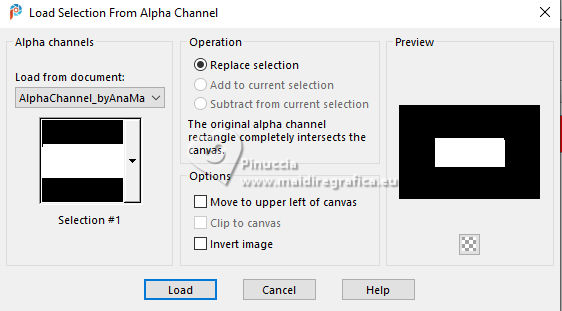 Flood Fill the selection with your background color #feac5c.Selections>Promote Selection to Layer. Selections>Select None. 8. Effects>Plugins>Mura's Meister - Copies 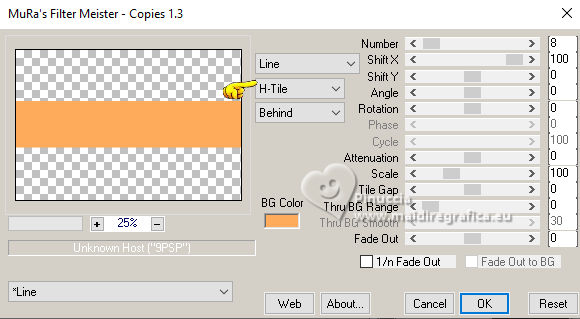 9. Effects>Plugins>Filters Unlimited 2.0 - &<Bkg Designer sf10II> - Downstairs, default settings. 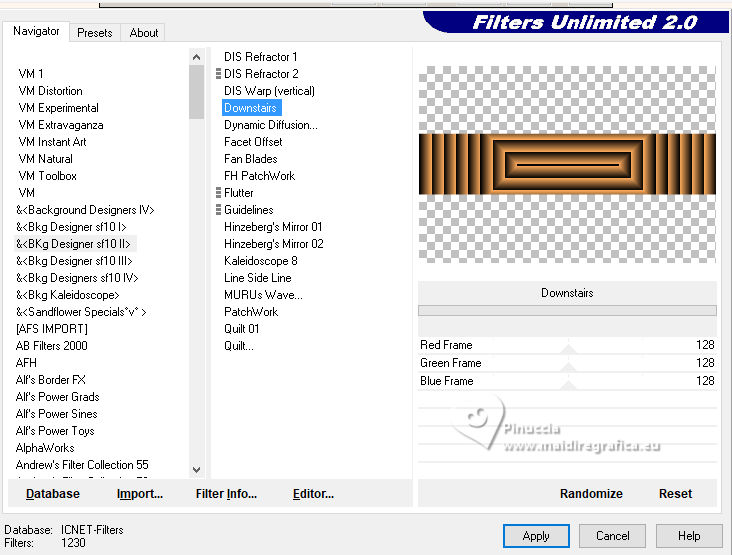 10. Effects>Image Effects>Seamless Tiling, default settings  Layers>Properties>General>Blend Mode: Luminance (L) - Opacity: 100, or to your liking. 11. Activate the layer Raster 2. 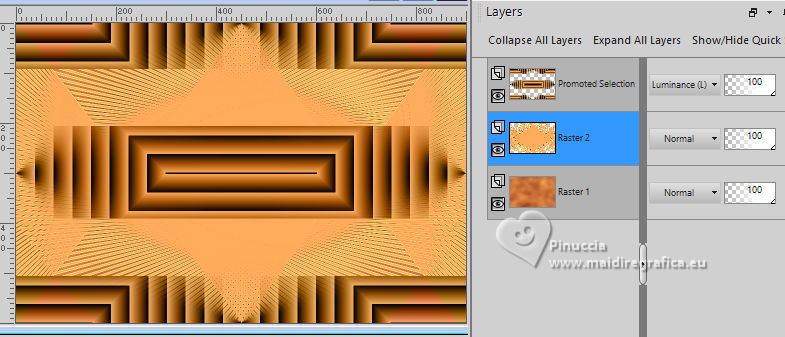 Effects>3D Effects>Drop Shadow - color extra: #ff0000 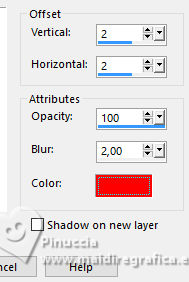 Repeat Drop Shadow, vertical and horizontal -2. Adjust>Sharpness>Sharpen More. 12. Open decor_byAnaMariaC 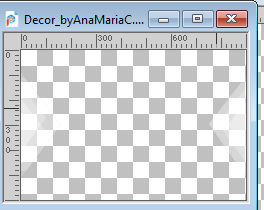 Edit>Copy. Go back to your work and go to Edit>Paste As New Layer. 13. Activate your top layer, Promoted Selection. Edit>Copy Special>Copy Merged. Edit>Paste As New Layer. Effects>Image Effects>Seamless Tiling, default settings 14. Effects>Plugins>Mura's Meister - Perspective Tiling. 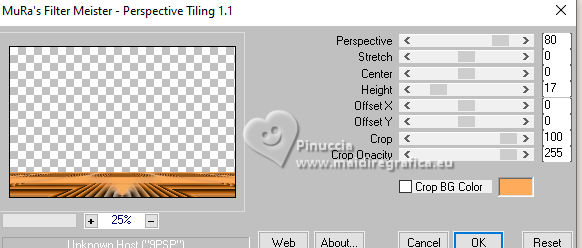 15. Your tag and the layers 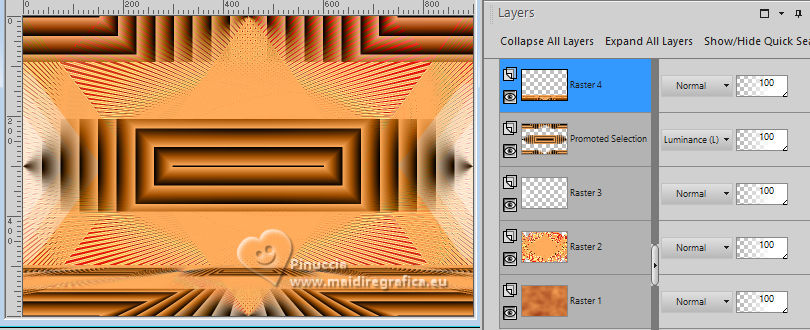 16. Activate your Magic Wand Tool  feather 60, feather 60,and click in the transparent part to select it. 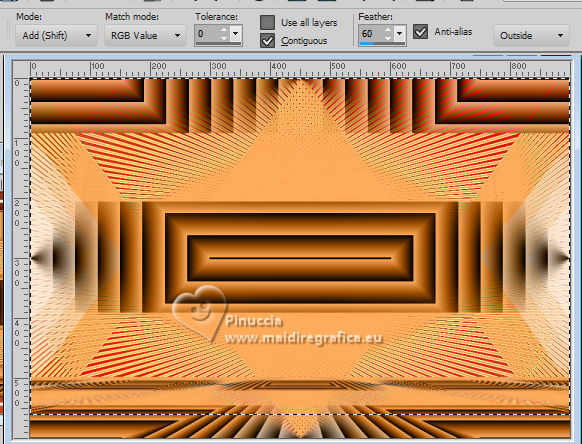 Press 7 times CANC on the keyboard  Selections>Select None. 17. Image>Add Borders, 2 pixels, symmetric, background color #feac5c. Image>Add Borders, 4 pixels, symmetric, foreground color #963817 Image>Add Borders, 2 pixels, symmetric, background color #feac5c. 18. Selections>Select All. 19. Image>Add Borders, 25 pixels, symmetric, foreground color #963817 Image>Add Borders, 10 pixels, symmetric, color white #ffffff mage>Add Borders, 25 pixels, symmetric, foreground color #963817 Selections>Invert. 20. Effects 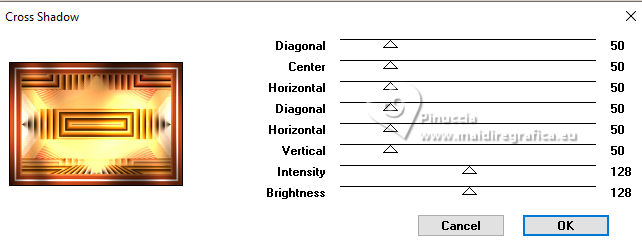 21. Selections>Invert. Effects>3D Effects>Drop Shadow, color black #000000 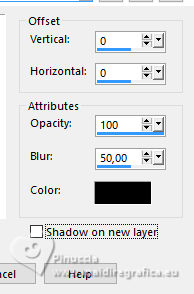 Selections>Select None. 22. Open the tube Tube57_Mulher_byAnaMariaC 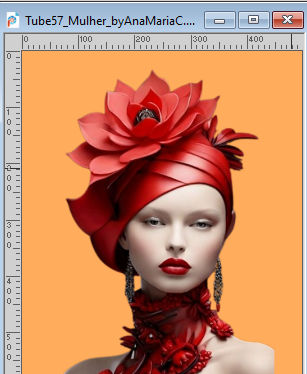 Edit>Copy. Go back to your work and go to Edit>Paste as new layer. Adjust>Sharpness>Sharpen. Move  the tube to your liking. the tube to your liking.Effects>3D Effects>Drop Shadow, color black #000000 or to your liking. 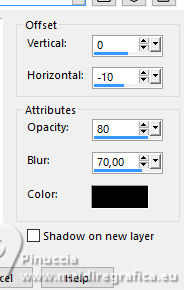 23. Open WordArt_titulo_byAnaMariaC. 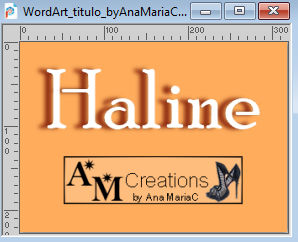 Edit>Copy. Go back to your work and go to Edit>Paste as new layer. Place the text to your liking.24. Image>Add Borders, 1 pixel, symmetric, color black #000000. 25. Image>Resize, if you want. Sign your work and save as jpg. 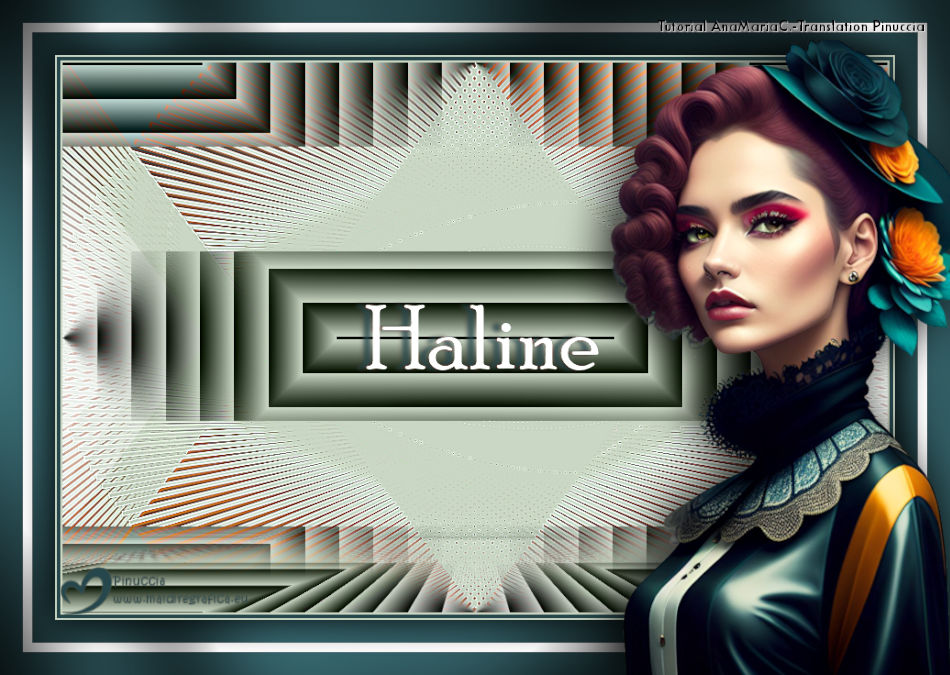  Your versions.Thanks Your versions.Thanks If you have problems or doubts, or you find a not worked link, or only for tell me that you enjoyed this tutorial, write to me. 15 January 2026 |