|
NOËL 2021

Thanks Joanne for the invitation to translate your tutorials:

This tutorial was translated with PSPX3 but it can also be made using other versions of PSP.
Since version PSP X4, Image>Mirror was replaced with Image>Flip Horizontal,
and Image>Flip with Image>Flip Vertical, there are some variables.
In versions X5 and X6, the functions have been improved by making available the Objects menu.
In the latest version X7 command Image>Mirror and Image>Flip returned, but with new differences.
See my schedule here
 Italian translation here Italian translation here
 Your versions here Your versions here
For this tutorial, you will need:
Material here
Thanks for the tube Maryse.
The rest of the material is by Joanne.
(The links of the tubemakers sites here).
Plugins
consult, if necessary, my filter section here
Carolaine and Sensibility - CS-Reflection here
Alien Skin Xenofex 2 here
Animation Shop here

You can change Blend Modes according to your colors.
In the newest versions of PSP, you don't find the foreground/background gradient (Corel_06_029).
You can use the gradients of the older versions.
The Gradient of CorelX here
Open the font and minimize it. You will find it in the list of available fonts when you need it.
With new operating systems this is no longer possible.
To use a font, you need to copy it to the Windows Fonts folder.
1. Set your foreground color to #ffffff,
and your background color to #13304d.
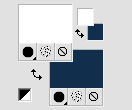
2. Open a new transparent image 800 x 700 pixels.
Flood Fill  the transparent image with your blue background color. the transparent image with your blue background color.
3. Effects>Plugins>Carolaine and Sensibility - CS-Reflection.
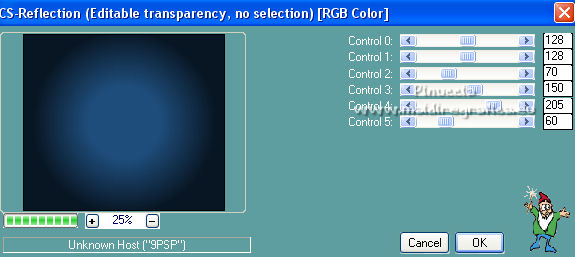
Repeat this Effects another time.
4. Open the Christmas ball tube and go to Edit>Copy.
Go back to your work and go to Edit>Paste as new layer.
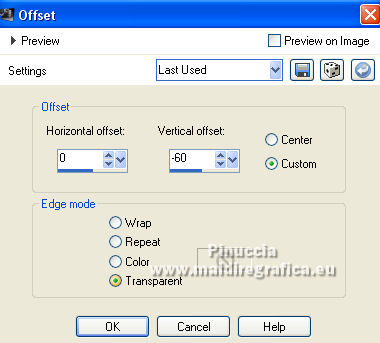
5. Effects>Image Effects>Offset.
6. Open the snow tube and go to Edit>Copy.
Go back to your work and go to Edit>Paste as new layer.
Image>Resize, to 120%, resize all layers not checked.
7. Effects>Image Effects>Offset.
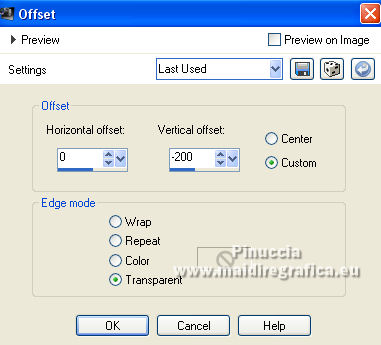
8. Open the ball tube with the blue bow and go to Edit>Copy.
Go back to your work and go to Edit>Paste as new layer.
Image>Resize, to 120%, resize all layers not checked.
9. Effects>Image Effects>Offset.
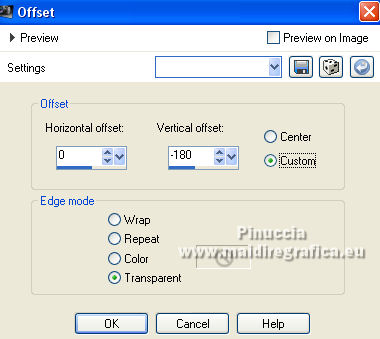
10. Effects>3D Effects>Drop Shadow.
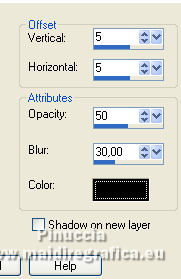
11. Open the woman tube and go to Edit>Copy.
Go back to your work and go to Edit>Paste as new layer.
Image>Resize, to 70%, resize all layers not checked.
12. Effects>Image Effects>Offset.
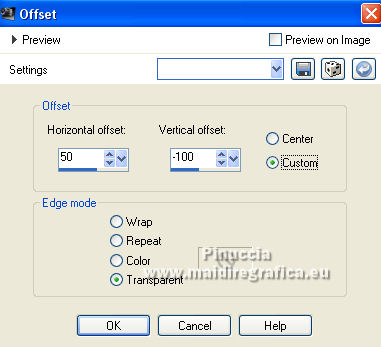
13. Effects>3D Effects>Drop Shadow, same settings.
14. Activate your Text Tool  , ,
adapt the size to your text and to your PSP version

To write the the letter Ë of the word Noël,
hold down the ALT key and type 0203.
15. Write your text with two spaces between the words and place it.
Layers>Convert in Raster Layer.
16. Image>Add borders, 2 pixel, symmetric, color white.
Image>Add borders, 10 pixels, symmetric, color blue.
Image>Add borders, 2 pixel, symmetric, color white.
Image>Add borders, 30 pixels, symmetric, color blue.
Image>Add borders, 2 pixel, symmetric, color white.
Image>Add borders, 10 pixels, symmetric, color blue.
Image>Add borders, 2 pixel, symmetric, color white.
16. Activate your Magic Wand Tool 
and click on the 30 pixels border to select it.
17. Change your foreground color to #8bbbe9.
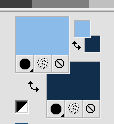
Set your foreground color to a Foreground/Background Gradient, style Linear.
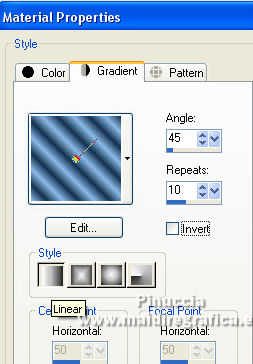
Flood Fill the selection with your Gradient.
Selections>Select None.
18. Sign your work on a new layer.
If you add the author watermark (to put in mode Soft Light),
don't forget to add also the translator watermark.
19. Layers>Merge>Merge visible.
20. Select the blue zones of the text with your Magic Wand Tool
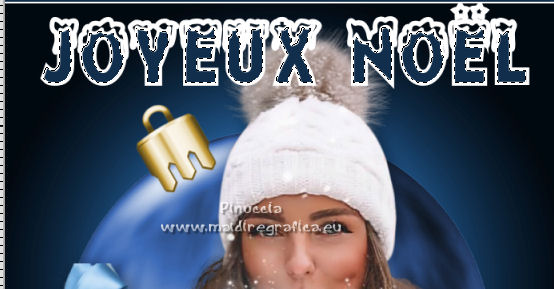
21. Selections>Invert.
Layers>Duplicate - 3 times (for a total of 4 layers).
Stay on the top layer.
22. Effects>Plugins>Alien Skin Xenofex 2 - Constellation
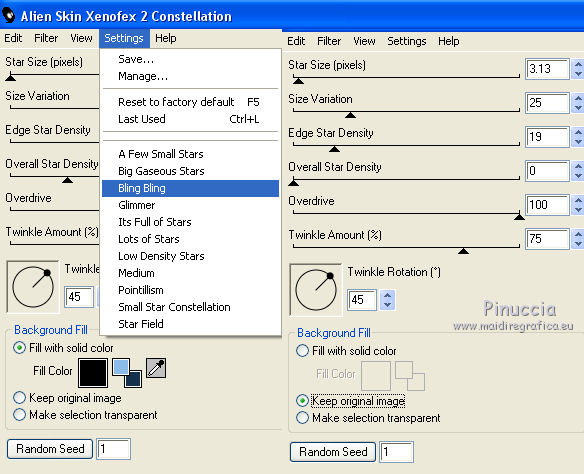
23. Close this layer
and activate the layer below of the second copy.
Effects>Plugins>Alien Skin Xenofex 2 - Constellation - click one time on Random Seed and ok.
24. Close this layer and activate the layer below of the first copy.
Effects>Plugins>Alien Skin Xenofex 2 - Constellation, click on Random Seed and ok.
25. Close this layer and activate the bottom layer.
Effects>Plugins>Alien Skin Xenofex 2 - Constellation, click on Random Seed and ok.
26. Selections>Select None.
27. Activate the bottom layer (all the other layers are closed).
Edit>Copy.
Open Animation Shop and go to Edit>Paste>Paste as new image.
28. Go back to PSP.
Close the bottom layer.
Open and activate the layer above of the first copy.
Edit>Copy.
Go back to Animation Shop and go to Edit>Paste>Paste after the current frame.
29. Go back to PSP.
Close the layer of the first copy.
Open and activate the layer above of the second copy.
Edit>Copy.
Go back to Animation Shop and go to Edit>Paste>Paste after the current frame.
30. Again to PSP.
Close the layers of the second copy.
Open and activate the layer above of the third copy.
Edit>Copy.
On Animation Shop and go to Edit>Paste>Paste after the current frame.
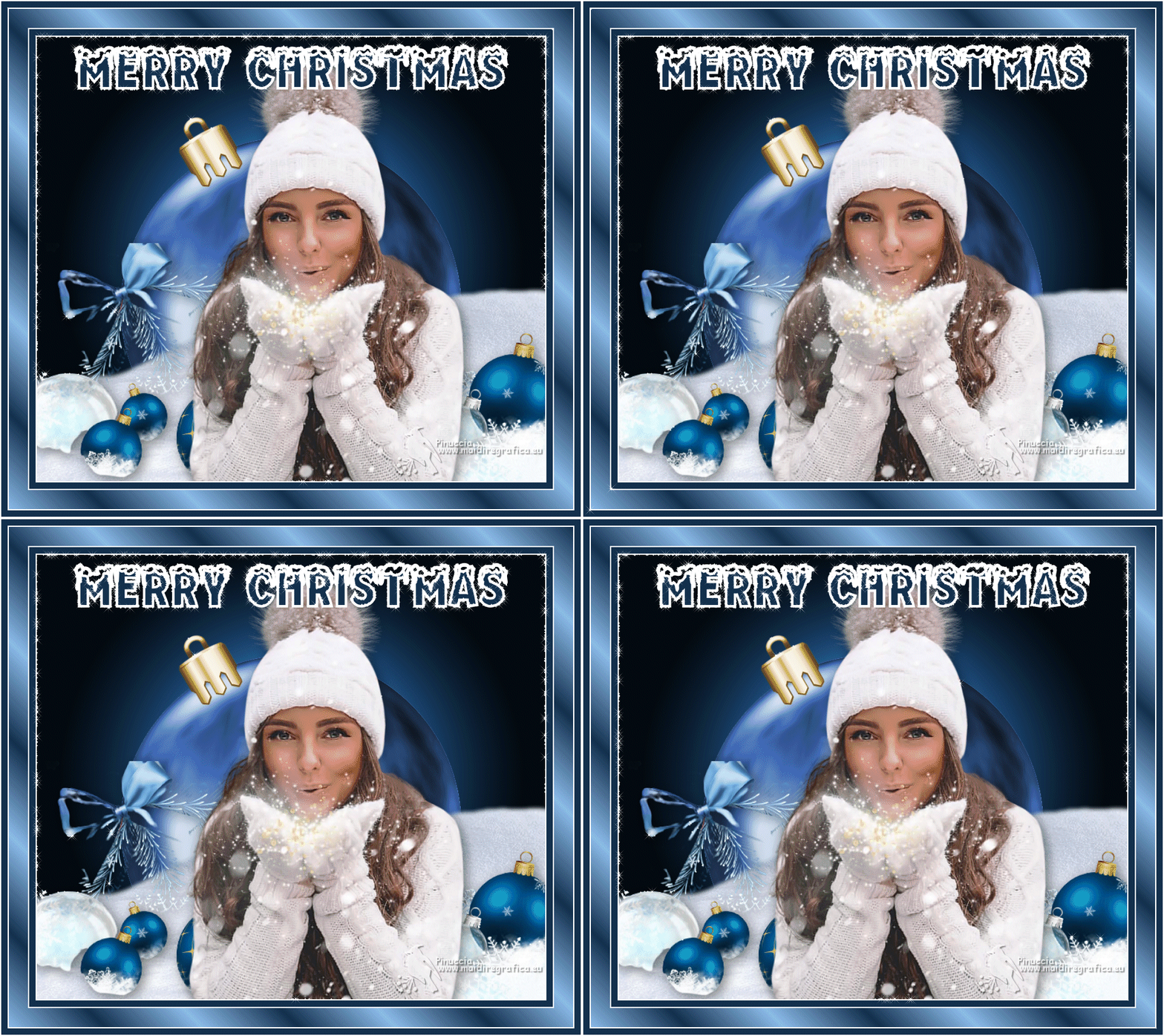
31. And here is your animation composed by 4 frames.
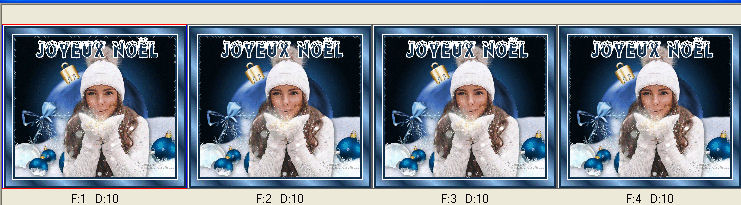
Keep the frame propierties to 10.
Check the result clicking on View Animation 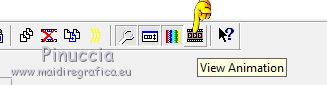
and save as gif.
For the tubes of this versions thanks Criss and Lady Crea


If you have problems or doubts, or you find a not worked link,
or only for tell me that you enjoyed this tutorial, write to me.
7 November 2021

|