|
NOCHE AZUL
 BLUE NIGHT BLUE NIGHT

Thanks Luz Cristina for your invitation to translate your tutorials into english
This tutorial was translated with PSPX9 but it can also be made using other versions of PSP.
Since version PSP X4, Image>Mirror was replaced with Image>Flip Horizontal,
and Image>Flip with Image>Flip Vertical, there are some variables.
In versions X5 and X6, the functions have been improved by making available the Objects menu.
In the latest version X7 command Image>Mirror and Image>Flip returned, but with new differences.
See my schedule here
 French Translation here French Translation here
 Your versions here Your versions here

For this tutorial, you will need:

For the tube thanks Gabry
(The links of the tubemakers here).
*It is forbidden to remove the watermark from the supplied tubes, distribute or modify them,
in order to respect the work of the authors

consult, if necessary, my filter section here
Mehdi - Wavy Lab here
Backgroundmaniac - Stripes n'more here
FM Tile Tools - Saturation Emboss, Blend Emboss here
Virtual Painter 4 here
Alien Skin Xenofex 2 - Stain here
Mura's Meister - Copies here
AAA Frames - Foto Frame here

You can change Blend Modes according to your colors.
In the newest versions of PSP, you don't find the foreground/background gradient (Corel_06_029).
You can use the gradients of the older versions.
The Gradient of CorelX here
Copy the preset Emboss 3 in the presets Folder.
1. Open a new transparent image 1000 x 600 pixels.
2. Set your foreground color to #b5cf6f,
and your background color to #35175b.

Set your foreground color to a Foreground/Background Gradient, style Linear.
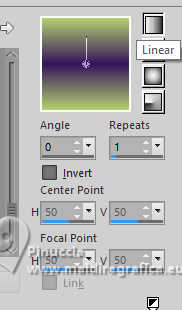
Flood Fill  the transparent image with your Gradient. the transparent image with your Gradient.
3. Effects>Plugins>Mehdi - Wavy Lab.
Thiw filter works with the colors of your materials palette;
the first is your background color, the second your foreground color;
change the third color created by the filter with the color black #000000

4. Effects>Plugins>Backgroundmaniac - Stripes n' more

5. Effects>Geometric Effects>Perspective horizontal.
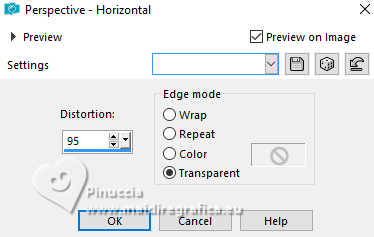
Image>Mirror>Mirror horizontal.
Repeat Effects>Geometric Effects>Perspective horizontal, same settings.
Result:

6. Effects>Distortion Effects>Wave.

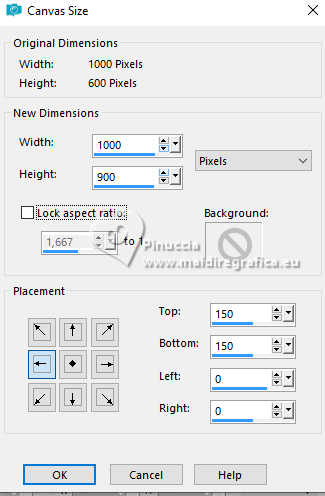
7. Image>Canvas Size - 1000 x 900 pixels.
8. Effects>Plugins>Mura's Meister - Copies.

9. Layers>Duplicate.
Image>Mirror>Mirror Vertical (Image>Flip)
Layers>Merge>Merge visible.
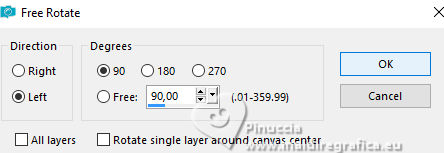
10. Image>Free Rotate - 90 degrees to left.
11. Effects>Geometric Effects>Spherize.
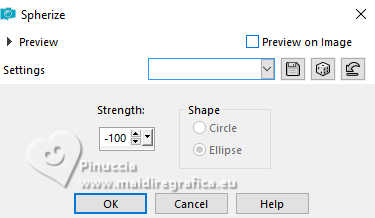
Edit>Repeat Spherize.
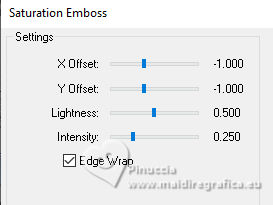
12. Effects>Plugins>FM Tile Tools - Saturation Emboss.
13. Effects>3D Effects>Drop Shadow.
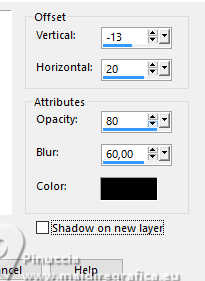
14. Layers>New Raster Layer.
Layers>Arrange>Send to Bottom.
Flood Fill the layer with your Gradient.
15. Adjust>Add/Remove Noise>Add Noise.
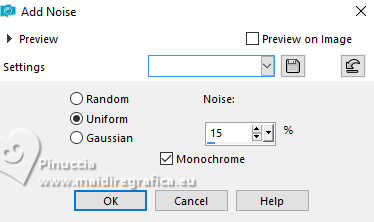
16. Effects>User Defined Filter - select the preset Emboss 3 and ok.
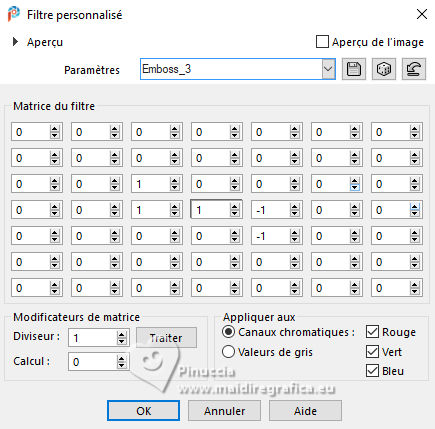
17. Effects>Plugins>Virtual painter 4

18. Effects>Reflection Effects>Feedback.
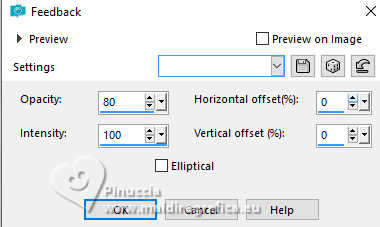
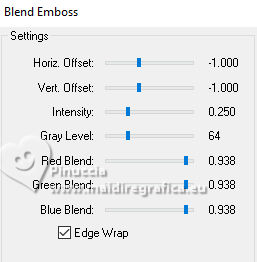
19. Effects>Plugins>FM Tile Tools - Blend Emboss.
20. Open the misted 4827-luzcristina 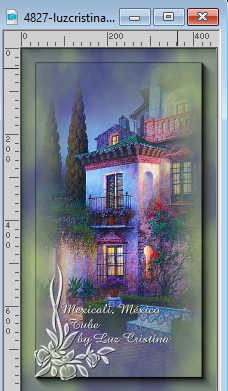
Edit>Copy.
Go back to your work and go to Edit>Paste as new layer.
Move  the tube to the left side. the tube to the left side.

Layers>Duplicate.
Image>Mirror>Mirror Horizontal.
21. Layers>Merge>Merge Visible.
22. Effects>Plugins>Foto Frame - 2 times with these settings.

23. Open the woman's tube 4826-luzcristina 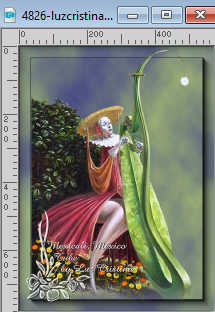
Edit>Copy.
Go back to your work and go to Edit>Paste as new layer.
Move the tube at the bottom left.
Effects>3D Effects>Drop Shadow, same settings.
24. Layers>Merge>Merge visible.
25. Effects>Plugins>Alien Skin Xenofex 2 - Stain

26. Sign your work and save as jpg.


If you have problems or doubts, or you find a not worked link,
or only for tell me that you enjoyed this tutorial, write to me.
20 August 2025
|