|
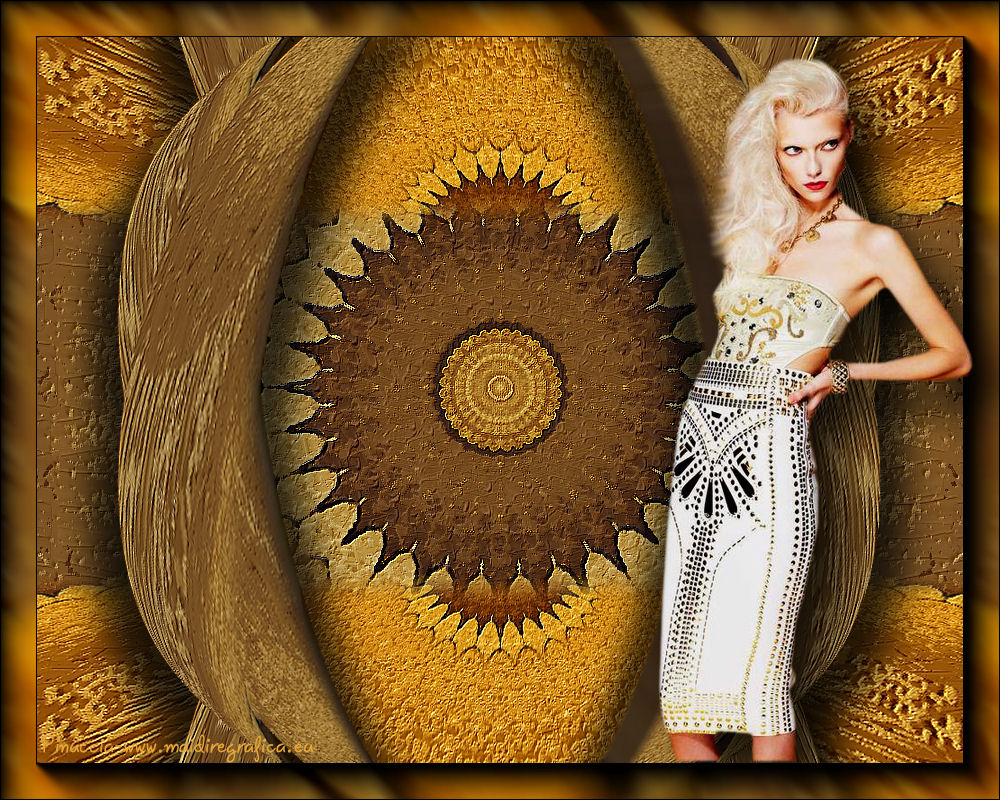
TOP MANDALA
"Mandala" is a spiritual and ritual symbol that represents the universe.
It is not only an art form, but it is used in many spiritual traditions,
but especially Hinduism and Buddhism, to define a sacred space and to aid meditation.

Thanks Luz Cristina for your invitation to translate your tutorials into english
This tutorial, created with PSP9, was translated with PspX9 and PSP2020, but it can also be made using other versions of PSP.
Since version PSP X4, Image>Mirror was replaced with Image>Flip Horizontal,
and Image>Flip with Image>Flip Vertical, there are some variables.
In versions X5 and X6, the functions have been improved by making available the Objects menu.
In the latest version X7 command Image>Mirror and Image>Flip returned, but with new differences.
See my schedule here
 French Translation here French Translation here
 Your versions here Your versions here

For this tutorial, you will need:

Tube de Luz Cristina
(you find here the links to the material authors' sites)
consult, if necessary, my filter section here
Filters Unlimited 2.0 here
VM Distortion - Kaleidoscope here
Mura's Meister - Perspective Tiling here
AAA Frames - Foto Frame here
Alien Skin Eye Candy 5 Impact here
FM Tile Tools - Blend Emboss, Saturation Emboss here
Virtual Painter here
Filters VM Distortion can be used alone or imported into Filters Unlimited.
(How do, you see here)
If a plugin supplied appears with this icon  it must necessarily be imported into Unlimited it must necessarily be imported into Unlimited

You can change Blend Modes according to your colors.
Open the mask in PSP and minimize it with the rest of the material.
1. Open a new transparent image 1000 x 800 pixels.
2. Set your foreground color to #87784c,
and your background color to #461518.
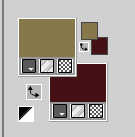
Flood Fill  the transparent image with your background color. the transparent image with your background color.
3. Layers>New Raster Layer.
Flood Fill the layer with your foreground color.
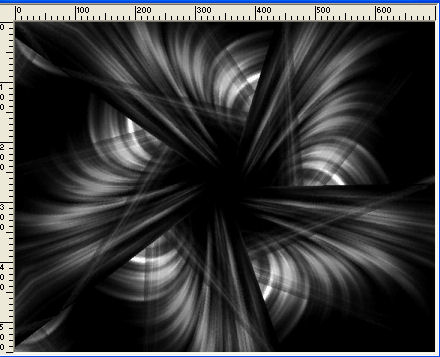
4. Layers>New Mask layer>From image
Open the menu under the source window and you'll see all the files open.
Select the mask crack06.
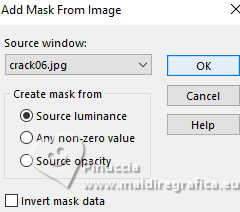
Layers>Merge>Merge Group.
(You will see that the mandalas are formed using a different set of masks).
5. Effects>3D Effects>Drop Shadow.
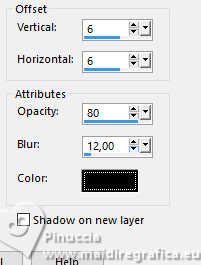
Edit>Repeat Drop Shadow.
6. Adjust>Add/Remove Noise>Add Noise.
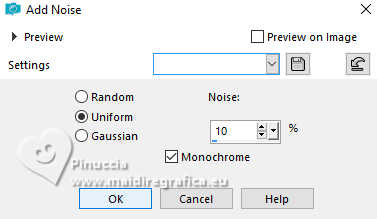
7. Layers>Merge>Merge visible.
8. Effects>Plugins>VM Distortion - Kaleidoscope, default settings.
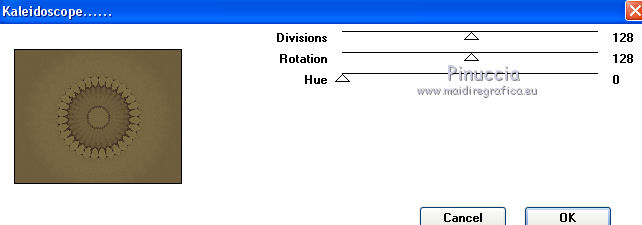
9. Effects>Plugins>Virtual Painter - Impasto.
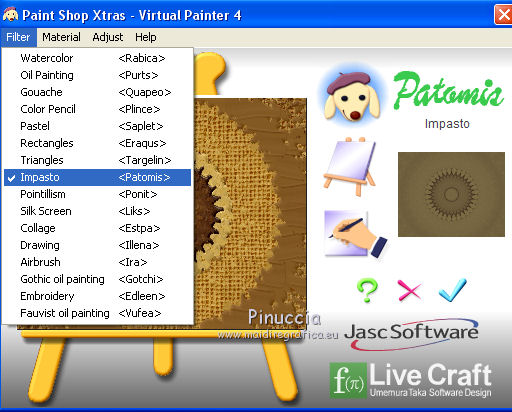
10. Effects>Plugins>FM Tile Tools - Blend Emboss, default settings.
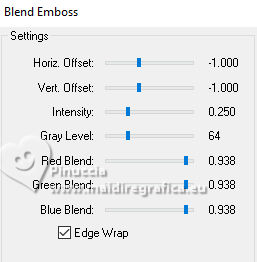
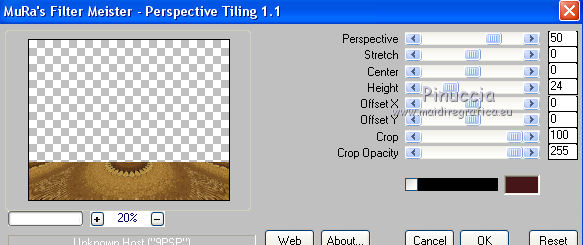
11. Layers>Duplicate.
Effects>Plugins>Mura's Meister - Perspective Tiling.
12. Layers>Duplicate.
Image>Mirror>Mirror Vertical (Image>Flip).
Layers>Merge>Merge Down.
13. Activate your Magic Wand Tool  with these settings with these settings

Click in the central part to select it.
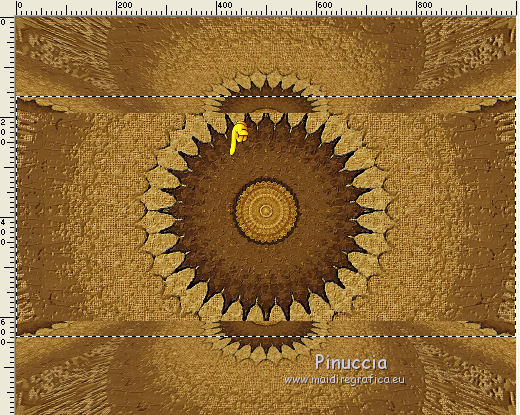
Press several times CANC on the keyboard 
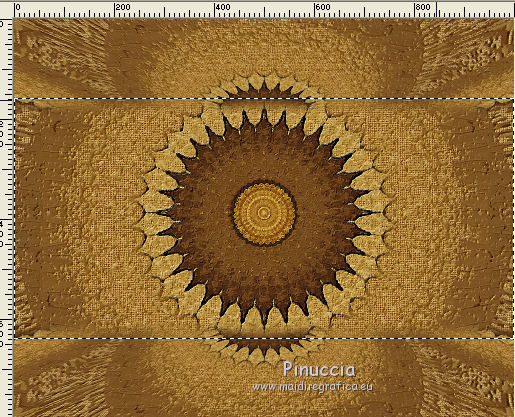
Selections>Select None.
14. Layers>Duplicate.
15. Effects>Geometric Effets>Perspective horizontale.
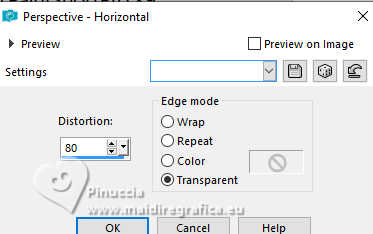
16. Image>Free Rotate - 90 degrees to right.
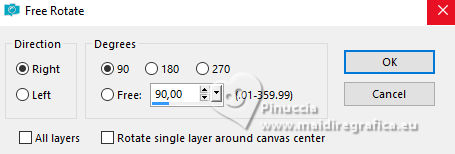
17. Layers>Duplicate.
Image>Mirror>Mirror Vertical (Image>Flip)
Layers>Merge>Merge Down.
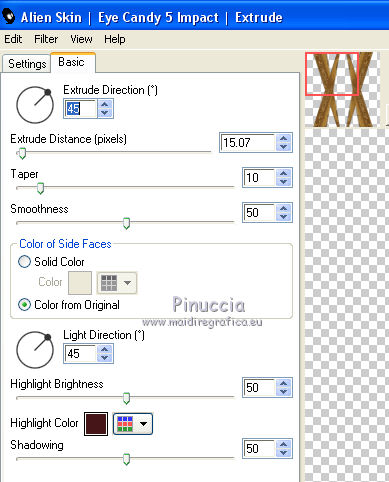
18. Effects>Plugins>Alien Skin Eye Candy 5 Impact - Extrude, default settings.
Highlight Color: background color
19. Effects>Geometric Effects>Spherize.
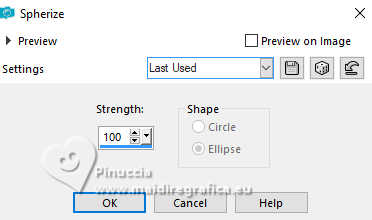
Edit>Repeat Spherize.
20. Image>Resize, to 85%, resize all layers not checked.
20. Effects>3D Effects>Drop shadow.
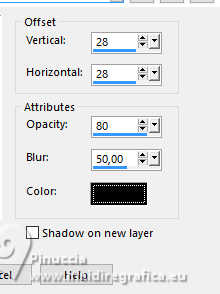
Image>Mirror>Mirror horizontal.
Effects3D Effects>Drop Shadow, last settings.
21. Effects>Plugins>FM Tile Tools - Blend Emboss, default settings.
22. Activate the layer Copy of Merged.
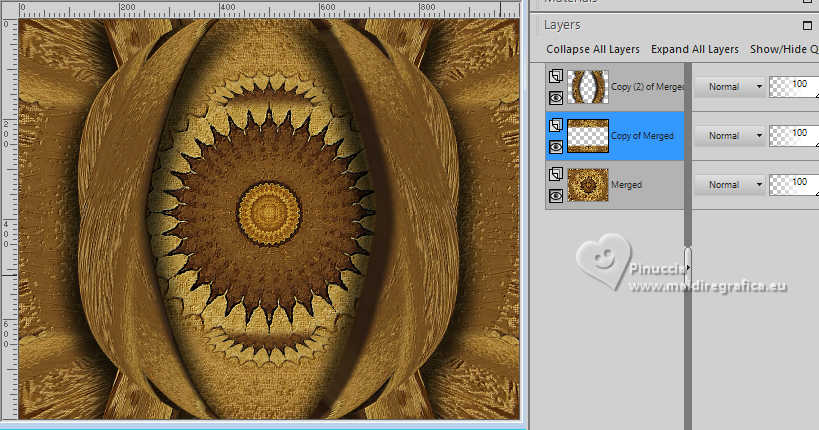
Effects>Geometric Effects>Pinch.
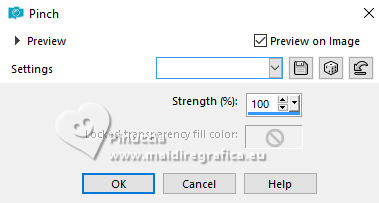
With these settings I got this
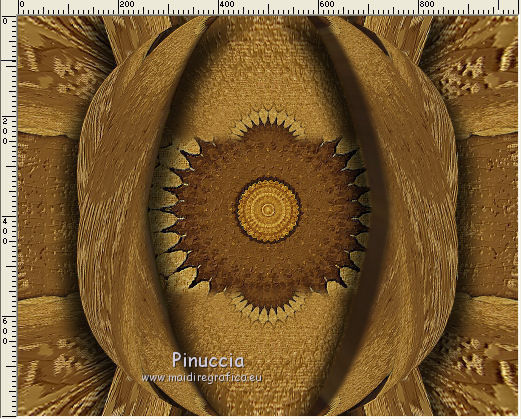
For this, I changed the settings with 50
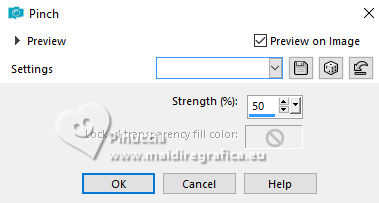
It's up to you.
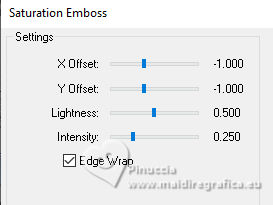
23. Effects>Plugins>FM Tile Tools - Saturation Emboss, default settings.
24. Layers>Merge>Merge visible.
25. Effects>Plugins>AAA Frames - Foto Frame.
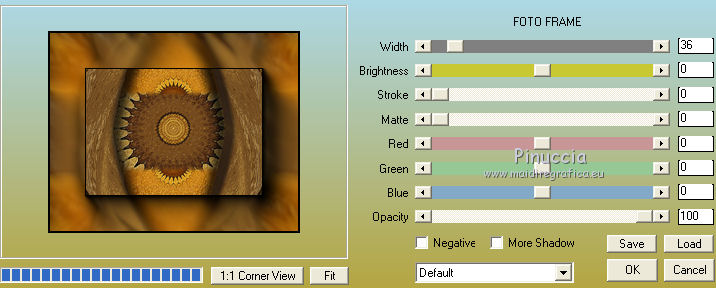
Apply this filter another time.
26. Open the tube 4381-luzcristina 
Edit>Copy.
Go back to your work and go to Edit>Paste as new layer.
27. Effects>3D Effects>Drop Shadow.
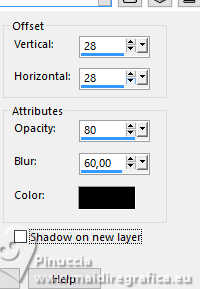
28. Sign your work.
Layers>Merge>Merge All and save as jpg.
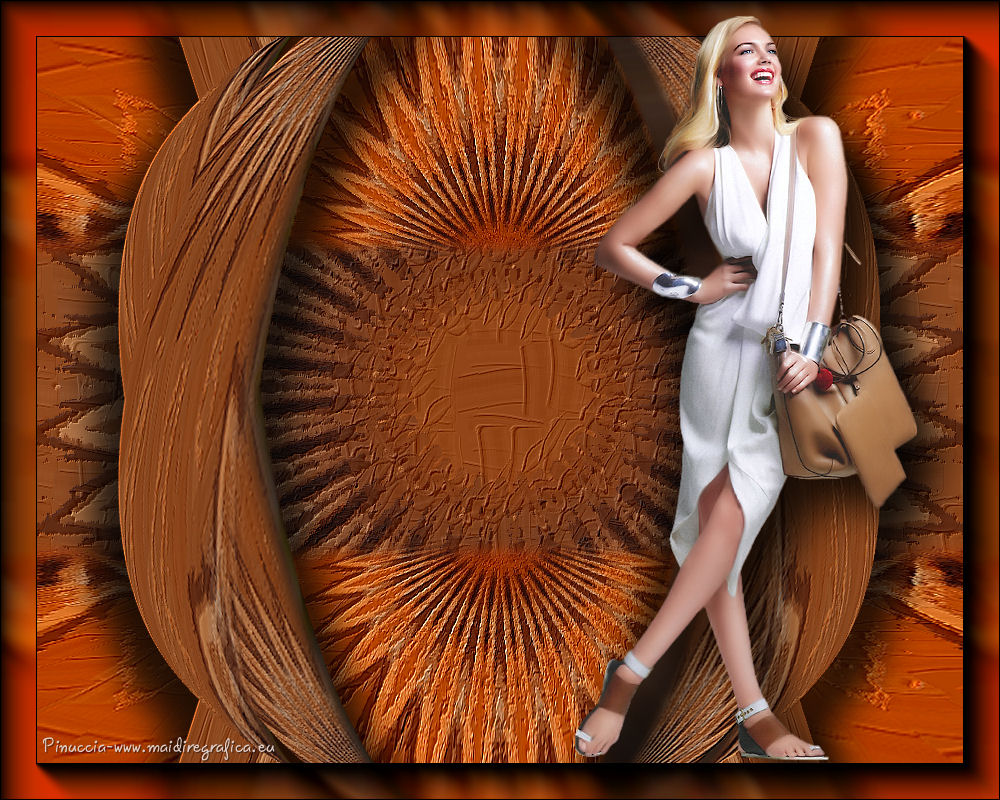
For the tube of this version thanks Renée

Version with another mask
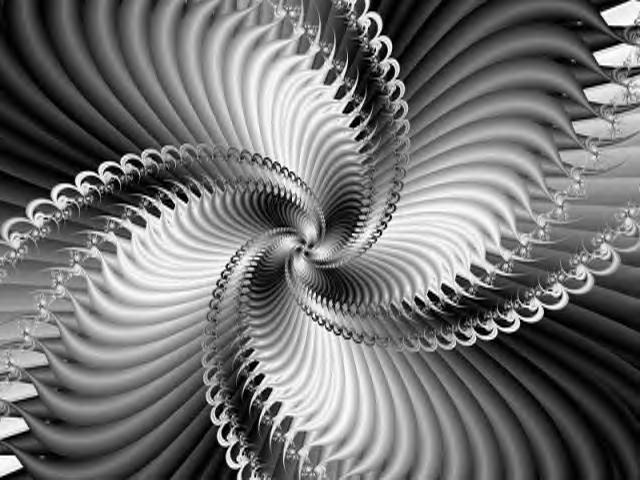
For the tube thanks Nimue la fée
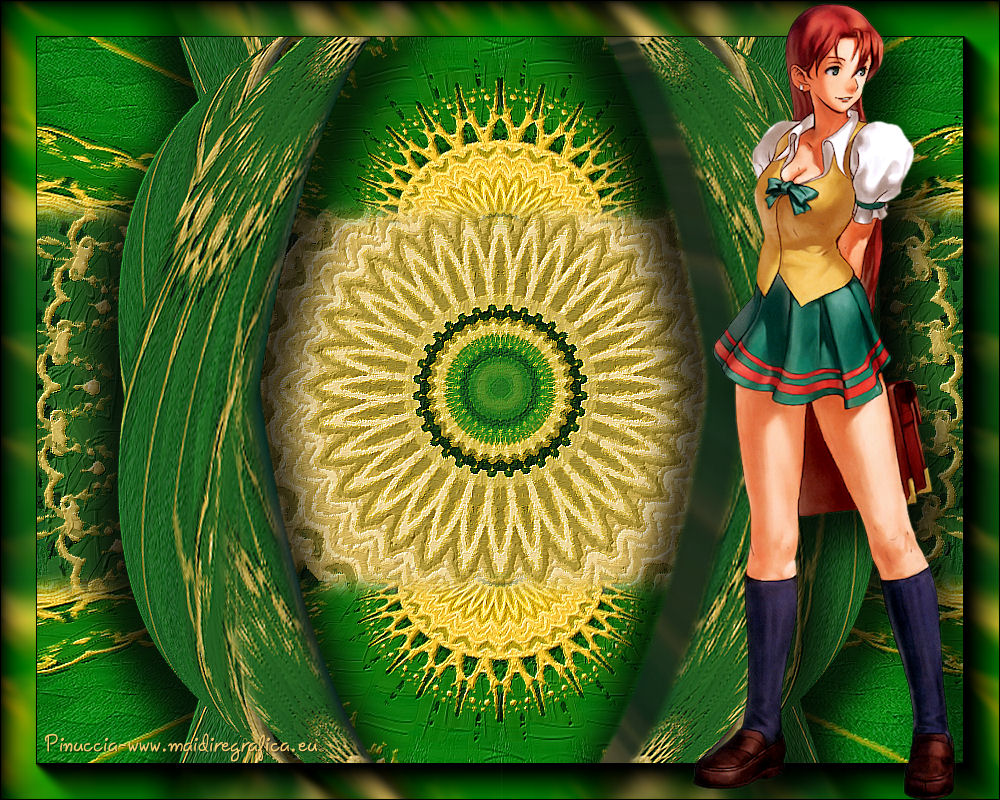
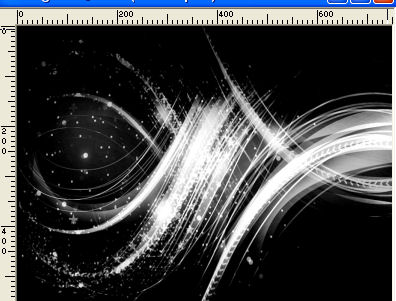
Version with mask and tube by Gabry
Another mask by Gabry and tube by Min@
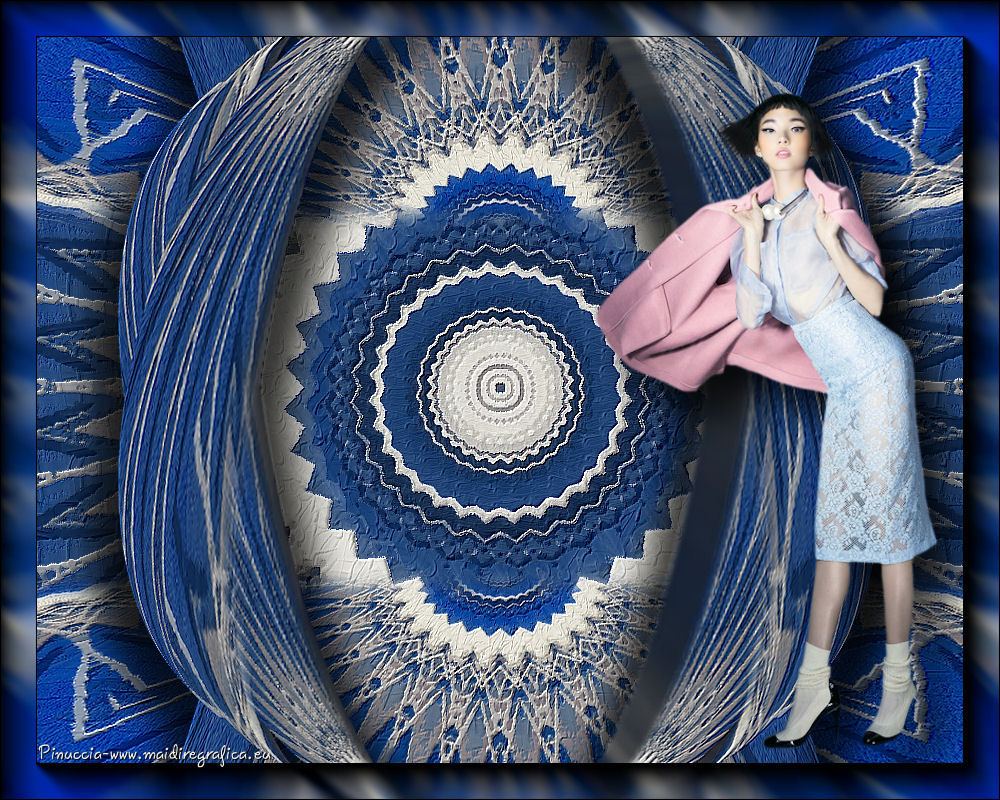
If you have problems or doubts, or you find a not worked link,
or only for tell me that you enjoyed this tutorial, write to me.
12 August 2026
|