Translate
For this tutorial, you will need:

For the tube thanks Colybrix.
The rest of the material is by Maria José.
(you find
here the links to the material authors' sites)
 consult, if necessary, my filter section here
Filters Unlimited 2.0
here
Mura's Meister - Copies
here
Mura's Seamless - Emboss at Alpha
here
AAA Frames - Foto Frame
here
Filters Mura's Seamless can be used alone or imported into Filters Unlimited.
(How do, you see here)
If a plugin supplied appears with this icon  it must necessarily be imported into Unlimited

You can change Blend Modes according to your colors.
In the newest versions of PSP, you don't find the foreground/background gradient (Corel_06_029).
You can use the gradients of the older versions.
The Gradient of CorelX
here

Copy the preset in the Presets Folder.
Copy the selections in the Selections Folder.
Open the mask in PSP and minimize it with the rest of the material.
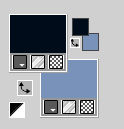
Set your foreground color to #030d1a,
and your background color to #7892ba.
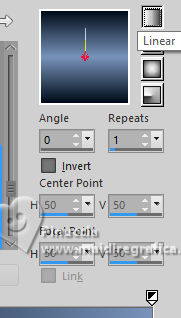
Set your foreground color to a Foreground/Background Gradient, style Linear.
1. Open a new transparent image 1000 x 700 pixels.
Flood Fill

the transparent image with your Gradient.
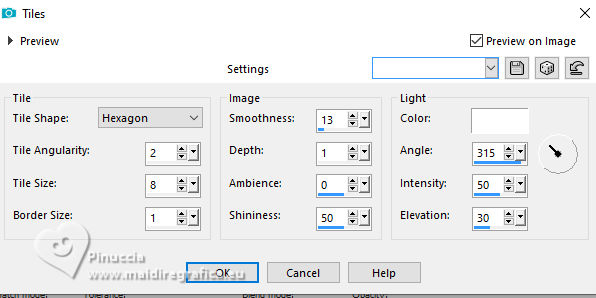
2. Effects>Texture Effects>Tiles
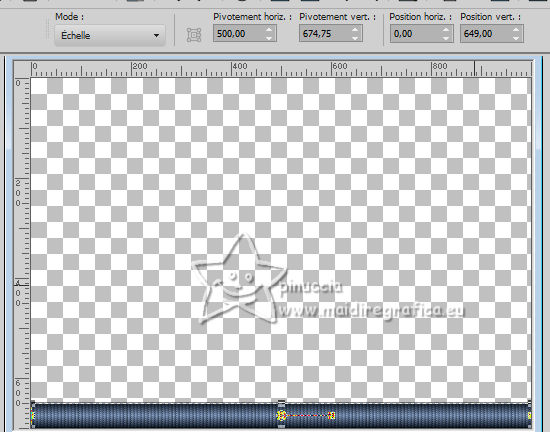
3. K key to activate your Pick Tool

Open the presets menu and select the preset
santorini-MJ

You should have this
M key to deselect the Tool.
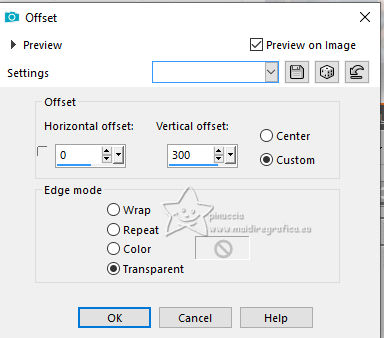
4. Effects>Image Effects>Offset.
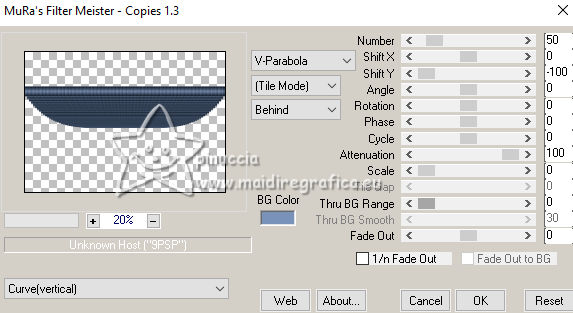
5. Effects>Plugins>Mura's Meister - Copies
Image>Flip.
6. Effects>Image Effects>Offset.
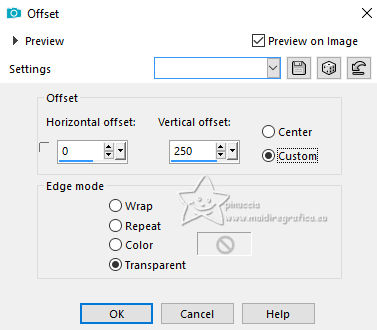
7. Effects>Geometric Effects>Spherize
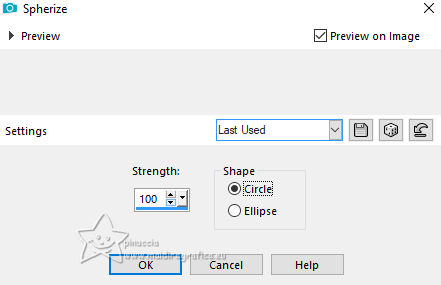
Layers>Duplicate.
Image>Flip.
Layers>Merge>Merge Down.
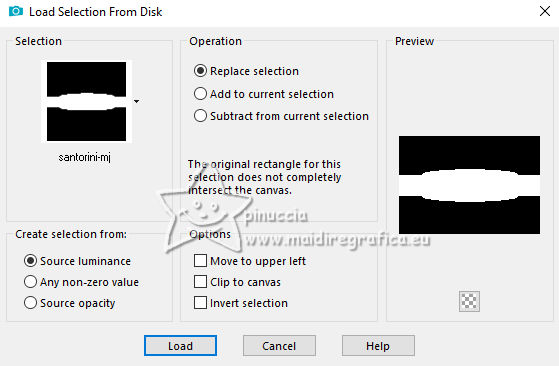
8. Selections>Load/Save Selection>Load Selection from Disk.
Look for and load the selection
Santorini-MJ
9. Layers>New Raster Layer.
Layers>Arrange>Move Down.
Flood Fill
the layer with your Gradient.
Layers>New Raster Layer.
10. Open the misted
santorini 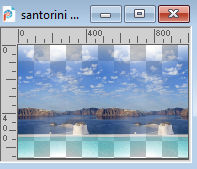
Edit>Copy.
Go back to your work and go to Edit>Paste into Selection.
Selections>Select None.
Activate the layer Raster 1.
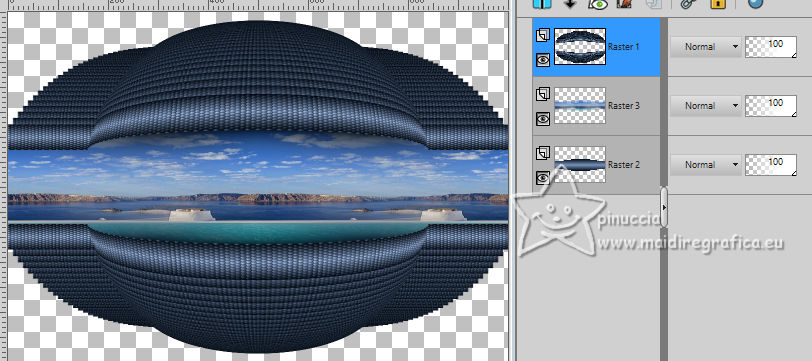
Layers>Merge>Merge Down - 2 times.
11. Image>Resize, to 90%, resize all layers not checked.
12. Selections>Load/Save Selection>Load Selection from Disk.
Look for and load the selection
Santorini-1-MJ
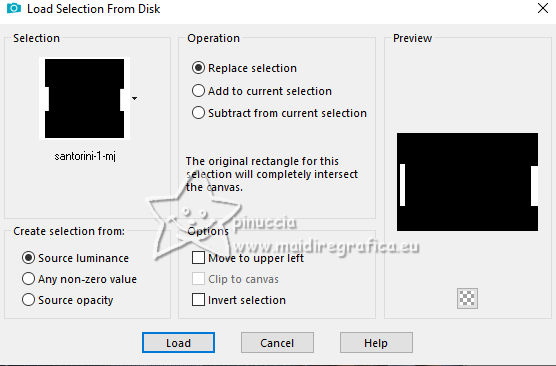
Press CANC on the keyboard

Selections>Select None.
13. Effects>3D Effects>Drop Shadow, color black.
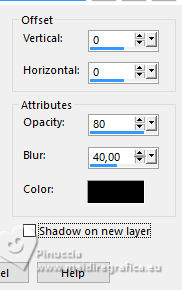
Layers>Duplicate.
14. Effects>Image Effects>Seamless Tiling, default settings
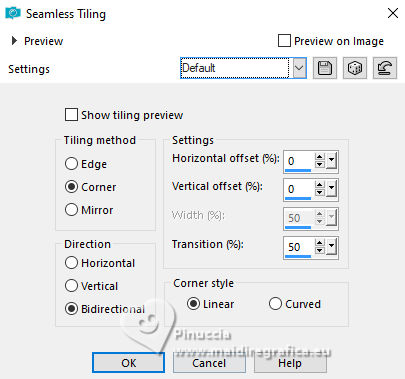
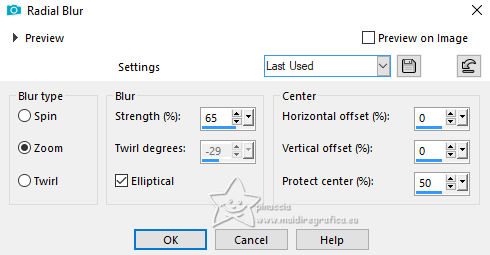
15. Adjust>Blur>Radial Blur.
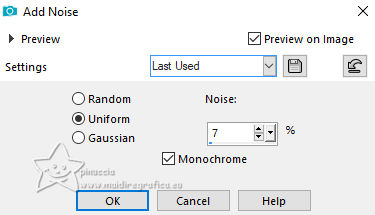
16. Adjust>Add/Remove Noise>Add Noise
17. Adjust>Sharpness>Sharpen More.
Layers>Arrange>Move Down.
Activate the layer Raster 2.
18. Objects>Align>Center in Canvas.
Layers>Merge>Merge Down.
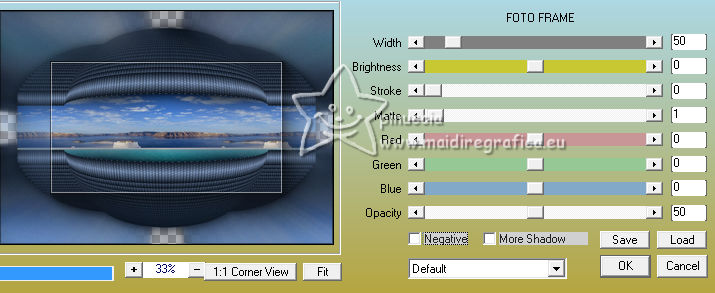
19. Effects>Plugins>AAA Frames - Foto Frame.
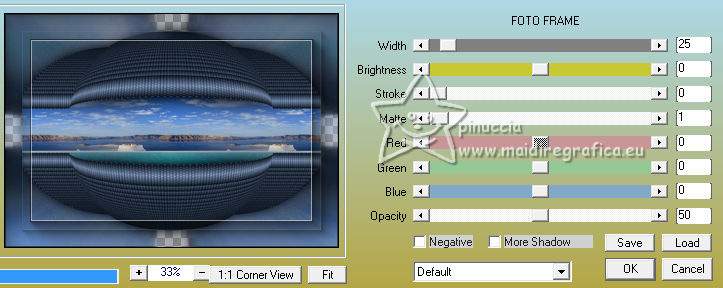
Repeat Effects>Plugins>AAA Frames - Foto Frame, width 25.
20. Layers>New Raster Layer.
Flood Fill
the layer with your Gradient.
21. Effects>Texture Effects>Tiles, same settings.
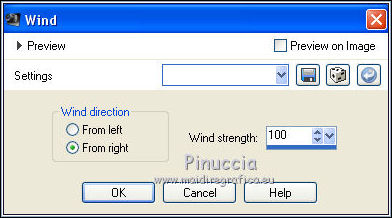
22. Effects>Distortion Effects>Wind - from right, strength 100.
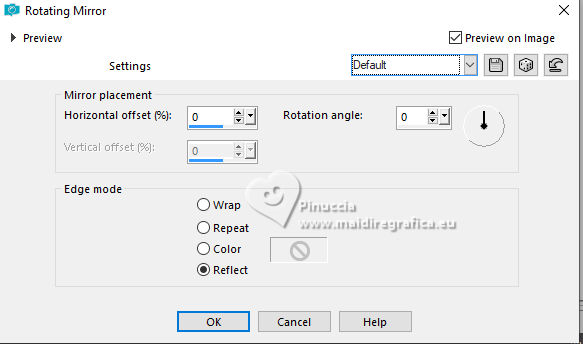
23. Effects>Reflection Effects>Rotating Mirror, default settings.
Adjust>Sharpness>Sharpen More.
Layers>Arrange>Move Down.
24. Image>Add borders, 1 pixel, symmetric, dark color.
25. Selections>Select All.
Edit>Copy
Image>Add borders, 50 pixels, symmetric, color white.
26. Selections>Invert.
Edit>Paste into Selection
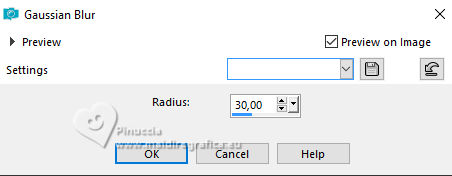
27. Adjust>Blur>Gaussian Blur - radius 30.
28. Layers>New Raster Layer.
Open
bordas-MJ 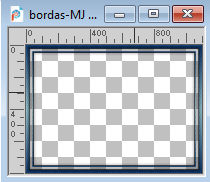
Edit>Copy.
Go back to your work and go to Edit>Paste into Selection.
Change the Blend Mode of this layer to Luminance (legacy) or, if necessary, colorize to your liking.
Selections>Select None.
29. Layers>New Raster Layer.
Flood Fill
the layer with your light background color.
30. Layers>New Mask layer>From image
Open the menu under the source window and you'll see all the files open.
Select the mask
mask 59-mask-MJ.
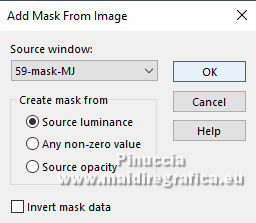
Layers>Merge>Merge Group.
31. Effects>Texture Effects>Weave
weave color: dark color
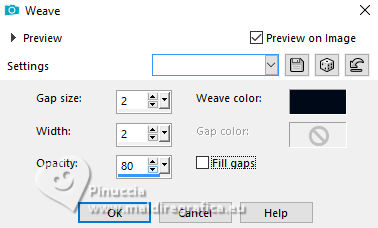
Layers>Duplicate.
Layers>Merge>Merge Down.
32. Effects>Plugins>Mura's Seamless - Emboss at Alpha, default settings.
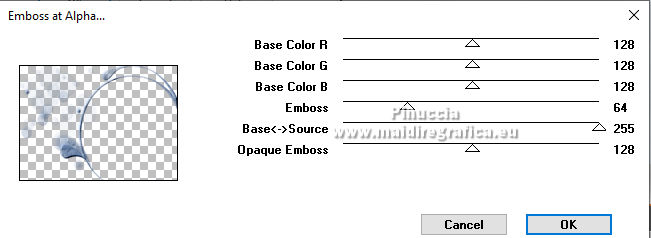
Change the Blend Mode of this layer to Screen.
33. Open the tube
femme892-coly 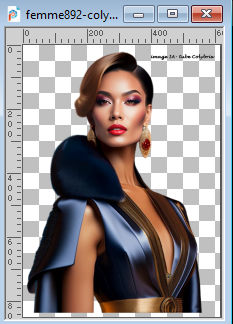
Edit>Copy.
Go back to your work and go to Edit>Paste as new layer.
Image>Mirror.
Image>Resize, to 88%, resize all layers not checker.
Move

the tube to the right side.
Effects>3D Effects>Drop shadow, at your choice.
Layers>Merge>All.
34. Sign your work on a new layer.
Image>Add borders, 1 pixel, symmetric, dark color.
35. Image>Resize, 1000 pixels width, resize all layers checked.
Save as jpg.
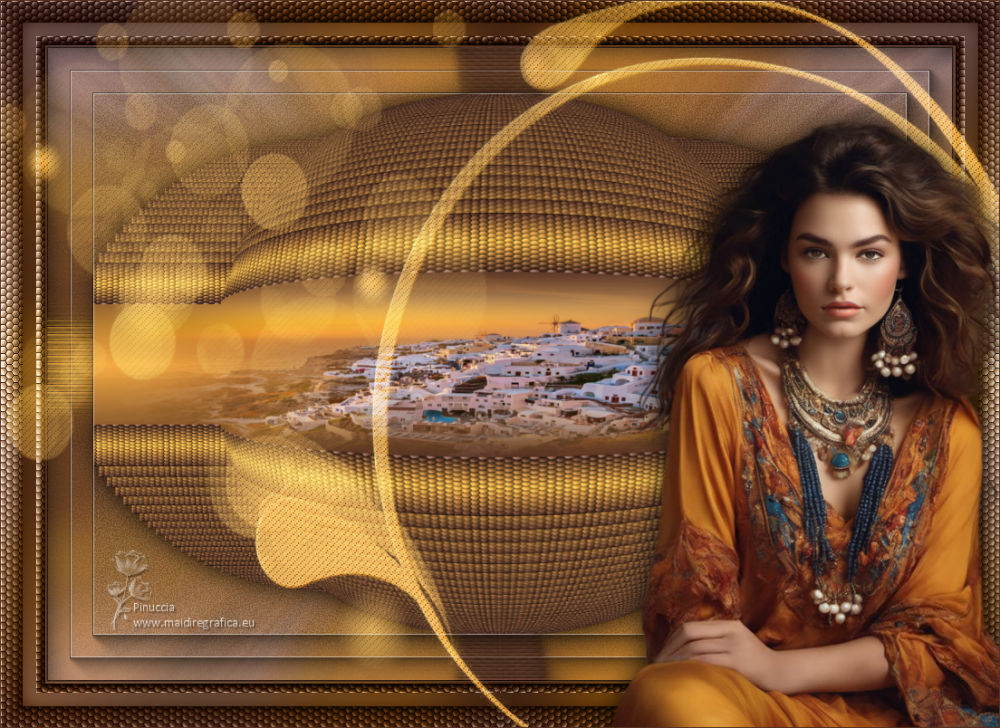
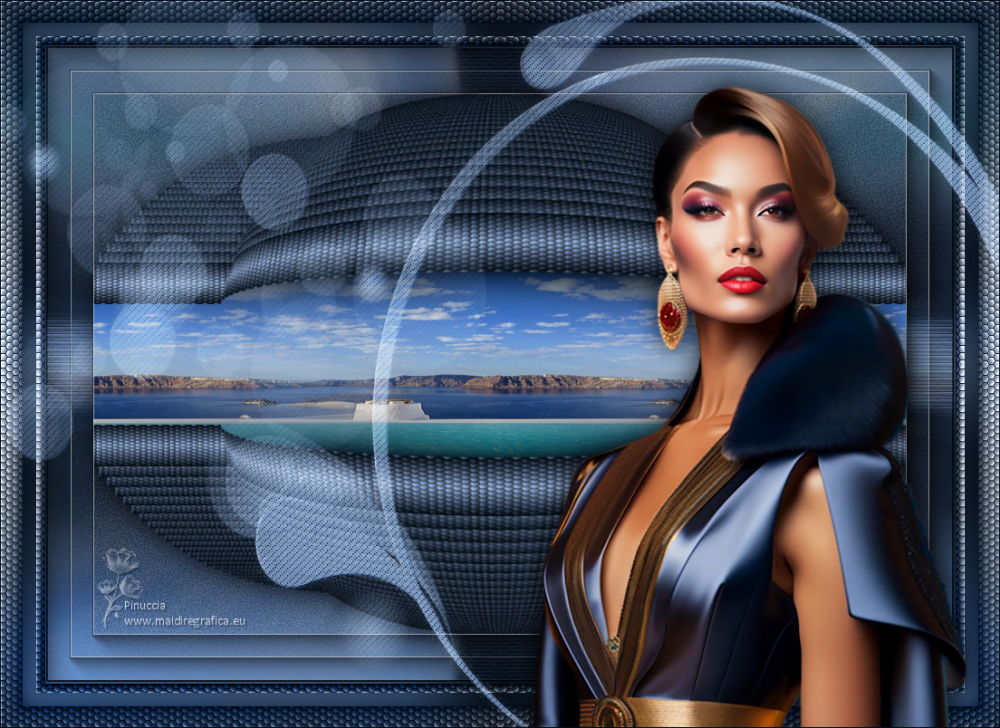
For the tube of these versions thanks Colybrix

If you have problems or doubts, or you find a not worked link,
or only for tell me that you enjoyed this tutorial, write to me.
12 September 2023





 French translation
  your versions