|
TAG WINTER
ENGLISH VERSION
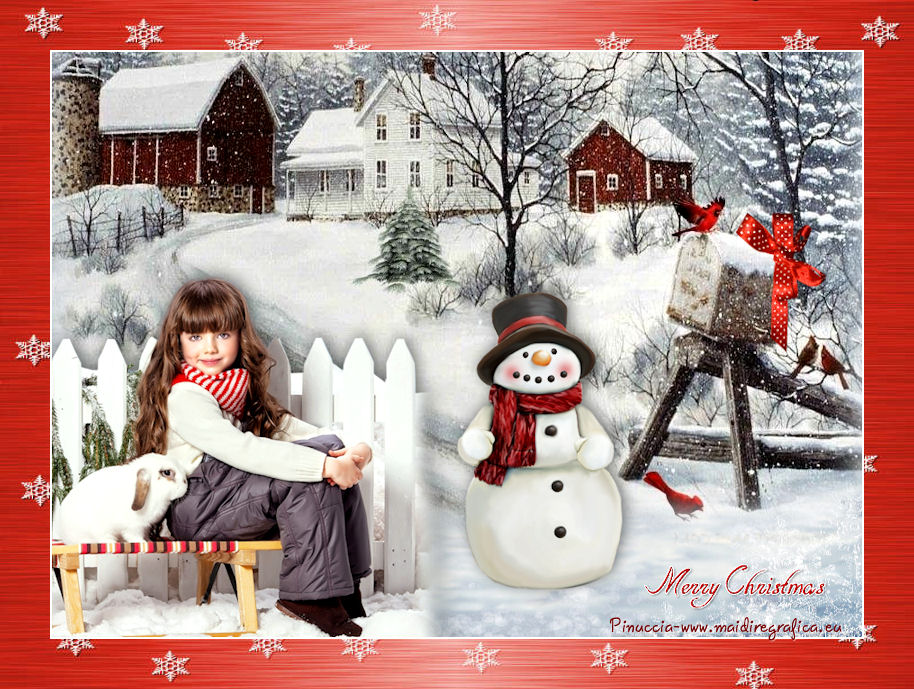
Here you find the original of this tutorial:
This tutorial was translated with PSPX3 but it can also be made using other versions of PSP.
Since version PSP X4, Image>Mirror was replaced with Image>Flip Horizontal,
and Image>Flip with Image>Flip Vertical, there are some variables.
In versions X5 and X6, the functions have been improved by making available the Objects menu.
In the latest version X7 command Image>Mirror and Image>Flip returned, but with new differences.
See my schedule here
French translation here
For this tutorial, you will need:
Material here
Tube Mina.bimba.17.12.15
Paysage hiver misted jewel 011
HighFour_Winter_joy_Paper10
HighFour_Winter_Joy_Element62
Kit 1by_Mago74 el (2)
kit 1by_Mago74 (97)
1. Open a new transparent image 900 x 650 pixels.
2. Selections>Select All.
Open HighFour_Winter_Joy_Paper10 - Edit>Copy.
Go back to your work and go to Edit>Paste into selection.
Selections>Select None.
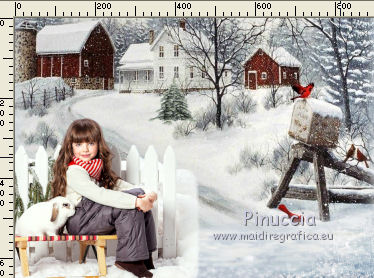
3. Open the winter landscape misted jewel 011, erase the watermark and Edit>Copy.
Go back to your work and go to Edit>Paste as new layer.
Move  the tube a bit to the top, see my example. the tube a bit to the top, see my example.
4. Open the tube Mina.bimba.17.12.15 - Edit>Copy.
Go back to your work and go to Edit>Paste as new layers.
Image>Resize, 2 times to 80%, resize all layers not checked.
5. Image>Mirror.
Move the tube at the bottom left.
6. Activate the Eraser tool 
and erase the white shadow of the tube.
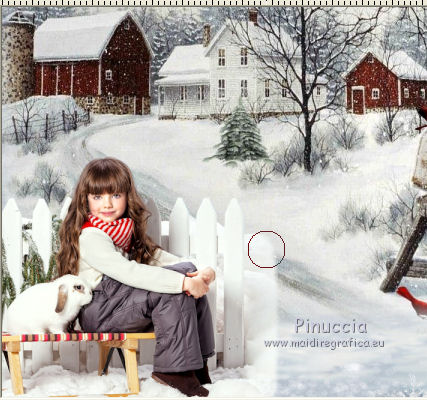
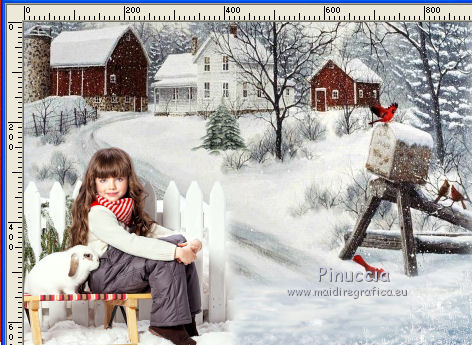
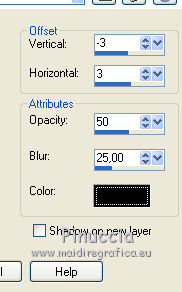
7. Effects>3D Effects>Drop Shadow, color black.
8. Open HighFour_Winter_Joy_Element62 - Edit>Copy.
Go back to your work and go to Edit>Paste as new layers.
Image>Resize, to 80%, resize all layers not checked.
Place rightly the tube.
9. Effects>3D Effects>Drop Shadow, same settings.
10. Open kit 1by_Mago74 (97) - Edit>Copy.
Go back to your work and go to Edit>Paste as new layers.
Place the tube on the cage.

11. Open Kit 1by_Mago74 el (2) - Edit>Copy.
Go back to your work and go to Edit>Paste as new layers.
Move the text at the bottom right.
12. Layers>Merge>Merge All.
13. Image>Add Borders, 2 pixels, symmetric, color white.
14. Image>Resize, 90%, resize all layers checked.
15. Image>Add Borders, 50 pixels, symmetric, color #c00000.
16. Activate the Magic Want Tool 
and clic on the white bord to select it.
17. Open the background image navidad_12 - Edit>Copy.
Go back to your work and go to Edit>Paste into Selection.
Selections>Select None.
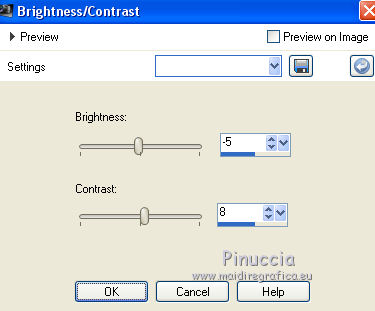
18. Adjust>Brightness and Contrast>Brightness and Contrast.
19. Layers>Merge>Merge All.
20. Image>Add Borders, 2 pixels, symmetric, color white.
21. Sign your work and save as jpg.

If you have problems or doubt, or you find a not worked link, or only for tell me that you enjoyed this tutorial, write to me.
29 November 2016
|