|
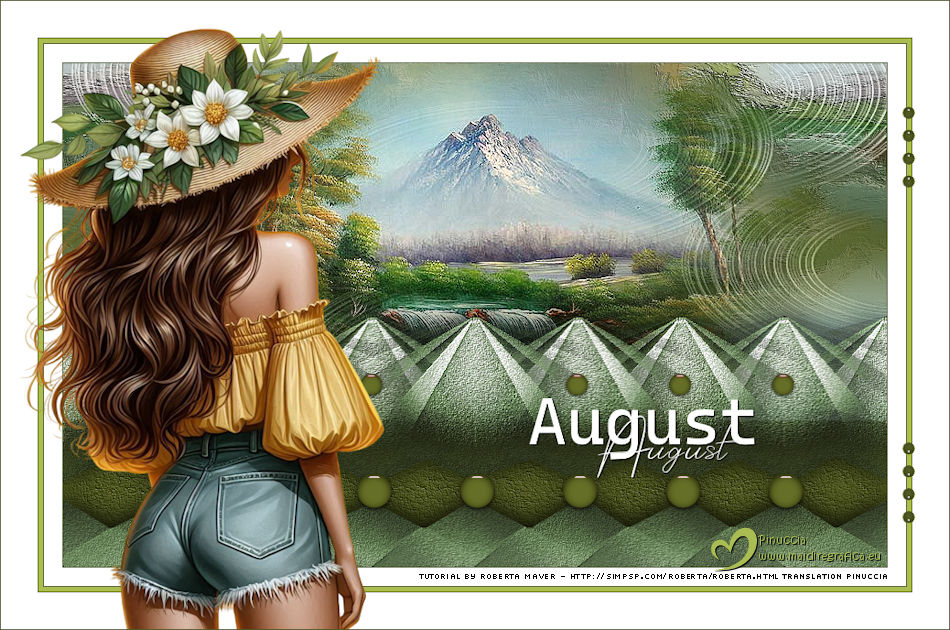
AUGUST

Thanks SIM PSP Group for your invitation to translate your tutorials into english

|
Special Note
PSP SIM and its Tutorial Authors ask the public:
. Please, we request that we maintain the originality of the tutorial,
refraining from adding or including unsolicited effects;
. The use of other images is permitted and encouraged,
but please don't modify the content of the original tutorial;
. Please acknowledge and attribute the valuable credits to those who write tutorials,
make translation and create materials.
Carefully,
PSP SIM and Roberta Maver
|
This tutorial was written with Psp2022 and translated with Psp2020, but it can also be made using other versions of PSP.
Since version PSP X4, Image>Mirror was replaced with Image>Flip Horizontal,
and Image>Flip with Image>Flip Vertical, there are some variables.
In versions X5 and X6, the functions have been improved by making available the Objects menu.
In the latest version X7 command Image>Mirror and Image>Flip returned, but with new differences.
See my schedule here
For this tutorial, you will need:

Material by Roberta Maver.
(The links of the tubemakers here).
Plugins
consult, if necessary, my filter section here
Filters Unlimited 2.0 here
Italian Editors Generatore. Pattern Piramide here
Transparency. Eliminate Black here
Mura's Meister. Copies here
Filters Italian Editors and Transparency can be used alone or imported into Filters Unlimited.
(How do, you see here)
If a plugin supplied appears with this icon  it must necessarily be imported into Unlimited it must necessarily be imported into Unlimited

You can change Blend Modes according to your colors.
In the newest versions of PSP, you don't find the foreground/background gradient (Corel_06_029).
You can use the gradients of the older versions.
The Gradient of CorelX here
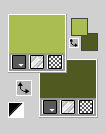
1. Choose 2 colors for your work.
Set your foreground color to #aabd52,
and your background color to #505920.
2. Apri AlphaChannel_byRobertaMaver
This image, that will be the basis of your work, is not empty,
but contains the selections saved to alpha channel.
Flood Fill  the transparent image with your Background color #505920. the transparent image with your Background color #505920.
3. Layers>New Raster Layer.
Selections>Select All.
Open the misted Mist01_byRobertaMaver 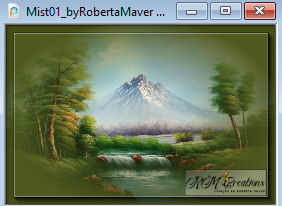
Edit>Copy.
Go back to your work and go to Edit>Paste Into Selection.
Selections>Select None.
4. Effects>Image Effects>Seamless Tiling, default settings.

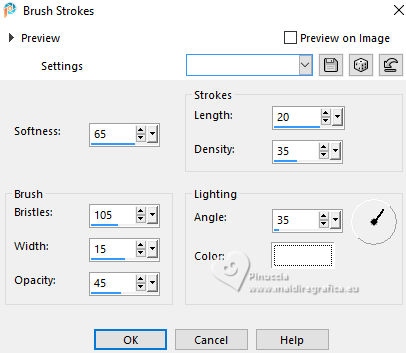
5. Effects>Art Media Effects>Brush Strokes.
6. Close the layer Raster 2.
Layers>New Raster Layer.
Flood Fill the layer with your background color #505920.
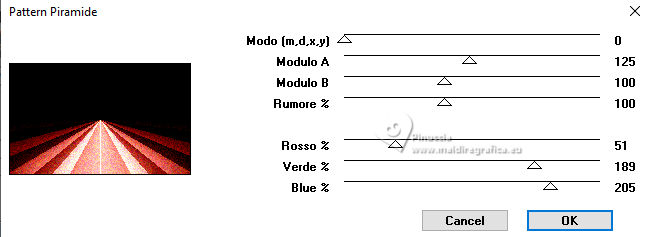
Effects>Plugins>Italian Editors Generatore - Pattern Piramide.
7. Adjust>Hue and Saturation>Colorize
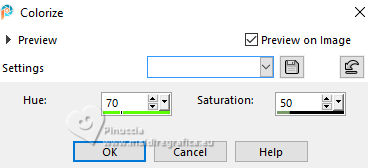
Adjust Hue according to one of your colors.
Result:
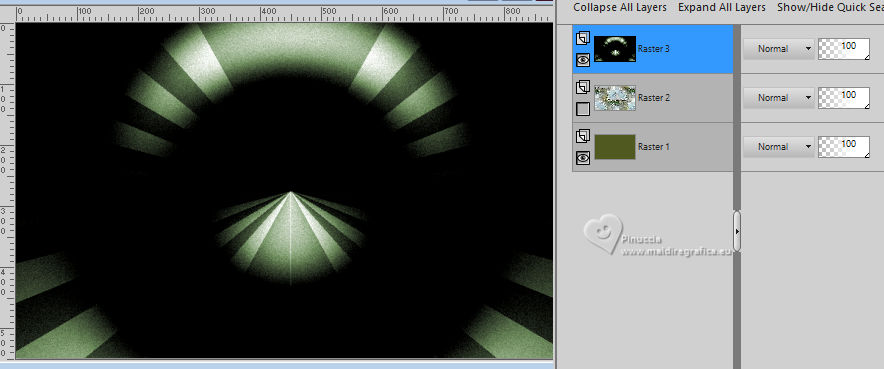
8. Effects>Plugins>Transparency - Eliminate Black.
Result:
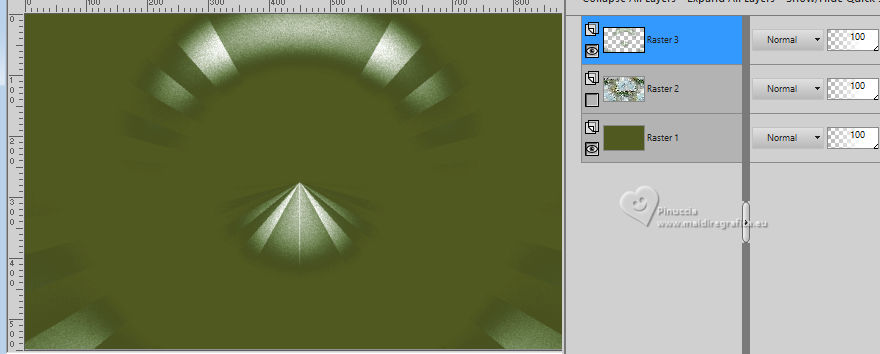
Selections>Load/Save Selection>Load Selection From Alpha Channel.
The selection Selection #1 is immediately available. You just have to click Load.
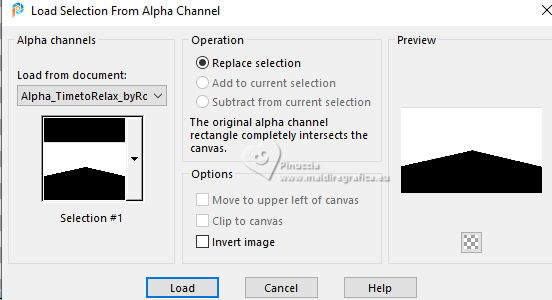
Press CANC on the keyboard  . .
Selections>Select None.
9. Layers>Duplicate.
Layers>Merge>Merge Down.
Activate your Scratch Remover Tool 
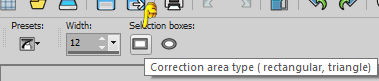
clean the central scratch on the "pyramid".
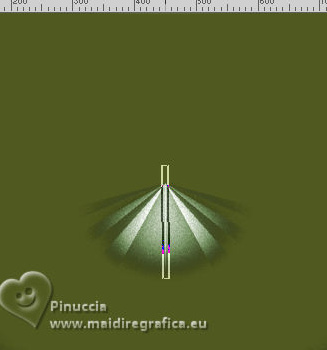 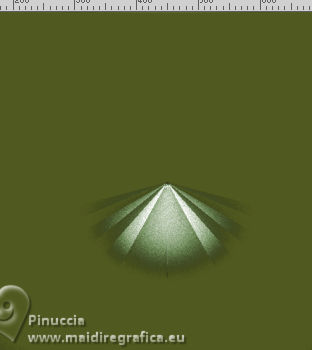
10. Selections>Load/Save Selection>Load Selection From Alpha Channel.
Open the selections menu and load the Selection #2
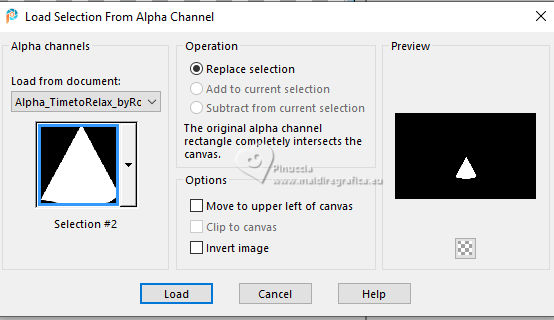
Adjust>Add/Remove Noise>Add Noise
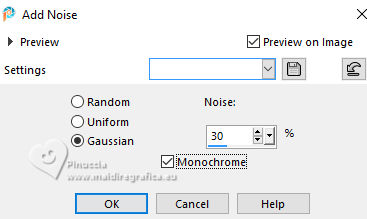
Selections>Select None.
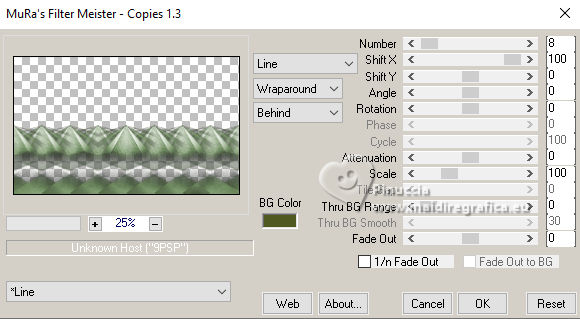
11. Effects>Plugins>Mura's Meister - Copies
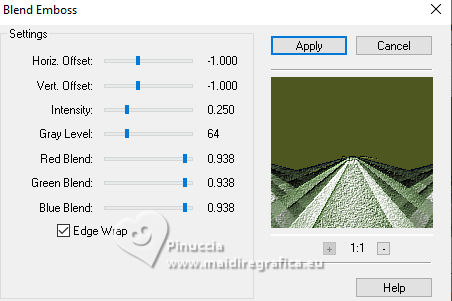
12. Effects>Plugins>FM Tile Tools - Blend Emboss, default settings.
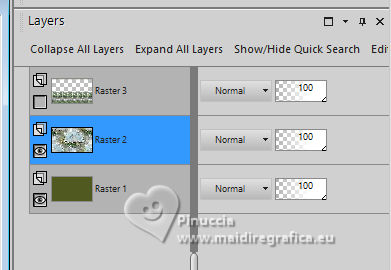
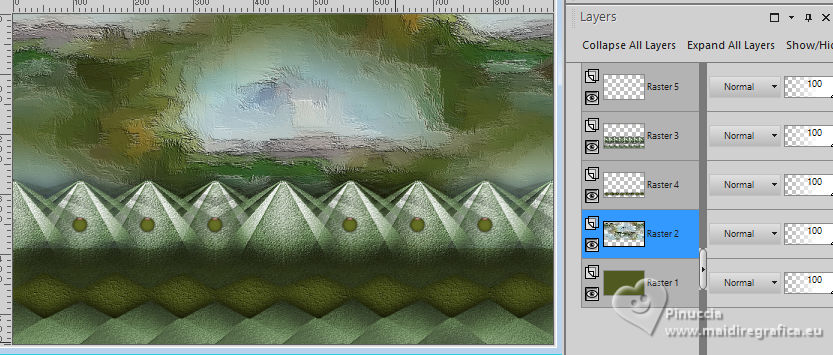
13. Close the layer Raster 3.
Open and activate the layer Raster 2.
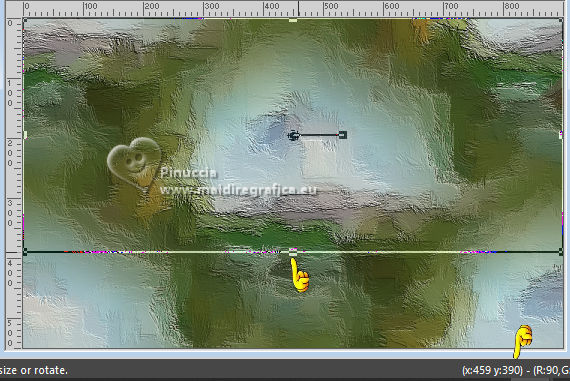
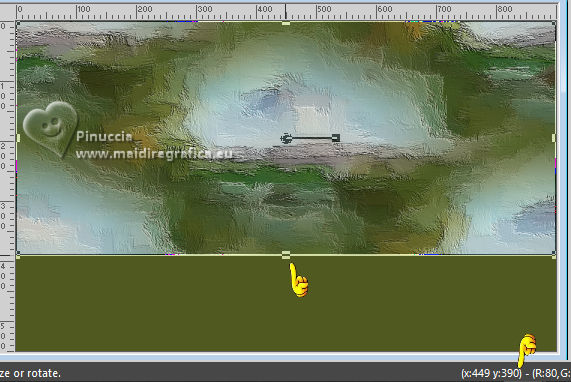
Activate your Pick Tool 
pull the bottom central knot up until 390 pixels
14. Open and activate the layer Raster 3.
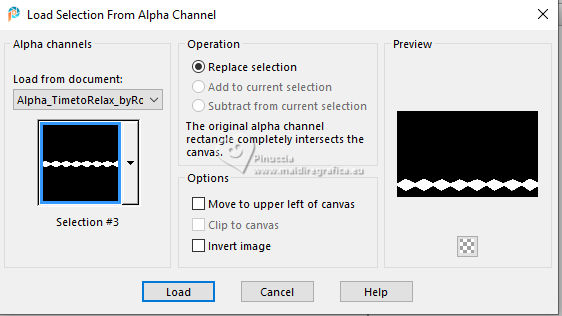
Selections>Load/Save Selection>Load Selection From Alpha Channel
Open the selections menu and load Selection #3
Press CANC on the keyboard.
Keep selected.
15. Layers>New Raster Layer.
Flood Fill the layer with your background color #505920.
Effects>Texture Effects>Fine Leather
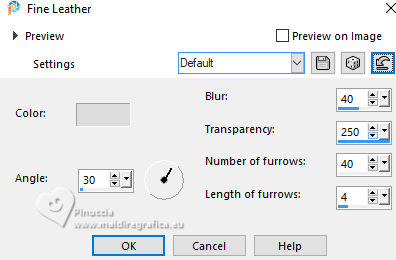
Selections>Select None.
Layers>Arrange>Move Down.
Effects>3D Effects>Drop Shadow, color #000000.
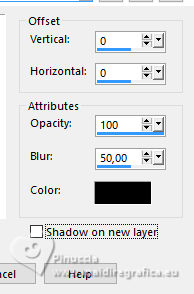
16. Activate your top layer, Raster 3.
Edit>Repeat Drop Shadow.
17. Open Decor02_byRobertaMaver 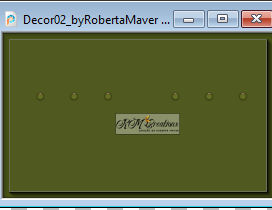
Edit>Copy.
Go back to your work and go to Edit>Paste as New Layer.
Pick Tool
Position X: 96,00 - Position Y: 337,00.
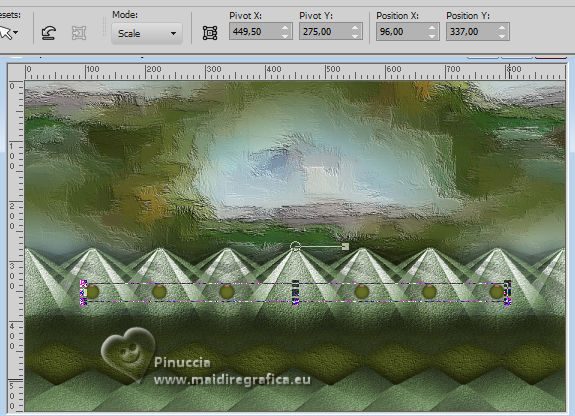
18. Activate the layer Raster 2.
Open Decor01_byRobertaMaver 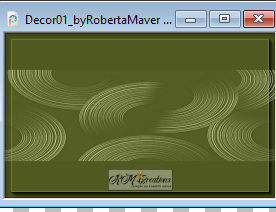
Edit>Copy.
Go back to your work and go to Edit>Paste as new layer.
Objects>Align>Top.
Layers>Properties>General>Blend Mode: Luminance (L)
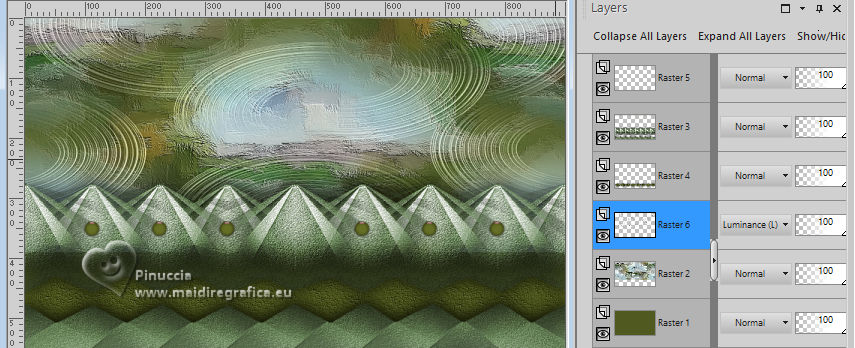
19. Activate again your landscape Mist01_byRobertaMaver and go to Edit>Copy.
Go back to your work and go to Edit>Paste a new Layer.
Resize, if necessary.
Objects>Align>Top or move  at the top. at the top.
Adjust>Sharpness>Sharpen.
20. Activate your top Layer, Raster 5.
Open Decor03_byRobertaMaver 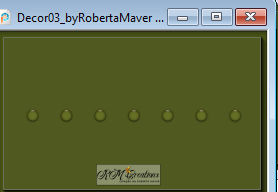
Edit>Copy.
Go back to your work and go to Edit>Paste as New Layer.
Pick Tool
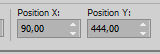
Position X: 90,00 - Position Y: 444,00.
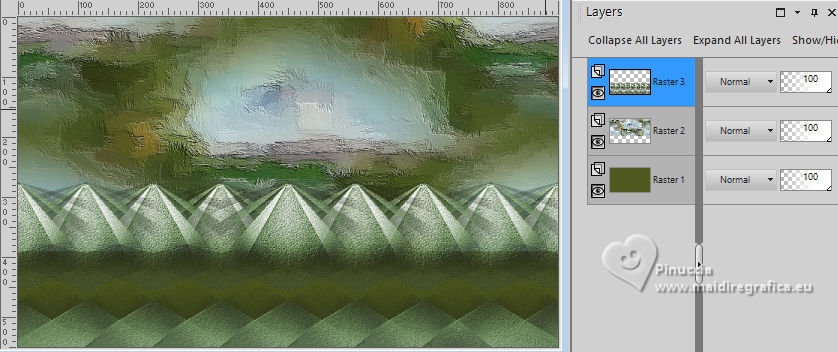
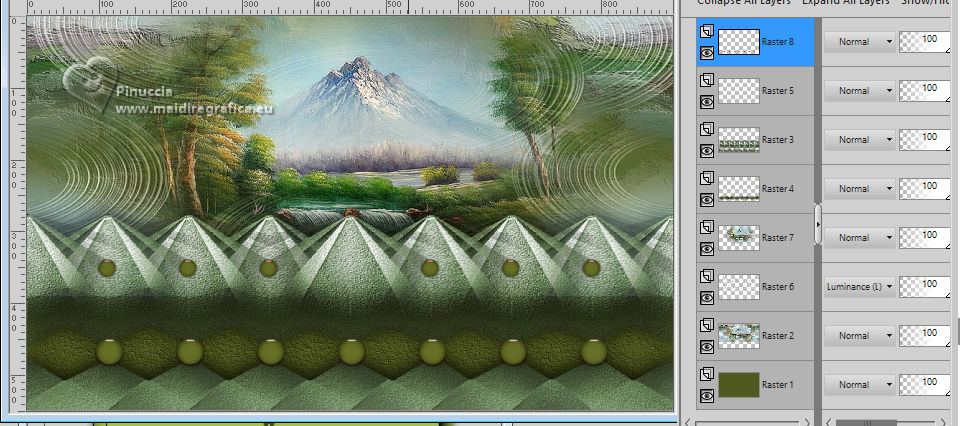
Your tag and the layers:
21. Image>Add Borders, 1 pixel, symmetric, background color #505920.
Image>Add Borders, 20 pixels, symmetric, color white #ffffff.
Image>Add Borders, 1 pixel, symmetric, background color #505920.
Image>Add Borders, 5 pixels, symmetric, foreground color #aabd52.
Image>Add Borders, 1 pixel, symmetric, background color #505920.
Image>Add Borders, 40 pixels, symmetric, color white #ffffff.
22. Open your main tube Tube80_byRobertaMaver 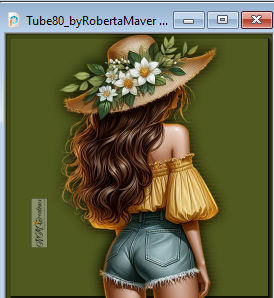
Edit>Copy.
Go back to your work and go to Edit>Paste a new Layer.
Image>Resize, if necessary, for the supplied tube to 63%, resize all layers not checked.
Move the tube to the left side.
Effects>3D Effects>Drop shadow, at your choice.
23. Open Decor04_byRobertaMaver 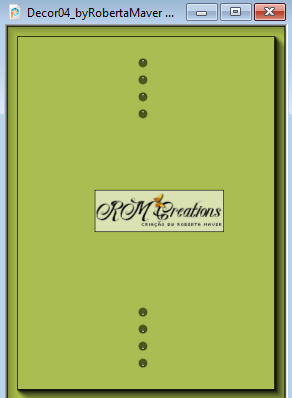
Edit>Copy.
Go back to your work and go to Edit>Paste as New Layer.
Pick Tool
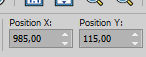
Position X: 985,00 - Position Y: 115,00.
24. Open Titulo_byRobertaMaver 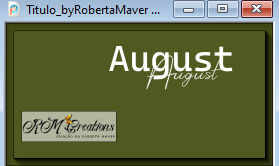
Edit>Copy.
Go back to your work and go to Edit>Paste as new layer.
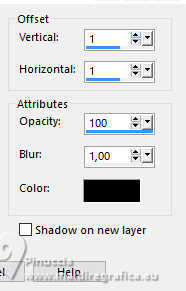
Effects>3D Effects>Drop Shadow, color #000000.
Place the text to your liking.
25. Image>Add Borders, 1 pixel, symmetric, background color #505920.
26. Image>Resize, if you want.
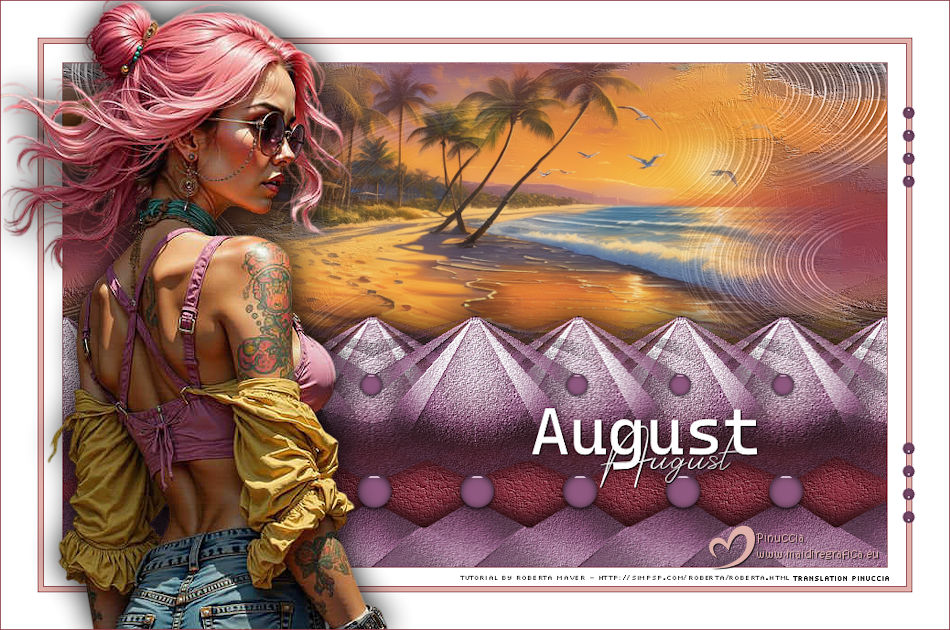
Sign your work and save as jpg.
For the misted thanks Kamil; the tube is mine from a Pinterest image
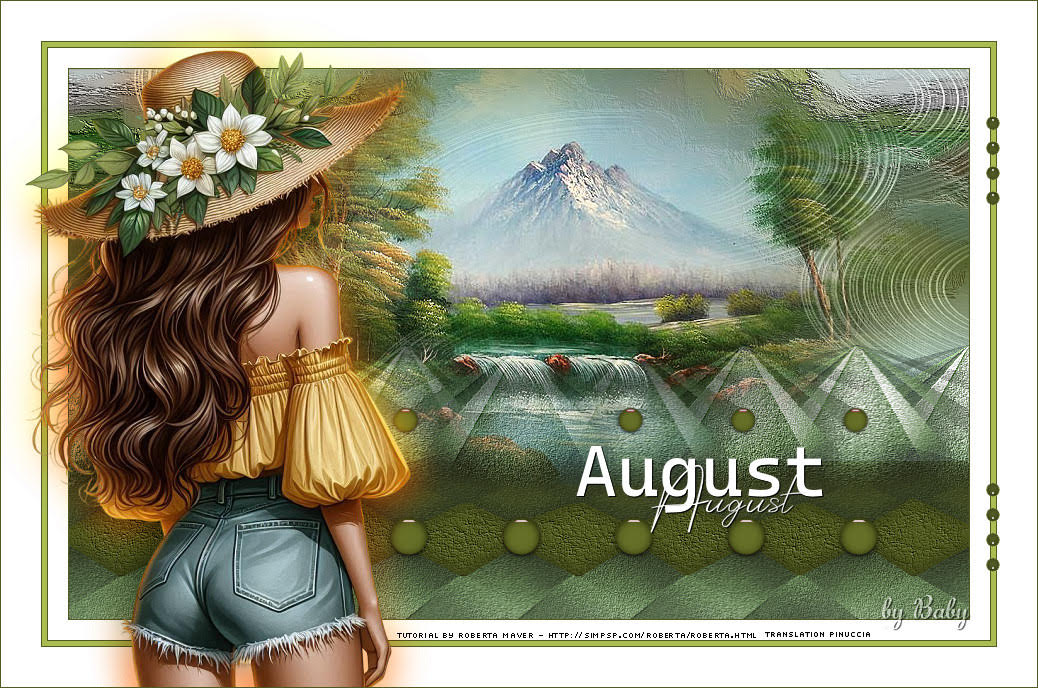
Baby
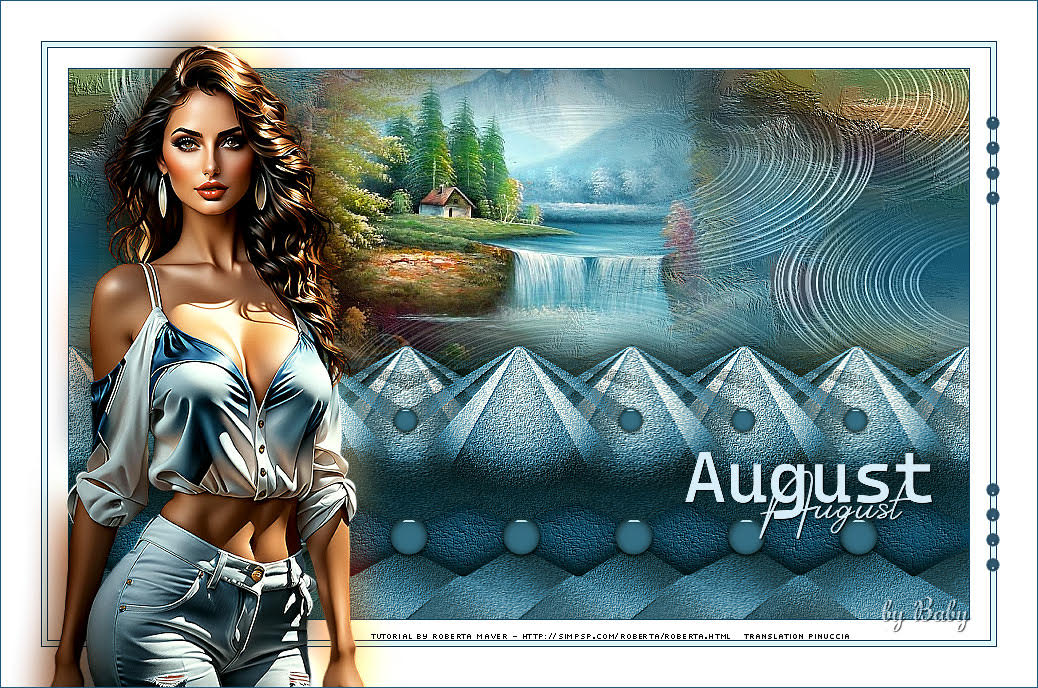
Baby
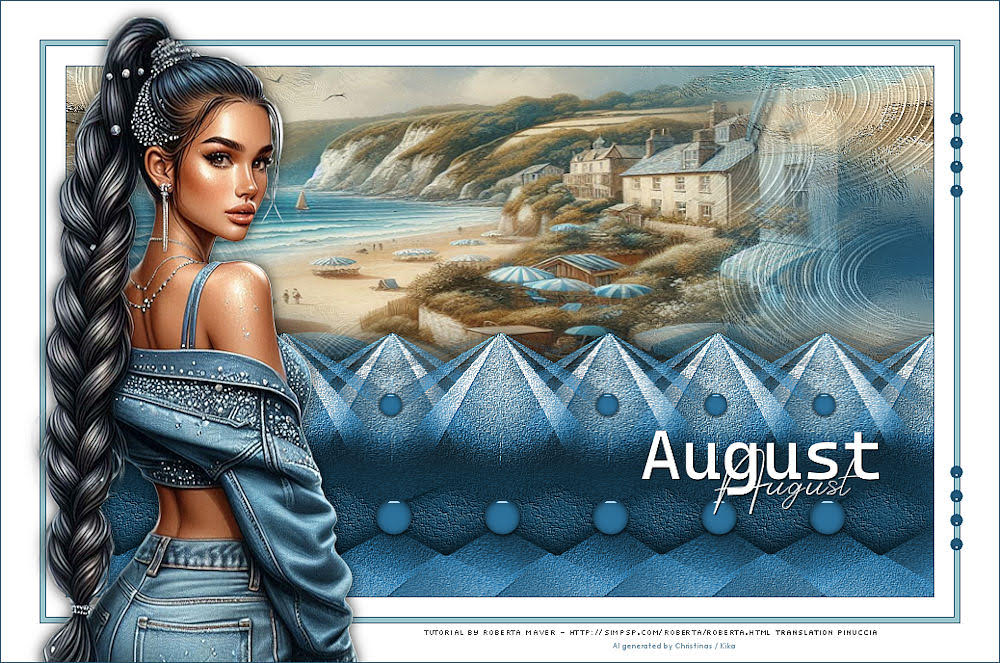
Kika
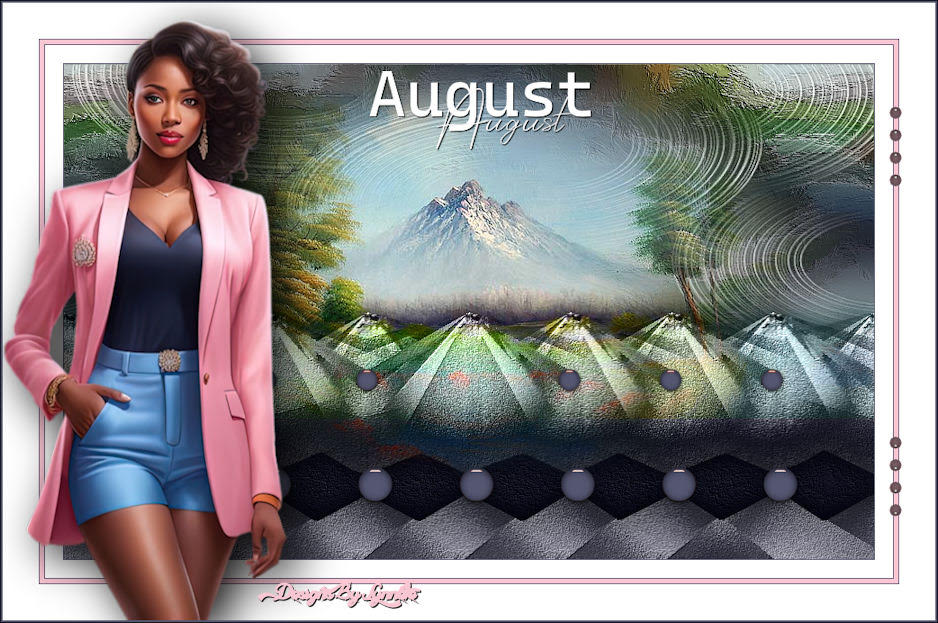
Lynnette
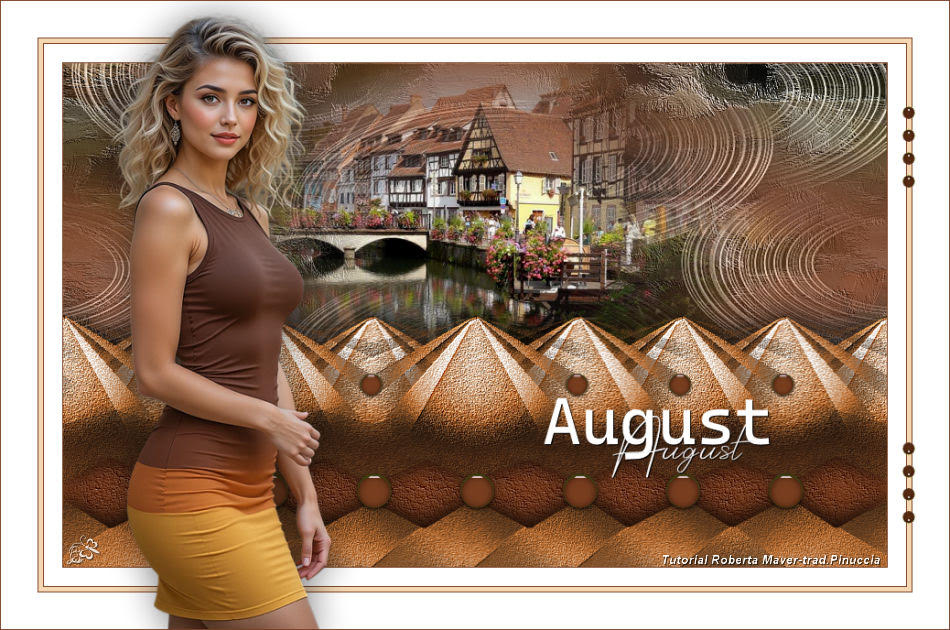
Jolcsi
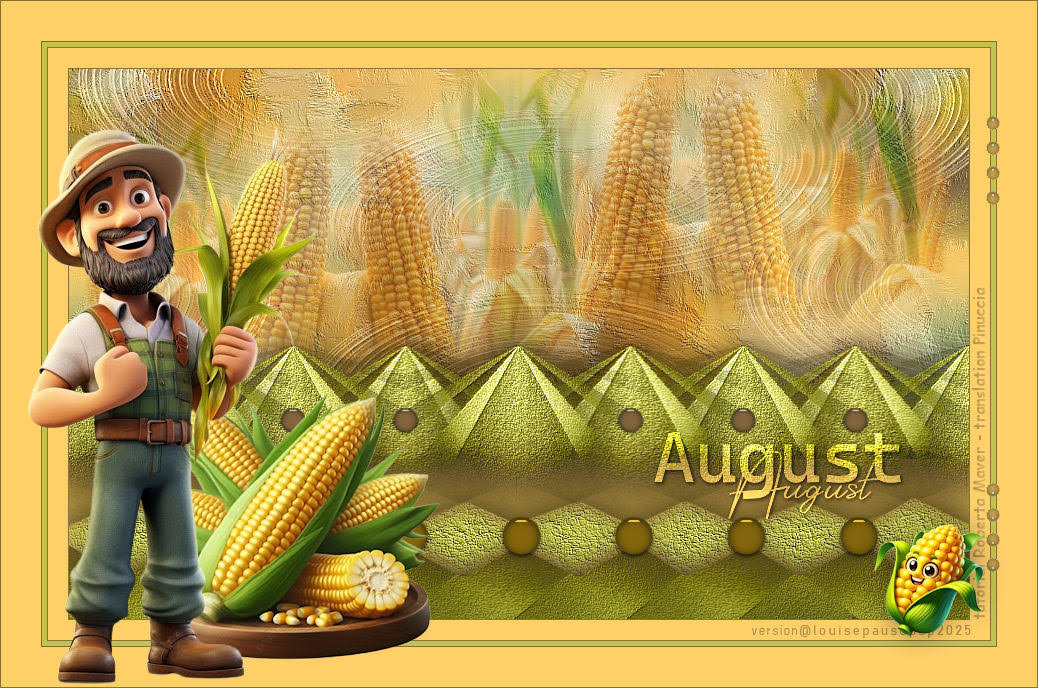
Louise
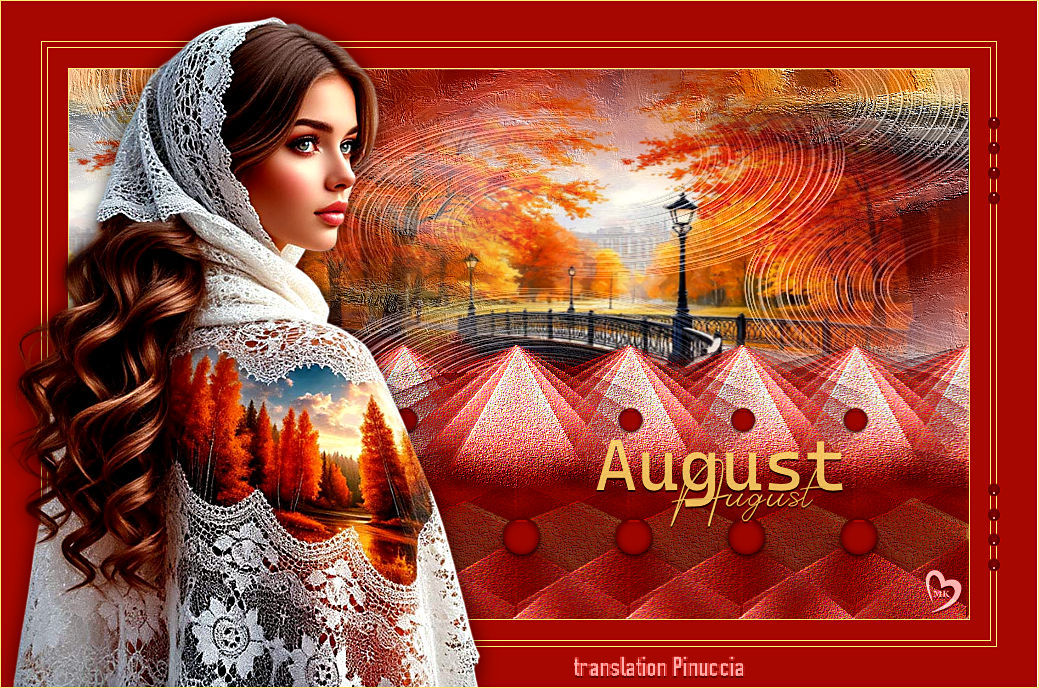
Kamelius
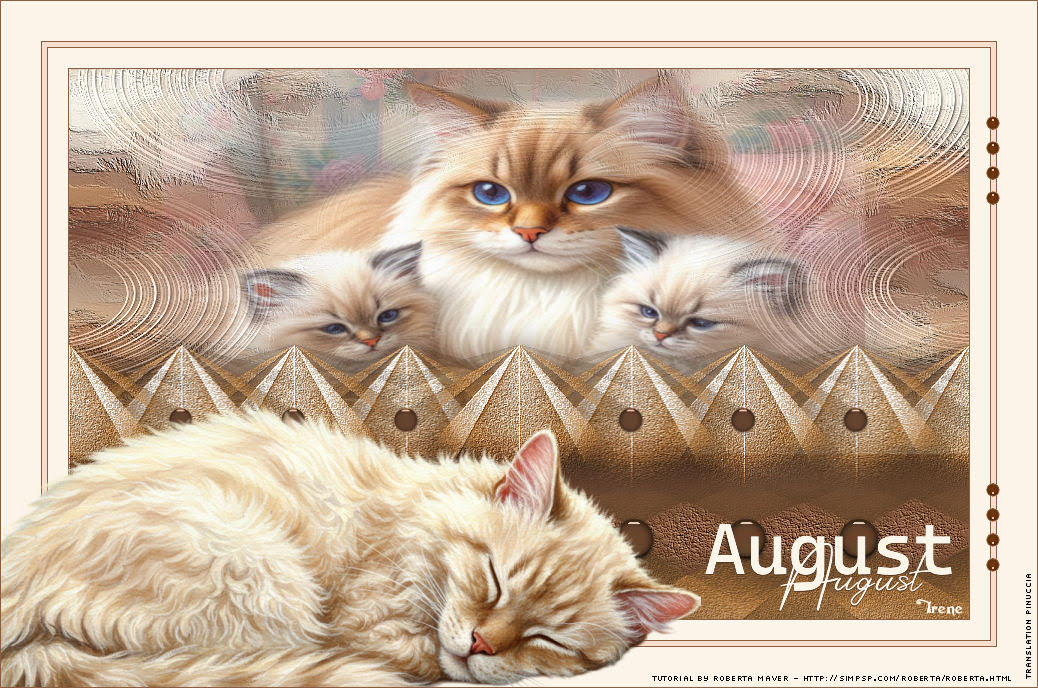
Irene

 Your versions. Thanks Your versions. Thanks

If you have problems or doubts, or you find a not worked link, or only for tell me that you enjoyed this tutorial, write to me.
17 august 2025

|