|
EVELYNE  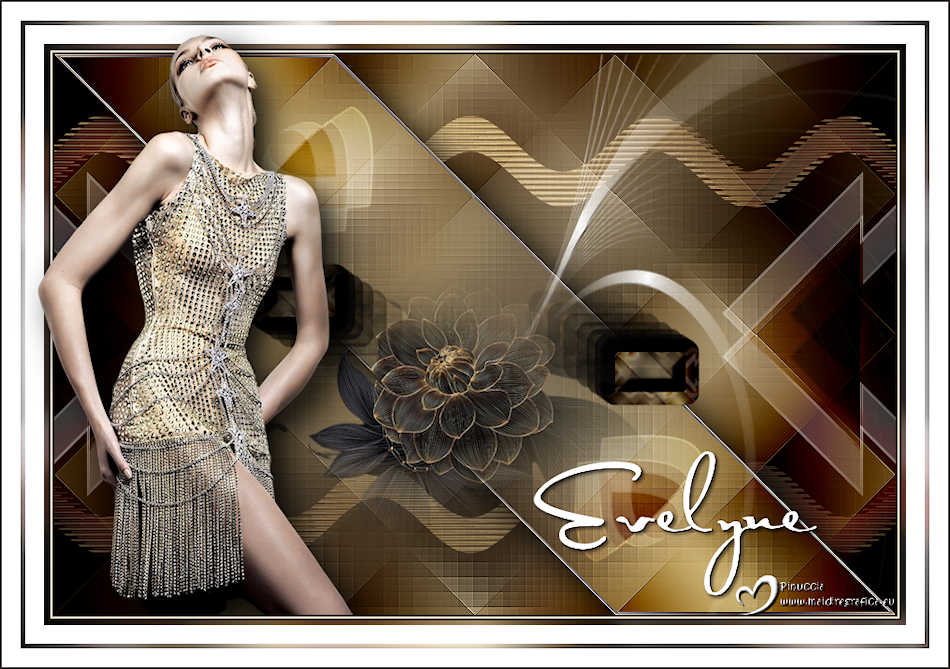

This tutorial was written with Psp2022 and translated with PspX2020, but it can also be made using other versions of PSP.
For this tutorial, you will need:  Thank for the tubes PqnaAlice. The rest of the material is by Soxikibem. (The links of the tubemakers here).  consult, if necessary, my filter section here Filters Unlimited 2.0 here &<Bkg Designer sf10I> - Cruncher (to import in Unlimited) here Alien Skin Eye Candy 5 Impact - Bevel here AFS IMPORT - Helzenbe here Mehdi - Sorting Tiles here Mura's Meister - Copies here Mura's Seamless - Emboss at Alpha here Filters AFS and Mura's Seamless can be used alone or imported into Filters Unlimited. (How do, you see here) If a plugin supplied appears with this icon  it must necessarily be imported into Unlimited it must necessarily be imported into Unlimited You can change Blend Modes according to your colors. In the newest versions of PSP, you don't find the foreground/background gradient (Corel_06_029). You can use the gradients of the older versions. The Gradient of CorelX here  Copy the Selections in the Selections Folder. Open the mask in PSP and minimize it with the rest of the material. 1. Choose 3 colors from your material. Foreground color #2f201d, background color #eae2cb 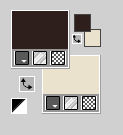 color 3: #ffffff. Set your foreground color to a Foreground/Background Gradient, style Linear. 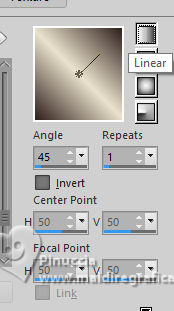 2. Open a new transparent image 900 x 600 pixels. Flood Fill  the transparent image with your Gradient. the transparent image with your Gradient.3. Adjust>Blur>Gaussian Blur - radius 20. 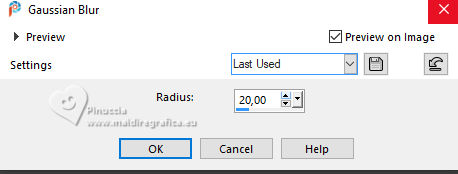 3. Layers>New Raster Layer. Selections>Select All. Open the woman's tube 1038MulherByPqnaAlice 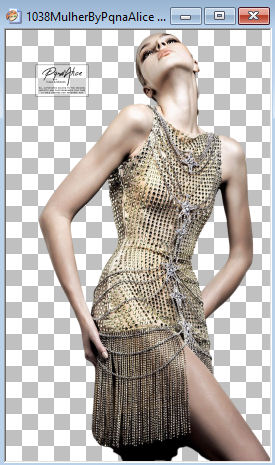 Erase the watermark and go to Edit>Copy. Minimize the tube. Go back to your work and go to Edit>Paste Into Selection. Selections>Select None. 4. Effects>Image Effects>Seamless Tiling, default settings.  Adjust>Blur>Gaussian Blur - radius 30. 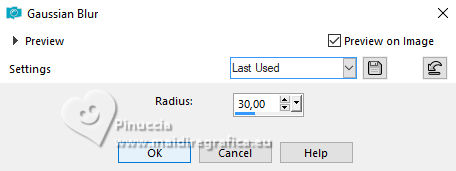 Effects>Plugins>Filters Unlimited 2.0 - AFS IMPORT - Helzenbe 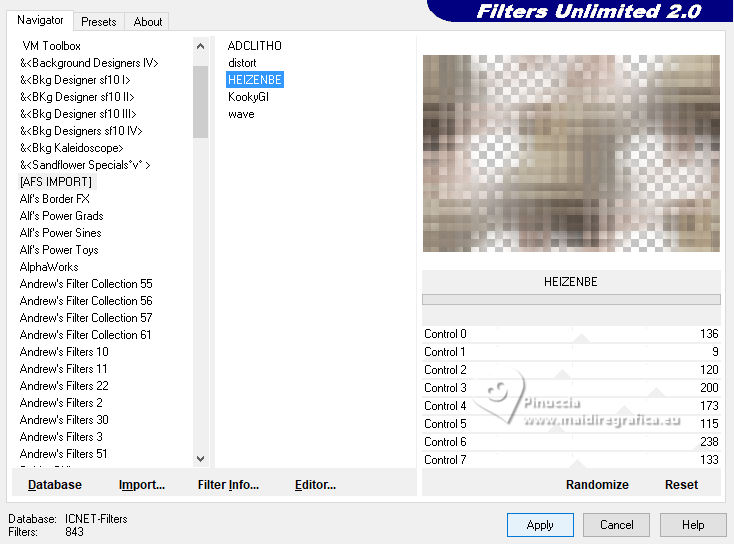 5. Again Effects>Plugins>Filters Unlimited 2.0 - AFS IMPORT - Helzenbe, default settings 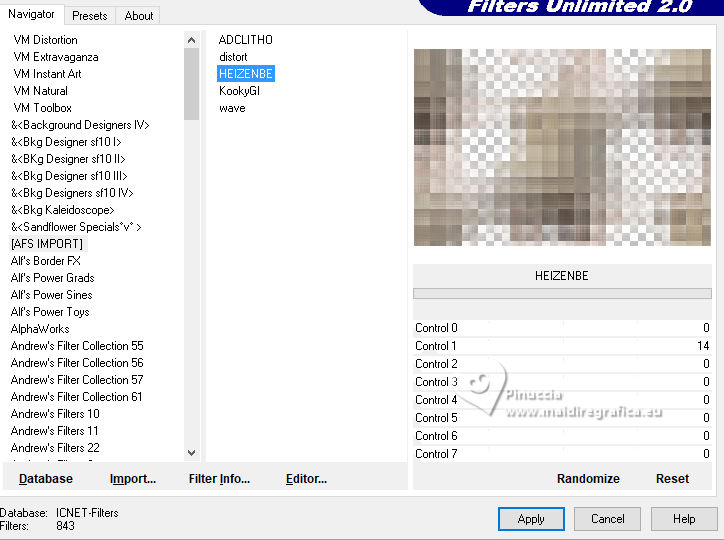 Effects>Edge Effects>Enhance. Change the Blend Mode of this layer to Multiply 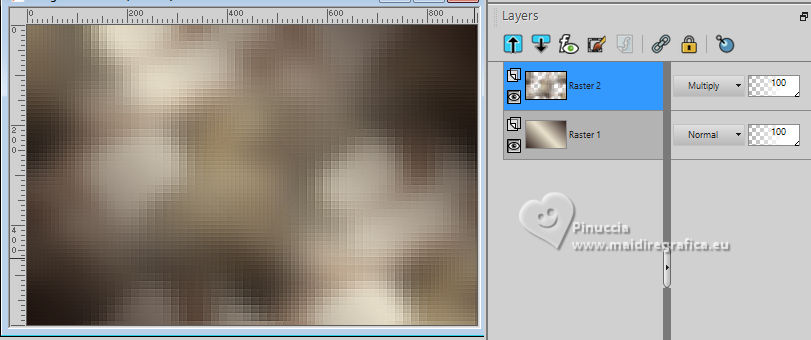 6. Activate the layer Raster 1. Effects>Plugins>Mehdi - Sorting Tiles. 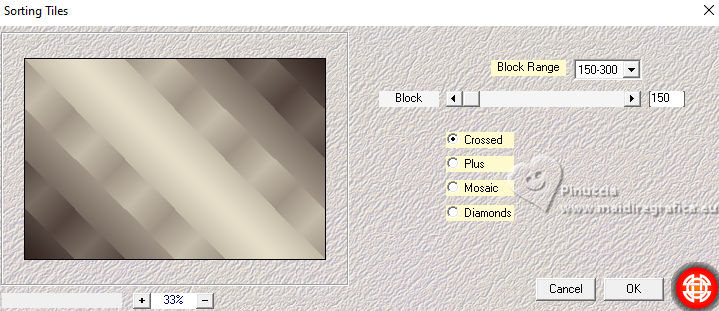 Effects>Edge Effects>Enhance. 7. Layers>Duplicate. Image>Mirror>Mirror Horizontal. Change the Blend Mode of this layer to Burn. 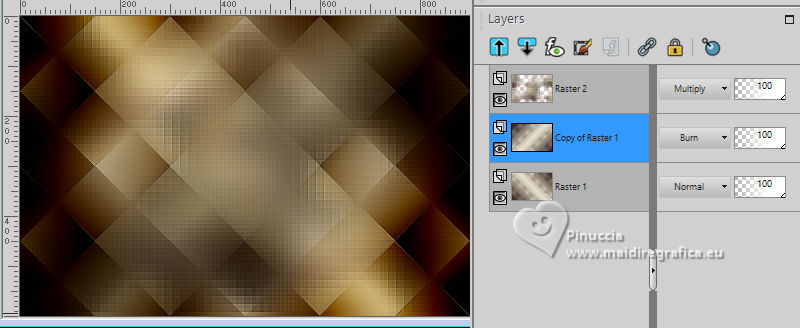 Layers>Merge>Merge visible. 8. Selections>Load/Save Selection>Load Selection from Disk. Look for and load the selection Selection260_Xiki1 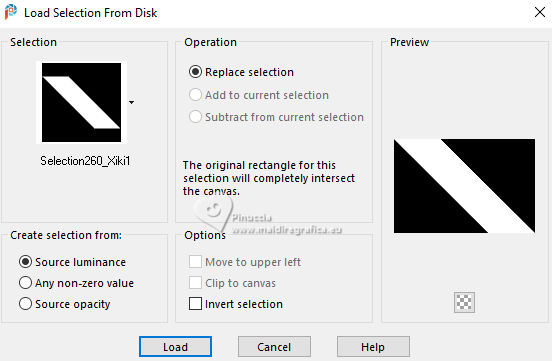 Selections>Promote Selection to Layer. Selections>Modify>Select Selection Borders. 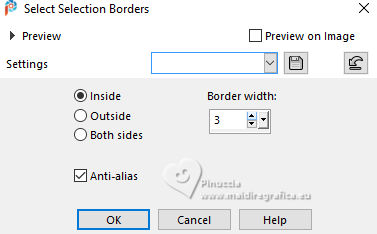 9. Change the settings of your Gradient, Repeats 3 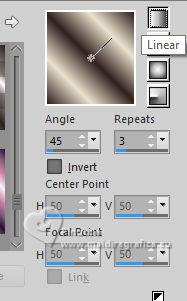 Flood Fill the selection with your Gradient.Effects>Edge Effects>Enhance. Selections>Select None. Effects>3D Effects>Drop Shadow, color black. 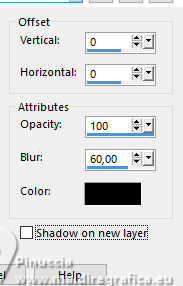 10. Activate the layer Merged. Selections>Load/Save Selection>Load Selection from Disk. Look for and load the selection Selection260_Xiki2 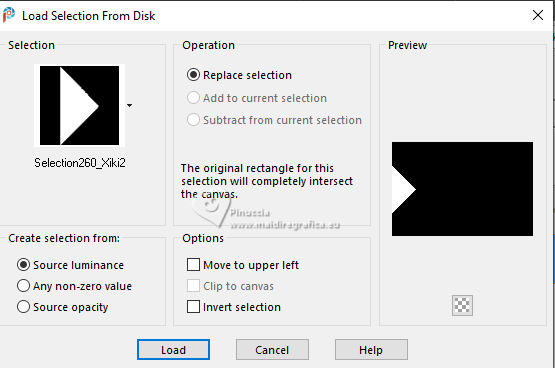 Selections>Promote Selection to Layer. Selections>Modify>Select Selection Borders, same settings. 11. Flood Fill the selection with your last Gradient.Effects>Edge Effects>Enhance. Selections>Select None. 12. Effects>Plugins>Filters Unlimited 2.0 - &<Bkg Designer sf10I> - Cruncher, default settings. 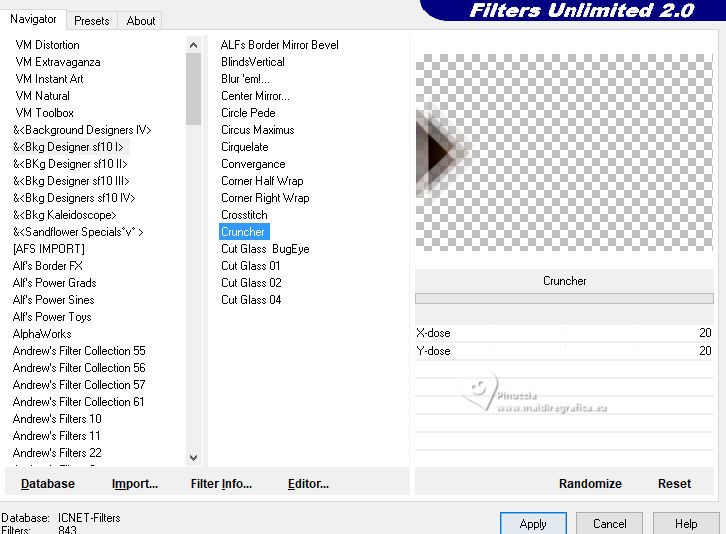 13. Effects>Reflection Effects>Rotating Mirror. 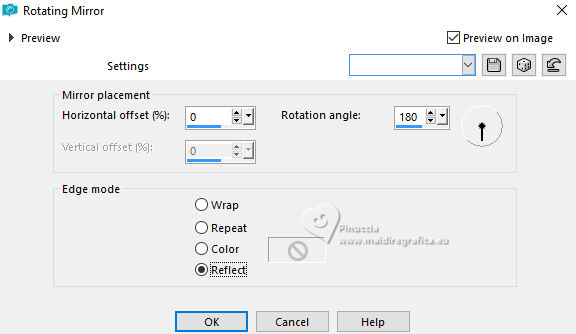 Change the Blend Mode of this layer to Hard Light. 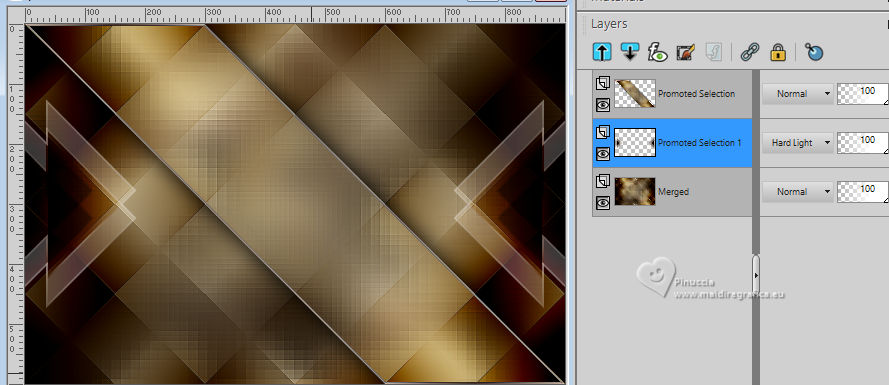 14. Layers>Duplicate. Effects>Geometric Effects>Circle 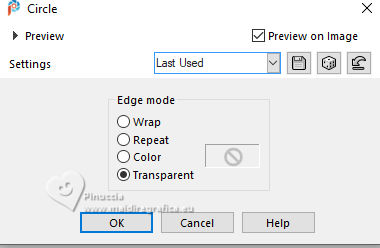 Layers>Arrange>Move up. Image>Free Rotate - 45 degrees to right. 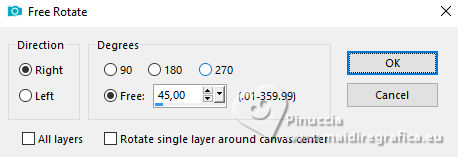 Change the Blend Mode of this layer to Overlay. 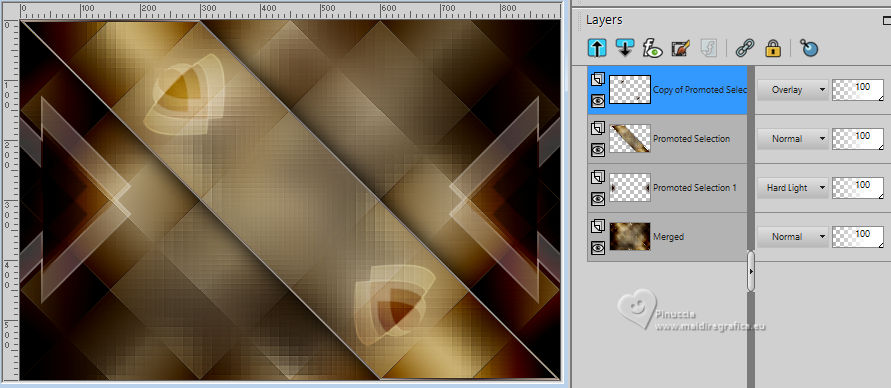 15. Activate the layer Merged. Selections>Load/Save Selection>Load Selection from Disk. Look for and load the selection Selection260_Xiki3 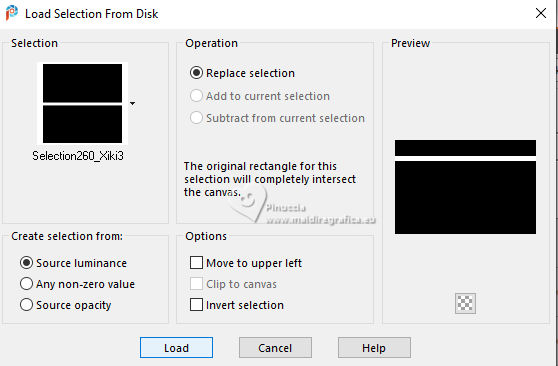 Selections>Promote Selection to Layer. Selections>Select None Effects>Distortion Effects>Wave 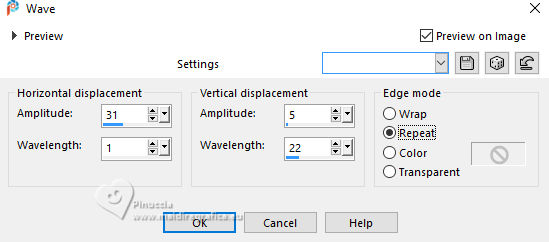 16. Change the Blend Mode of this layer to Screen. 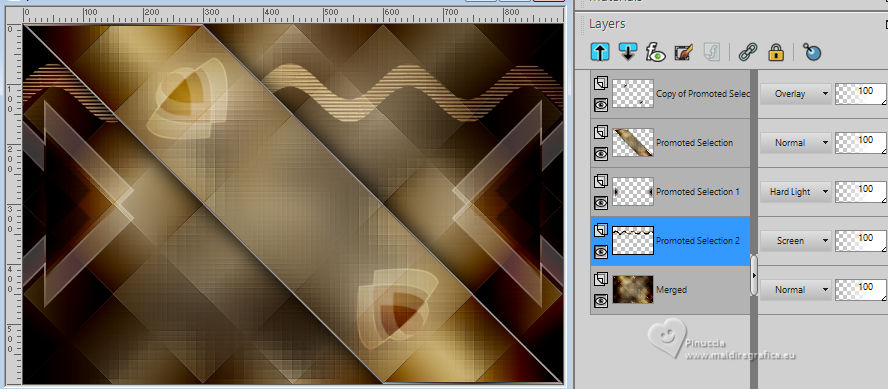 Effects>Image Effects>Seamless Tiling - Mirror Ghost. If you don't have the preset, just copy the settings you see on the screen. 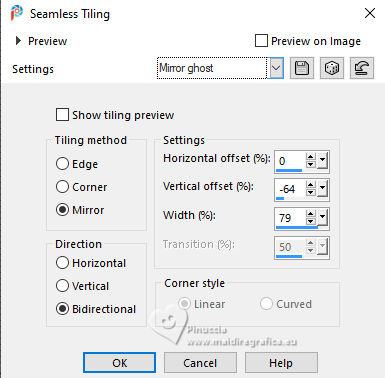 17. Activate your top Layer. Edit>Copy Special>Copy Merged. Layers>New Raster Layer. Selections>Load/Save Selection>Load Selection from Disk. Look for and load the selection Selection260_Xiki4 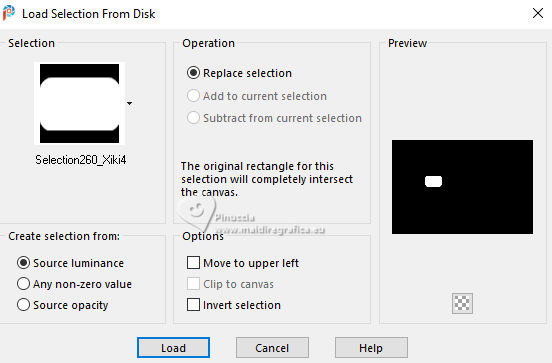 Edit>Paste into Selection. Selections>Select None. 18. Effects>Plugins>Alien Skin Eye Candy 5 Impact - Bevel. Setting: Sharp Edge 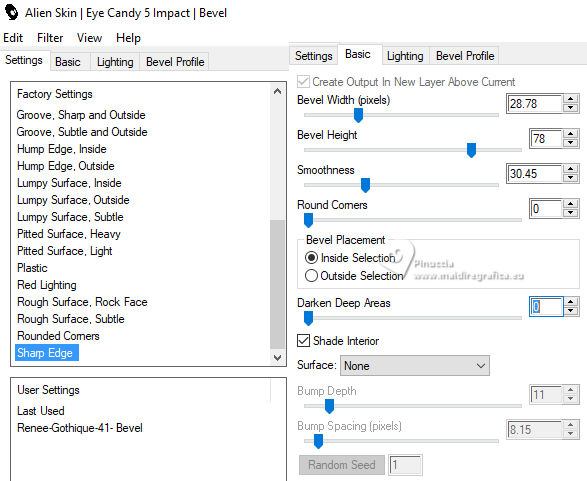 19. Effects>Plugins>Mura's Meister - Copies. 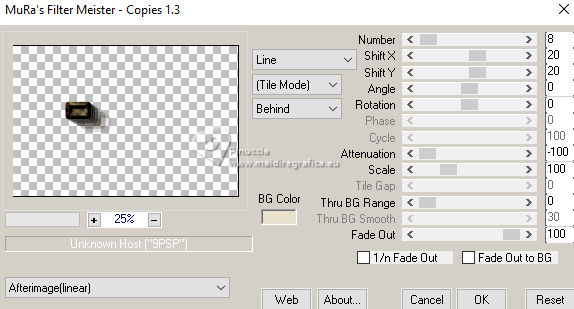 Layers>Duplicate. Image>Mirror>Mirror Horizontal. Image>Mirror>Mirror Vertical. Layers>Merge>Merge Down. 20. Set your foreground color to white. Layers>New Raster Layer. Flood Fill the layer with color white.Layers>New Mask layer>From image Open the menu under the source window and you'll see all the files open. Select the mask NarahsMasks_1778 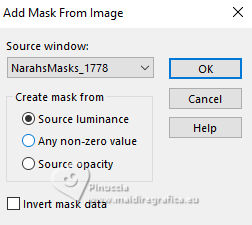 Layers>Duplicate. Layers>Merge>Merge Group. Image>Mirror>Mirror Horizontal. Pick Tool  Position X: 342,00 and Position Y: 0,00. 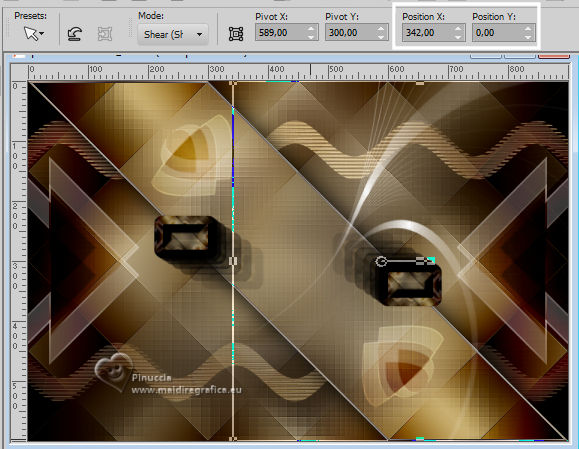 Effects>Plugins>Mura's Seamless - Emboss at Alpha, default settings. 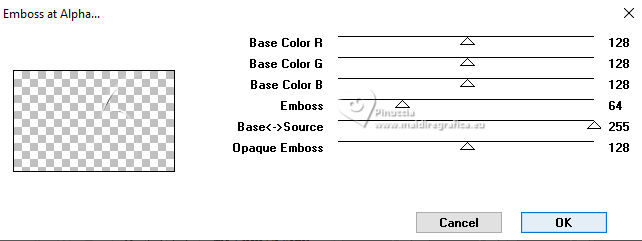 21. Open the tube Floral 175FlorByPqnaAlice 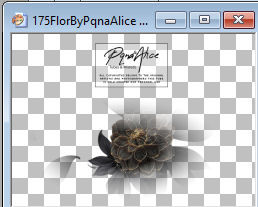 Erase the watermark and go to Edit>Copy. Go back to your work and go to Edit>Paste as New Layer. Place  the tube as in my example. the tube as in my example.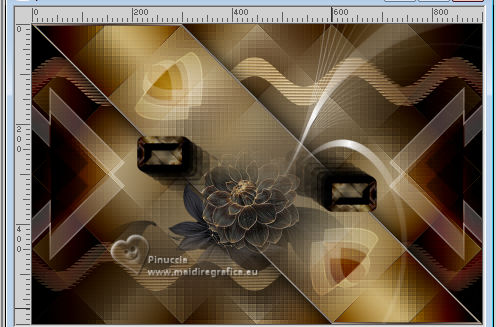 22. Edit>Copy Special>Copy Merged. For the borders, set again your foreground color to #2f201d 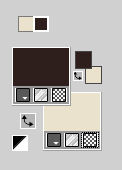 Image>Add borders, 2 pixels, symmetric, foreground color. Image>Add borders, 2 pixels, symmetric, background color. Image>Add borders, 2 pixels, symmetric, foreground color. 23. Selections>Select All. Image>Add borders, 5 pixels, symmetric, whatever color. Selections>Invert. Edit>Paste into Selection. Adjust>Blur>Gaussian Blur - radius 10 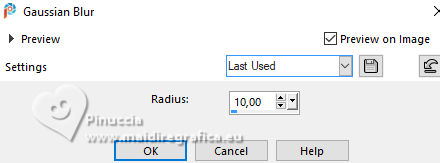 Effects>Plugins>Graphics Plus - Cross Shadow - default settings. 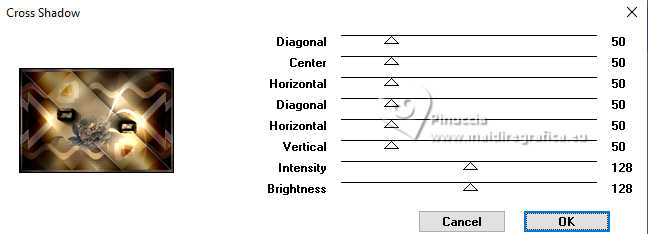 Selections>Select None. 24. Image>Add borders, 20 pixels, symmetric, color white. Selections>Select All. Image>Add borders, 5 pixels, symmetric, whatever color. Selections>Invert. Edit>Paste into Selection. Adjust>Blur>Gaussian Blur - 10 pixels 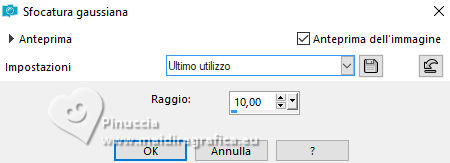 25. Effects>Plugins>Graphics Plus - Cross Shadow, default settings. 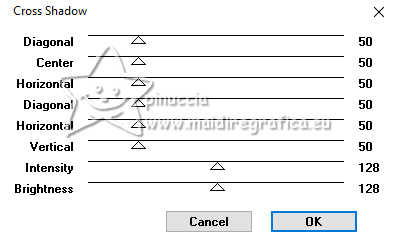 Selections>Select None. Image>Add borders, 20 pixels, symmetric, color white. 26. Activate again the tube 1038MulherByPqnaAlice and go to Edit>Copy. Go back to your work and go to Edit>Paste as new layer. Place and apply the effect to your liking. 27. Open TituloEvelyne_ByXiki  Edit>Copy. Go back to your work and go to Edit>Paste as new layer. Place the tube to your liking.28. Image>Add borders, 2 pixels, symmetric, foreground color. 29. Image>Resize, if you want. Sign your work and save as jpg. For the tubes of this version thanks Luz Cristina and Silvie.   Your versions. Thanks  Jolcsi  Di@ne 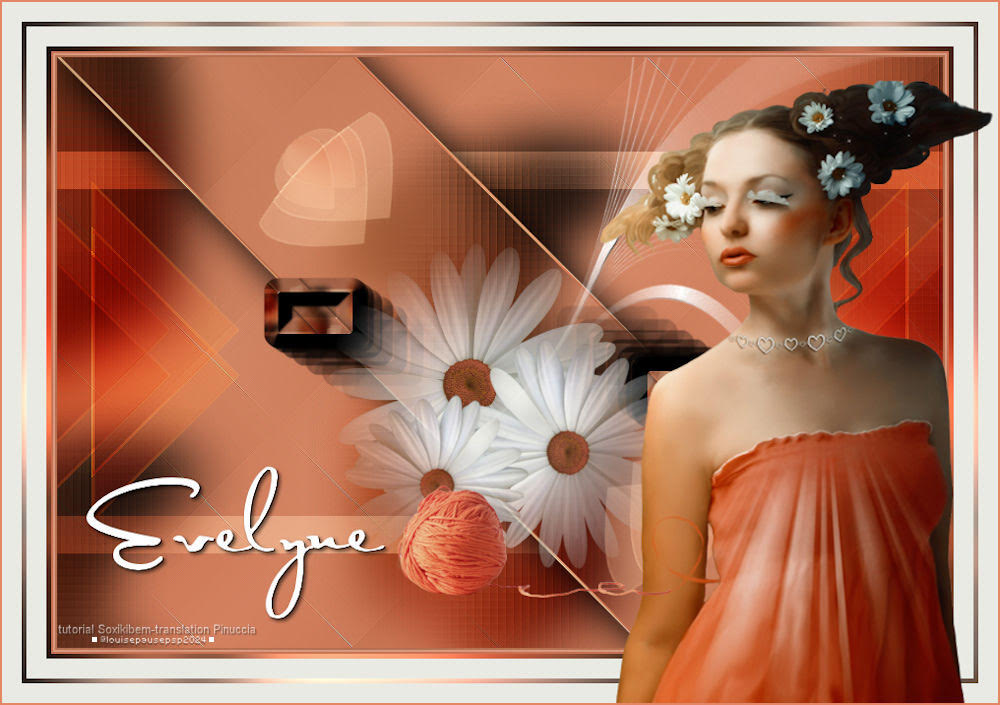 Louise 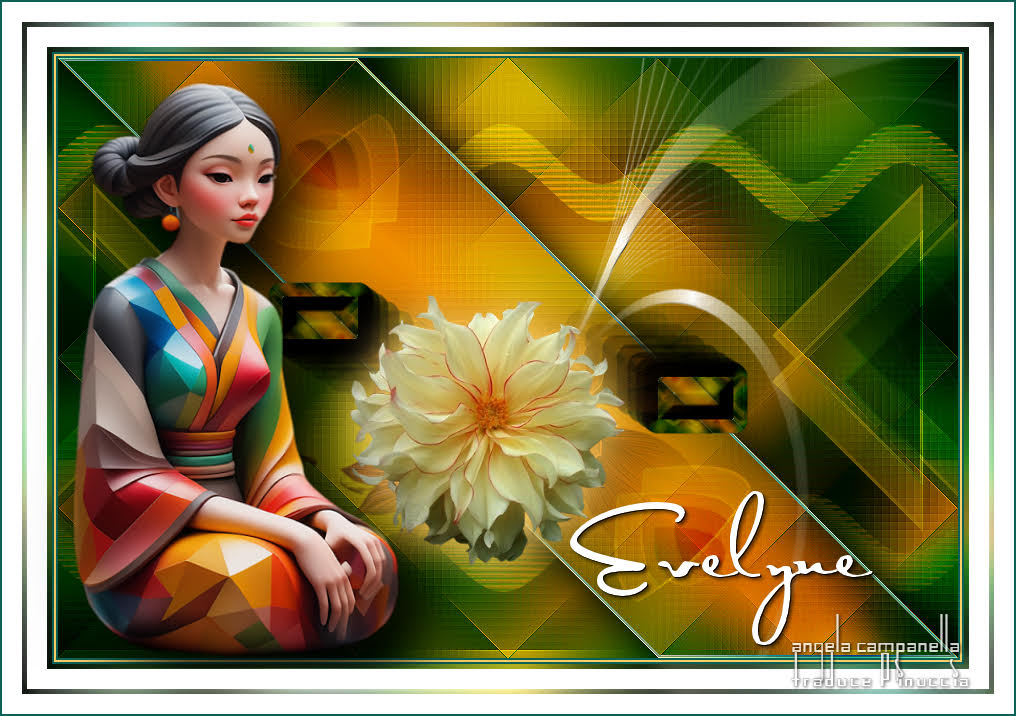 Angela Campanella   If you have problems or doubts, or you find a not worked link, or only for tell me that you enjoyed this tutorial, write to me. 15 May 2024 |