|
TOP ALYCIANE
english version
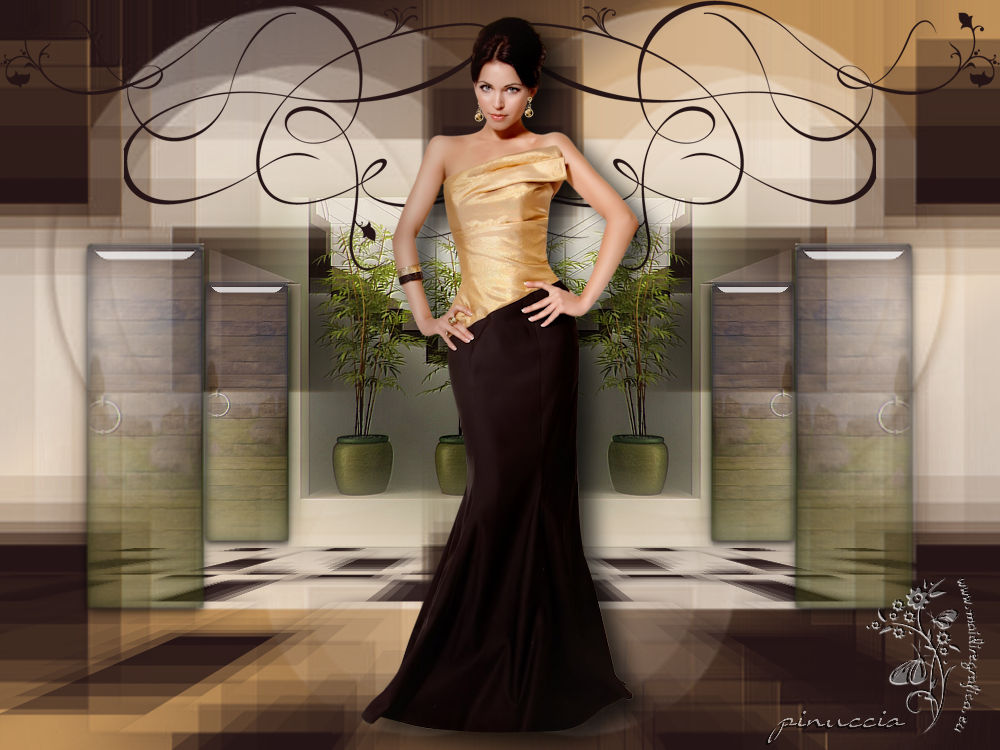

This tutorial was created with Corel19 and translated with Corel17, but it can also be made using other versions of PSP.
Since version PSP X4, Image>Mirror was replaced with Image>Flip Horizontal,
and Image>Flip with Image>Flip Vertical, there are some variables.
In versions X5 and X6, the functions have been improved by making available the Objects menu.
In the latest version X7 command Image>Mirror and Image>Flip returned, but with new differences.
See my schedule here
Italian translation here
French translation here
Your versions here
For this tutorial, you will need:
Material here
For the tubes thanks Criss (Criss eleg 44.psp) e Luz Cristina (3362-luzcristina)
(here the sites of the tubemakers)
Plugins
consult, if necessary, my filter section here
Alien Skin Eye Candy 5 Impact - Glass here
Mura's Meister - Perspective Tiling here

Copy the preset Emboss 3 in the Presets Folder.
Copy the Gradient in the Gradients Folder.
Copy the Selection in the Selection Folder.
Copy the Masks in the Masks Folder.
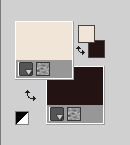
1. Set your foreground color to #be8f58
Set your background color to #241415.
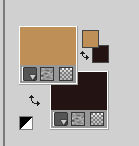
Set your foreground color to Gradient, and select the gradient SuiGrad044, style Linear
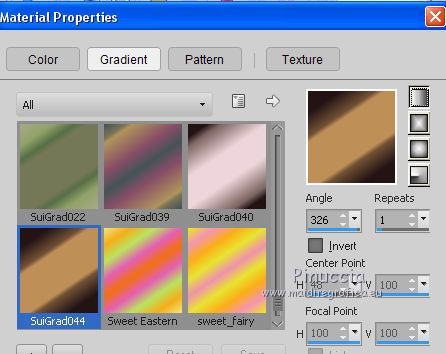
if you use other colors, also the gradient will change his colors
2. Open a new transparent image 1000 x 750 pixels,
Flood Fill  with your Gradient. with your Gradient.
3. Set your foreground color to #f1e5d8.
Layers>New Raster Layer.
Flood Fill with the color #f1e5d8.
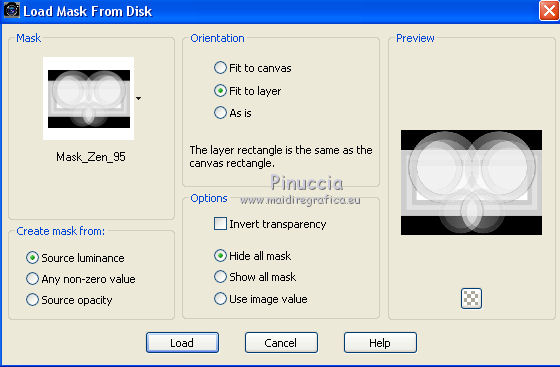
4. Layers>Load/Save Mask>Load Mask from Disk.
Look for and load the mask Mask_Zen_95.
Layers>Merge>Merge Group.
5. Set again your foreground color to #be8f58.
Layers>New Raster Layer.
Flood Fill with your foreground color #be8f58.
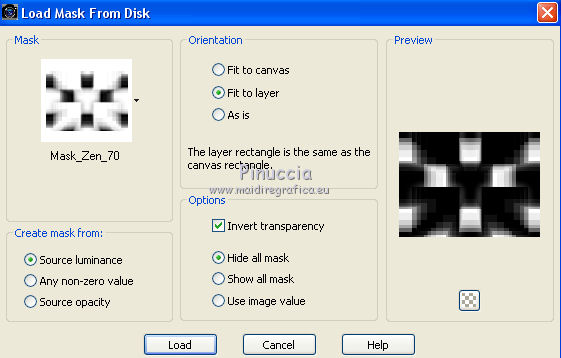
6. Layers>Load/Save Mask>Load Mask from Disk.
Look for and load the mask Mask_Zen_70.
Layers>Merge>Merge Group.
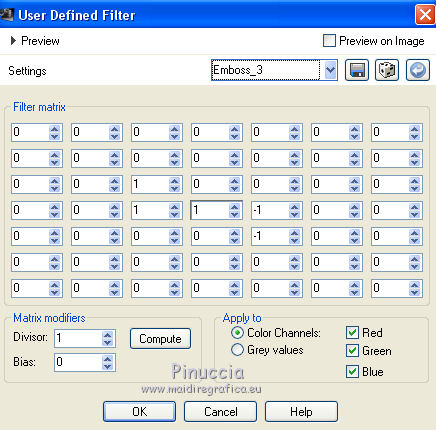
7. Effects>User Defined filter - select the preset Emboss 3 and ok.
8. Layers>New Raster Layer.
Flood Fill with your background color #241415.
9. Layers>Load/Save Mask>Load Mask from Disk.
Load again the mask Mask_Zen_70.
Layers>Merge>Merge Group.
10. Layers>Duplicate.
Effects>Plugins>Mura's Meister - Perspective Tiling.
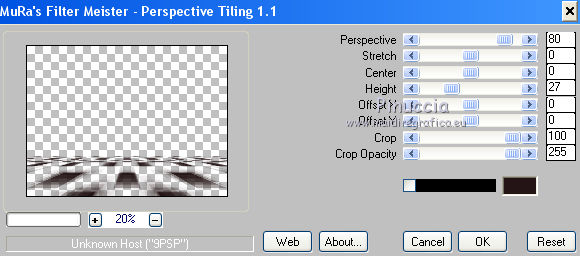
11. Layers>Merge>Merge visible.
12. Open the tube "imagen 5" (elaboration of the tube 3362-luzcristina.pspimage) - Edit>Copy.
Go back to your work and go to Edit>Paste as new layer.
13. Selection Tool 
(no matter the type of selection, because with the custom selection your always get a rectangle)
clic on the Custom Selection 
and set the following settings.
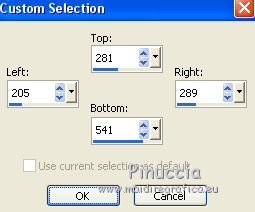
Selections>Promote Selection to Layer.
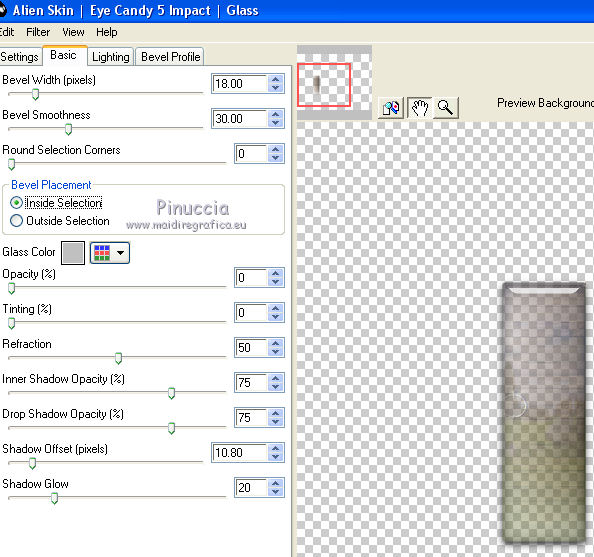
14. Effects>Plugins>Alien Skin Eye Candy 5 Impact - Glass.
Selections>Select None.
15. Layers>Duplicate.
Image>Mirror.
Layers>Merge>Merge down.
Layers>Duplicate.
Image>Resize, al 140%, resize all layers not checked.
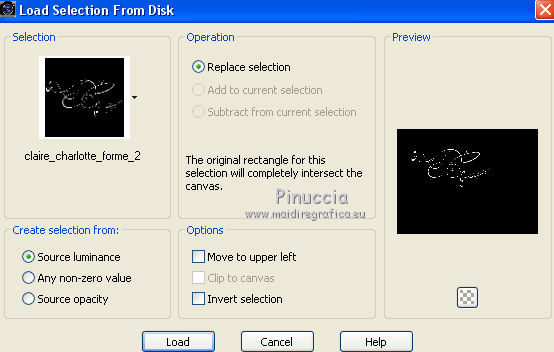
16. Selections>Load/Save Selection>Load Selection from Disk.
Look for and load the selection claire_charlotte_forme_2.PspSelection.
Layers>New Raster Layer.
Flood Fill with your background color #241415.
Objects>Align>Left.
Objects>Align>Top
our use the Move Tool 
Layers>Duplicate.
Image>Mirror.
Layers>Merge>Merge down.
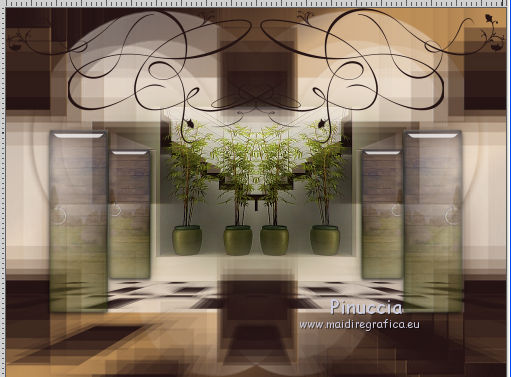
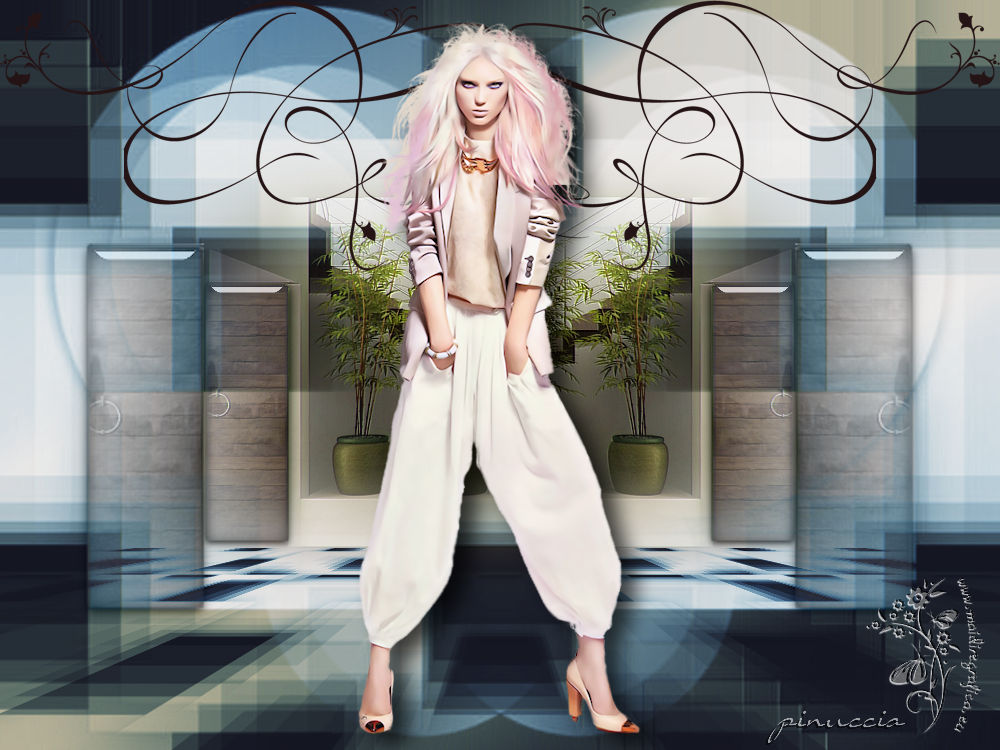
17. Open the tube Criss eleg 44.psp - Edit>Copy.
Go back to your work and go to Edit>Paste as new layer.
Image>Resize, to 40%, resize all layers not checked.
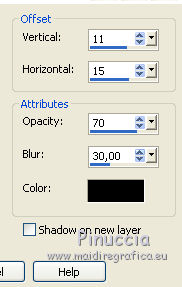
18. Effects>3D Effects>Drop Shadow.
19. Layers>Merge>Merge All.
Sign your work and save as jpg.
The tube of this version is by Beatrice
If you have problems or doubt, or you find a not worked link, or only for tell me that you enjoyed this tutorial, write to me.
21 May 2017
|