|
TOP CRISTAL MATHEWS
english version
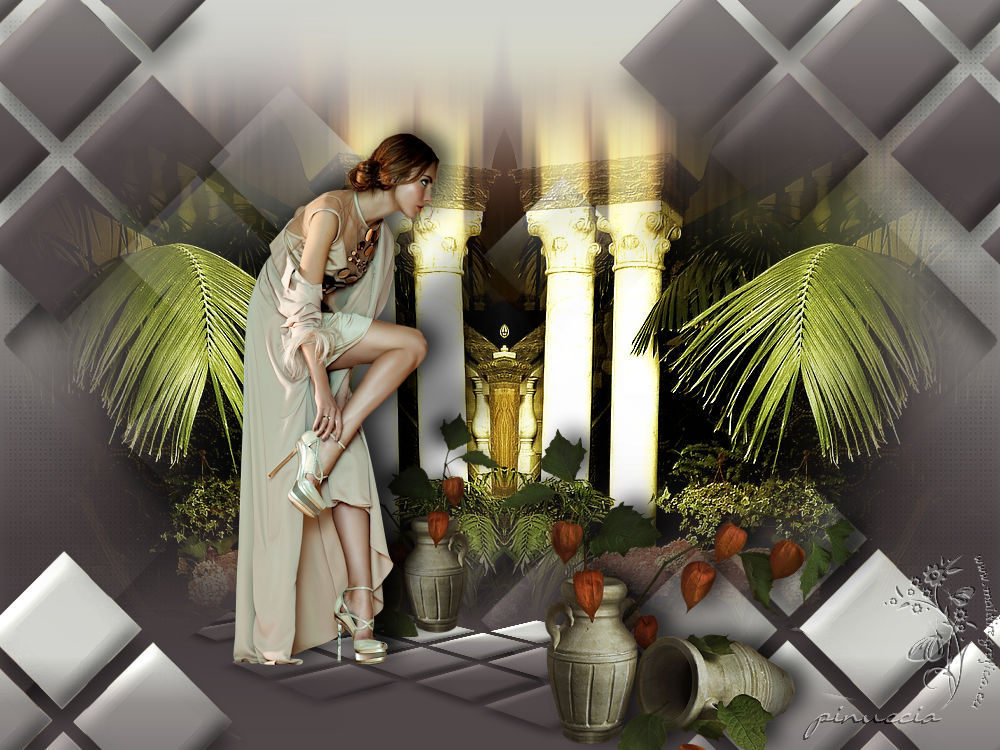

This tutorial was created avec CorelX19 and translated with Corel17, but it can also be made using other versions of PSP.
Since version PSP X4, Image>Mirror was replaced with Image>Flip Horizontal,
and Image>Flip with Image>Flip Vertical, there are some variables.
In versions X5 and X6, the functions have been improved by making available the Objects menu.
In the latest version X7 command Image>Mirror and Image>Flip returned, but with new differences.
See my schedule here
Italian translation here
French translation here
Your versions here
For this tutorial, you will need:
Material here
Tocha23726.psp
3006-luzcristina.pspimage
SL010_Dic.2009-[2].pspimage
(here the sites of the tubemakers)
Plugins
consult, if necessary, my filter section here
Alien Skin Eye Candy 5 Impact - Perspective Shadow here

Copy the Gradient in the Gradients Folder.
Copy the Selection in the Selection Folder.
Copy the Mask in the Masks Folder.
1. Set your foreground color to #d2d3ce
Set your background color to #504749.
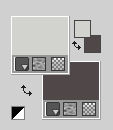
2. Set your foreground color to Gradient, and select the gradient SuiGrad044, style Linear
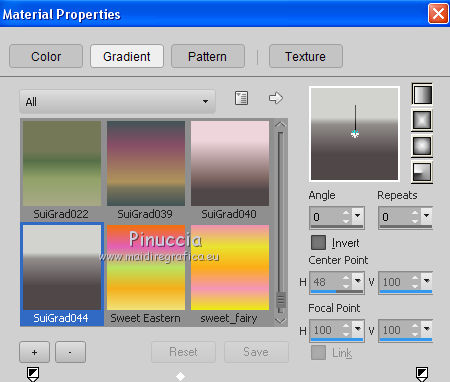
if you use other colors, also the gradient will change color
3. Open a new transparent image 1000 x 750 pixels,
Flood Fill  with your Gradient. with your Gradient.
4. Layers>Duplicate.
5. Layers>Load/Save Mask>Load Mask from Disk.
Look for and load the mask Narah_mask_0801.
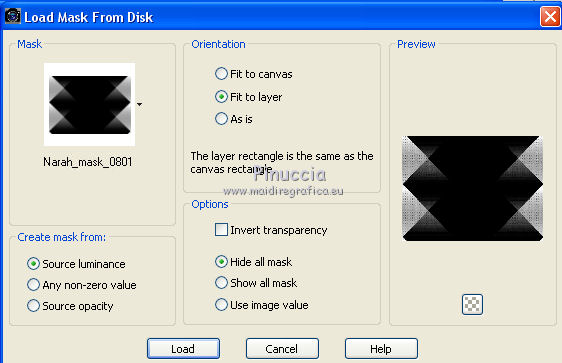
Layers>Merge>Merge Group.
don't worry if you see nothing
6. Effects>3D Effects>Drop Shadow.
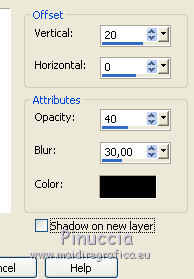
Layers>Duplicate.
Layers>Merge>Merge down.
7. Open the tube 3006-luzcristina.pspimage - Edit>Copy.
Go back to your work and go to Edit>Paste as new layer.
Objects>Align>Right
if you are working with a previous version that has not available the menu Objects,
use the Move Tool 
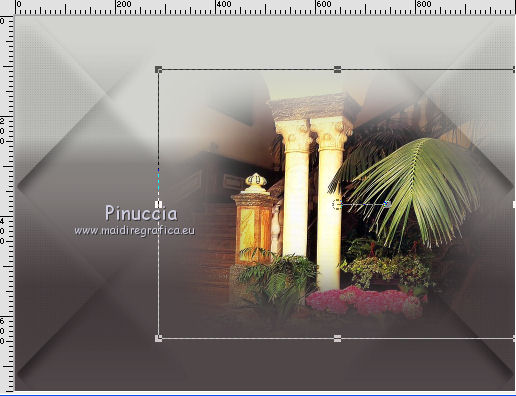
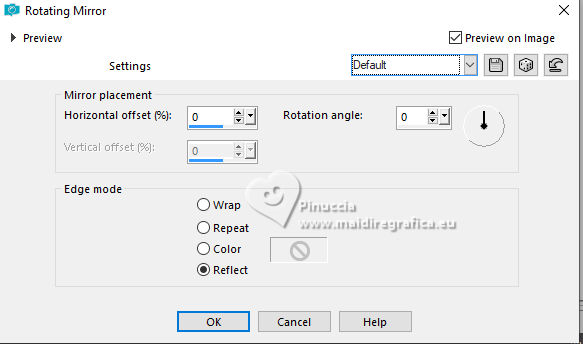
Effects>Reflection Effects>Rotating Mirror, default settings.
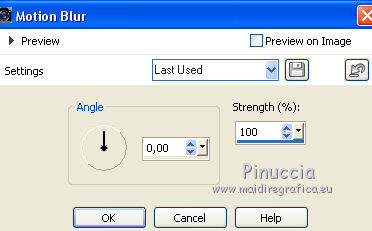
8. Adjust>Blur>Motion Blur - 2 times.
Objects>Align>Top,
or use the Move Tool .
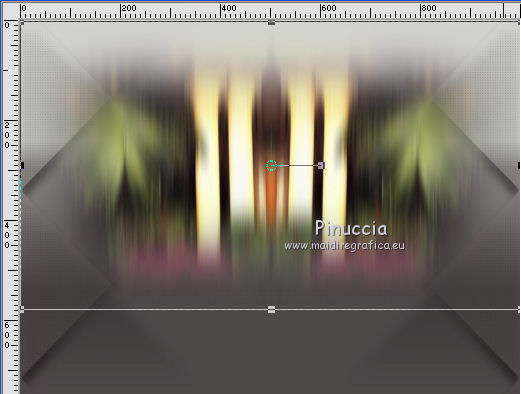
9. Selections>Load/Save Selection>Load Selection from Disk.
Look for and load the selection Seleccionsuiza001R6.PspSelection.
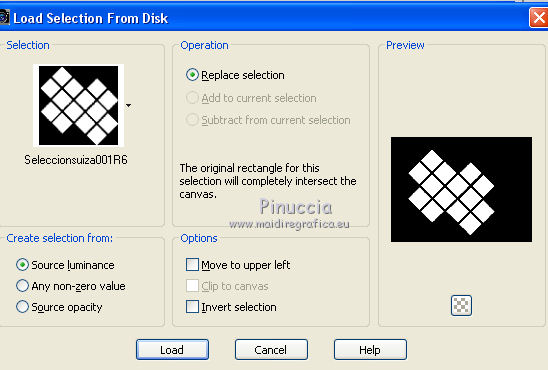
Selections>Promote Selection to Layer.
Flood Fill the selection with your Gradient.
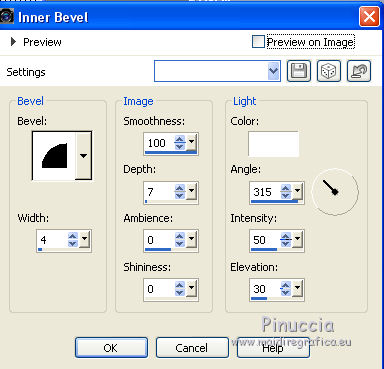
10. Effects>3D Effects>Inner Bevel.
Selections>Select None.
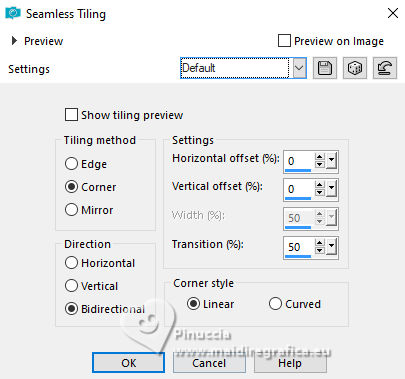
11. Effects>Image Effects>Seamless Tiling, default settings.
12. Effects>3D Effects>Drop Shadow, same settings.
13. Layers>Duplicate.
K key to activate the Pick Tool 
mode Scale 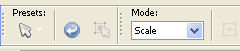
pull the top central node to the bottom until 600 pixels.
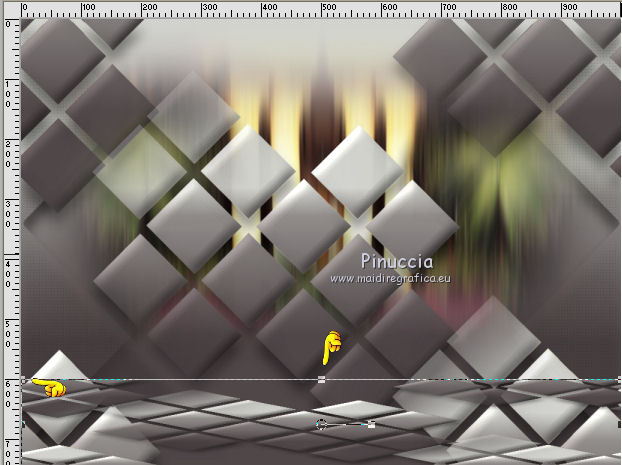
14. Mode Perspective 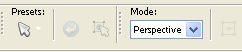
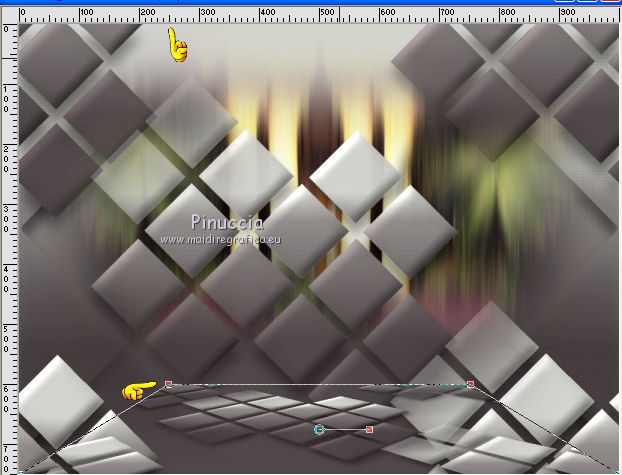
pull the top left node to the right, until 250 pixels
(the opposite node will move symmetrically)
15. Activate the Eraser Tool 
and erase the parts showed below
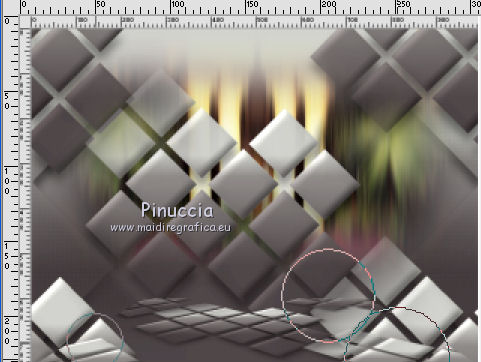
You should have this
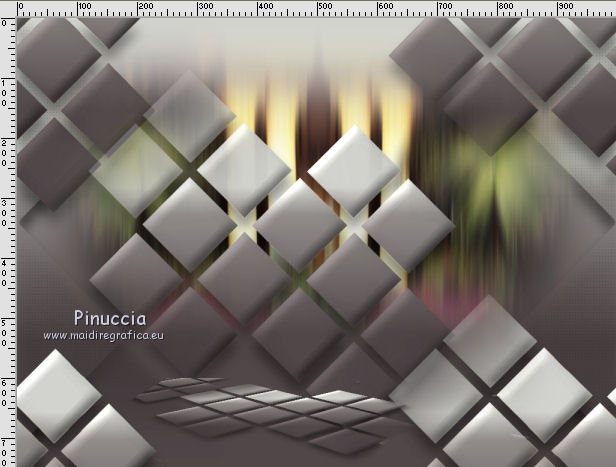
16. Edit>Copy as new layer (the tube 3006-luzcristina is still in memory).
Objects>Align>Right (or use the Move Tool )
17. Effects>Reflection Effects>Rotating Mirror, default settings.
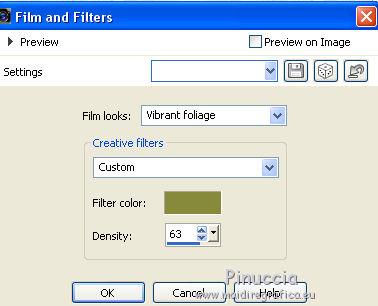
18. Effects>Photo Effects>Film and Filters
color #878a3b
19. Open the tube SL010_Dic.2009-[2].pspimage - Edit>Copy.
Go back to your work and go to Edit>Paste as new layer.
Image>Mirror.
Image>Resize, to 80%, resize all layers not checked.
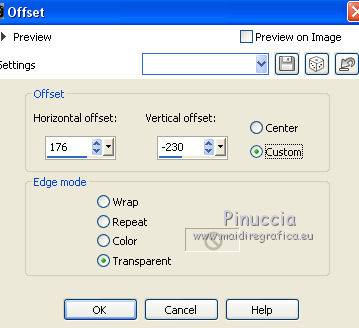
Effects>Image Effects>Offset.
Effects>3D Effects>Drop Shadow.
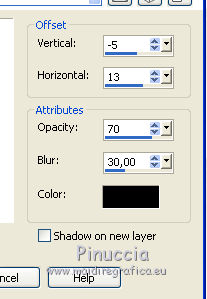
Layers>Duplicate.
Image>Mirror.
Image>Resize, to 70%, resize all layers not checked.
20. Open the tube Tocha23726.psp - Edit>Copy.
Go back to your work and go to Edit>Paste as new layer.
Image>Mirror.
Image>Resize, to 50%, resize all layers not checked.
Effects>Image Effects>Offset.
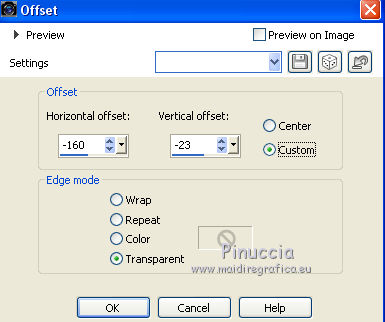
21. Effects>3D Effects>Drop Shadow, same settings.
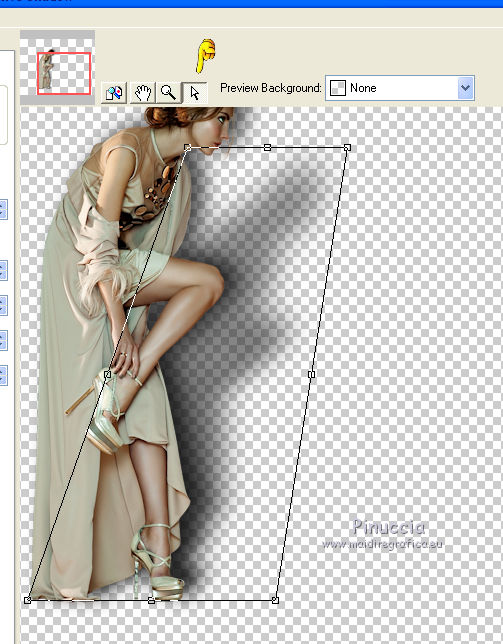
22. Effects>Plugins>Alien Skin Eye Candy 5 Impact - Perspective Shadow.
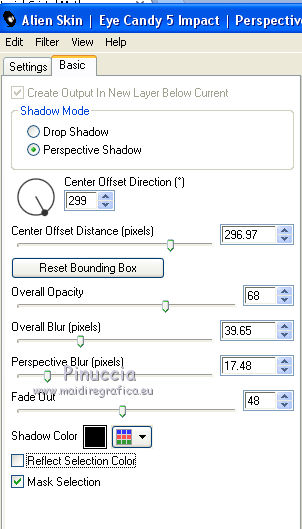
Adapt the shadow to your tube, using the filter tools.
23. Layers>Merge>Merge All.
The tube of this version is by Gabry
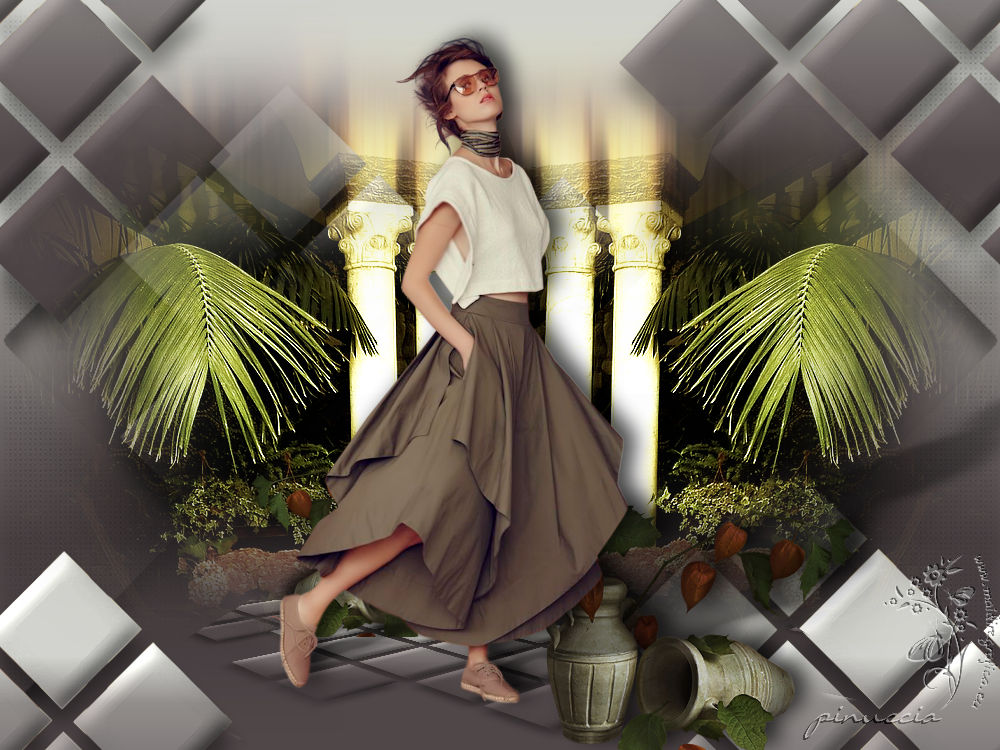 width="950"> width="950">
If you have problems or doubt, or you find a not worked link, or only for tell me that you enjoyed this tutorial, write to me.
21 May 2017
|