|
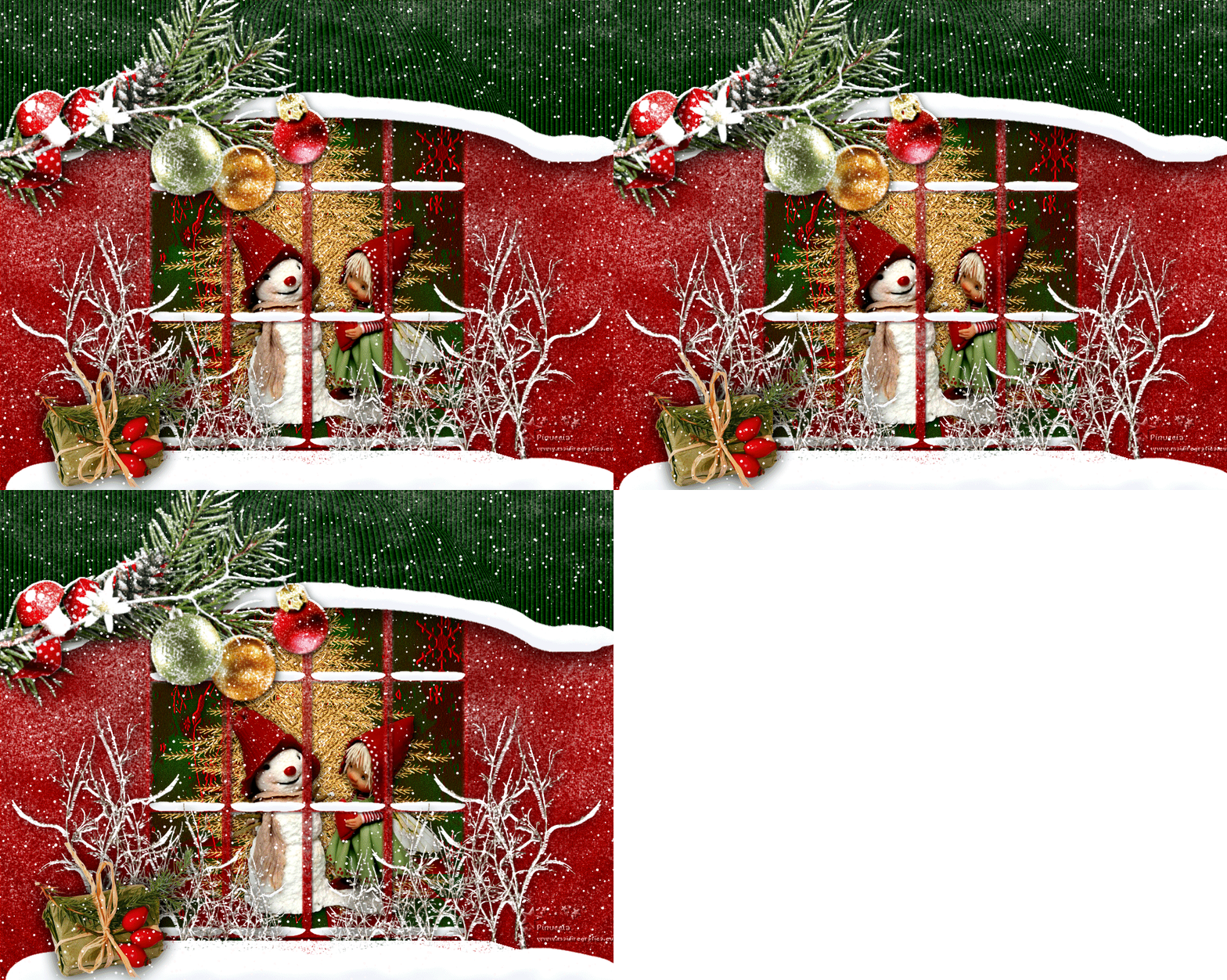
NAVIDAD 2019
 english version english version
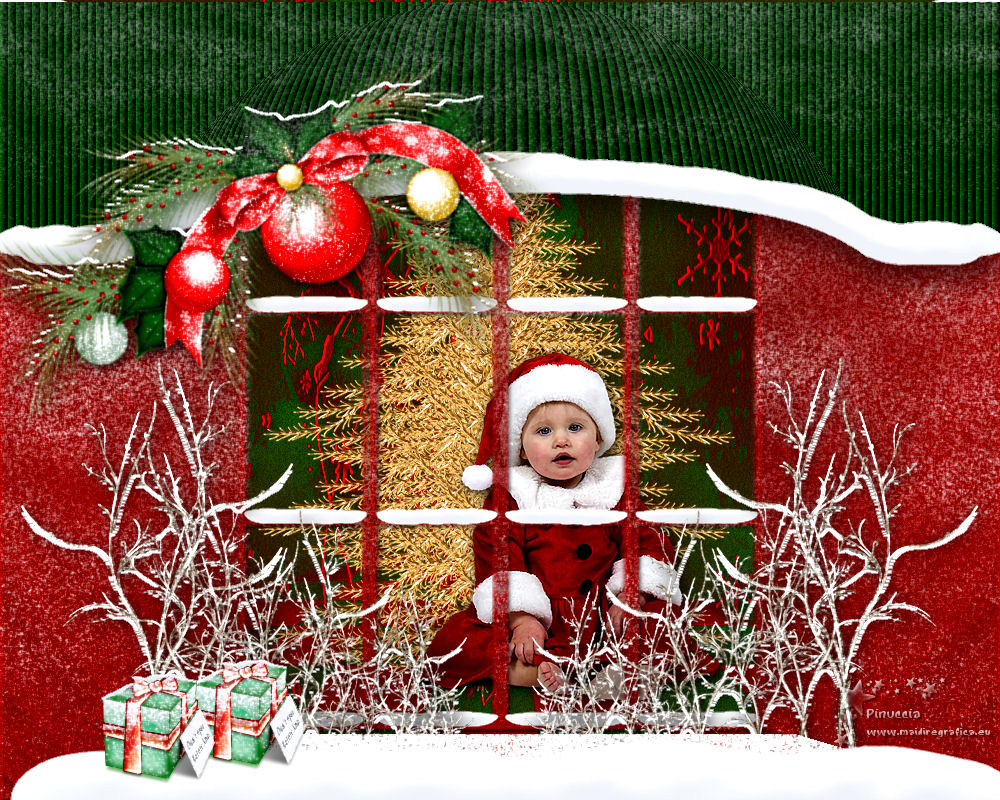

This tutorial was created with PSPX9 and translated with Corel X7, but it can also be made using other versions of PSP.
Since version PSP X4, Image>Mirror was replaced with Image>Flip Horizontal,
and Image>Flip with Image>Flip Vertical, there are some variables.
In versions X5 and X6, the functions have been improved by making available the Objects menu.
In the latest version X7 command Image>Mirror and Image>Flip returned, but with new differences.
See my schedule here
 Italian translation here Italian translation here
 French translation here French translation here
Your versions here
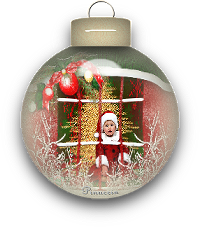
Una pallina-souvenir per il vostro Albero di Natale
Une boule-souvenir pour votre Arbre de Noël
For this tutorial, you will need:
Material here
JVDE_Kerstkind.psp ( Bebe )
BPGoldenChristmasTree1~V.png
Exclusive elemek / Dossier Gömbök / Deco num.5
MASKSUIZA-0076.jpg
Maskarasui20172-1.jpg
Mask cre@nnie-46.jpg
DecoNavidad2019-1/2/3/4
(The links of the tubemakers sites here).
Plugins
consult, if necessary, my filter section here
Alien Skin Eye Candy 5 Impact - Perspective Shadow here
Alien Skin Eye Candy 5 Nature - Snow Drift here
VDL Adrenaline - Snowflakes here
Nik Software - Color Efex here
Animation Shop here
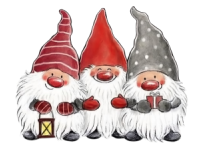
You can change Blend Modes and opacity of the layer, according to your colors.
Copy the preset in the Presets Folder.
Copy the selection in the Selections Folder.
Copy the masks in the Masks Folder.
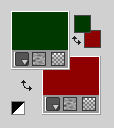
1. Set your foreground color to #003900,
and your background color to #8f0000.
2. Open a new transparent image 1000 x 800 pixels.
Flood Fill  the transparent image with your foreground color #003900. the transparent image with your foreground color #003900.
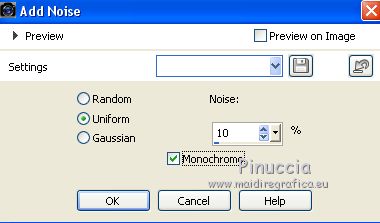
3. Adjust>Add/Remove Noise/Add Noise.
4. Layers>New Raster Layer.
Flood Fill with your background color #8f0000.
5. Adjust>Add/Remove Noise/Add Noise, same settings.
6. Layers>Load/Save Mask>Load Mask from Disk.
Look for and load the mask MASKSUIZA-0076.jpg
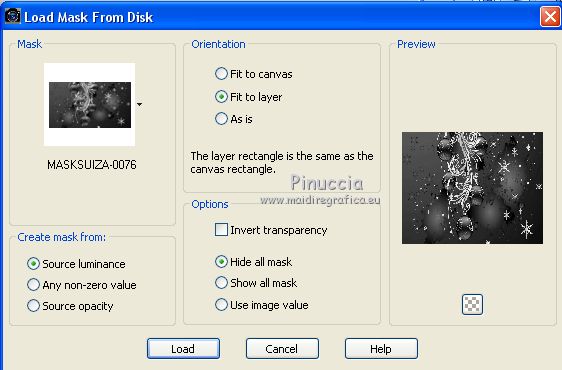
Layers>Merge>Merge Group.
7. Effects>User Defined Effects - select the preset Edge_Enhance_Vertical.
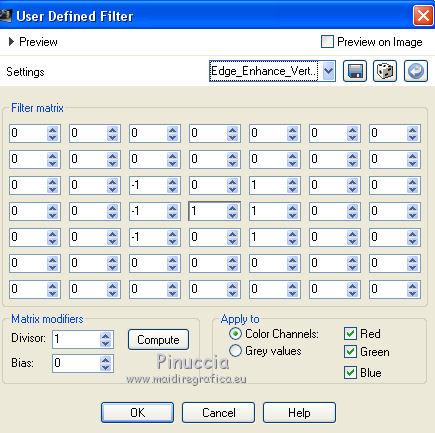
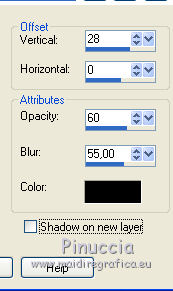
8. Effects>Plugins>Alien Skin Eye Candy 5 Impact - Perspective Shadow
Shadow Color: #000000.
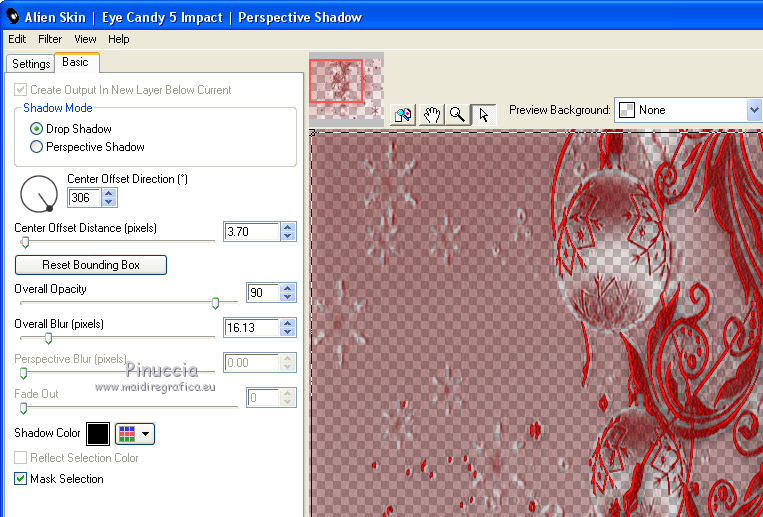
9. Open the tube DecoNavidad2019-1.png and go to Edit>Copy.
Go back to your work and go to Edit>Paste as new layer.
10. Layers>New Raster Layer.
Flood Fill with your background color #8f0000.
11. Adjust>Add/Remove Noise/Add Noise, same settings.
12. Layers>Load/Save Mask>Load Mask from Disk.
Look for and load the mask Maskarasui20172-1.jpg
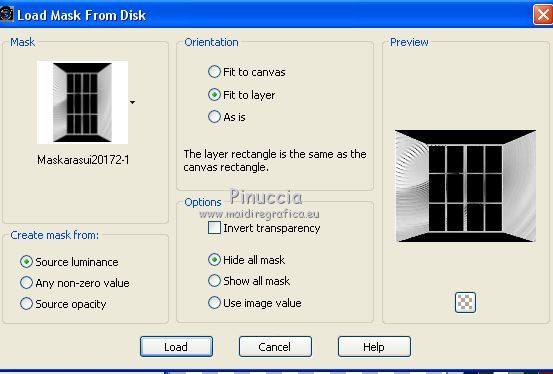
Layers>Merge>Merge Group.
13. Adjust>One Step Photo Fix.
14. Effects>Reflection Effects>Rotating Mirror, default settings.
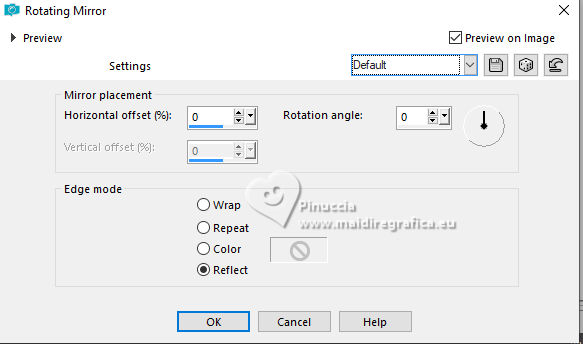
15. Effects>Plugins>Alien Skin Eye Candy 5 Impact - Perspective Shadow
Shadow Color: #000000.
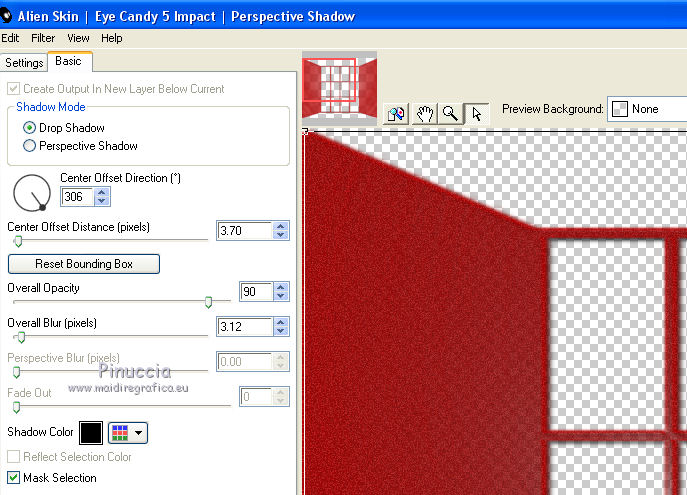
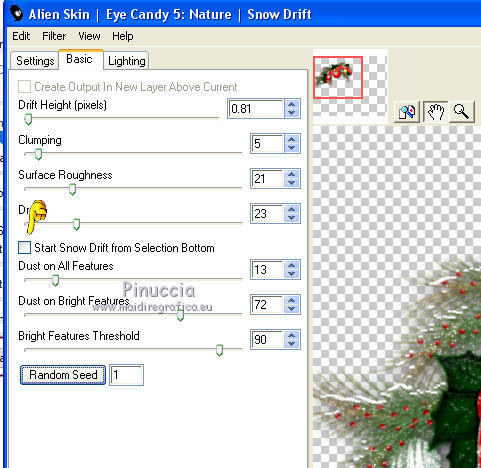
16. Effects>Plugins>Alien skin Eye Candy 5 Nature - Snow Drift.
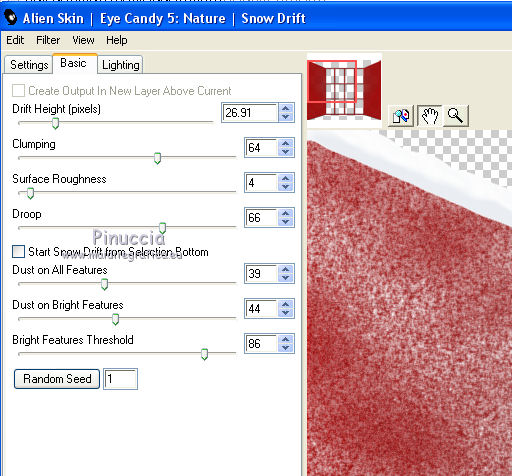
17. Activate the layer raster 1.
Layers>New Raster Layer.
Flood Fill with your background color #8f0000.
18. Layers>Load/Save Mask>Load Mask from Disk.
Look for and load the mask cre@nnie-46.jpg
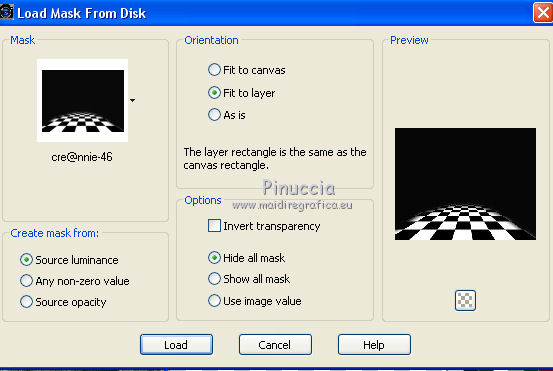
Layers>Merge>Merge Group.
19. Adjust>One Step Photo Fix.
20. Activate again the layer Raster 1.
Layers>Duplicate.
Layers>Arrange>Bring to Top.
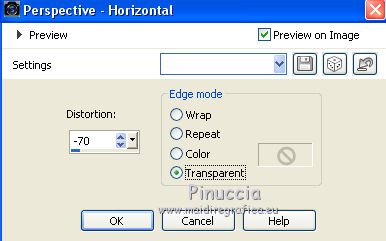
21. Effects>Geometric Effects>Perspective Horizontal
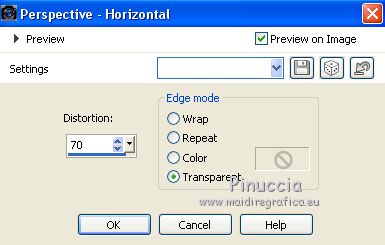
22. Repeat Effects>Geometric Effects>Perspective Horizontal, -70.
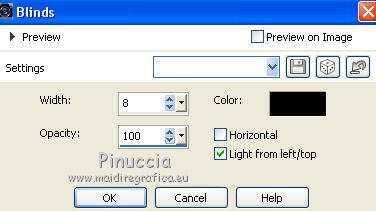
23. Effects>Texture Effects>Blinds, color black.
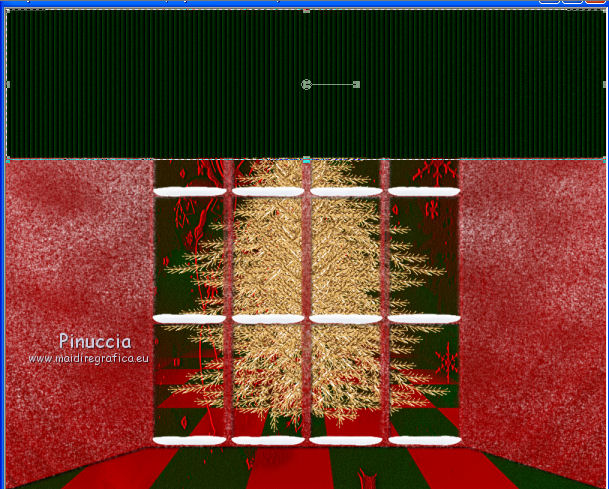
24. Objects>Align>Top
if your PSP version does not make the Objects menu available,
use your Move Tool 
or activate your Pick Tool 
and set Position Y to 0,00.
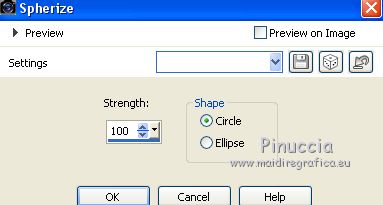
25. Effects>Geometric Effects>Spherize.
26. Effects>3D Effects>Drop Shadow, color black.
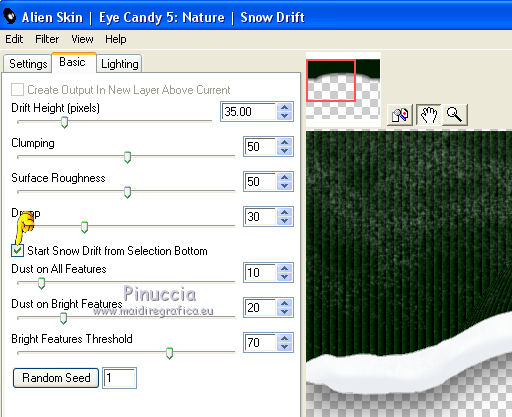
27. Effects>Plugins>Alien Skin Eye Candy 5 Impact - Nature - Snow Drift.
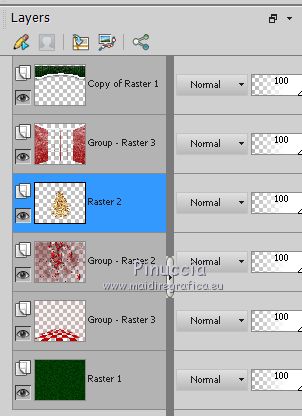
28. Activate the layer Raster 2.
29. Open the tube of the little girl JVDE_Kerstkind.psp and go to Edit>Copy.
Go back to your work and go to Edit>Paste as new layer.
Image>Resize, to 85%, resize all layers not checked.
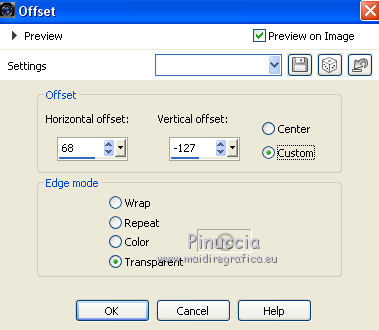
30. Effects>Image Effects>Offset.
31. Effects>Plugins>Alien Skin Eye Candy 5 Impact - Perspective Shadow
Shadow color: #000000
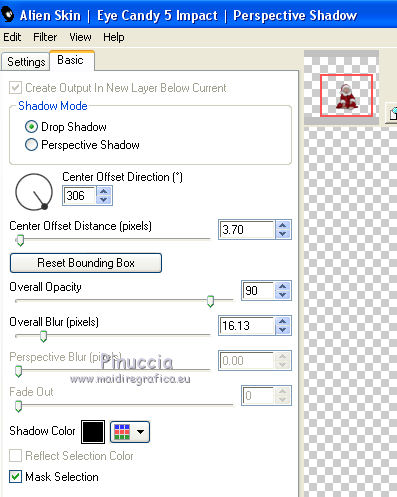
31. Adjust>Brightness and Contrast>Brightness and Contrast.
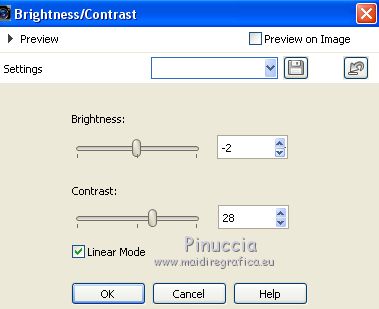
in the previous versions:
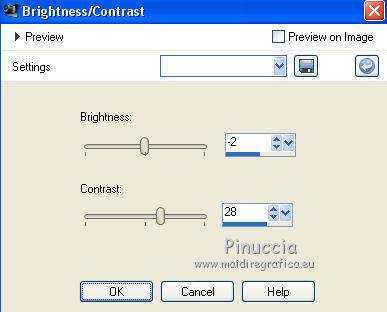
32. Layers>Merge>Merge visible.
33. Open the tube Tube DecoNavidad2019-2.png and go to Edit>Copy.
Go back to your work and go to Edit>Paste as new layer.
Effects>Image Effects>Offset.
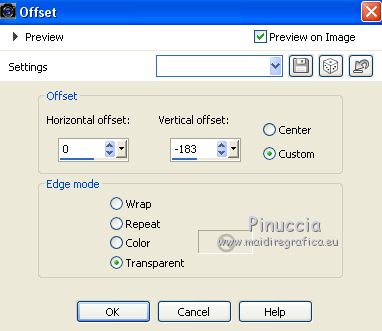
34. Effects>Plugins>Alien Skin Eye Candy 5 Impact - Perspective Shadow.

35. Effects>Plugins>Alien Skin Eye Candy 5 Nature - Snow Drift.
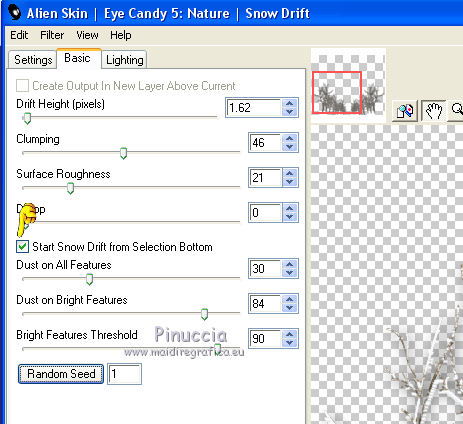
36. Layers>New Raster Layer.
Selections>Load/Save Selection>Load Selection from Disk.
Look for and load the selection seleccionsuizanoel2019.PspSelection
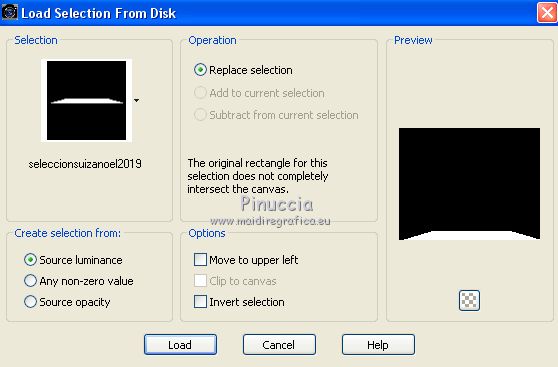
37. Effects>Plugins>Alien Skin Eye Candy 5 Nature - Snow Drift.

Selections>Select None.
38. Layers>Merge>Merge visible.
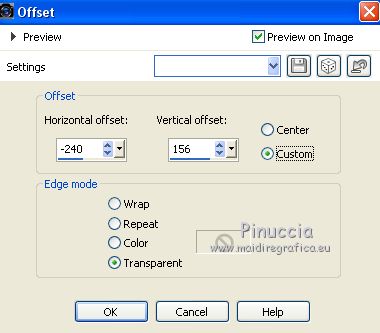
39. Open the tube DecoNavidad2019-3.png and go to Edit>Copy.
Go back to your work and go to Edit>Paste as new layer.
Effects>Image Effects>Offset.
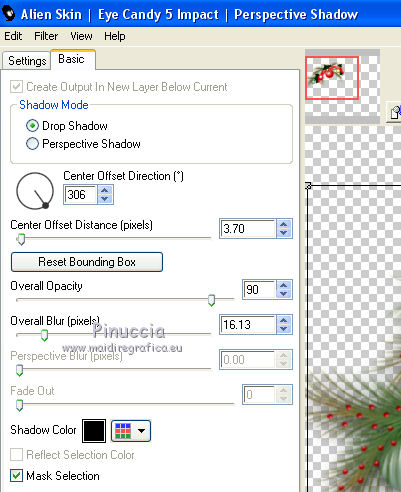
40. Effects>Plugins>Alien Skin Eye Candy 5 Impact - Perspective Shadow, same settings.
41. Effects>Plugins>Alien Skin Eye Candy 5 Nature - Snow Drift.
42. Open the tube Tube DecoNavidad2019-4.png and go to Edit>Copy.
Go back to your work and go to Edit>Paste as new layer.
Move the tube at the bottom left.
43. Layers>Merge>Merge visible.
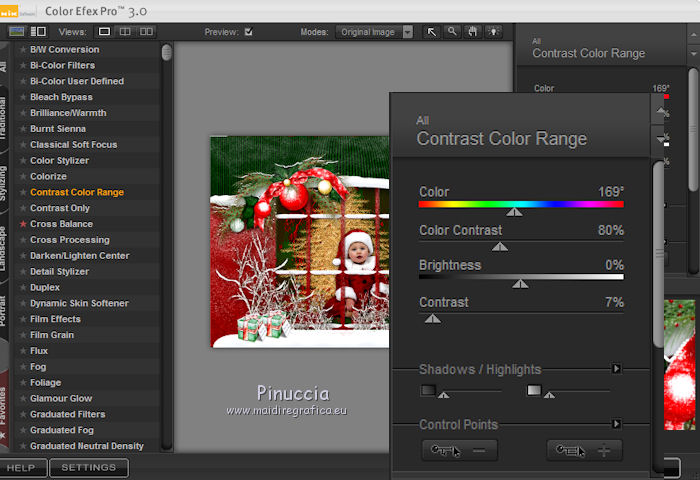
44. Effects>Plugins>Nik Software - Color Efex Pro - Contrast Color Range
45. Sign your work on a new layer.
Optional: add the author watermark and the translator watermark.
46. If you don't want to realize the animation:
Layers>Merge>Merge All and save as jpg.
Animation.
47. Selections>Select All.
Layers>Duplicate - 2 times, in total 3 layers.
48. Stay on the second copy layer.
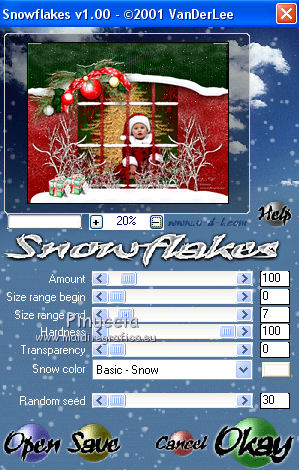
Effects>Plugins>VDL Adrenaline - Snowflakes
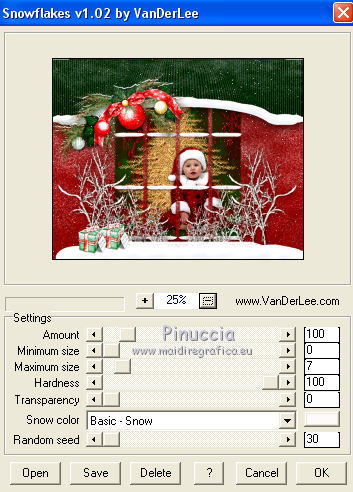
if you are using the new version of this plugin, the result doesn't change:
Effects>Plugins>VanDerLee-Snowflakes
49. Activate the layer below of the first copy.
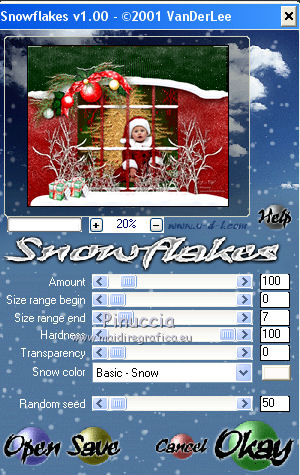
Repeat Effects>Plugins>VDL Adrenaline - Snowflakes, Random Seed 50 and ok
50. Activate the bottom layer of the original.
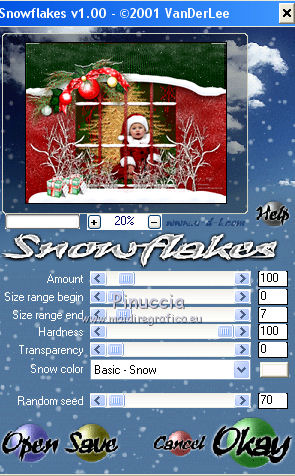
Repeat Effects>Plugins>VDL Adrenaline - Snowflakes, Random Seed 70 and ok
Selections>Select None.
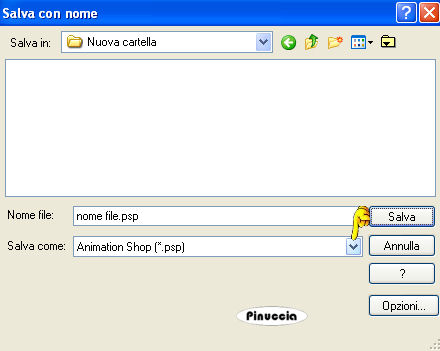
51. Save your work as PSP*Animation Shop
52. Open Animation Shop.
Open your work and you'll get an animation composed by 3 frames
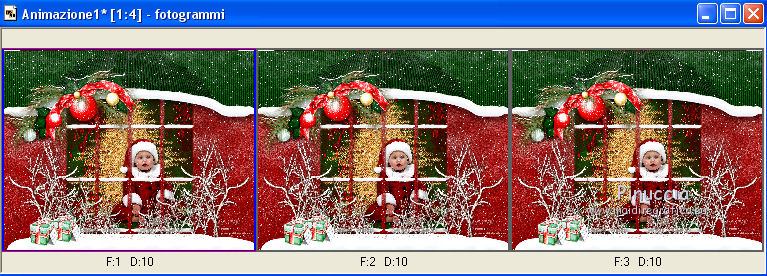
Keep the display time to 10.
Check the result clicking on View animation 
and save as gif
Version with tubes by Rooske
If you have problems or doubt, or you find a not worked link, or only for tell me that you enjoyed this tutorial, write to me.
6 November 2019
|