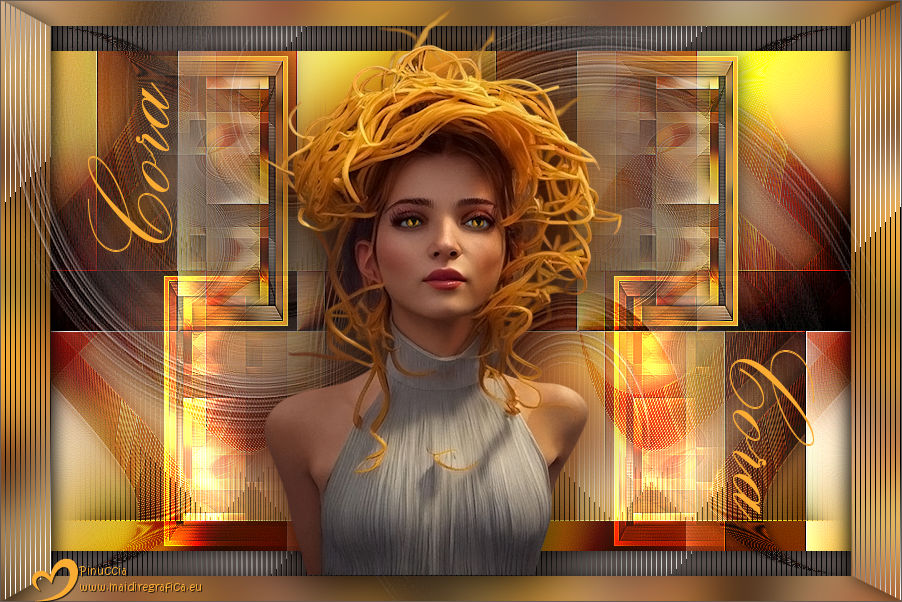
CORA

Thanks Annie for your invitation to translate
Clic and move the brush to follow the tutorial.

To print


|
This tutorial, created with PSP2020, was translated with PSPX8, PSPX9 and PSP2020, but it can also be made using other versions of PSP.
Since version PSP X4, Image>Mirror was replaced with Image>Flip Horizontal,
and Image>Flip with Image>Flip Vertical, there are some variables.
In versions X5 and X6, the functions have been improved by making available the Objects menu.
In the latest version X7 command Image>Mirror and Image>Flip returned, but with new differences.
See my schedule here
 italian translation here italian translation here
 french translation here french translation here
 your versions here your versions here
Necessary

For the tube and the mask thanks Nadège and Narah
(The links of the tubemakers here).
Plugins
Filters Unlimited 2.0 qui
Simple - Diamonds qui
Simple - Left Right Wrap qui
Toadies - What are you qui
Tramages - Legolator, Tow the line qui
Filters Simple, Toadies and Tramages can be used alone or imported into Filters Unlimited.
(How do, you see here)
If a plugin supplied appears with this icon  it must necessarily be imported into Unlimited it must necessarily be imported into Unlimited
You can change Blend Modes according to your colors.

Copy the selection in the Selections Folder.
Open the mask in PSP and minimize it with the rest of the material.
1. Open a new transparent image 650 x 500 pixels.
Set your foreground color to the light color #faac33
and your background color to the dark color #655a56.
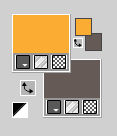
Flood Fill  the transparent image with your foreground color. the transparent image with your foreground color.
2. Selections>Select All.
Open the tube 2025-76_Nadege 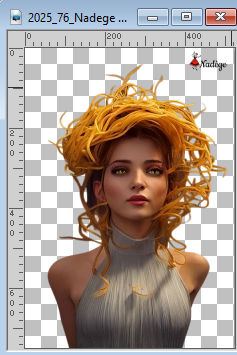
Erase the watermark and go to Edit>Copy.
minimize the tube
Go back to your work and go to Edit>Paste into Selection.
Selections>Select None.
3. Effects>Image Effects>Seamless Tiling, default settings.

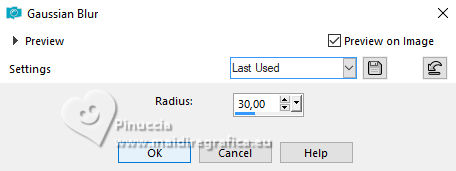
4. Adjust>Blur>Gaussian Blur - radius 30.
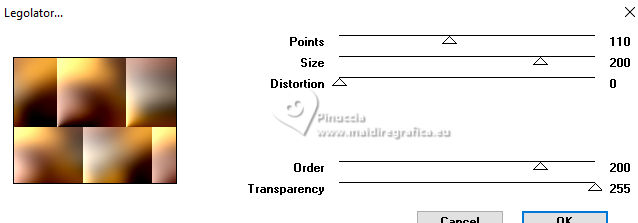
5. Effects>Plugins>Tramages - Legolator
6. Layers>Duplicate.
Image>Mirror>Mirror Horizontal.
Image>Mirror>Mirror Vertical (Image>Flip).
7. Change the Blend Mode of this layer to Recouvrement and reduce the opacity to 50%.
Layers>Merge>Merge Down.
Effects>Edge Effects>Enhance More.
8. Activate your Selection Tool 
(no matter the type of selection, because with the custom selection your always get a rectangle)
clic on the Custom Selection 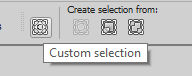
and set the following settings.
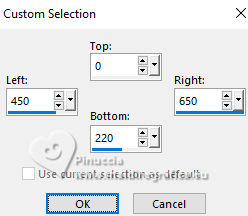
Selections>Promote Selection to Layer.
9. Effects>Plugins>Tramages - Tow the line.
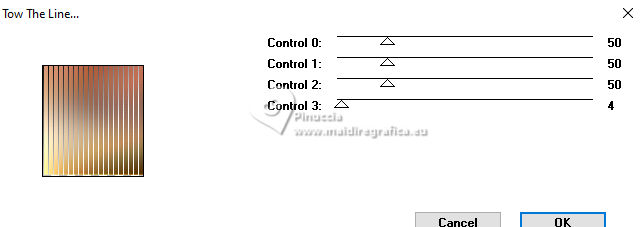
Selections>Select None.
10. Effects>Image Effects>Seamless Tiling, same settings.
11. Layers>Duplicate.
Image>Mirror>Mirror Horizontal.
Layers>Merge>Merge Down.
12. Effects>Image Effects>Seamless Tiling, Horizontal checked.
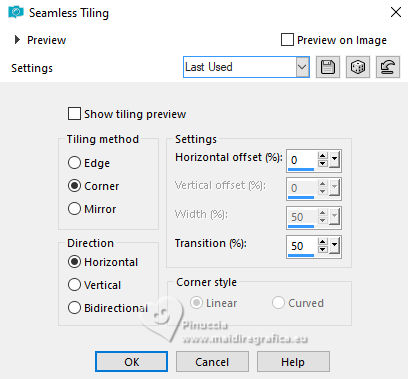
13. Selections>Select All.
Image>Add Borders, symmetric not checked, background color.

14. Selections>Invert.
Effects>Plugins>Tramages - Tow the line, same settings.
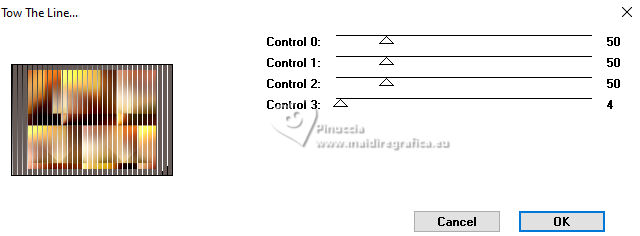
15. Selections>Invert.
Effects>3D Effects>Drop Shadow, color black.
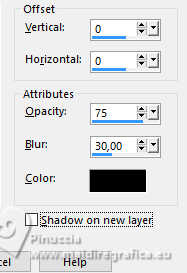
Selections>Select None.
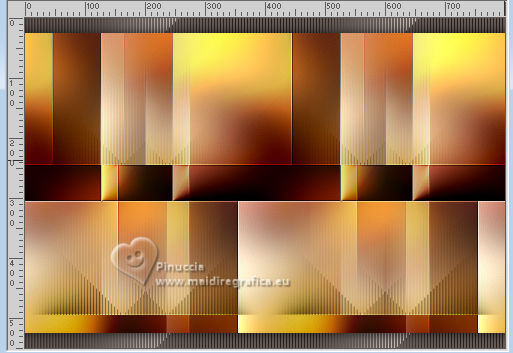
16. Effects>Image Effects>Seamless Tiling, same settings.
We have this:
17. Custom Selection
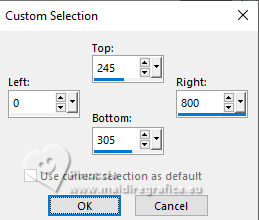
Selections>Promote Selection to Layer.
18. Effects>Plugins>Tramages - Tow the line, same settings.
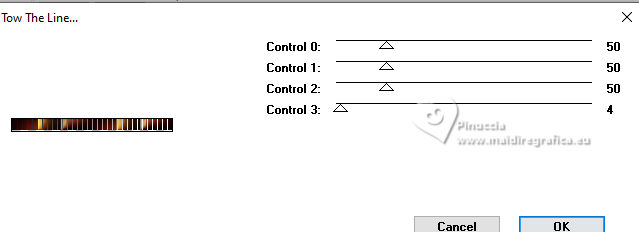
Selections>Select None.
19. Effects>Plugins>Toadies - What are you.
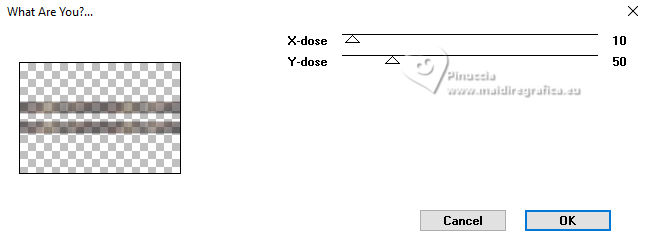
if you are using the version with more items, keep all Control to 0
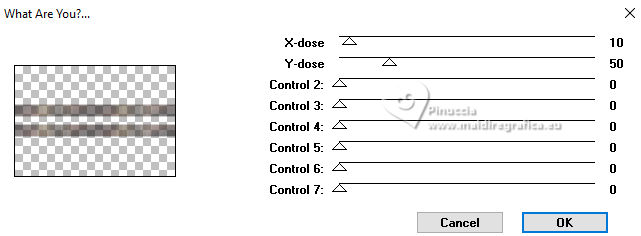
Effects>Edge Effects>Enhance More.
20. Effects>3D Effects>Drop Shadow, same settings.
21. Change the Blend Mode of this layer to Overlay.
22. Effects>Geometric Effects>Skew.
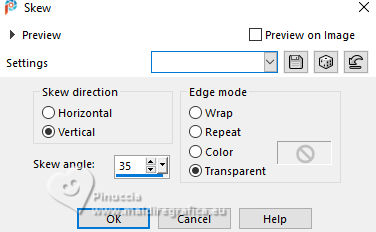
23. Layers>Duplicate.
Image>Mirror>Mirror Horizontal.
Layers>Merge>Merge Down.
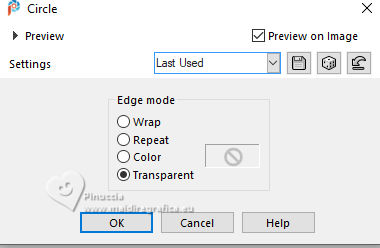
24. Effects>Geometric Effects>Circle.
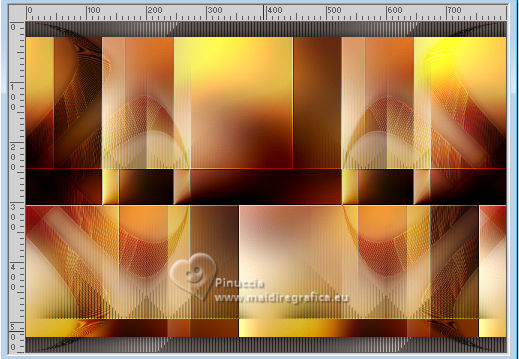
25. Effects>Plugins>Simple - Left Right Wrap.
This Effect works without window; result:
26. Selections>Select All.
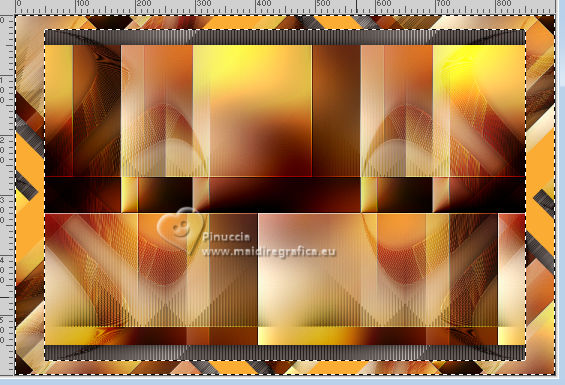
Image>Add Borders, symmetric not checked, foreground color.

27. Selections>Invert.
Effects>Plugins>Simple - Diamonds.
28. Adjust>Blur>Gaussian Blur, same settings.
29. Effects>3D Effects>Drop Shadow, same settings.
Selections>Select None.
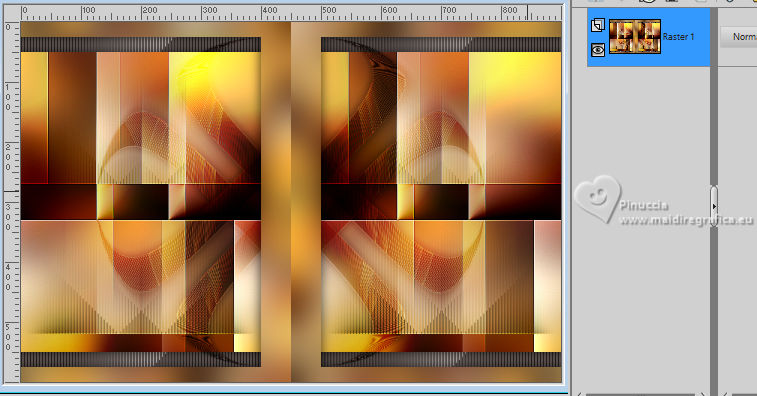
30. Effects>Plugins>Simple - Left Right Wrap.
We have this:
31. Selections>Load/Save Selection>Load Selection from Disk.
Look for and load the selection cora-1-cre@nnie
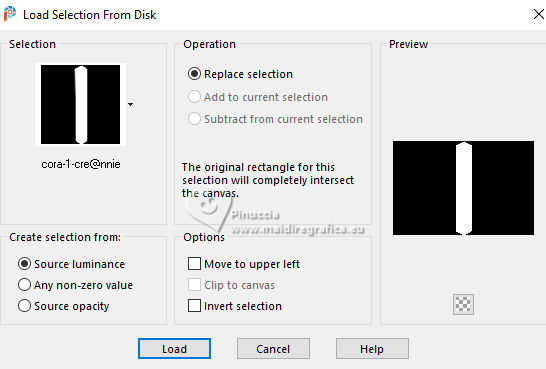
32. Effects>Plugins>Tramages - Tow the line, same settings.
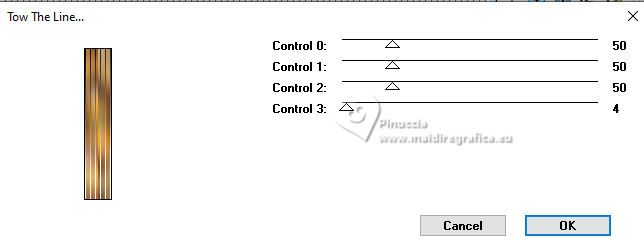
33. Effects>3D Effects>Drop Shadow, same settings.
Selections>Select None.
34. Effects>Plugins>Simple - Left Right Wrap.
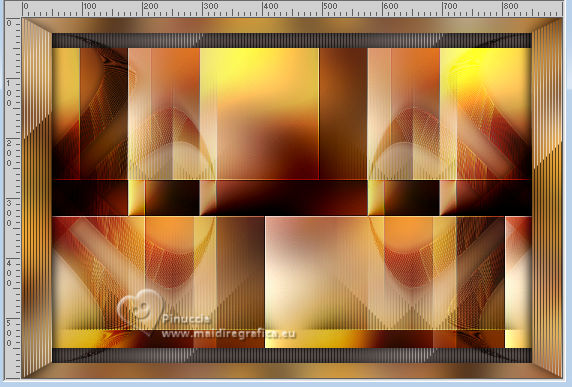
35. Layers>New Raster Layer.
Flood Fill the layer with your background color.
36. Layers>New Mask layer>From image
Open the menu under the source window and you'll see all the files open.
Select the mask NarahsMasks_1826
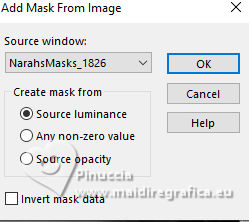
Layers>Merge>Merge Group.
Effects>Edge Effects>Enhance More.
37. Effects>3D Effects>Drop Shadow, same settings.
38. Layers>Duplicate.
Change the Blend Mode of this layer to Screen and reduce the opacity to 50%.
39. Layers>Merge>Merge visible.
40. Edit>Copy
41. Layers>New Raster Layer.
Custom Selection
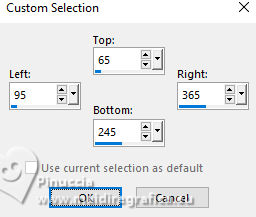
Flood Fill the selection with your foreground color.
42. Selections>Modify>Contract - 5 pixels.
43. Edit>Paste into Selection.
Selections>Select None.
44. Image>Free Rotate - 90 degrees to left.
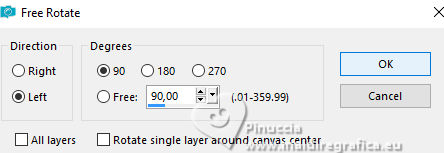
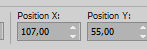
45. K key to activate your Pick Tool 
Position X: 107,00 - Position Y: 55,00.
Effects>Edge Effects>Enhance.
46. Effects>3D Effects>Drop Shadow, color black.
47. Effects>Image Effects>Seamless Tiling, same settings.
48. Layers>Duplicate.
Image>Mirror>Mirror Horizontal.
Image>Mirror>Mirror Vertical (Image>Flip).
49. Change the Blend Mode of this layer to Dodge.
50. Activate again the tube 2025_76_Nadege and go to Edit>Copy.
Go back to your work and go to Edit>Paste as new layer.
Image>Resize, to 80%, resize all layers not checked.
Position X: 262,00 - Position Y: 5,00.
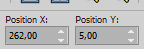
51. Layers>Duplicate.
Adjust>Blur>Gaussian Blur, same settings.
Layers>Arrange>Move Down.
Change the Blend Mode of this layer to Multiply.
52. Open the tube tekst-cora 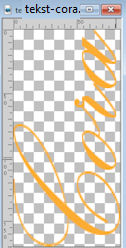
Edit>Copy.
Go back to your work and go to Edit>Paste as new layer.
Position Y: 87,00 - Position Y: 81,00.
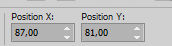
M key to deselect the Tool.
53. Layers>Duplicate.
Image>Mirror>Mirror Horizontal.
Image>Mirror>Mirror Vertical (Image>Flip).
54. Sign your work on a new layer.
55. Image>Add Borders, 1 pixel, symmetric, background color.
56. Image>Resize, 800 pixels width, resize all layers checked.
Save as jpg.
For the tube of this version thanks Wieskes
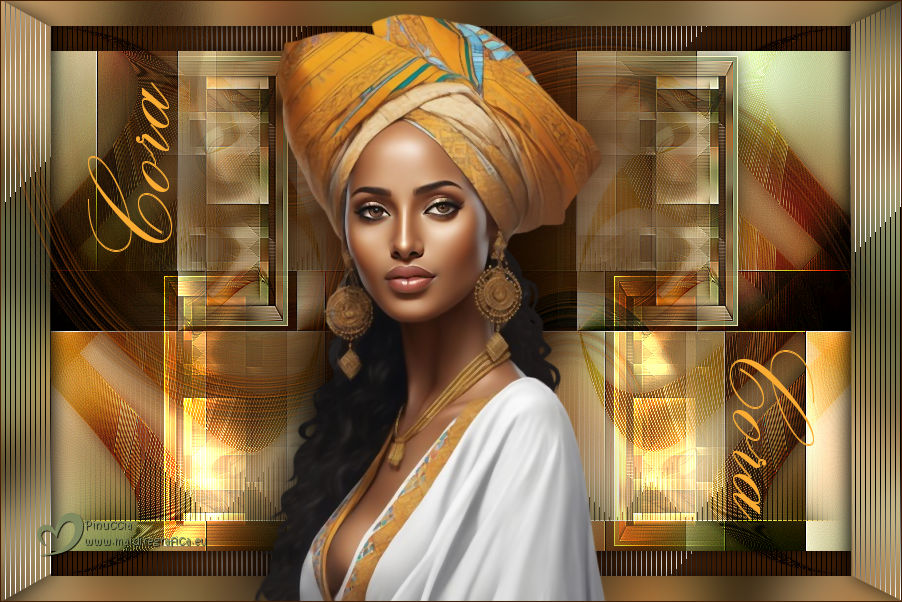
If you have problems or doubts, or you find a not worked link, or only for tell me that you enjoyed this tutorial, write to me.
11 October 2025

|

