NOVA

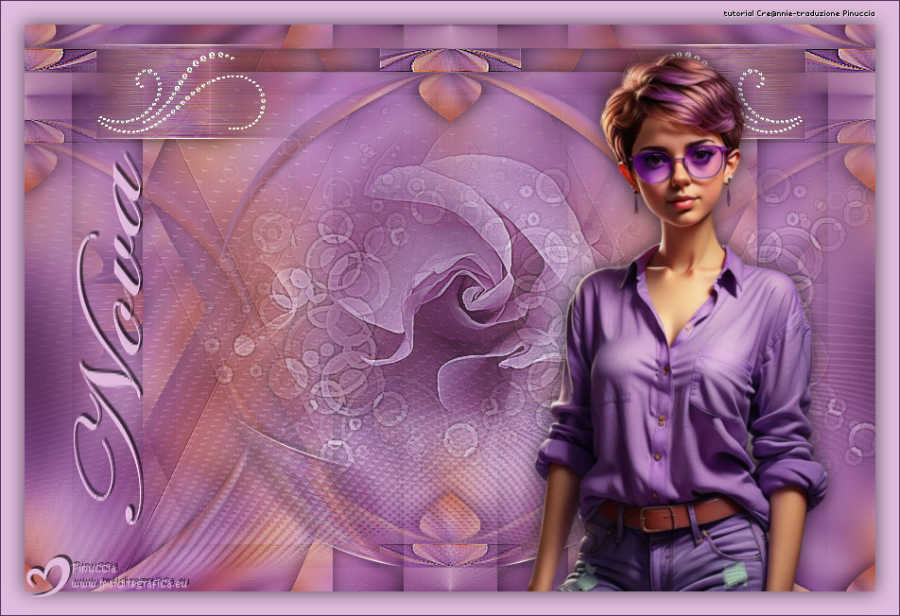
Thanks Annie for your invitation to translate
Clic and move the image to follow the tutorial.
To print


|
This tutorial, created with PSP2020, was translated with PSPX8, PSPX9 and PSP2020, but it can also be made using other versions of PSP.
Since version PSP X4, Image>Mirror was replaced with Image>Flip Horizontal,
and Image>Flip with Image>Flip Vertical, there are some variables.
In versions X5 and X6, the functions have been improved by making available the Objects menu.
In the latest version X7 command Image>Mirror and Image>Flip returned, but with new differences.
See my schedule here
 italian translation here italian translation here
 french translation here french translation here
 your versions here your versions here
Necessary
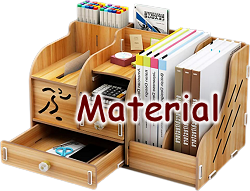
Thanks for the tube and the masks Franie Margot and Narah.
(The links of the tubemakers here).
Plugins
None

You can change Blend Modes according to your colors.

Copy the selections in the Selections Folder.
Open the masks in PSP and minimize them with the rest of the material.
1. Open a new transparent image 650 x 500 pixels.
2. Set your foreground color to the light color #e0bbdd
and your background color to the dark color #4d3360.
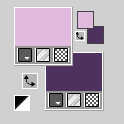
Flood Fill  the transparent image with your foreground color. the transparent image with your foreground color.
3. Selections>Select All.
Open the tube femme220_franiemargot 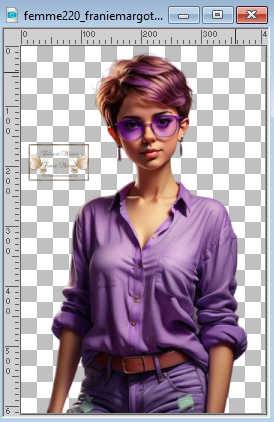
Erase the watermark and go to Edit>Copy.
Minimize the tube.
Go back to your work and go to Edit>Paste into Selection.
Selections>Select None.
4. Effects>Image Effects>Seamless Tiling, default settings.
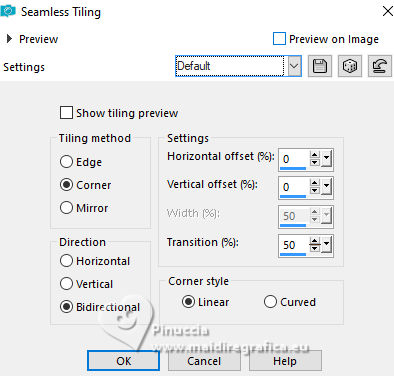
5. Adjust>Blur>Gaussian Blur - radius 40.
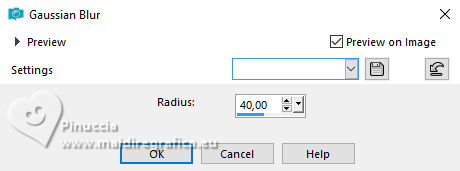
6. Effects>Geometric Effects>Perspective Vertical.
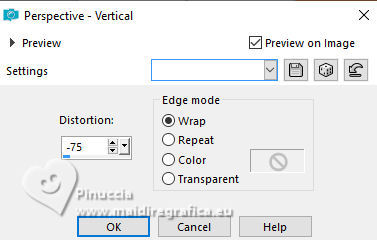
Effects>Edge Effects>Enhance More.
7. Layers>Duplicate.
Image>Mirror>Mirror Vertical (Image>Flip).
Change the Blend Mode of this layer to Hard Light and reduce the opacity to 50%.
Layers>Merge>Merge Down.
8. Selections>Load/Save Selection>Load Selection from Disk.
Look for and load the selection nova-1-cre@nnie
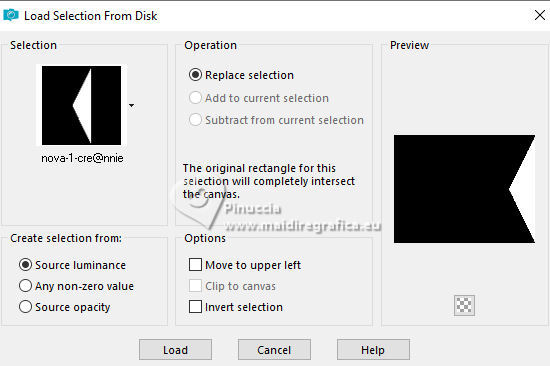
Selections>Promote Selection to Layer.
Selections>Select None.
9. Effects>Geometric Effects>Perspective Horizontal.
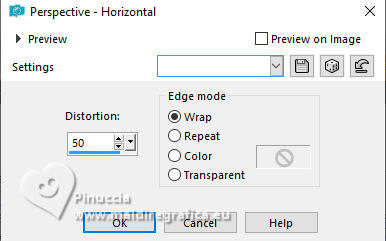
10. Effects>3D Effects>Drop Shadow, color black.
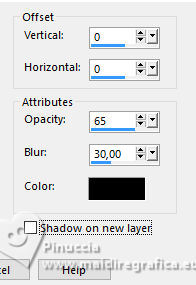
11. Layers>Duplicate.
Image>Mirror>Mirror Horizontal.
Image>Mirror>Mirror Vertical (Image>Flip)
Layers>Merge>Merge Down.
12. Layers>Duplicate.
Effects>Geometric Effects>Circle.
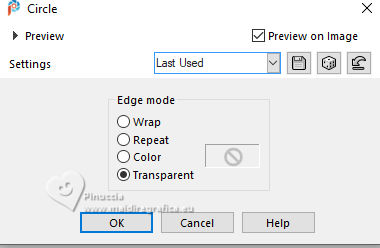
13. Image>Free Rotate - 90 degrees to right.
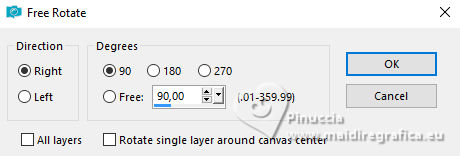
14. Selections>Select All.
Image>Add Borders, symmetric not checked, background color.
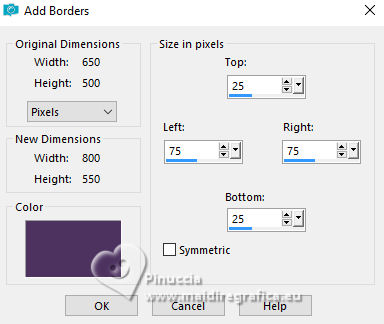
15. Effects>Image Effects>Seamless Tiling, default settings.
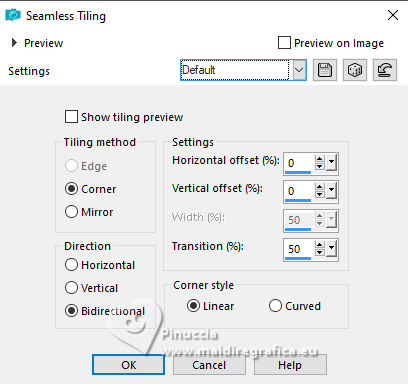
16. Effects>3D Effects>Drop Shadow, last settings.
17. Edit>Copy
18. Selections>Load/Save Selection>Load Selection from Disk.
Look for and load the selection nova-2-cre@nnie
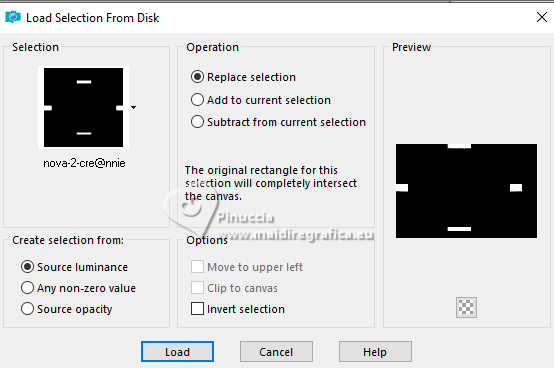
Edit>Paste into Selection
19. Effects>Edge Effects>Enhance More.
Effects>3D Effects>Drop Shadow, last settings.
20. Selections>Select All.
Image>Add Borders, symmetric not checked, foreground color.
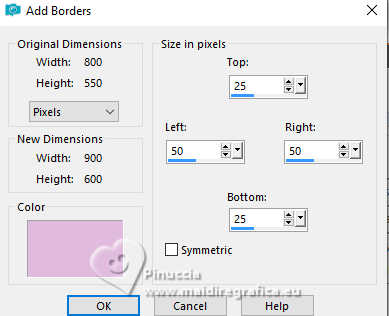
21. Effects>Image Effects>Seamless Tiling, default settings.
22. Selections>Invert.
Adjust>Blur>Gaussian blur, last settings.
Effects>3D Effects>Drop Shadow, last settings.
Selections>Select None.
23. Effects>Image Effects>Seamless Tiling.
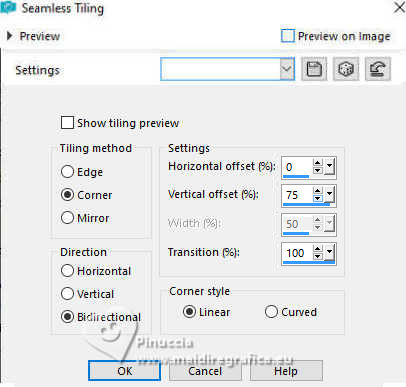
24. Layers>New Raster Layer.
Flood Fill the layer with your foreground color.
25. Layers>New Mask layer>From image
Open the menu under the source window and you'll see all the files open.
Select the mask Narah_Mask_0935
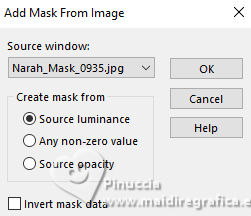
Layers>Merge>Merge Group.
26. Image>Resize, to 75%, resize all layers not checked.
Reduce the opacity of this layer to 50%.
Effects>Edge Effects>Enhance More.
27. Layers>Duplicate.
Effects>Reflection Effects>Rotating Mirror.
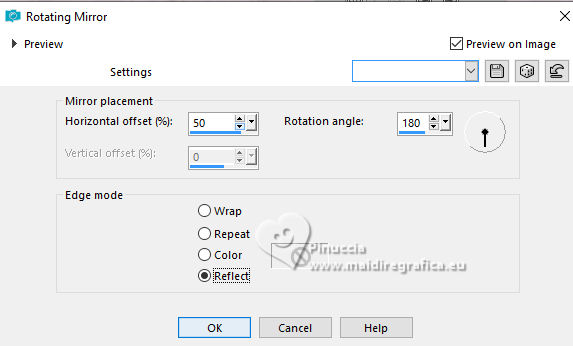
28. Layers>Merge>Merge visible.
29. Activate your Selection Tool 
(no matter the type of selection, because with the custom selection your always get a rectangle)
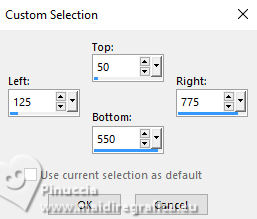
clic on the Custom Selection 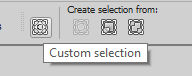
and set the following settings.
30. Edit>Copy
Selections>Select None.
31. Image>Mirror>Mirror Vertical (Image>Flip)
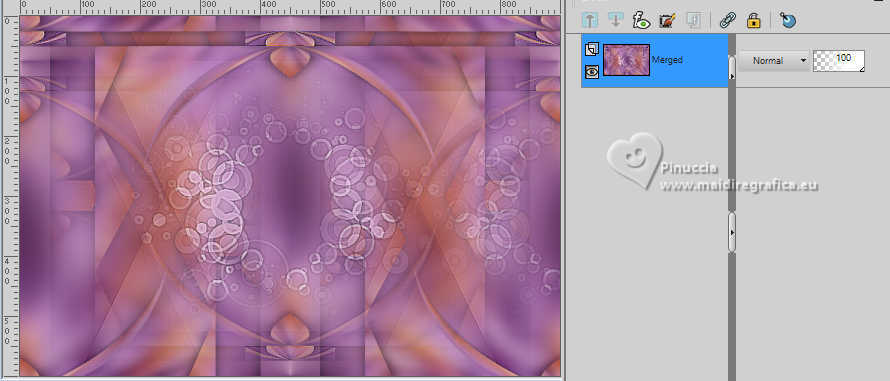
You should have this:
32. Edit>Paste as new layer
Image>Resize, to 20%, resize all layers not checked.
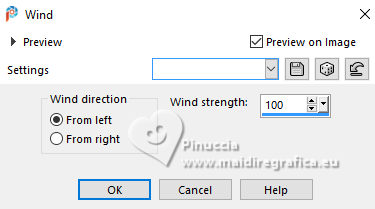
33. Effects>Distortion Effects>Wind, from left, strength 100
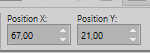
34. K key to activate your Pick Tool 
Position X: 67,00 - Position Y: 21,00.
Effects>Edge Effects>Enhance More.
35. Layers>Duplicate.
Image>Mirror>Mirror Horizontal.
Layers>Merge>Merge Down.
Effects>3D Effects>Drop Shadow, last settings.
36. Layers>Duplicate.
Effects>Geometric Effects>Circle.
Image>Mirror>Mirror Vertical (Image>Flip).
37. Layers>New Raster Layer.
Flood Fill the layer with your foreground color.
38. Layers>New Mask layer>From image
Open the menu under the source window
and select the mask NarahsMasks_1578
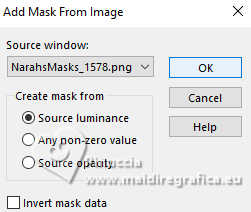
Layers>Merge>Merge Group.
39. Image>Mirror>Mirror Horizontal.
Image>Mirror>Mirror Vertical (Image>Flip).
Effects>Edge Effects>Enhance More.
40. Change the Blend Mode of this layer to Overlay and reduce the opacity to 50%.
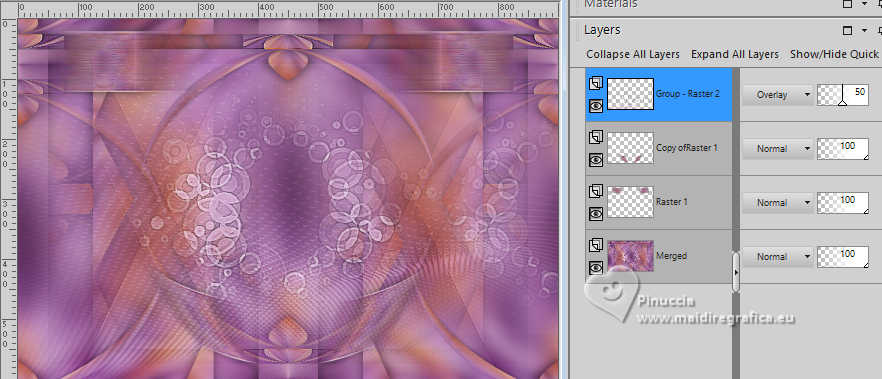
41. Open the tube purple 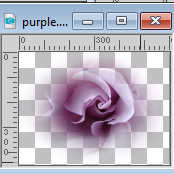
Edit>Copy.
Go back to your work and go to Edit>Paste as new layer.
Reduce the opacity of this layer to 50%.
Effects>Edge Effects>Enhance More.
43. Open the tube deco-nova 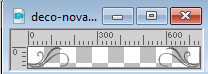
Edit>Copy.
Go back to your work and go to Edit>Paste as new layer.
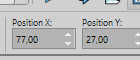
44. K key to activate your Pick Tool
Position X: 77,00 - Position Y: 27,00.
45. Change the Blend Mode of this layer to Screen.
Effects>Edge Effects>Enhance More.
46. Activate again the tube femme220_franiemargot and go to Edit>Copy.
Go back to your work and go to Edit>Paste as new layer.
Image>Resize, to 95%, resize all layers not checked.
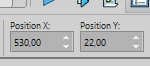
Position X: 530,00 - Position Y: 22,00.
47. Effects>3D Effects>Drop Shadow, last settings.
48. Open the tube tekst-nova 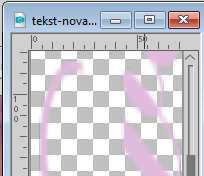
Edit>Copy.
Go back to your work and go to Edit>Paste as new layer.
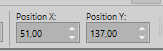
Position X: 51,00 - Position Y: 137,00.
M key to deselect the Tool.
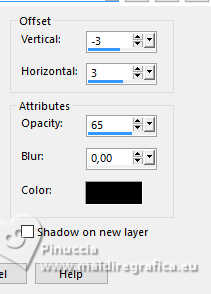
49. Effects>3D Effects>Drop Shadow, color black.
Adjust>Sharpness>Sharpen.
50. Selections>Select All.
Image>Add Borders, 25 pixels, symmetric, foreground color.
51. Effects>3D Effects>Drop Shadow, color black.
Selections>Select None.
52. Sign your work on a new layer.
53. Image>Add Borders, 1 pixel, symmetric, background color.
54. Image>Resize, 800 pixels width, resize all layers checked.
Save as jpg.
For the tubes of these versions thanks
Beatriz
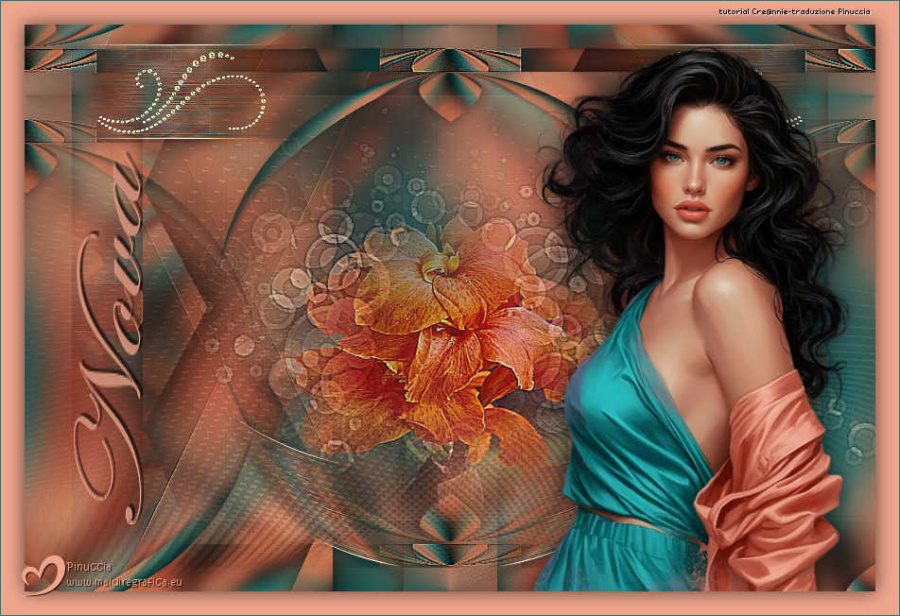
Luz Cristina
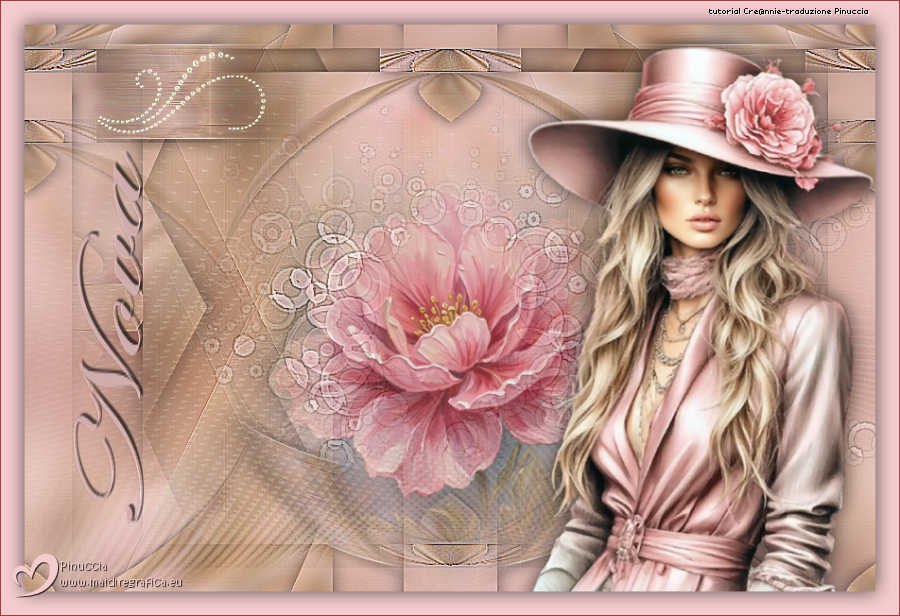
If you have problems or doubts, or you find a not worked link, or only for tell me that you enjoyed this tutorial, write to me.
30 September 2026

|