|
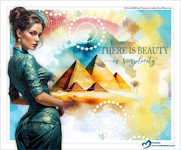
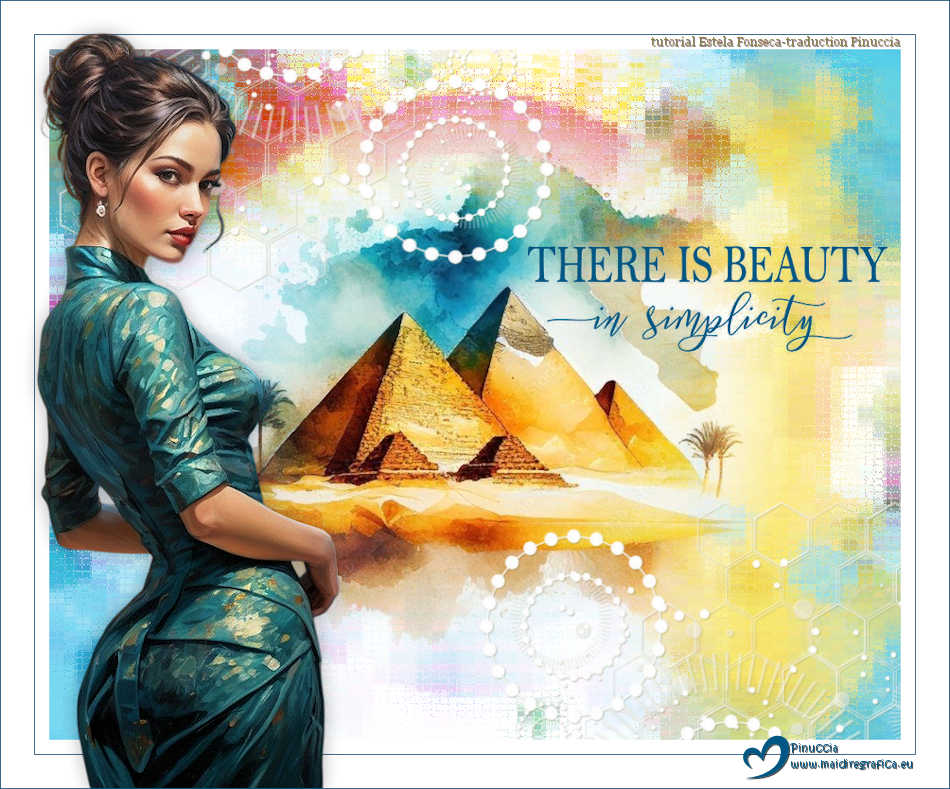
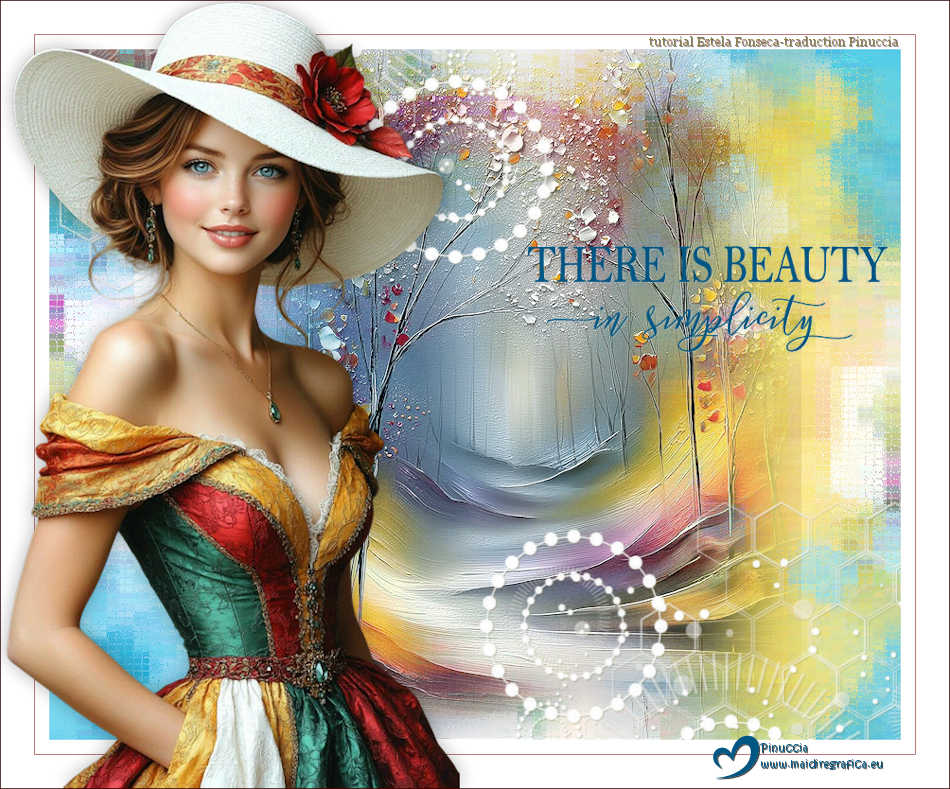
PSYCHEDELIC

Thanks Estela for your invitation to translate your tutorials into english

This tutorial, created with PSP2022, was translated with PspX9 and 2020, but it can also be made using other versions of PSP.
Since version PSP X4, Image>Mirror was replaced with Image>Flip Horizontal,
and Image>Flip with Image>Flip Vertical, there are some variables.
In versions X5 and X6, the functions have been improved by making available the Objects menu.
In the latest version X7 command Image>Mirror and Image>Flip returned, but with new differences.
See my schedule here
 French Translation here French Translation here
 Your versions here Your versions here
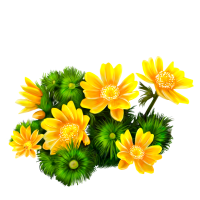
For this tutorial, you will need:

Tubes EF; images Pinterest
(The links of the tubemakers here).
consult, if necessary, my filter section here
DSB Flux - Bubbles, Bright Noise, Radial Smox, Spider Web, Psychedelic, Radial Mosaic here

You can change Blend Modes according to your colors.

Copy the preset in the Presets Folder.
Open the mask in PSP and minimize it with the rest of the material.
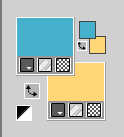
Set your foreground color to #46b1cc,
and your background color to #fdd676.
1. Open EF-Psychedelic_Alpha_Channel
Window>Duplicate or, on the keyboard, shift+D to make a copy.
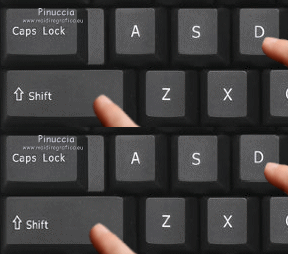
Close the original.
The copy, that will be the basis of your work, is not empty,
but contains the selections saved to alpha channel.
2. Selections>Load/Save Selection>Load Selection from Alpha Channel.
The selection #1 is immediately available.
You just have to click Load.
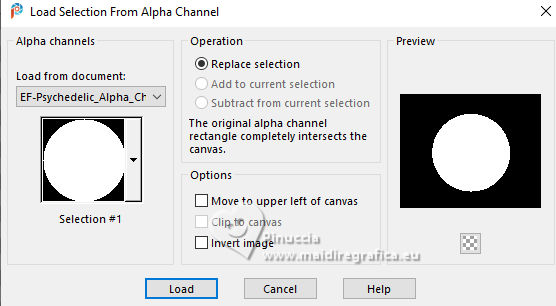
Flood Fill  the selection with your foreground color #46b1cc. the selection with your foreground color #46b1cc.
Selections>Select None.
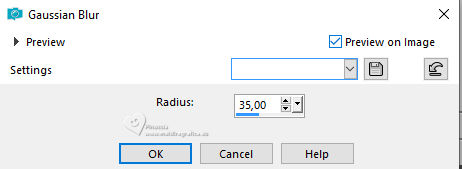
3. Adjust>Blur>Gaussian Blur - radius 35.
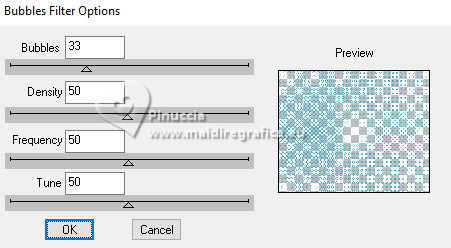
4. Effects>Plugins>DSB Flux - Bubbles
5. Layers>New Raster Layer.
Selections>Load/Save Selection>Load Selection from Alpha Channel.
Open the selections menu and load the selection #2
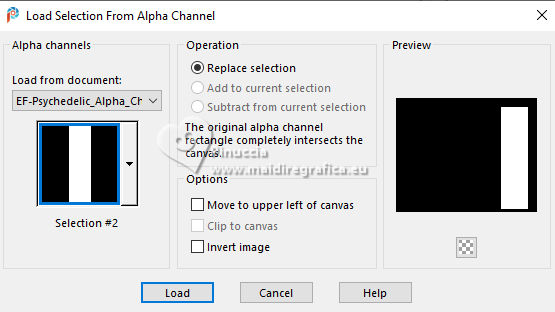
Flood Fill the selection with your background color #fdd676.
6. Effects>Plugins>DSB Flux - Bright Noise.
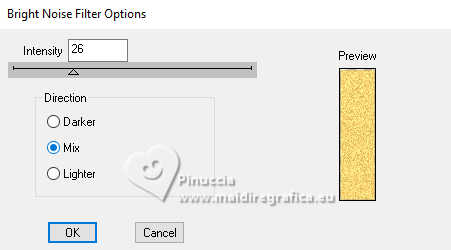
Selections>Select None.
7. Layers>New Raster Layer.
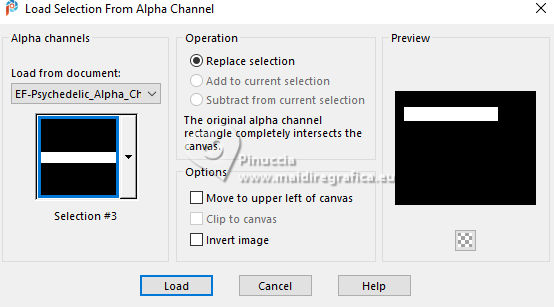
Selections>Load/Save Selection>Load Selection from Alpha Channel.
Open the selections menu and load the selection #3
Set your foreground color to #b1480d,
and your background color to #bdd9cb
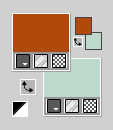
Flood Fill the selection with your foreground color #b1480d.
Selections>Select None.
8. Effects>Plugins>DSB Flux - Radial Smox.
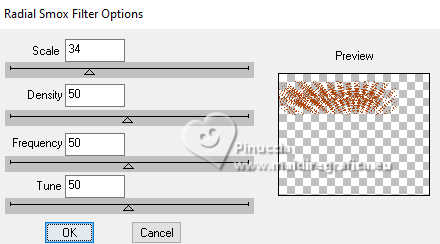
Objects>Align>Top.
9. Layers>New Raster Layer.
Selections>Load/Save Selection>Load Selection from Alpha Channel.
Open the selections menu and load the selection #4
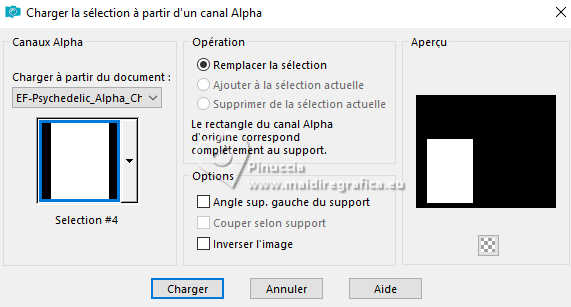
Flood Fill the selection with your background color #bdd9cb
Selections>Select None.
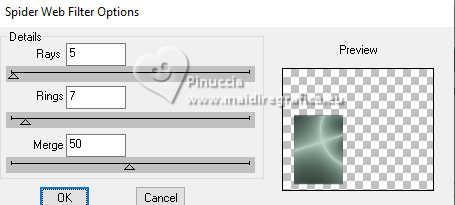
10. Effects>Plugins>DSB Flux - Spider Web.
11. Your tag and the layers
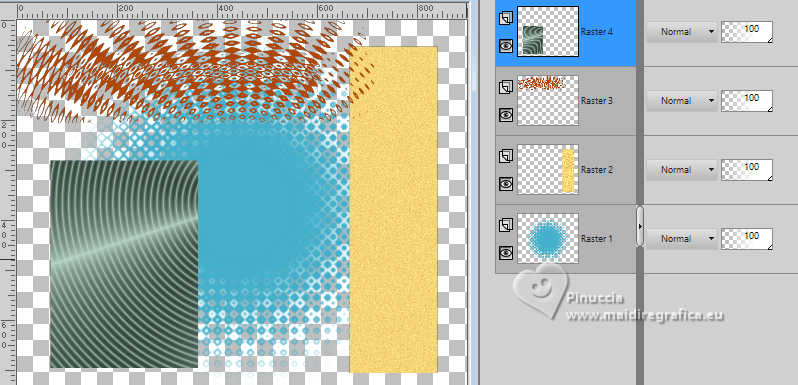
Activate the layer Raster 1.
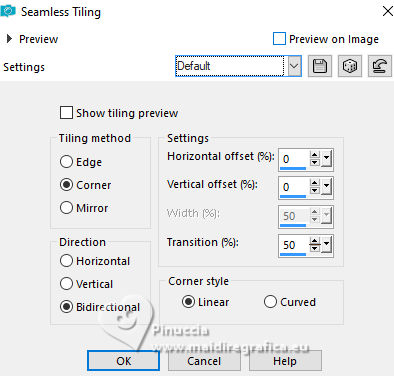
12. Effects>Image Effects>Seamless Tiling, default settings.
13. Effects>Texture Effects>Blinds - color #ffffff.
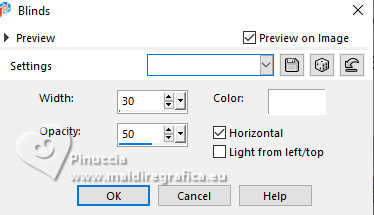
14. Activate the layer Raster 2.
Effects>Distortion Effects>Ripple.
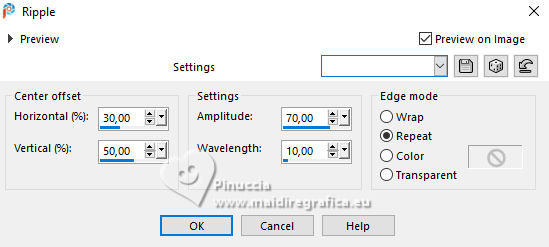
15. Activate the layer Raster 4.
Effects>User Defined Filter - select the preset Double_Vision
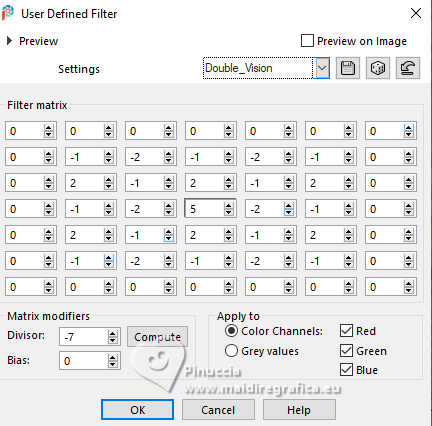
Edit>Repeat User Defined Filter.
16. Effects>Reflection Effects>Kaleidoscope.
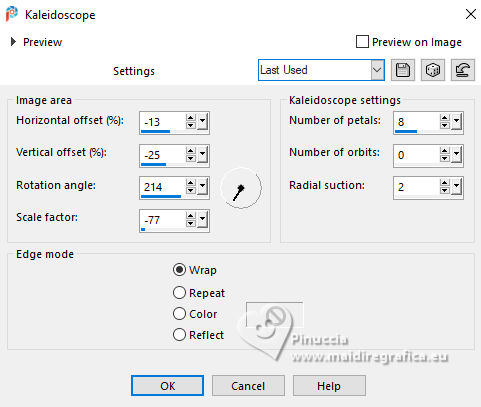
Change the Blend Mode of this layer to Overlay.
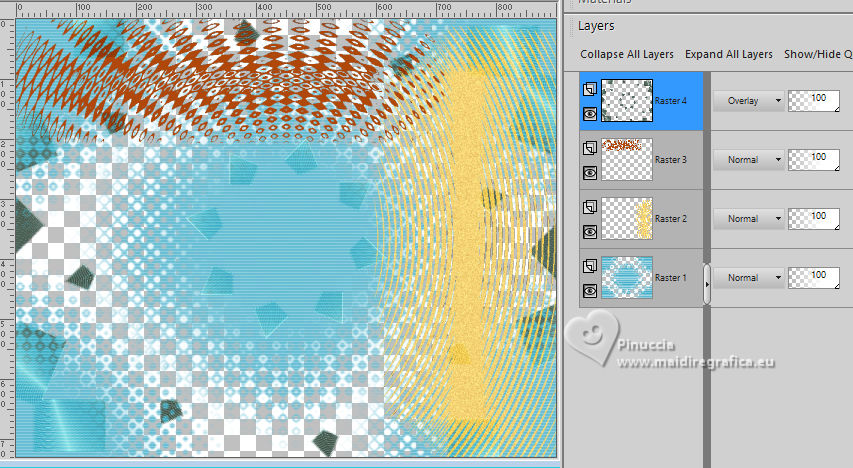
17. Layers>Merge>Merge All.
Layers>Promote Background Layer.
Layers>Duplicate.
Close this layer and activate the background layer, Raster 1.
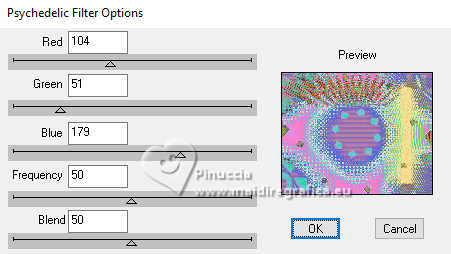
18. Effets>Modules Externes>DSB Flux - Psychedelic.
Open and activate your top layer.
19. Effets>Modules Externes>DSB Flux - Radial Mosaic
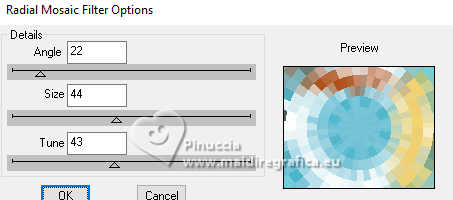
Change the Blend Mode of this layer to Overlay.
20. Layers>Merge>Merge All.
21. Effects>Distortion Effects>Pixelate.
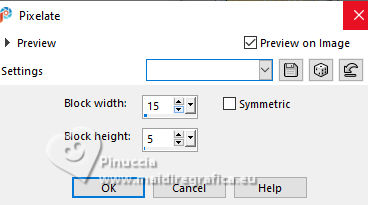
22. Layers>Duplicate.
Effects>Texture Effects>Mosaic Antique.
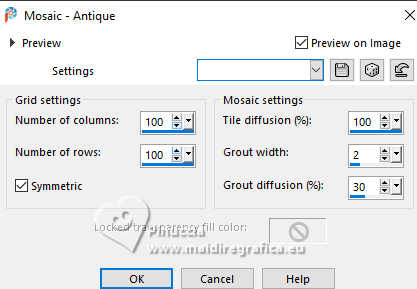
Reduce the opacity of this layer to 55%.
Layers>Merge>Merge Down.
Adjust>Sharpness>Sharpen.
23. Open the tube EF-Misted_Psychedelic 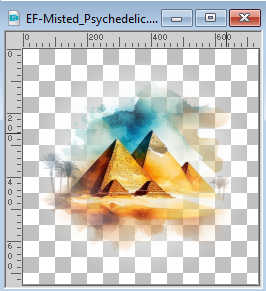
Edit>Copy.
Go back to your work and go to Edit>Paste as new layer.
Layers>Duplicate.
Activate the layer below of the original.
24. Effets>Modules Externes>DSB Flux - Bright Noise, last settings.
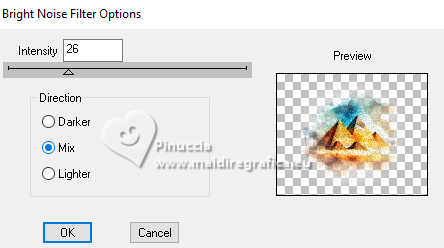
Change the Blend Mode of this layer to Hard Light.
25. Set your foreground color to #ffffff.
Activate your top layer.
Layers>New Raster Layer.
Flood Fill the layer with the color #ffffff.
Layers>New Mask layer>From image
Open the menu under the source window and you'll see all the files open.
Select the mask EF-Mask_Psychedelic.
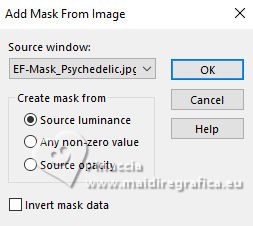
Layers>Merge>Merge Group.
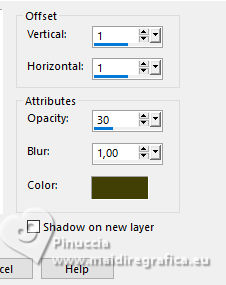
26. Effects>3D Effects>Drop Shadow, color #424006.
27. Open EF-Psychedelic-Texto 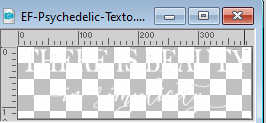
Edit>Copy.
Go back to your work and go to Edit>Paste as new layer.
Activate your Color Change Tool 
and apply the color at your choice.
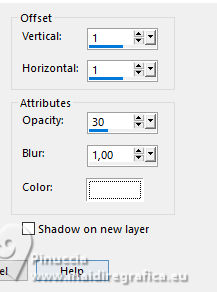
28. Effects>3D Effects>Drop Shadow, color #ffffff.
29. Image>Add Borders, 15 pixels, symmetric, color #ffffff.
Image>Add Borders, 1 pixel, symmetric, color #025780.
Image>Add Borders, 35 pixels, symmetric, color #ffffff.
30. Open the tube @Feline31 Janv23-4(23) 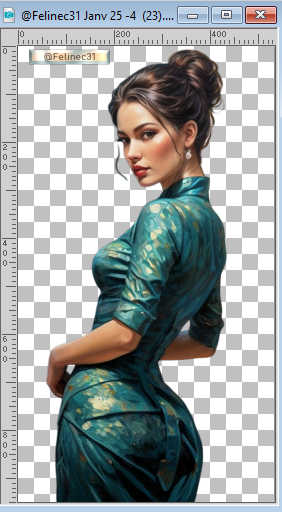
Erase the watermark and go to Edit>Copy.
Go back to your work and go to Edit>Paste as new layer.
Image>Mirror>Mirror Horizontal.
Image>Resize, to 85%, resize all layers not checked.
Adjust>Sharpness>Sharpen.
Move  the tube to the left. the tube to the left.
31. Effects>3D Effects>Drop Shadow, color #000000.
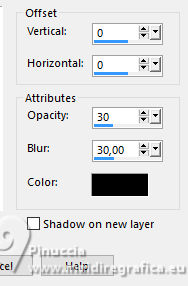
32. Sign your work.
Image>Add Borders, 1 pixel, symmetric, color #025780.
Save as jpg.
If you have problems or doubts, or you find a not worked link,
or only for tell me that you enjoyed this tutorial, write to me.
22 October 2026

|