|
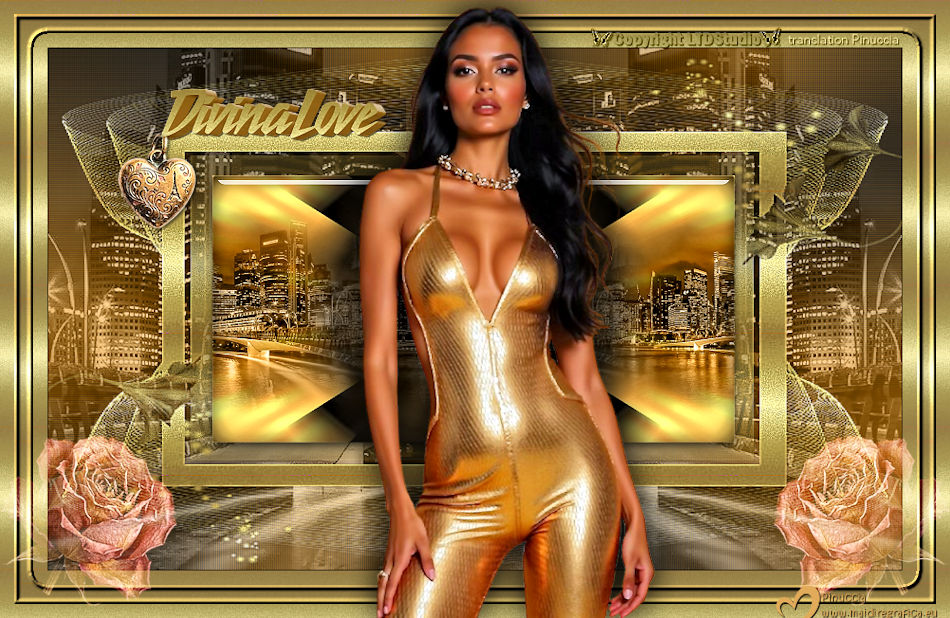
DIVINA LOVE 

This tutorial, was created with PSPX9 and translated with PSP2020, but it can also be made using other versions of PSP.
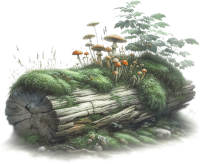 For this tutorial, you will need:  Thanks for the tubes Clo, for the mask Gabry and for the text and the deco Wieske ("un petit bonjeur kit). The rest of the material is by Lady Tess. (you find here the links to the material authors' sites) 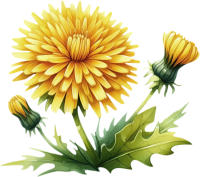  consult, if necessary, my filter section here Filters Unlimited 2.0 here Funhouse - Loom here Alien Skin Eye Candy 5 Impact - Glass here Nik Software - Color Efex Pro here Filters Funhouse can be used alone or imported into Filters Unlimited. (How do, you see here) If a plugin supplied appears with this icon  it must necessarily be imported into Unlimited it must necessarily be imported into UnlimitedYou can change Blend Modes according to your colors. In the newest versions of PSP, you don't find the foreground/background gradient (Corel_06_029). You can use the gradients of the older versions. The Gradient of CorelX here  Copy the selection in the Selections Folder. Open the mask and the golden pattern in PSP and minimize it with the rest of the material. 1. Set your foreground color to #020202 and your background color to #e1ab5a. 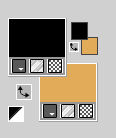 Set your foreground color to a Foreground/Background Gradient, style Radial. 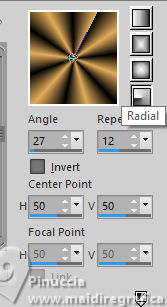 2. Open a new transparent image 900 x 550 pixels. Selections>Select All. Open Fondo_divinalove 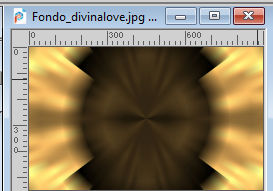 Edit>Copy. Go back to your work and go to Edit>Paste into Selection. Selections>Select None. 3. Open MistedPaesaggio175_byClo 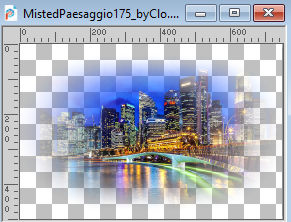 Edit>Copy. Go back to your work and go to Edit>Paste as new layer. Change the Blend Mode of this layer to Luminance (legacy). Effects>Image Effects>Seamless Tiling. 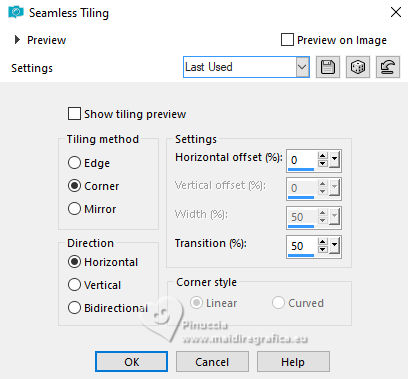 4. We have this  5. Layers>Merge>Merge Down. Minimize this image for the moment. Open a new transparent image 900 x 550 pixels. Flood Fill  the transparent image with your Gradient. the transparent image with your Gradient.Adjust>Blur>Gaussian Blur - radius 40.  6.Effects>Plugins>Filters Unlimited 2.0 - Funhouse - Loom.  Layers>New Raster Layer. Set your foreground color to Pattern and select the pattern Gold  Flood Fill the layer with your gold pattern.7. Layers>New Mask layer>From image Open the menu under the source window and you'll see all the files open. Select the mask mask Gabry 112. 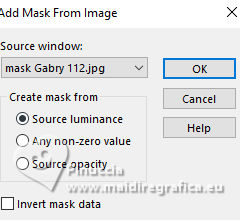 Layers>Merge>Merge Group. Adjust>Sharpness>Sharpen More. 8. Layers>New Raster Layer. Selections>Load/Save Selection>Load Selection from Disk. Look for and load the selection LTD_DivinaLove_sel_1 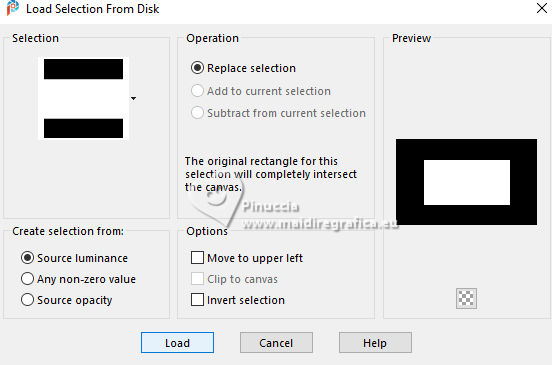 Activate the image minimized at step 5 and go to Edit>Copy. Go back to your work and go to Edit>Paste into Selection. 9. Effects>Plugins>Alien Skin Eye Candy 5 Impact - Glass - preset Clear 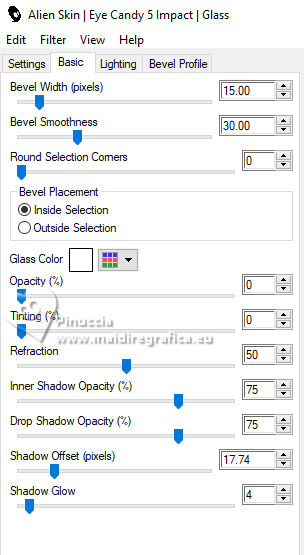 Selections>Select None. Activate the layer Raster 1. 10. Open MistedPaesaggio175_byClo_2 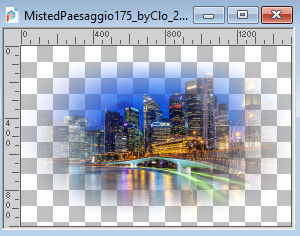 Edit>Copy. Go back to your work and go to Edit>Paste as new layer. Change the Blend Mode of this layer to Luminance (Legacy). Effects>Reflection Effects>Rotating Mirror, default settings. 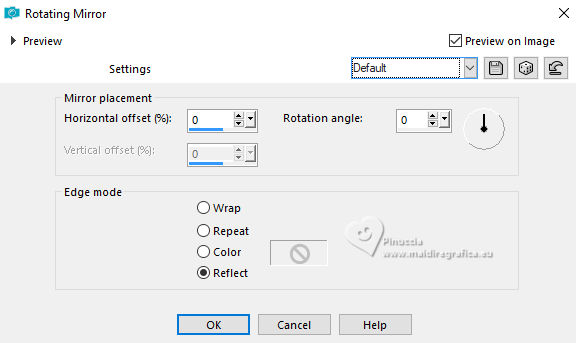 11. We have this 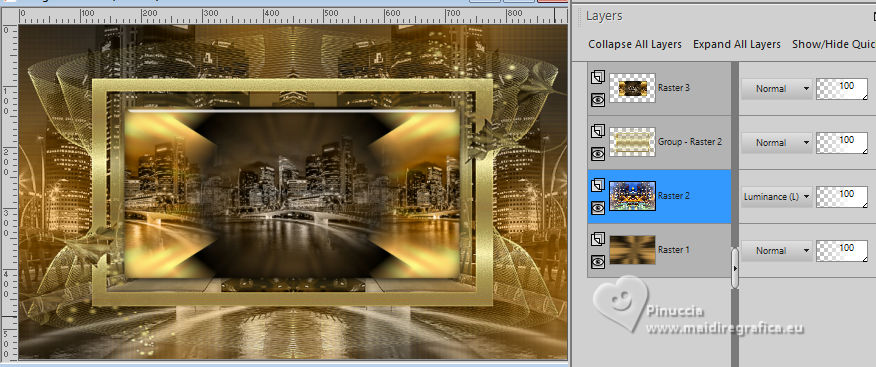 12. Activate the mask's layer - the second from the top. Effects>Plugins>Nik Software - Color Efex Pro - Tonal Contrast, default settings. 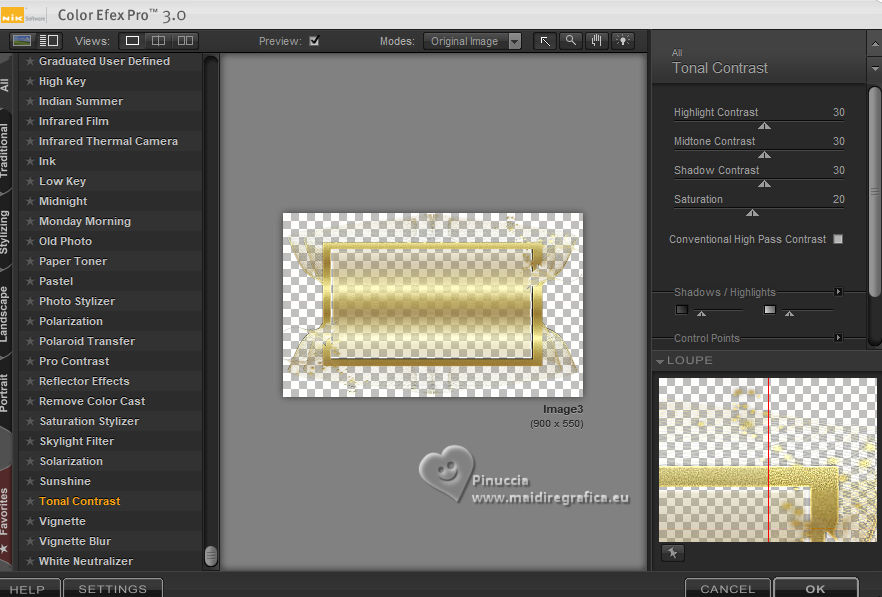 Activate again your top layer. Effects>Plugins>Nik Software - Color Efex Pro - Tonal Contrast, same settings. 13. Image>Add Borders, 1 pixel, symmetric, color #000000. Selections>Select All. Image>Add Borders, 50 pixels, symmetric, color #ffffff. 14. Selections>Invert. Flood Fill the selection with your golden pattern.Selections>Modify>Contract - 15 pixels. Layers>New Raster Layer. Flood Fill the selection with your golden pattern.15. Effects>3D Effects>Inner Bevel. 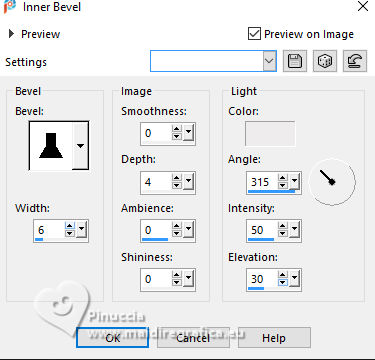 Selections>Select None. 16. Open Woman3528_byClo 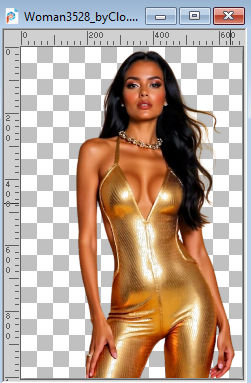 Edit>Copy. Go back to your work and go to Edit>Paste as new layer. Image>Resize, to 65%, resize all layers not checked. Objects>Align>Bottom. Effects>3D Effects>Drop Shadow, color black 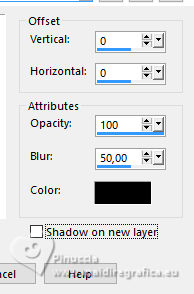 17. Open LTDStudio_DivinaLove_Deco 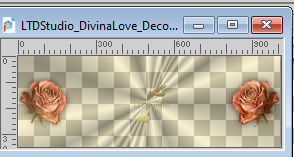 Edit>Copy. Go back to your work and go to Edit>Paste as new layer. Objects>Align>Bottom. Change the Blend Mode of this layer to Screen. 18. Open LTDStudio_DivinaLove_Texto 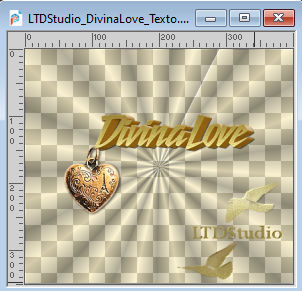 Edit>Copy. Go back to your work and go to Edit>Paste as new layer. Effects>Image Effects>Offset.  Author's note: this is my position; you can move it to your liking 19. Sign your work on a new layer. Add the author's and translator's watermarks. Layers>Merge>Merge All and save as jpg. Versions with my tubes from Pinterest images 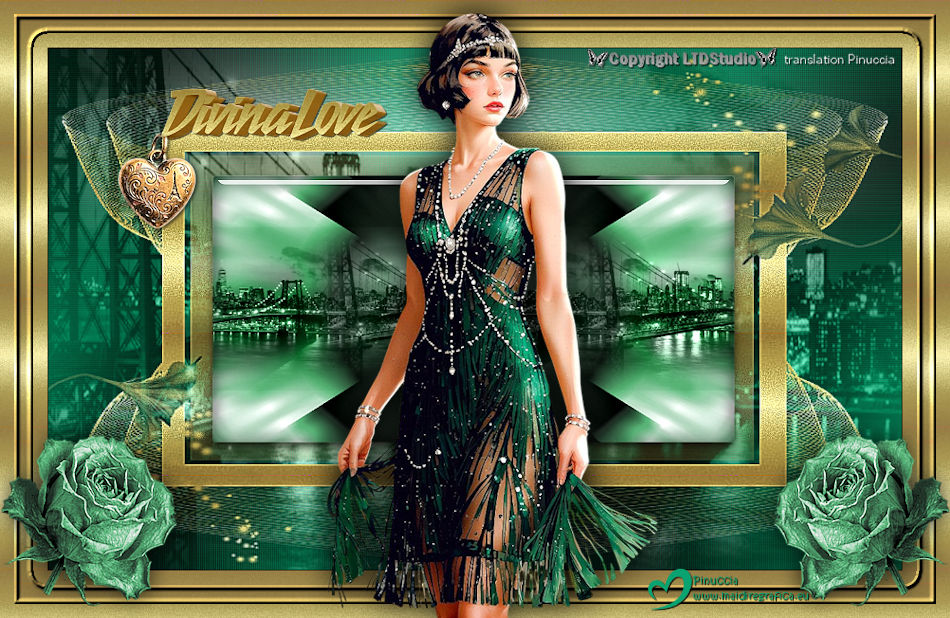     Your versions. Thanks Your versions. Thanks If you have problems or doubts, or you find a not worked link, or only for tell me that you enjoyed this tutorial, write to me. 17 October 2026 |