|
SENSUALITÉ 

This tutorial, was created with PSPX9 and translated with PSP2020, but it can also be made using other versions of PSP.
For this tutorial, you will need:  Thanks for the tubes and the mask Clo, Beatriz, Silvie and Narah. The rest of the material is by Lady Tess. (you find here the links to the material authors' sites)  consult, if necessary, my filter section here Filters Unlimited 2.0 here Mehdi - Wavy Lab 1.1 here &<Bkg Designer IV> - @Night Shadow Pool (to import in Unlimited) here Toadies - What are you here VM Toolbox - Zoom Blur here Mura's Meister - Copies here AAA Frames - Foto Frame, Transparent Frame here Vizros - Box - in the material Filters Toadies and VM Toolbox can be used alone or imported into Filters Unlimited. (How do, you see here) If a plugin supplied appears with this icon  it must necessarily be imported into Unlimited it must necessarily be imported into Unlimited You can change Blend Modes according to your colors.  Open the mask in PSP and minimize it with the rest of the material. 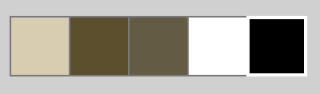 1. Set your foreground color to #d8cdb0, and your background color to #5c4f2e. 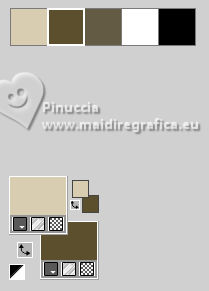 color 3: #635b45 color 4: #ffffff color 5: #000000 2. Open a new transparent image 900 x 550 pixels. Effects>Plugins>Mehdi - Wavy Lab 1.1. This filter creates gradients with the colors of your Materials palette. The first is your background color, the second is your foreground color. Change the last two colors created by the filtre: both with #635b45 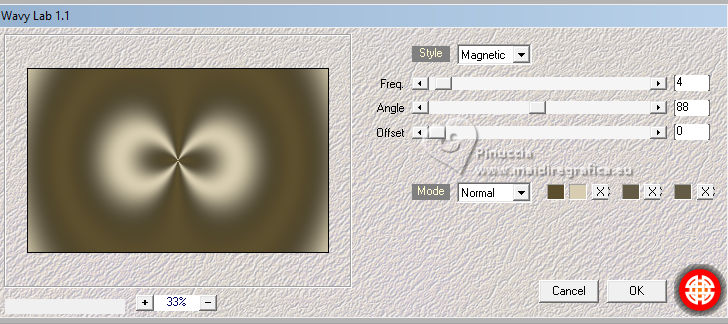 Layers>Duplicate. 3. Adjust>Blur>Gaussian Blur - radius 35 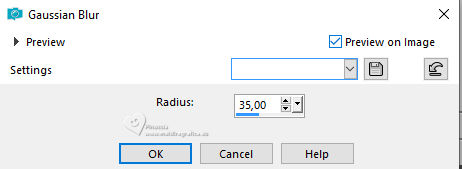 Layers>New Raster Layer. Selections>Select All. Open Misted_Woman2042_byClo 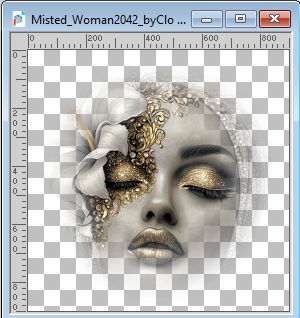 Edit>Copy. Go back to your work and go to Edit>Paste into Selection. Selections>Select None. 4. Effects>Image Effects>Seamless Tiling, default settings.  Layers>Merge>Merge Down. Effects>Plugins>Filters Unlimited 2.0 - Noise Filters - X-Noise  Adjust>Sharpness>Sharpen. 5. We have this  6. Activate again Misted_Woman2042_byClo Window>Duplicate, to make a copy. Minimize the tube and stay on this image. Layers>New Raster Layer. Flood Fill  the layer with your background color #5c4f2e. the layer with your background color #5c4f2e.Effects>Plugins>Filters Unlimited 2.0 - &<Bkg Designer IV> - @Night Shadow Pool.  Layers>Arrange>Send to Bottom. Activate the layer above of the misted. Layers>Merge>Merge Down. 7. Effects>Plugins>Vizros - Box.  Activate your Magic Wand Tool  , tolerance and feather 0, , tolerance and feather 0,and click in the white zone to select it  Selections>Invert. Edit>Copy. Edit>Paste as new image. 8. Again Edit>Copy. Go back to your main work. Edit>Paste as new layer. Adjust>Brightness and Contrast>Brightness and Contrast 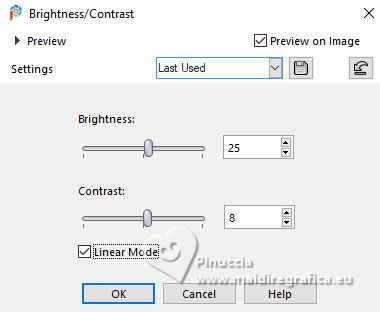 9. Adjust>Sharpness>Sharpen More. K key to activate your Pick Tool  Position X: 22,00 - Position Y: 22,00. 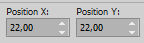 M key to deselect the Tool. Layers>Duplicate. Effects>3D Effects>Drop Shadow, color black 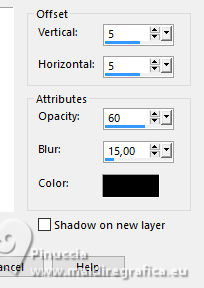 Repeat Drop Shadow, vertical and horizontal -5. 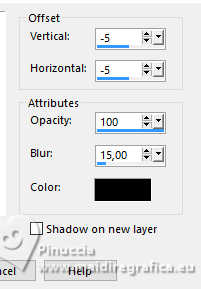 10. Activate the layer below. Effects>Plugins>Filters Unlimited 2.0 - Toadies - What are you 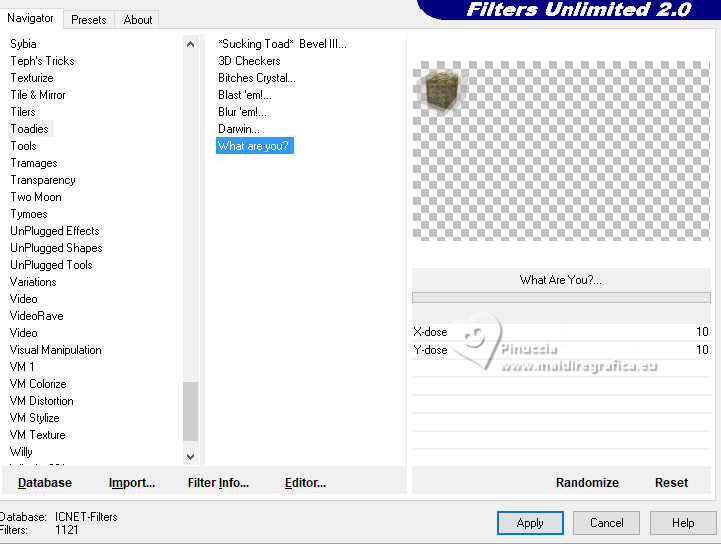 attention please, if you are using the version 2.3 of Unlimited, the result will be different 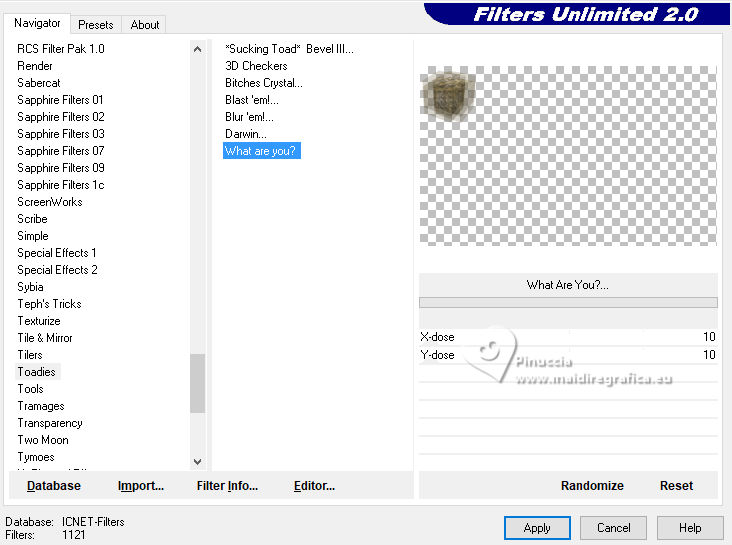 Change the Blend Mode of this layer to Luminance (L). Activate the top layer. Layers>Merge>Merge Down. Effects>Plugins>Mura's Meister - Copies. 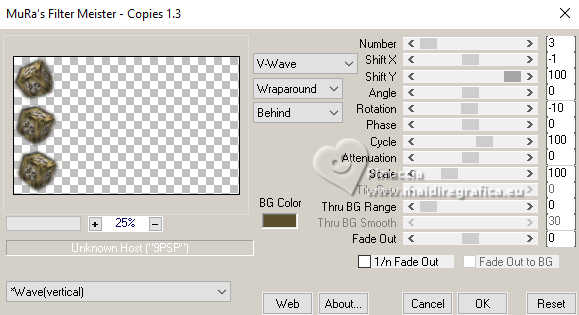 Layers>Duplicate. Image>Mirror>Mirror Horizontal. Layers>Merge>Merge Down. 11. We have this 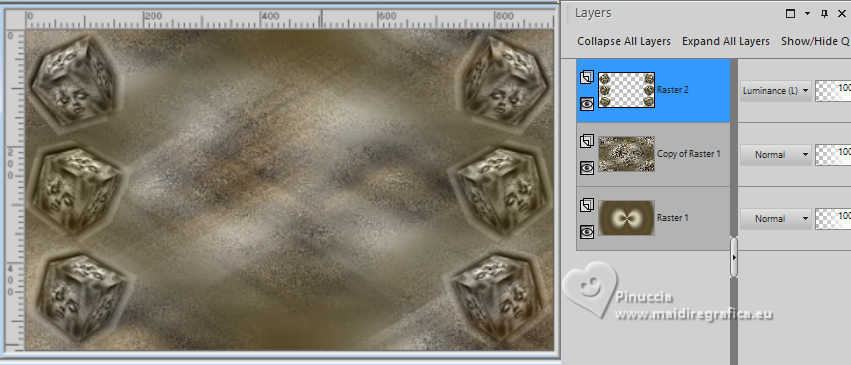 if you are using the version 2.3 of Unlimited: 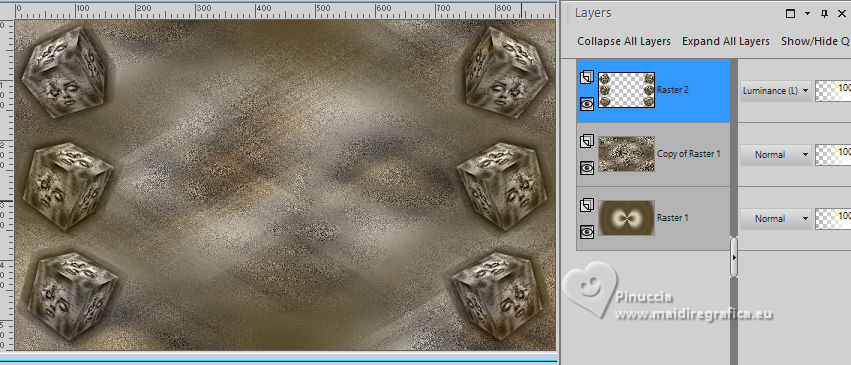 12. Open Golden_Circle55J_Silvie_29.07.2024 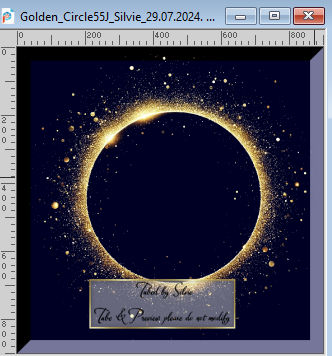 Edit>Copy. Go back to your work and go to Edit>Paste as new layer. Image>Resize, to 70%, resize all layers not checked. Effects>Plugins>Filters Unlimited 2.0 - VM Toolbox - Zoom Blur using the filter in Unlimited, this is placed under VM Stylize 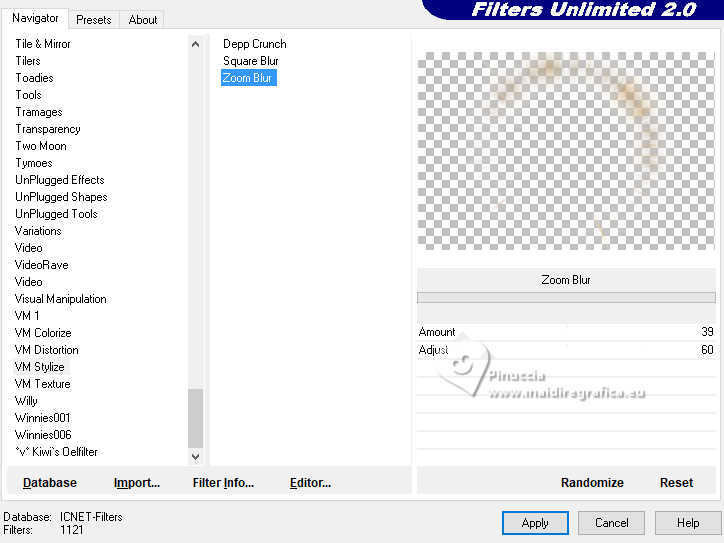 with the version 2.3 of Unlimited 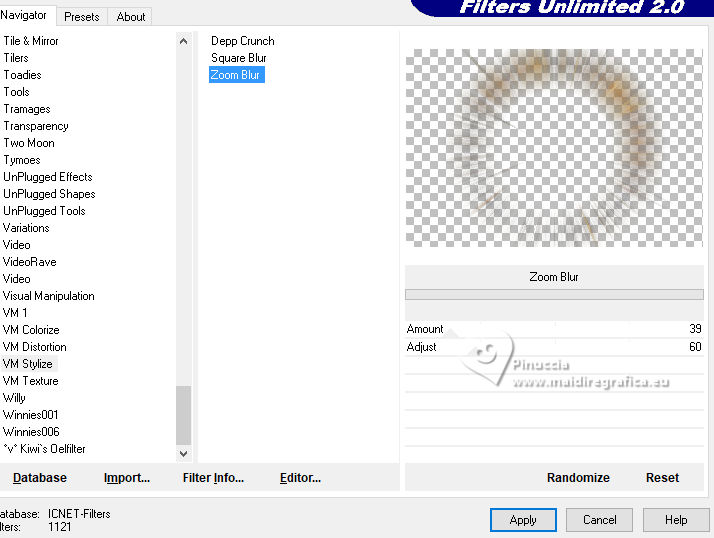 13. Open 1282-Night-misted-LB TUBES 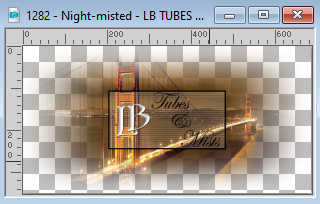 Edit>Copy. Go back to your work and go to Edit>Paste as new layer. Change the Blend Mode of this layer to Luminance. Adjust>Sharpness>Sharpen. 14. Activate again the misted Misted_Woman2042_byClo and go to Edit>Copy. Go back to your work and go to Edit>Paste as new layer. Image>Resize, to 55%, resize all layers not checked. Reduce the opacity of this layer to 71%. Move  slightly to the right, see the final tag. slightly to the right, see the final tag.Activate the layer Raster 1. Edit>Copy. Edit>Paste as new image and minimize this image for a moment. 15. Go back to your work. Image>Add Borders, 1 pixel, symmetric, color #000000. Selections>Select All. Image>Add Borders, 55 pixels, symmetric, color #ffffff. Selections>Invert. 16. Edit>Paste into Selection - the image minimized at the step 14 is still in memory. Effects>Plugins>AAA Frames - Texture Frame. 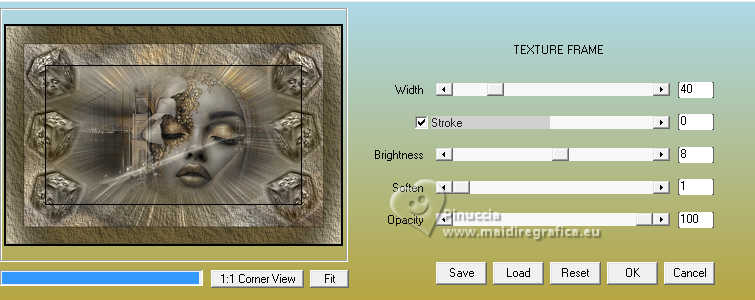 Selections>Invert. Effects>Plugins>AAA Frames - Transparent Frame. 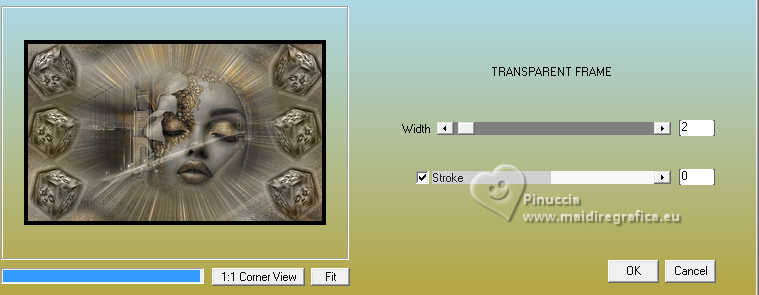 Selections>Select None. 17. Open Misted_Woman2040_byClo 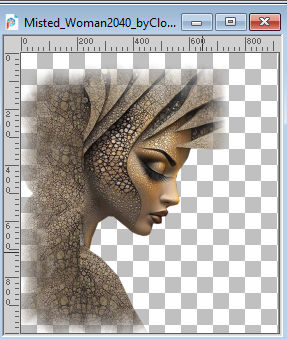 Edit>Copy. Go back to your work and go to Edit>Paste as new layer. Image>Resize, to 80%, resize all layers not checked. Move the tube to the left side, see the final tag.Adjust>Sharpness>Sharpen. Change the Blend Mode of this layer to Luminance.  18. Layers>New Raster Layer. Flood Fill the layer with your foreground color d8cdb0Effects>Plugins>Filters Unlimited 2.0 - Graphics Plus - Cross Shadow.  19. Layers>New Mask layer>From image Open the menu under the source window and you'll see all the files open. Select the mask Narah_Mask_1145  Layers>Duplicate. Layers>Merge>Merge Group. Layers>Arrange>Move Down. Reduce the opacity of this layer to 63%. Adjust>Sharpness>Sharpen More. Edit>Repeat Sharpen More. Adjust>Add/Remove Noise>Add Noise.  Open LTDStudio_Sensualité_Texto  Edit>Copy. Go back to your work and go to Edit>Paste as new layer. Layers>Arrange>Bring to Top. Place the text to your liking.Sign your work. Add the author and the translator's watermarks. Agregar tu Firma o Marca de Agua - Agregar mi Marca de Agua Image>Add Borders, 1 pixel, symmetric, background color #5c4f2e. Save as jpg. For the tube of this version thanks Mentali, the second misted is mine.  The misted of this version are mine.    Your versions. Thanks Your versions. Thanks Kika 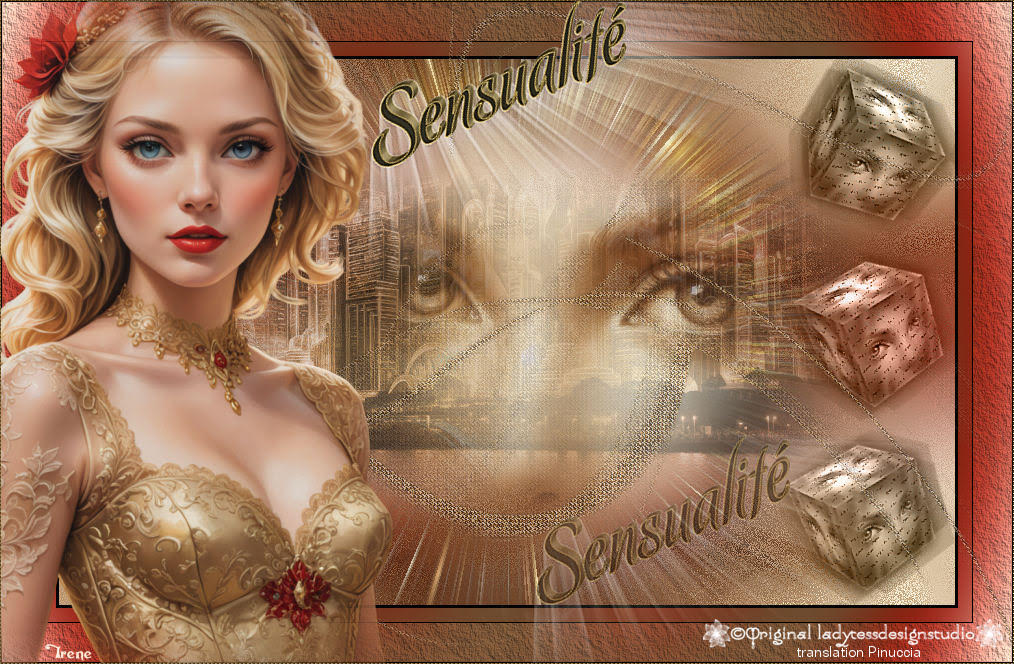 Irene If you have problems or doubts, or you find a not worked link, or only for tell me that you enjoyed this tutorial, write to me. 2 May 2025 |