|
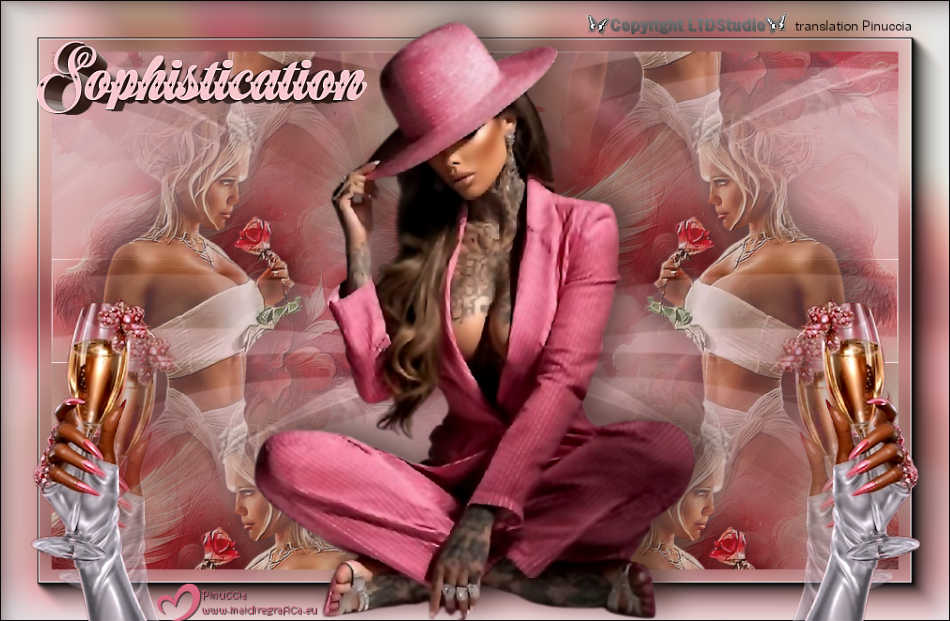
SOPHISTICATION 

This tutorial, was created with PSPX9 and translated with PSP2020, but it can also be made using other versions of PSP.
 For this tutorial, you will need:  Thanks for the tubes Eugenia Clo, Caz and for the mask Narah. The rest of the material is by Lady Tess. (you find here the links to the material authors' sites)   consult, if necessary, my filter section here Filters Unlimited 2.0 here &<Background Kaleidoscope> - Kaleidoscope Persian (to import in Unlimited) here Mehdi - Wavy Lab 1.1 here FM Tile Tools - Blend Emboss here AAA Frames - Foto Frame here You can change Blend Modes according to your colors.  Open the mask in PSP and minimize it with the rest of the material. Colors 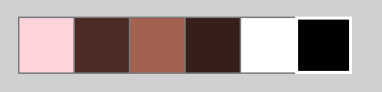 1. Set your foreground color to #fdd3d9 and your background color to #4b2d25. 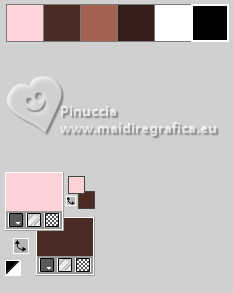 color 3 #a3614f color 4 #37201b extra: #ffffff and #000000 2. Open a new transparent image 900 x 550 pixels. Effects>Plugins>Mehdi - Wavy Lab 1.1. This filter creates gradients with the colors of your Materials palette. The first is your background color, the second is your foreground color. Change the last 2 colors created by the filtre both with the color 3 #a3614f. 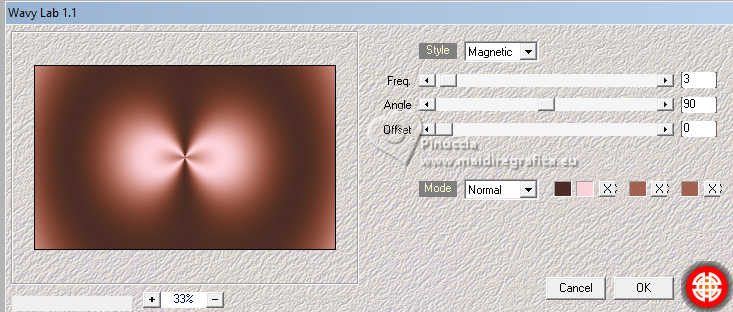 Layers>Duplicate. Adjust>Blur>Gaussian Blur - radius 20. 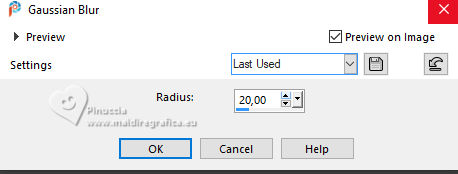 3. Effects>Geometric Effects>Skew. 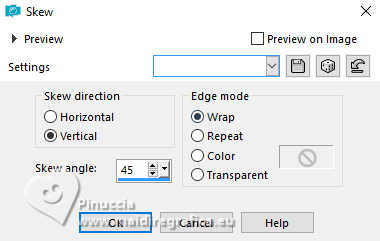 Edit>Repeat Skew 3 times (in total 4) Effects>Plugins>Filters Unlimited 2.0 - &<Bkg Kaleidoscope> - Kaleidoscope Persian, default settings 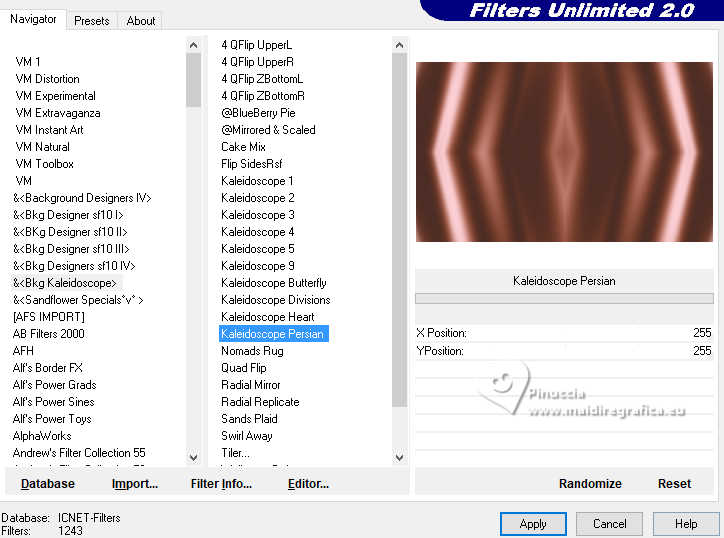 4. We have this 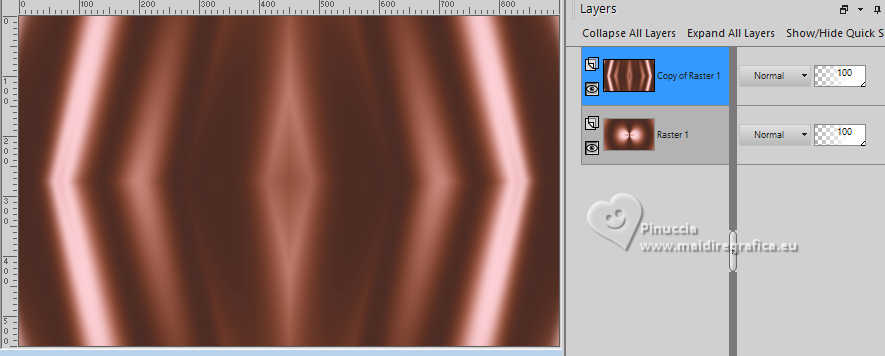 5. Layers>New Raster Layer. Selections>Select All. Open Woman3309byClo 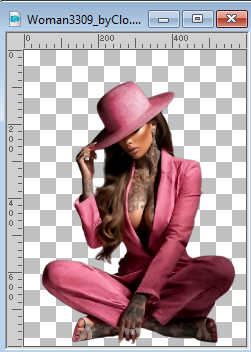 Edit>Copy. Go back to your work and go to Edit>Paste into Selection. Selections>Select None. Effects>Image Effects>Seamless Tiling, default settings.  6. Layers>Merge>Merge Down. Again Effects>Geometric Effects>Skew, same settings Adjust>Blur>Motion Blur 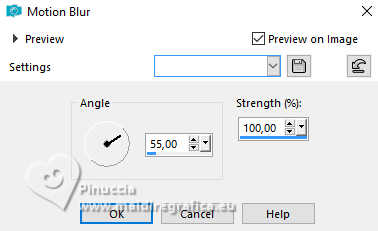 Edit>Repeat Motion Blur 2 times (in total 3) 7. Effects>Image Effects>Seamless Tiling, default settings. 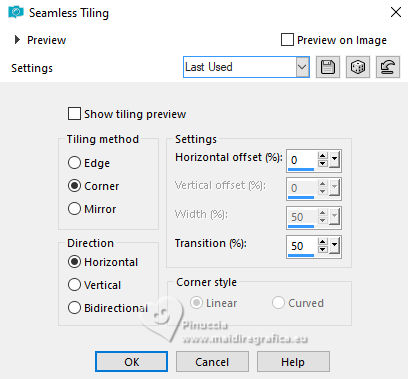 Effects>Reflection Effects>Rotating Mirror. 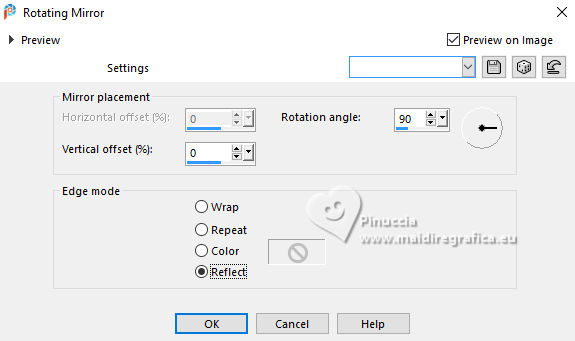 Again Effects>Reflection Effects>Rotating Mirror, default settings. 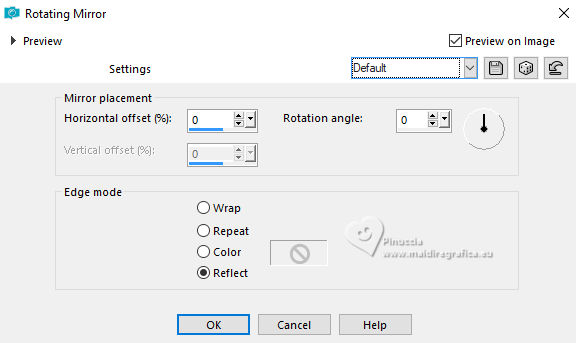 Result 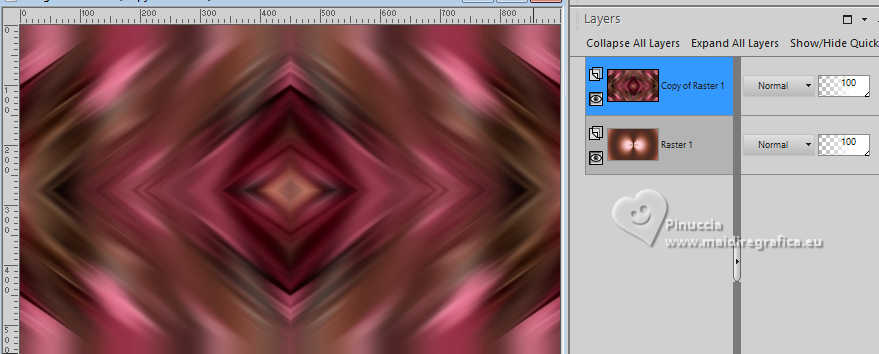 8. Layers>New Raster Layer. Flood Fill  with your foreground color #fdd3d9. with your foreground color #fdd3d9.Layers>New Mask layer>From image Open the menu under the source window and you'll see all the files open. Select the mask NarahsMasks_1511. 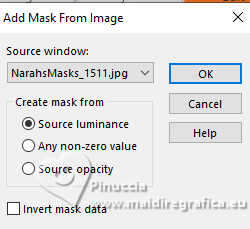 Layers>Duplicate. Layers>Merge>Merge Group. 9. Layers>Duplicate. Image>Mirror>Mirror Horizontal. Layers>Merge>Merge Down. 10. We have this 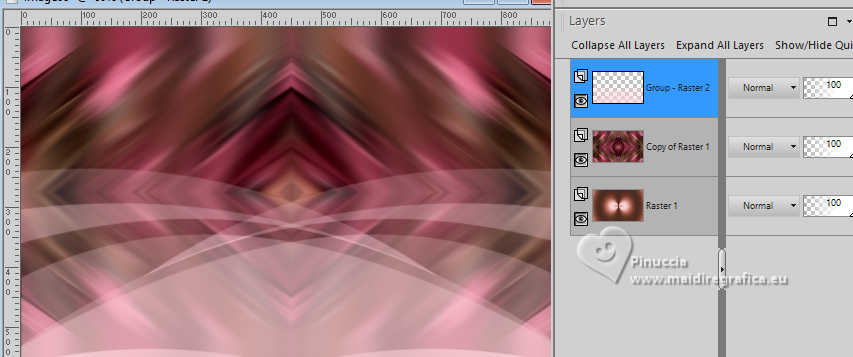 11.Activate the central layer, Copy of Raster 1. Open aigenbycas_valentinekitpaper(3) 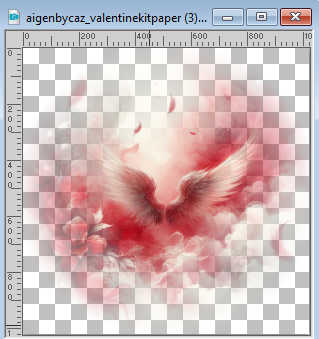 Edit>Copy. Go back to your work and go to Edit>Paste as new layer. Image>Resize, to 70%, resize all layers not checked. K key to activate your Pick Tool  Position X: 92,00 - Position Y: -153,00.  M key to deselect the Tool. 12. Effects>Image Effects>Seamless Tiling.  Effects>Plugins>FM Tile Tools - Blend Emboss, default settings.  Open LTDStudio_sophistication_Deco (opacity to 73%)  Edit>Copy. Go back to your work and go to Edit>Paste as new layer. 13. Objects>Align>Bottom. Layers>Duplicate. Activate the layer below of the original. Adjust>Blur>Gaussian Blur - radius 20 Change the Blend Mode of this layer to Multiply. Effects>Plugins>FM Tile Tools - Blend Emboss, default settings. 14. We have this  15. Image>Add Borders, 1 pixel, symmetric, color #ffffff. Edit>Copy Edit>Paste as new image and minimize it for the moment. Go back to your work. Selections>Select All. Image>Add Borders, 55 pixels, symmetric, color #ffffff. 16. Selections>Invert. Edit>Paste into Selection - image in memory from step 15. Effects>Image Effects>Seamless Tiling.  17. Adjust>Blur>Gaussian Blur - radius 20 Effects>Plugins>AAA Frames - Foto Frame.  Selections>Select None. 18. Activate again the tube Woman3309_byClo and go to Edit>Copy. Go back to your work and go to Edit>Paste as new layer. Image>Resize, to 90%, resize all layers not checked. Objects>Align>Bottom. Effects>3D Effects>Drop Shadow, color #37201b.  Adjust>Sharpness>Sharpen. 20. Open LTDStudio_sophistication_Deco_1  Edit>Copy. Go back to your work and go to Edit>Paste as new layer. Objects>Align>Bottom. 21. Open LTDStudio_sophistication_Texto  Edit>Copy. Go back to your work and go to Edit>Paste as new layer. Position  the text to your liking. the text to your liking.22. Sign your work on a new layer. Add the watermarks of the author and of the translator. Layers>Merge>Merge All and save as jpg. Version with my tubes from Pinterest images    Your versions. Thanks Your versions. Thanks Irene 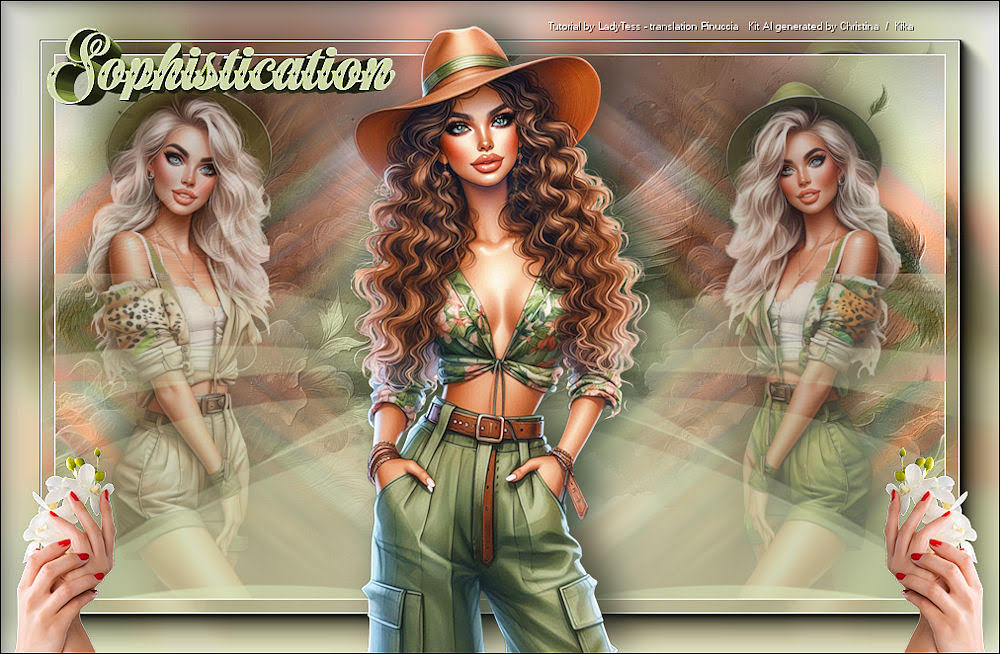 Kika  If you have problems or doubts, or you find a not worked link, or only for tell me that you enjoyed this tutorial, write to me. 25 April 2026 |