|
KLARA


Thanks Maria José for your invitation to translate your tutorial
This tutorial has been translated with PSPX9 and PSP2020, but it can also be made using other versions of PSP.
Since version PSP X4, Image>Mirror was replaced with Image>Flip Horizontal,
and Image>Flip with Image>Flip Vertical, there are some variables.
In versions X5 and X6, the functions have been improved by making available the Objects menu.
In the latest version X7 command Image>Mirror and Image>Flip returned, but with new differences.
See my schedule here
 French translation here French translation here
 your versions here your versions here
For this tutorial, you will need:

(you find here the links to the material authors' sites)

consult, if necessary, my filter section here
Filters Unlimited 2.0 here
Winnies - Win_052 here
RCS Filter Pak 1.0 - RCS TripleExposure here
Filter Factory Gallery S - itsa Edge thing here
Funhouse - Loom here
Richard Rosenman - Grain Generator here
Mura's Seamless - Emboss at Alpha here
Eye Candy 4000 - Motion Trail here
Simple - Top Left Mirror here
AAA Frames - Foto Frame here
Filtres Winnies, RCS Filter Pak, Factory Gallery, Funhouse, Mura's Seamless and Simple can be used alone or imported into Filters Unlimited.
(How do, you see here)
If a plugin supplied appears with this icon  it must necessarily be imported into Unlimited it must necessarily be imported into Unlimited

You can change Blend Modes according to your colors.

Open the mask in PSP and minimize it with the rest of the material.
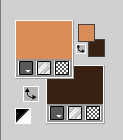
Set your foreground color to #da8d57,
and your background color to #392115.
1. Open a new transparent image 1000 x 700 pixels.
Selections>Select All.
2. Open the image gráfico-klara 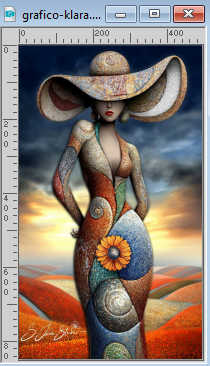
Edit>Copy.
Go back to your work and go to Edit>Paste into Selection.
Selections>Select None.
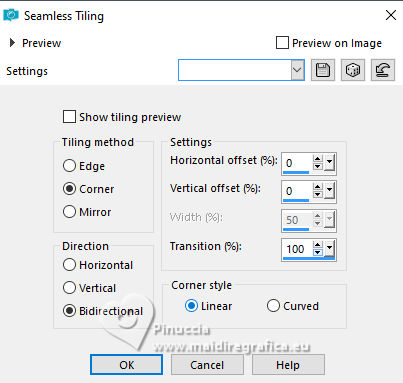
3. Effects>Image Effects>Seamless Tiling.
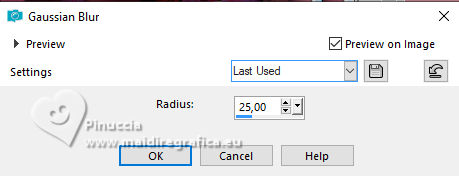
4. Adjust>Blur>Gaussian Blur - radius 25.
5. Layers>Duplicate.
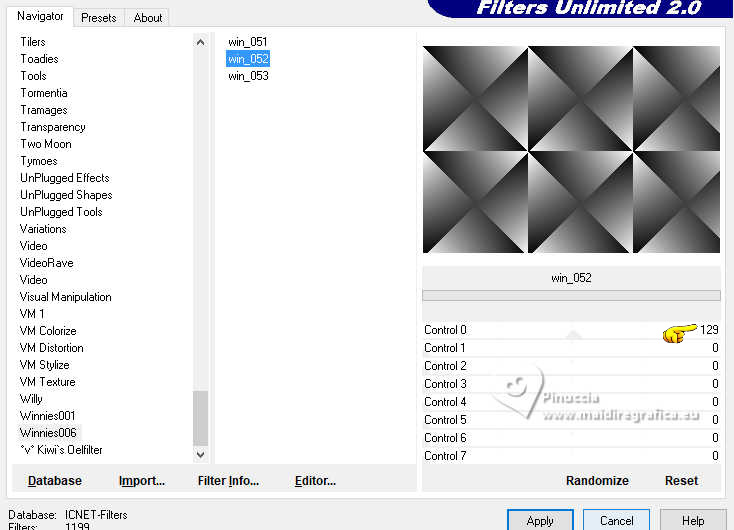
Effects>Plugins>Filters Unlimited 2.0 - Winnies - win_052.
Change the Blend Mode of this layer to Overlay
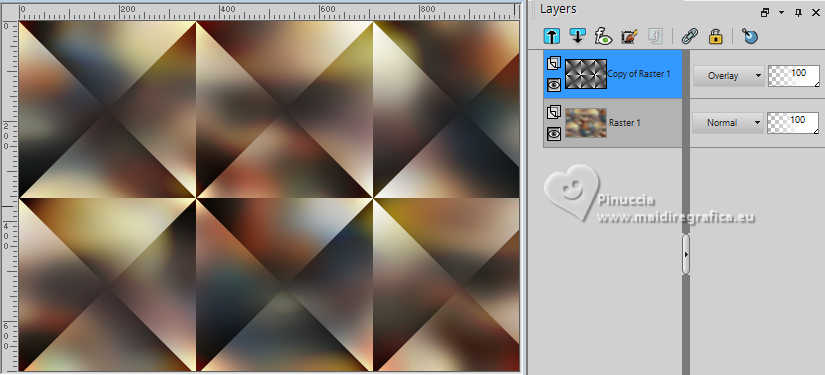
Layers>Merge>Merge Down.
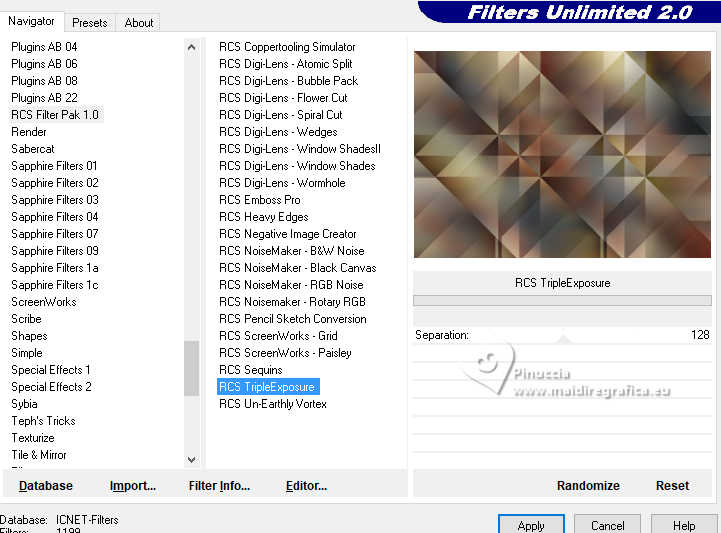
6. Effects>Plugins>Filters Unlimited 2.0 - RCS Filter Pak 1.0 - RCS TripleExposure.
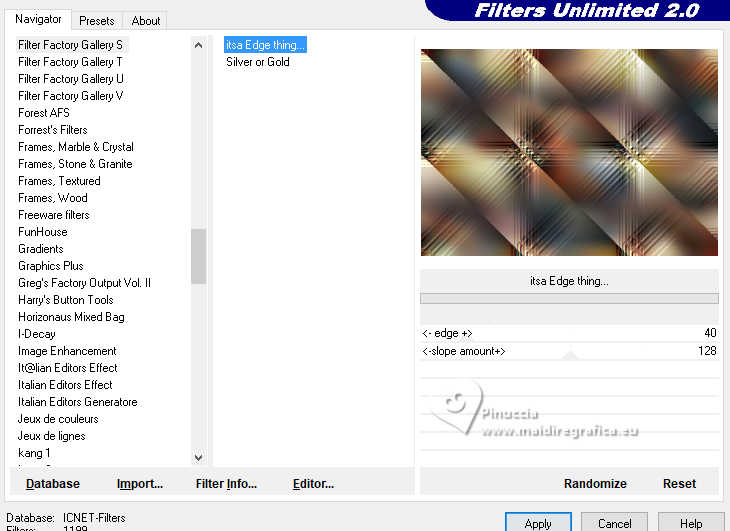
7. Effects>Plugins>Filter Factory Gallery S -itsa Edge thing
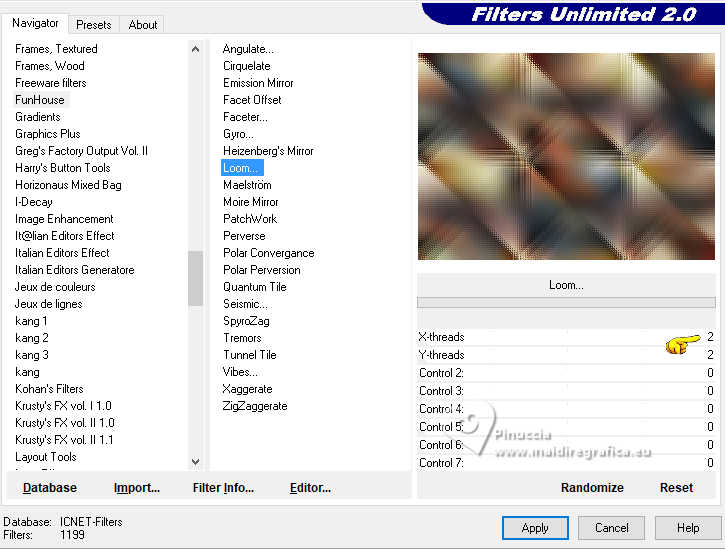
8. Effects>Plugins>Filters Unlimited 2.0 - Funhouse - Loom
9. Adjust>Sharpness>Sharpen More.
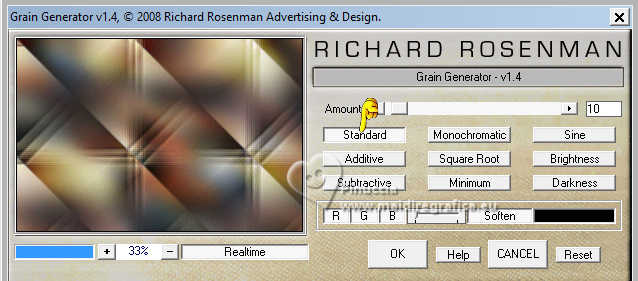
10. Effects>Plugins>Richard Rosenman - Grain Generator, default settings.
11. Open deco-jelow-MJ 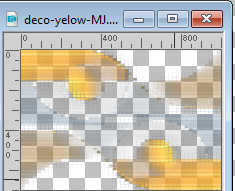
Edit>Copy.
Go back to your work and go to Edit>Paste as new layer.
Reduce the opacity of this layer to +/-55%.
12. Open deco-klara-1-MJ 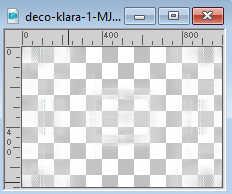
Edit>Copy.
Go back to your work and go to Edit>Paste as new layer.
Adjust>Sharpness>Sharpen More.
Change the Blend Mode of this layer to Luminance (legacy).
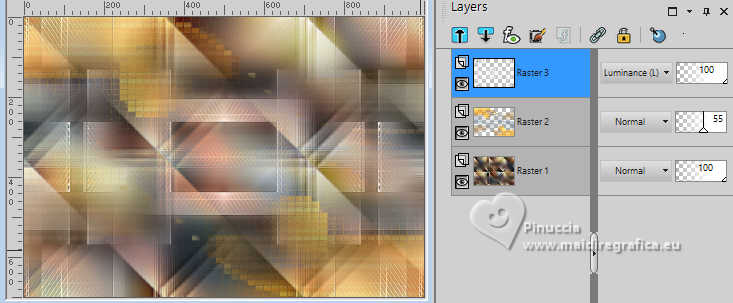
13. Layers>New Raster Layer.
Flood Fill  the layer with your light foreground color. the layer with your light foreground color.
14. Layers>New Mask layer>From image
Open the menu under the source window and you'll see all the files open.
Select the mask mask-klara-MJ
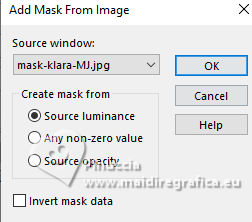
Layers>Merge>Merge Group.
15. Effects>Plugins>Mura's Seamless - Emboss at Alpha, default settings.
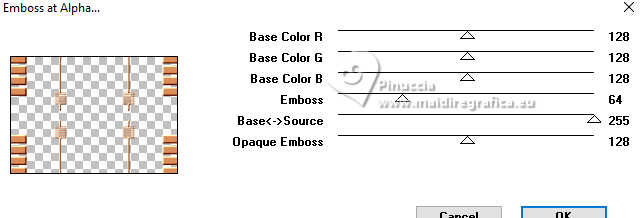
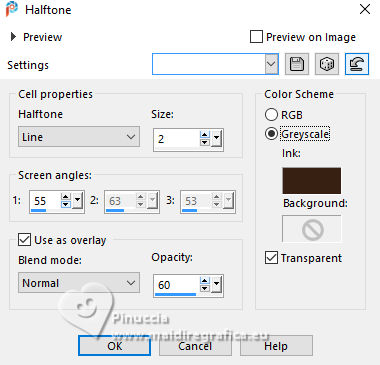
16. Effects>Artistic Effects>Halftone - dark background color.
17. Effects>Plugins>Eye Candy 4000 - Motion Trail.
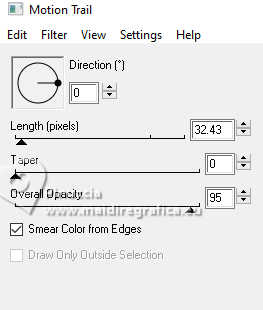
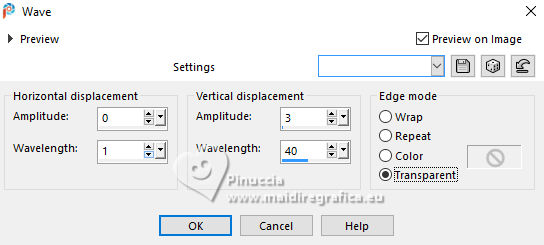
18. Effects>Distortion Effects>Wave
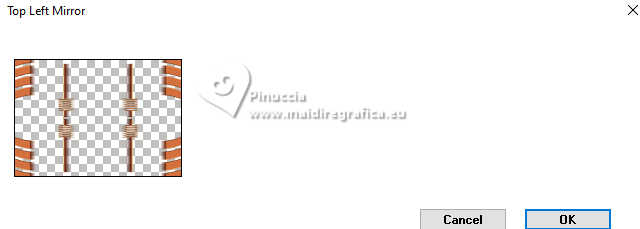
19. Effects>Plugins>Simple - Top Left Mirror.
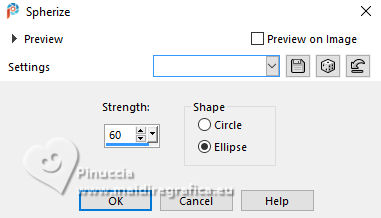
20. Effects>Geometric Effects>Spherize.
Change the Blend Mode of this layer to Luminance (legacy) or other.
Effects>3D Effects>Drop Shadow, color black.
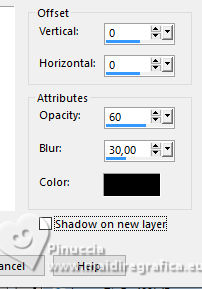
Your tag and the layers - Blend Mode and opacity according to your work.
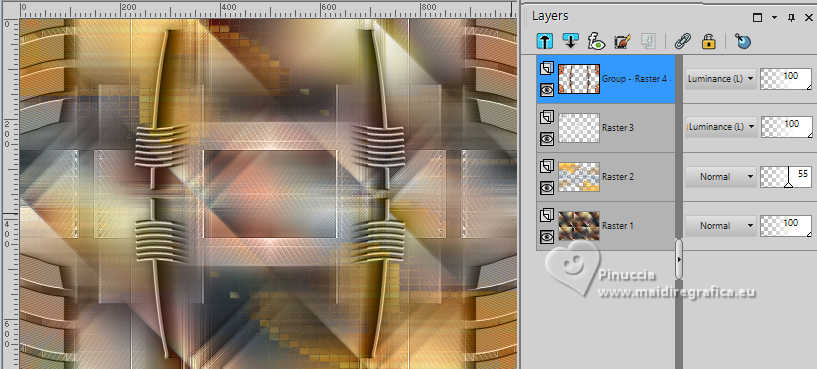
21. Open your main tube AI-tube-MJ 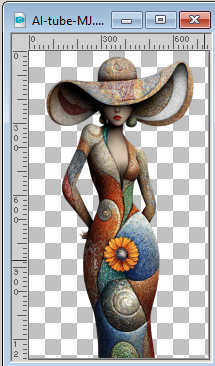
Edit>Copy.
Go back to your work and go to Edit>Paste as new layer.
Image>Resize, to 55%, resize all layers not checked.
Effects>3D Effects>Drop Shadow, at your choice.
22. Open deco-MJ 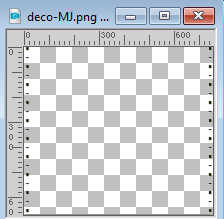
Edit>Copy.
Go back to your work and go to Edit>Paste as new layer.
23. Image>Add Borders, 1 pixel, symmetric, dark background color.
24. Selections>Select All.
Edit>Copy
Image>Add Borders, 50 pixels, symmetric, color white.
25. Selections>Invert.
Edit>Paste into Selection - the image copied at step 24
26. Adjust>Blur>Gaussian Blur - radius 25.
Effects>3D Effects>Drop Shadow, color black.
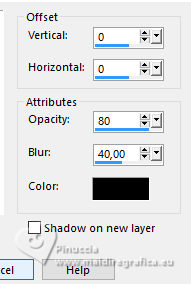
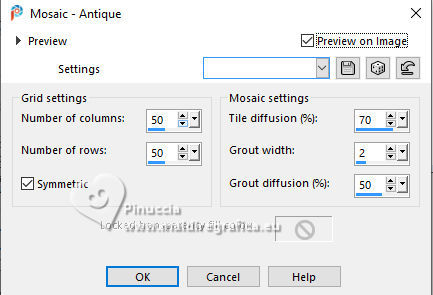
27. Effects>Texture Effects>Mosaic - Antique
28. Effects>Plugins>Simple - Top Left Mirror.
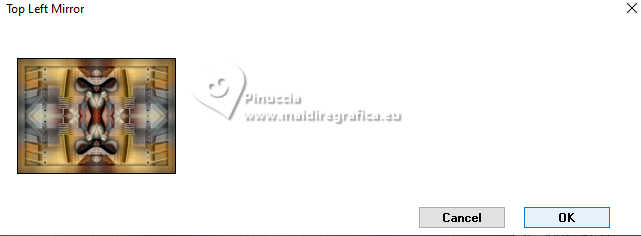
Selections>Select None.
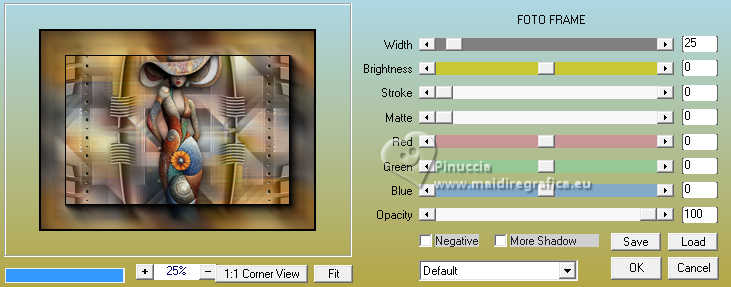
29. Effects>Plugins>AAA Frames - Foto Frame.
30. Sign your work.
Layers>Merge>Merge All.
31. Image>Resize, 1000 pixels width, resize all layers checked.
Save as jpg.
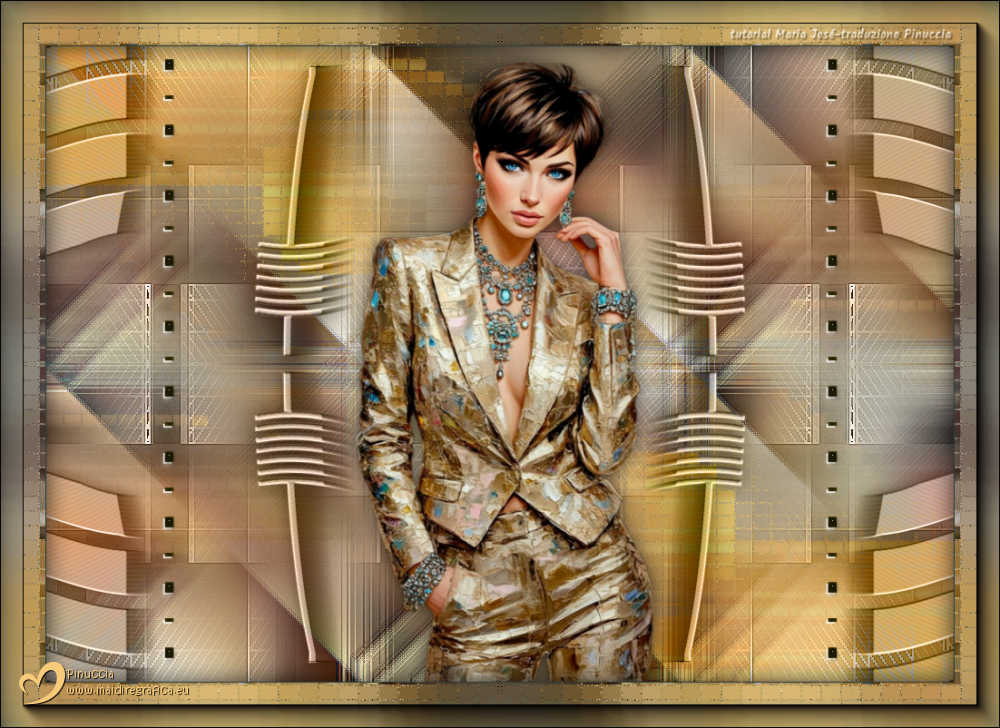
Version with my tube from Pinterest image

If you have problems or doubts, or you find a not worked link,
or only for tell me that you enjoyed this tutorial, write to me.
28 November 2025

|