|
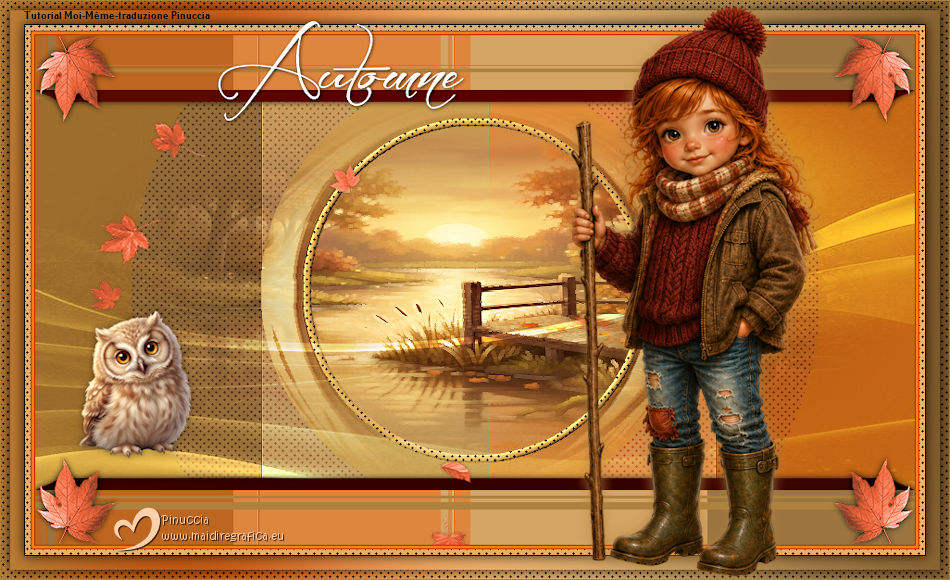
AUTOMNE 2026

Thanks Irene for the invitation to translate your tutorials
This tutorial was written with PSP2020 and translated with PSPX8 and PSP2020, but it can also be made using other versions of PSP.
Since version PSP X4, Image>Mirror was replaced with Image>Flip Horizontal,
and Image>Flip with Image>Flip Vertical, there are some variables.
In versions X5 and X6, the functions have been improved by making available the Objects menu.
In the latest version X7 command Image>Mirror and Image>Flip returned, but with new differences.
See my schedule here
 italian translation here italian translation here
 your versions here your versions here

For this tutorial, you will need:

Thanks for the bird's tube Sylou and for the mask Silvie.
The rest of the material is by Moi-Même
Other theme tubes here
(don't use for other tutorials)
(The links of material creators here).
consult, if necessary, my filter section here
Filters Unlimited 2.0 here
Filters Unlimited 2.3 qui
Mehdi - Wavy Lab 1.1. here
Alien Skin Eye Candy 5 Impact here
Mura's Meister - Tone here
Déformation - Scrambler, Circulator, Vortex (da importare in Unlimited) - in the material.
The author uses version 2.3 of Unlimited.
With this version, certain effects—such as the Déformation effects—may yield different results.
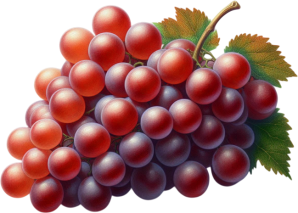
You can change Blend Modes according to your colors.
Open the mask in PSP and minimize it with the rest of the material.
If you have problems with alpha channel, open a new transparent image 950 x 550 pixels,
and use the selections from disk.
Colors
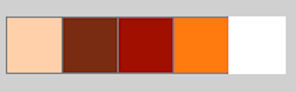
Set your foreground color with color 1 #ffd0a9,
and your background color with color 2 #7a2d14.
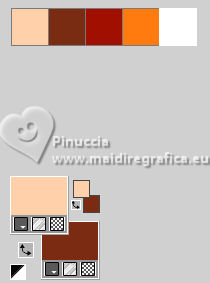
color 3 #a01100
color 4 #ff7a10
color 5 bianco
1. Open canal alpha Automne 2026
This image, that will be the basis of your work, is not empty,
but contains the selections saved to alpha channel.
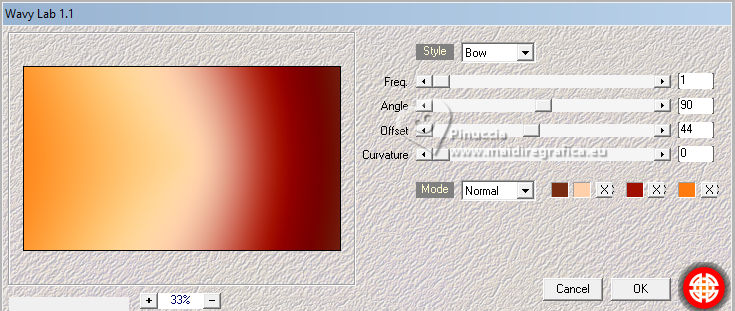
Effects>Plugins>Mehdi - Wavy Lab 1.1.
This filter creates gradients with the colors of your Materials palette.
The first is your background color, the second is your foreground color.
Change the last two colors created by the filtre:
the third color with color 3 #a01100 and the fourth with color 4 #ff7a10
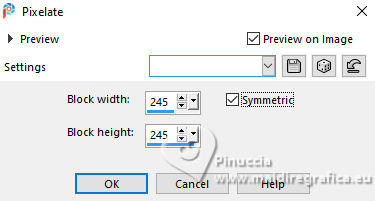
Effects>Distortion Effects>Pixelate.
Effects>Edge Effects>Enhance.
2. Selections>Load/Save Selection>Load Selection from Alpha Channel.
The selection sélection 1 is immediately available. You just have to click Load.
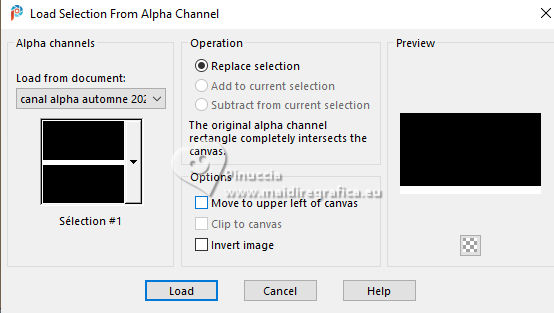
Selections>Promote Selection to Layer.
Selections>Select None.
Layers>Duplicate.
Image>Mirror>Mirror Vertical (Image>Flip).
Layers>Merge>Merge Down.
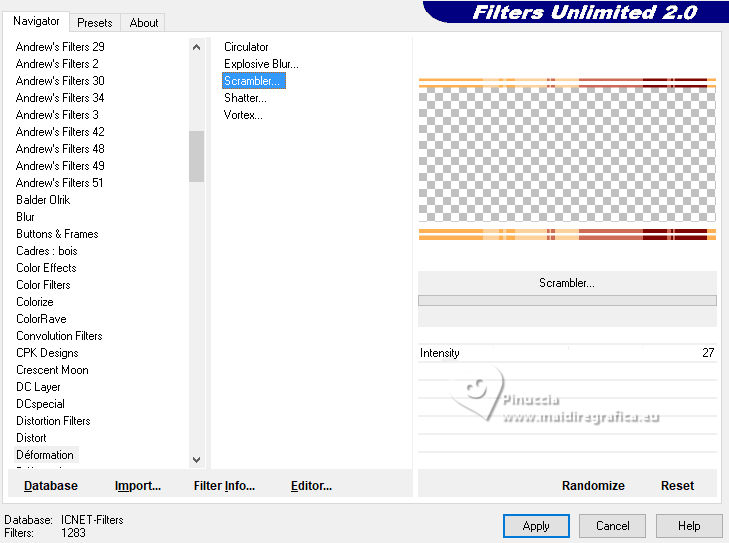
Effects>Plugins>Filters Unlimited - Déformation - Scrambler, default settings.
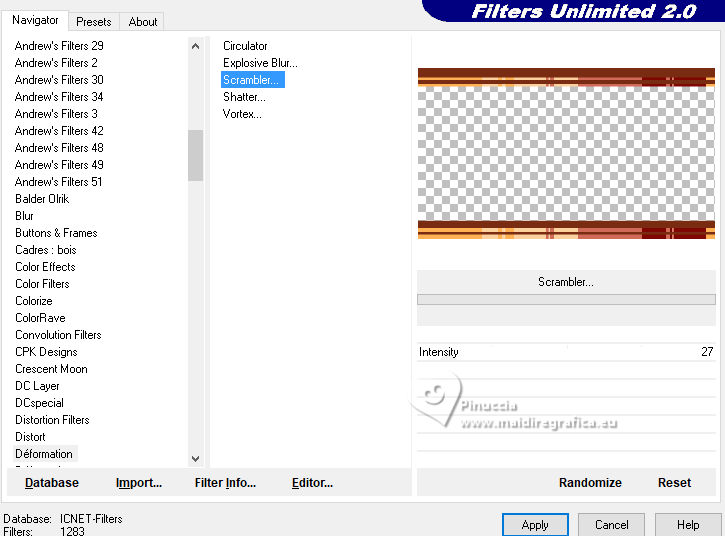
If you are using the 2.0 version, you'll have this
3. Author's note:
At this point, if necessary, you can use the tube
déco extrude horizontal 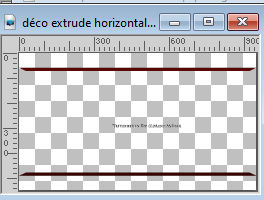 found in the materials. found in the materials.
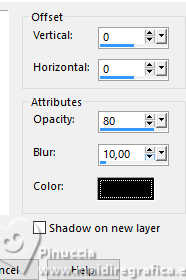
Remove the signature, then copy and paste it as a new layer. Go to Layers>Merge Down and apply the Drop Shadow effect.
Selections>Load/Save Selection>Load Selection from Alpha Channel.
Open the selections menu and load the selection sélection 2
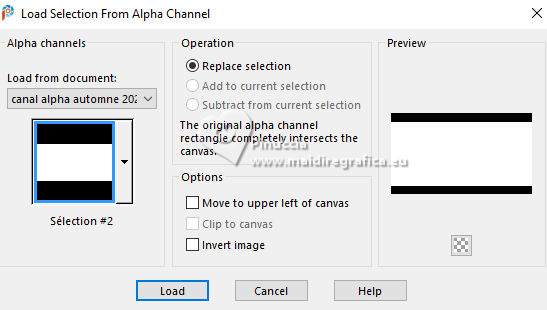
Selections>Invert.
Effects>Plugins>Alien Skin Eye Candy 5 Impact - Extrude
solid color: color 3 #a01100 - highlight color: black
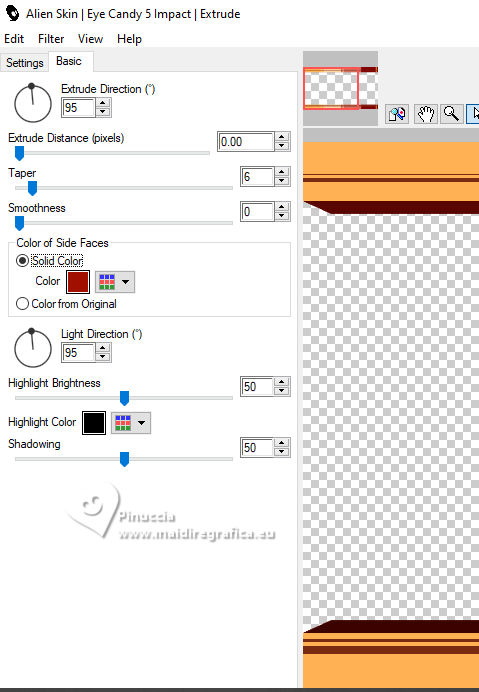
Selections>Select None.
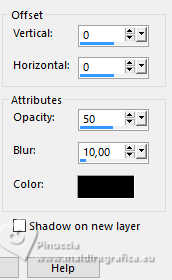
Effects>3D Effects>Drop Shadow, color black.
4. Activate the layer below, Raster 1.
Layers>New Raster Layer.
Selections>Load/Save Selection>Load Selection from Alpha Channel.
Open the selections menu and load again the selection sélection 2
Open the tube paysage Automne-misted-AIgeen MM 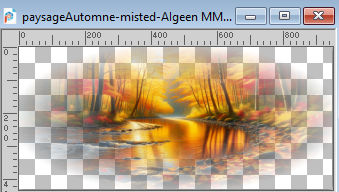
Edit>Copy.
Go back to your work and go to Edit>Paste into Selection.
Selections>Select None.
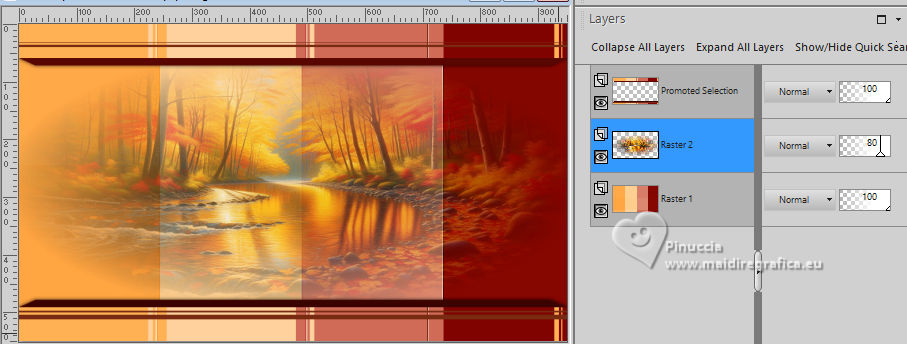
Reduce the opacity of this layer to 80%.
Adjust>Sharpness>Sharpen.
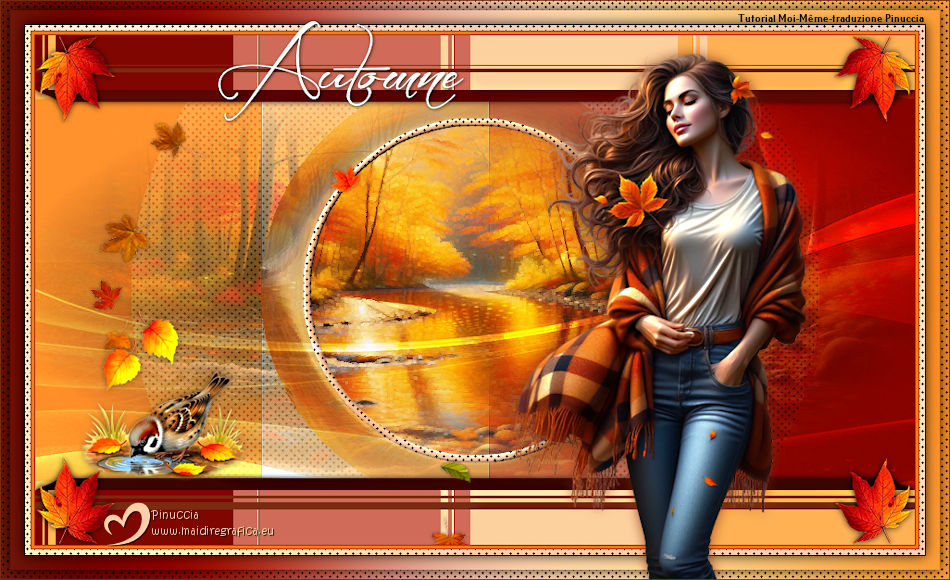
Your tag and the layers
5. Layers>New Raster Layer.
Selections>Load/Save Selection>Load Selection from Alpha Channel.
Open the selections menu and load the selection sélection 3
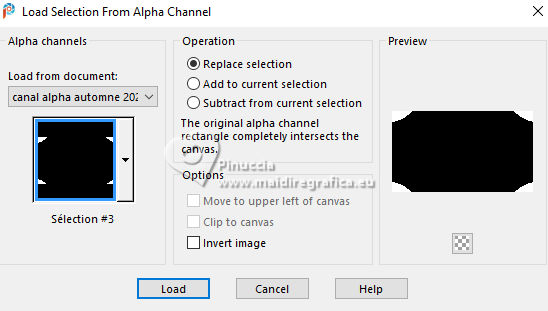
Flood Fill  the selection with your foreground color. the selection with your foreground color.
(the layer will be visible after the effect of next plugin)
Selections>Select None.
Effects>Plugins>Filters Unlimited - Déformation - Circulator, default settings.
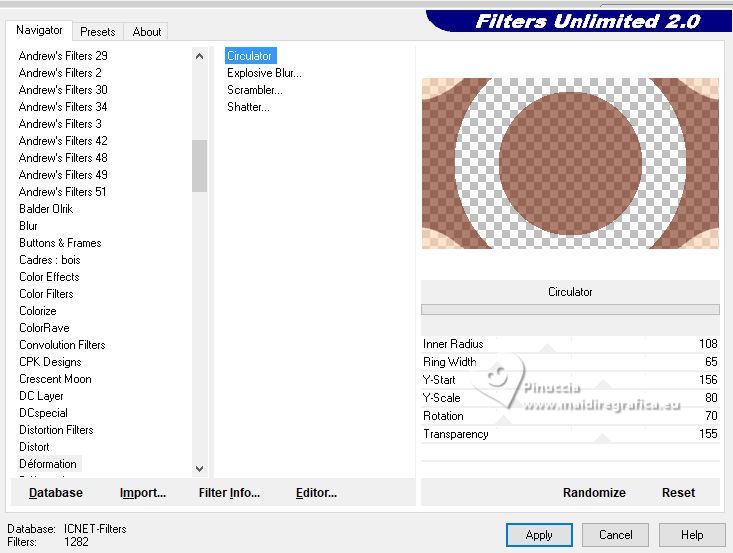
Change the Blend Mode of this layer to Soft Light.
6. Selections>Load/Save Selection>Load Selection from Alpha Channel.
Open the selections menu and load the selection sélection 4
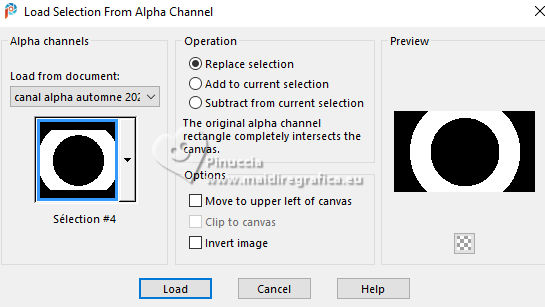
Effects>Plugins>Mura's Meister - Tone, default settings.
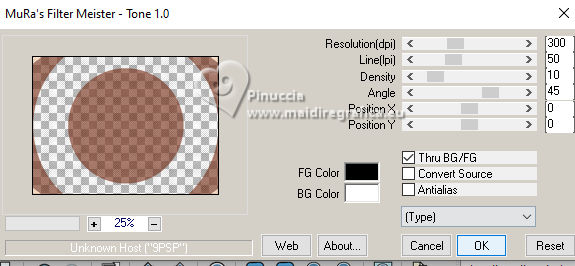
Selections>Select None.
7. Activate the layer Raster 2 (the landscape)
Selections>Load/Save Selection>Load Selection from Alpha Channel.
Open the selections menu and load the selection sélection 5
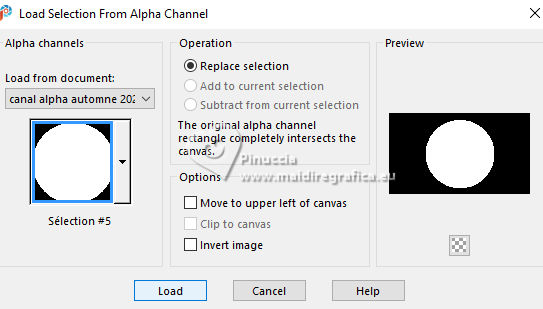
Selections>Promote Selection to Layer.
Effects>Plugins>Filters Unlimited - Déformation - Vortex, default settings.
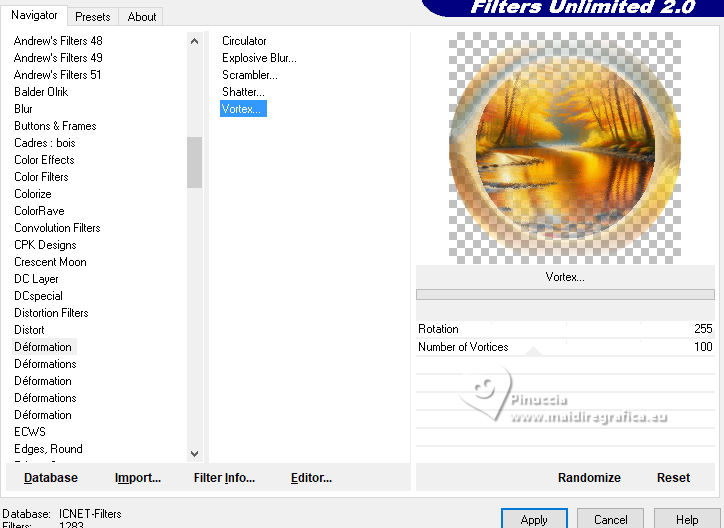
Selections>Select None.
8. Selections>Load/Save Selection>Load Selection from Alpha Channel.
Open the selections menu and load the selection sélection 6
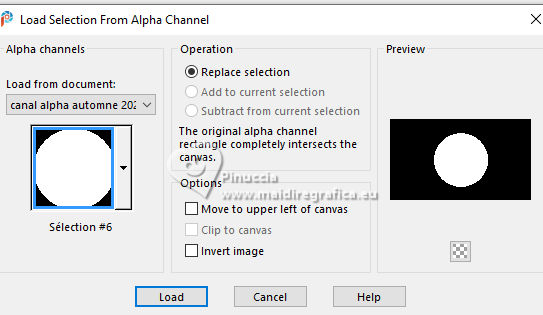
Effects>Edge Effects>Delate.
Adjust>Sharpness>Sharpen.
Selections>Modify>Select Selection Borders.
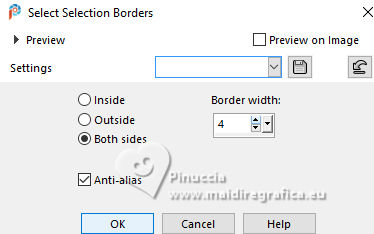
Flood Fill the selection with your foreground color.
Author's note: if necessary, add a layer
Effects>Plugins>Mura's Meister - Tone, default settings.
Effects>3D Effects>Inner Bevel.
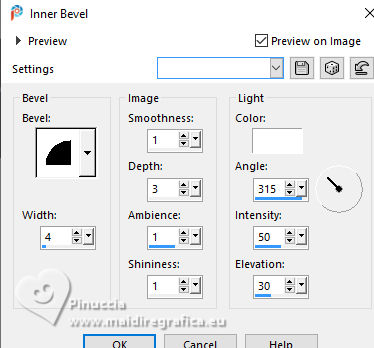
Selections>Select None.
9. Layers>New Raster Layer.
Set your foreground color to white.
Flood Fill the layer with color white.
Layers>New Mask layer>From image
Open the menu under the source window and you'll see all the files open.
Select the mask Silvie_Mask_Decor33K
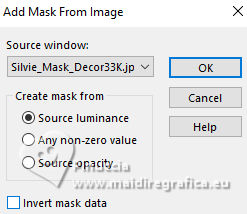
Layers>Merge>Merge Group.
Change the Blend Mode of this layer to Overlay.
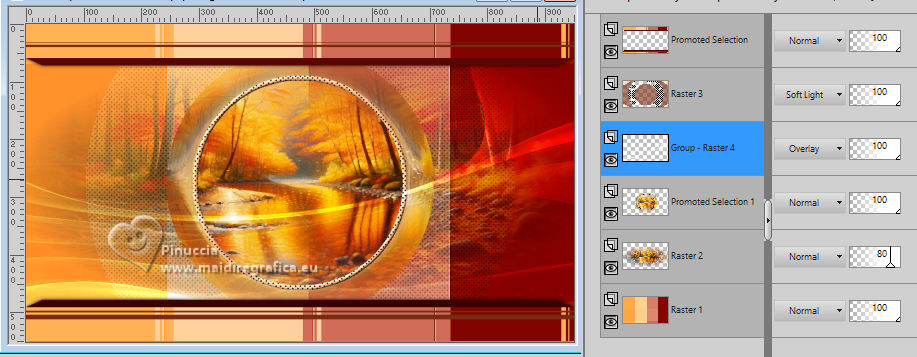
10. Activate your top layer.
Image>Mirror>Mirror Horizontal.
Open the tube feuilles coins 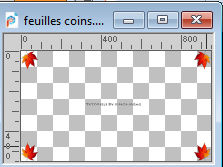
Erase the watermark and go to Edit>Copy.
Go back to your work and go to Edit>Paste as new layer.
Effects>3D Effects>Drop Shadow, color black.
11. Open déco feuilles 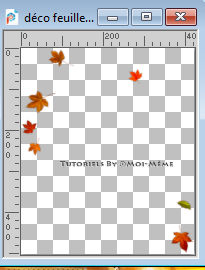
Erase the watermark and go to Edit>Copy.
Go back to your work and go to Edit>Paste as new layer.
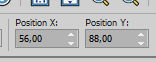
K key to activate your Pick Tool 
Position X: 56,00 - Position Y: 88,00.
Adjust>Sharpness>Sharpen.
12. Open déco oiseau - tube de Sylou 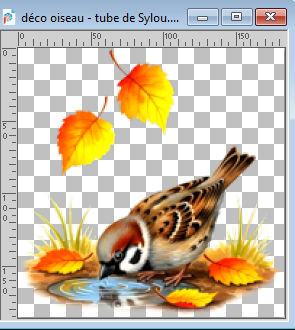
Edit>Copy.
Go back to your work and go to Edit>Paste as new layer.
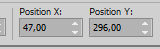
Move  the tube at the bottom left. the tube at the bottom left.
Position X: 47,00 - Position Y: 296,00.
Adapt to your tube.
M key to deselect the Tool.
Effects>3D Effects>Drop Shadow, color black.
13. For the Mehdi plugin, set again your foreground color to the color 1 #ffd0a9.
Image>Add Borders, 1 pixel, symmetric, color 3 #a01100
Image>Add Borders, 3 pixels, symmetric, color 4 #ff7a10.
Image>Add Borders, 1 pixel, symmetric, color 3 #a01100.
Selections>Select All.
Image>Add Borders, 6 pixels, symmetric, color 1 (foreground color).
Selections>Invert.
Effects>Plugins>Mura's Meister - Tone, default settings.
Selections>Select None.
Image>Add Borders, 1 pixel, symmetric, color black.
Selections>Select All.
Image>Add Borders, 25 pixels, symmetric, color white.
Selections>Invert.
Effects>Plugins>Mehdi - Wavy Lab 1.1., last settings.
Image>Mirror>Mirror Horizontal.
Selections>Invert.
Effects>3D Effects>Drop Shadow, color black.
14. Selections>Select All.
Selections>Modify>Contract - 10 pixels.
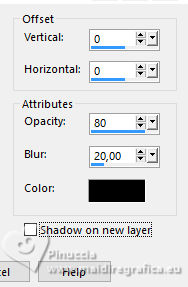
Effects>3D Effects>Drop Shadow, last settings.
Selections>Invert.
Effects>Plugins>Mura's Meister - Tone, default settings.
Selections>Select None.
15. Open the tube Lady autumn-Aigen MM 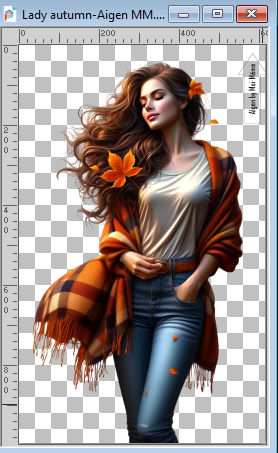
Erase the watermark and go to Edit>Copy.
Go back to your work and go to Edit>Paste as new layer.
Image>Resize, to 60%, resize all layers not checked.
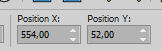
K key to activate your Pick Tool
Position X: 554,00 - Position Y: 52,00.
Adapt to your tube.
Effects>3D Effects>Drop Shadow, color 2 (background color)
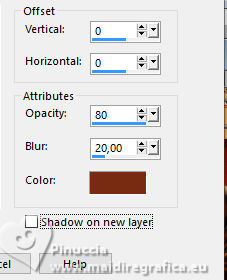
16. Open titre 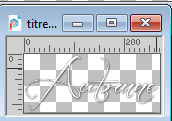
Edit>Copy.
Go back to your work and go to Edit>Paste as new layer.
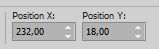
Position X: 232,00 - Position Y: 18,00.
M key to activate your Pick Tool.
17. Sign your work.
Add the author's and the translator's watermarks.
18. Image>Add Borders, 1 pixel, symmetric, background color (color 2).
19. Image>Resize, 950 pixels width.
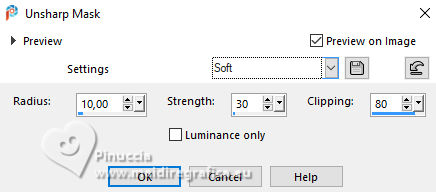
Adjust>Sharpness>Unsharp Mask - Soft
Save as jpg.
Version with scrap elements Addictive Pleasures. Thanks

If you have problems or doubts, or you find a not worked link,
or only for tell me that you enjoyed this tutorial, write to me.
12 October 2026

|