|
TAG BALLET



This tutorial was translated with PSPX9 and PSP2020, but it can also be made using other versions of PSP.
Since version PSP X4, Image>Mirror was replaced with Image>Flip Horizontal,
and Image>Flip with Image>Flip Vertical, there are some variables.
In versions X5 and X6, the functions have been improved by making available the Objects menu.
In the latest version X7 command Image>Mirror and Image>Flip returned, but with new differences.
See my schedule here
 French translation here French translation here
 Your versions here Your versions here
For this tutorial, you will need:

Thanks for the tube Elaine and for the mask Silvie.
(you find here the links to the material authors' sites)

consult, if necessary, my filter section here
AAA Frames - Foto Frame here
Animation Shop here

You can change Blend Modes according to your colors.
In the newest versions of PSP, you don't find the foreground/background gradient (Corel_06_029).
You can use the gradients of the older versions.
The Gradient of CorelX here

Open the mask in PSP and minimize it with the rest of the material.
1. Open a new transparent image 900 x 600 pixels.
2. Set your foreground color to #cb968f,
and your background color to #dcbdb8.

Set your foreground color to a Foreground/Background Gradient, style Linear.
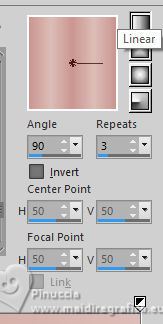
Flood Fill  the transparent image with your Gradient. the transparent image with your Gradient.
3. Adjust>Add/Remove Noise>Add Noise.
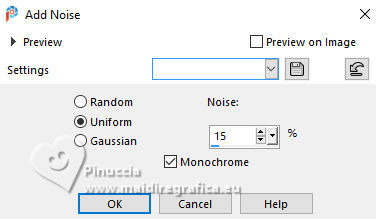
4. Layers>New Raster Layer.
Set your foreground color to white #ffffff.
Flood Fill the layer with the color #ffffff.
5. Layers>New Mask layer>From image
Open the menu under the source window and you'll see all the files open.
Select the mask Silvie_Mask_Abstract8991.
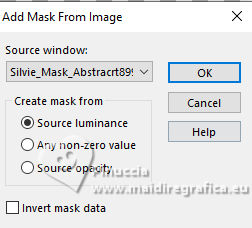
Layers>Merge>Merge Group.
6. Layers>Duplicate.
7. Layers>Merge>Merge visible.
8. Open the tube Estrellas_Ballet_Nines 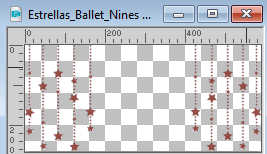
Edit>Copy.
Go back to your work and go to Edit>Paste as new layer.
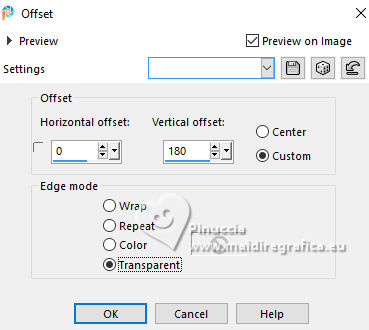
9. Effects>Image Effects>Offset.
10. Open the tube Cortinas_Ballet_nines 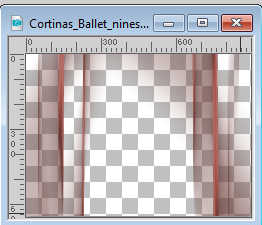
Edit>Copy.
Go back to your work and go to Edit>Paste as new layer.
Don't move it.
11. Layers>Merge>Merge visible.
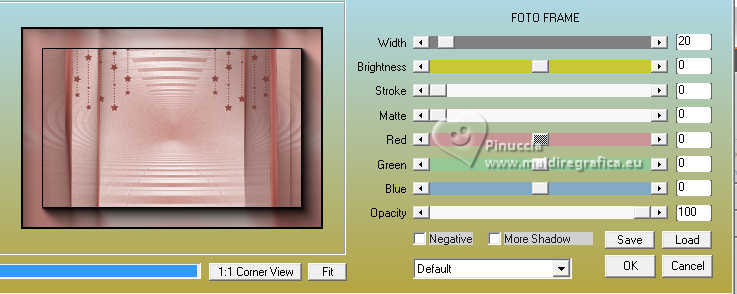
12. Effects>Plugins>AAA Frames - Foto Frame.
13. Open the tube Tube by Elaine-2025-Julho00036 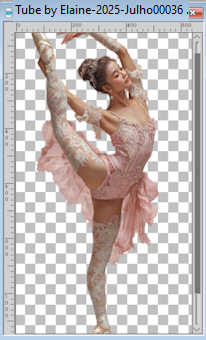
Edit>Copy.
Go back to your work and go to Edit>Paste as new layer.
Image>Resize, 1 time to 50% and 1 time to 80%, resize all layers not checked.
Don't move it.
14. Layers>Duplicate.
Layers>Merge>Merge Down.
15. Layers>Duplicate.
Image>Mirror>Mirror Horizontal.
Don't move.
16. Layers>Duplicate.
Image>Mirror>Mirror Horizontal.
Don't move.
17. We have 3 images of the dancer and we are going to rename them.
The first B1, the second B2 and the third B3.
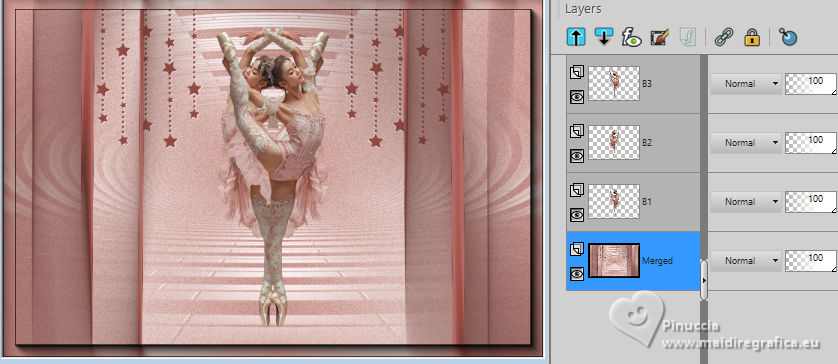
18. Sign your work on a new layer.
Add the author and the translator's watermarks.
Animation
1. Stay always on the bottom layer.
Close the layers B2 and B3.
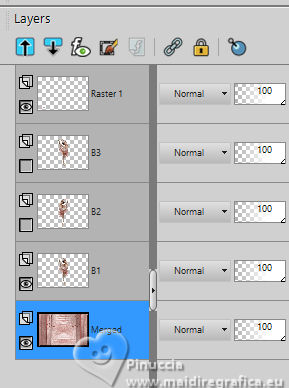
2. Edit>Copy Special>Copy Merged.
Open Animation Shop and go to Edit>Paste>Paste as new image.
3. Go back to PSP.
Close the layer B1 and open the layer B2.
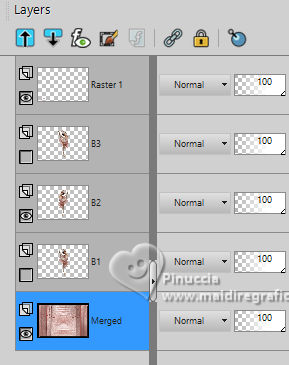
Edit>Copy Special>Copy Merged.
Go back to Animation Shop and go to Edit>Paste>Paste after the current frame.
4. On PSP.
Close the layer B2 and open the layer B3.
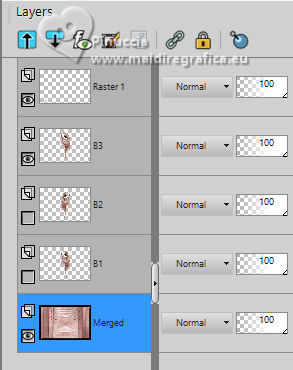
Edit>Copy Special>Copy Merged.
On Animation Shop: Edit>Paste>Paste after the current frame.
5. On PSP.
Close the layer B3 and open the layer B1.
On Animation Shop: Edit>Paste>Paste after the current frame.
6. We have 4 frames
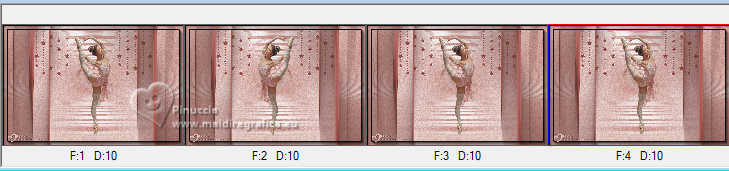
7. Keep the Display time of the frame 1 to 10,
and select the other 3 frames
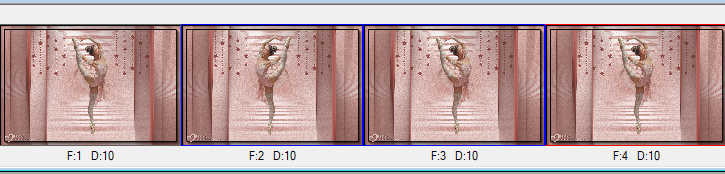
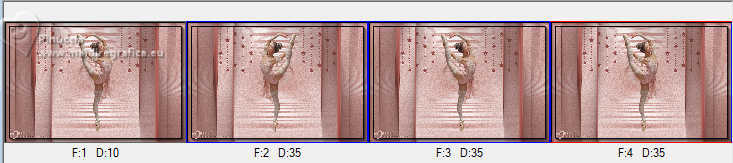
Animation>Frame Properties and set the time to 35

8. Check the result clicking on View Animation 
and save as gif.
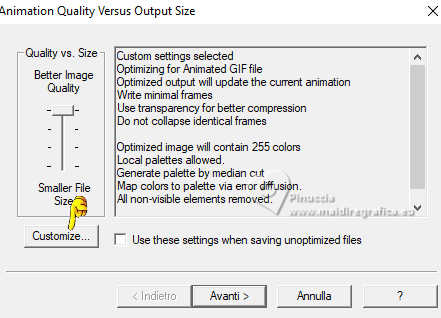
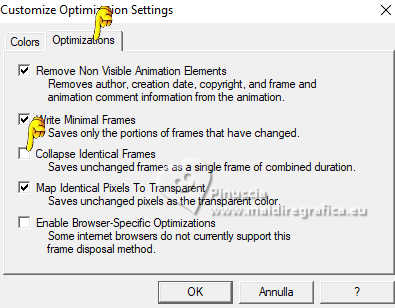
Attention, the frames 1 and 4 are identical,
so with the default settings, Animation Shop will suppress the frame 4.
To avoid this, when saving the animation, click on Customize
Under Optimizations deselect Collapse identical Frames
For the tube of this version thanks ElFairy

 Your versions here Your versions here

If you have problems or doubts, or you find a not worked link, or only for tell me that you enjoyed this tutorial, write to me.
21 July 2025

|