|
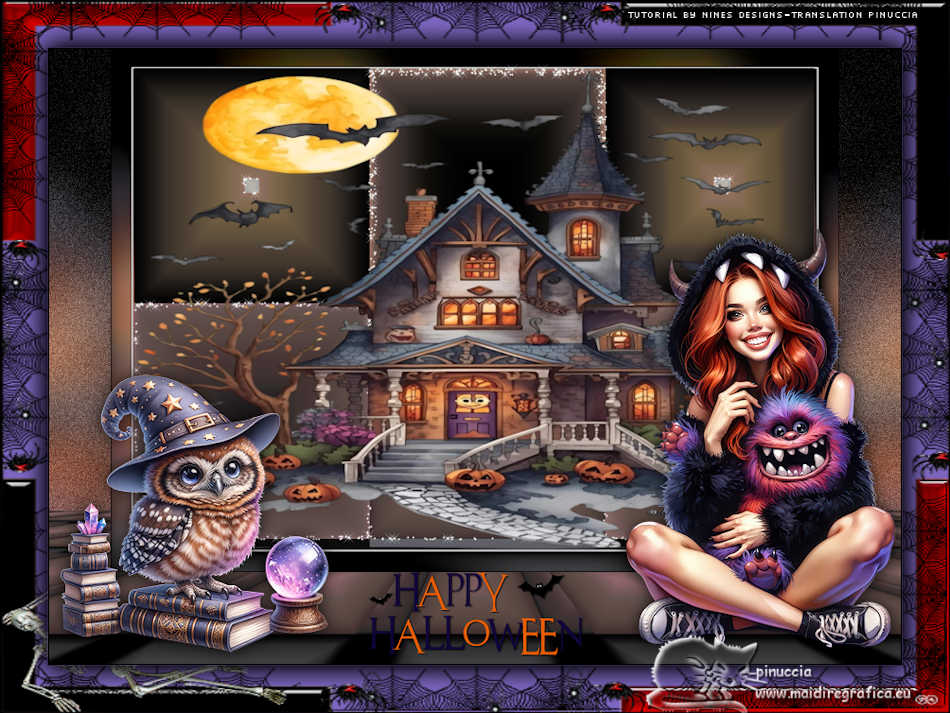
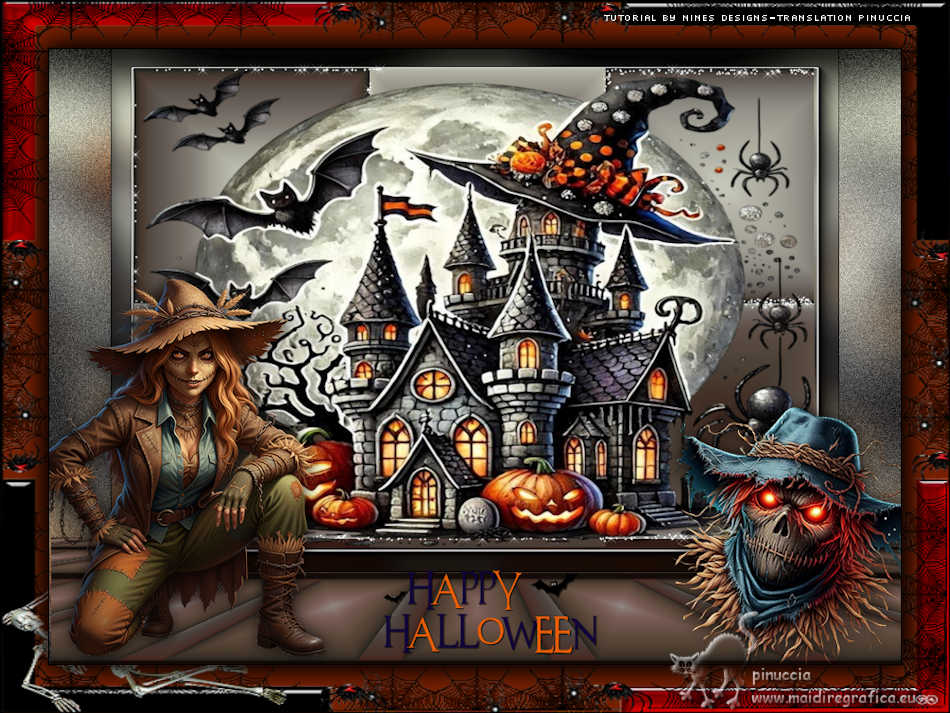
TAG HALLOWEEN 2026

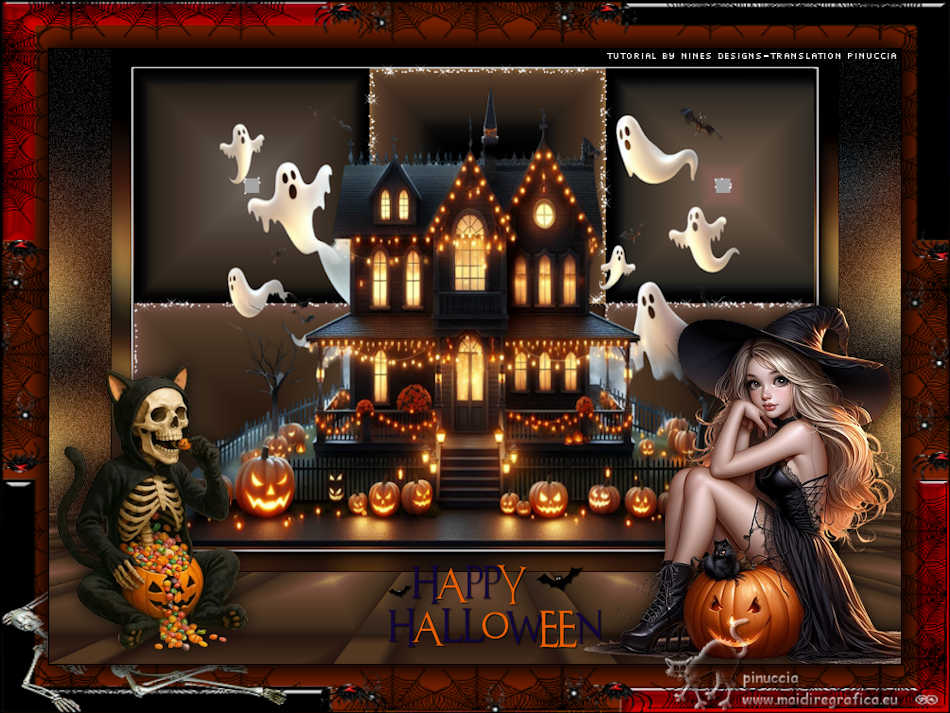

This tutorial was translated with PSPX9 and PSP2020, but it can also be made using other versions of PSP.
Since version PSP X4, Image>Mirror was replaced with Image>Flip Horizontal,
and Image>Flip with Image>Flip Vertical, there are some variables.
In versions X5 and X6, the functions have been improved by making available the Objects menu.
In the latest version X7 command Image>Mirror and Image>Flip returned, but with new differences.
See my schedule here
 French translation here French translation here
 Your versions here Your versions here

For this tutorial, you will need:
For the tubes thanks AIgenbyCaz, Criss, Colybrix, Lana.
(you find here the links to the material authors' sites)

consult, if necessary, my filter section here
Alien Skin Xenofex 2 - Constellation here
Mura's Meister - Perspective Tiling here
Mehdi - Sorting Tiles here
AAA Frames - Foto Frame here

You can change Blend Modes according to your colors.

Copy the selection in the Selections Folder.
1. Open a new transparent image 900 x 650 pixels.
2. Set your foreground color to #000000.
Flood Fill  the transparent image with your foreground color. the transparent image with your foreground color.
3. Selections>Select All.
Open Halloween-Haus-06-02 by Gerda 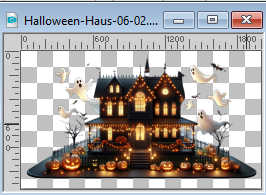
Edit>Copy.
Go back to your work and go to Edit>Paste into Selection.
Selections>Select None.
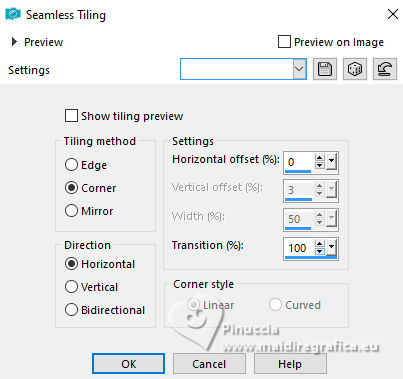
4. Effects>Image Effects>Seamless Tiling.
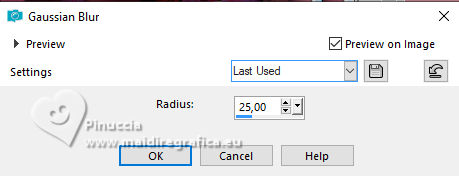
5. Adjust>Blur>Gaussian Blur - radius 25.
6. Layers>Duplicate.
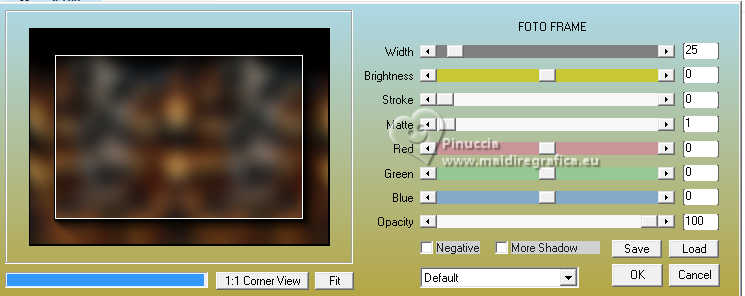
Effects>Plugins>AAA Frames - Foto Frame.
7. Image>Resize, to 90%, resize all layers not checked.
8. Selections>Load/Save Selection>Load Selection from disk.
Look for and load the selection sel.22H.nines
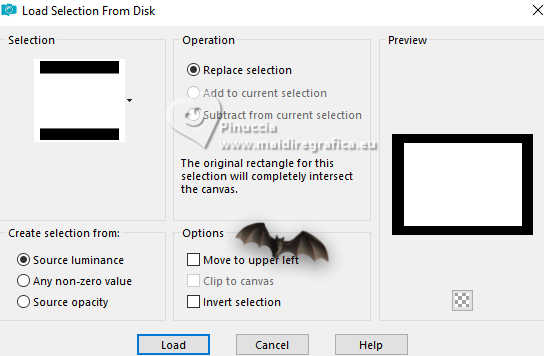
9. Effects>Plugins>Mehdi - Sorting Tiles.
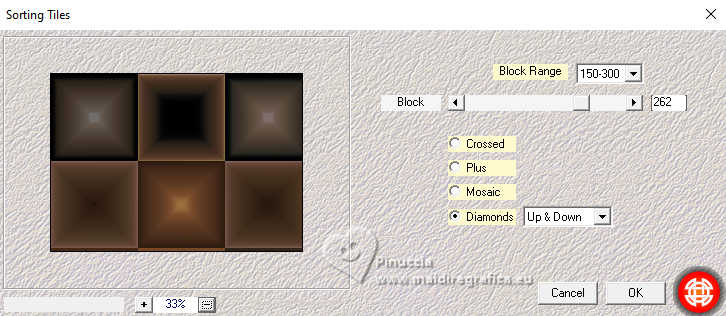
Keep selected.
10. Effects>Plugins>Alien Skin Xenofex 2 - Constellation
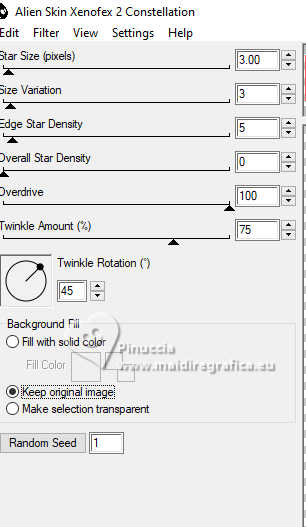
Keep selected.
11. We have this
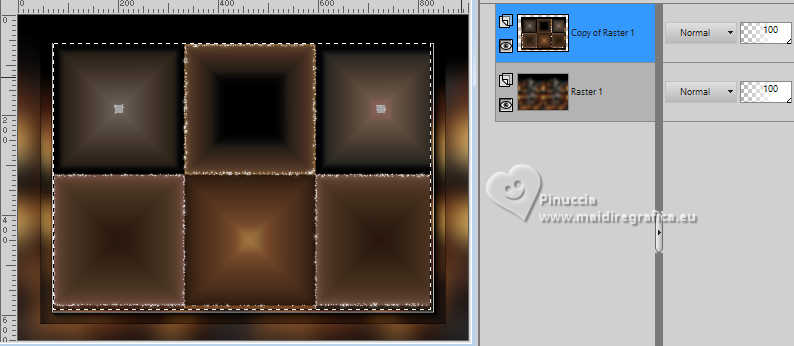
12. Layers>New Raster Layer.
Edit>Paste into Selection - the tube Halloween-Haus-06-02 by Gerda is still in memory.
Selections>Select None.
13. Close your background layer, Raster 1.
Layers>Merge>Merge visible.
14. Image>Resize, to 95%, resize all layers not checked.
15. Effects>Image Effects>Offset.
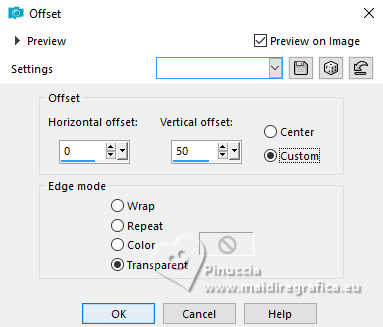
16. Open and activate your bottom layer, Raster 1.
Activate your Selection Tool 
(no matter the type of selection, because with the custom selection your always get a rectangle)
clic on the Custom Selection 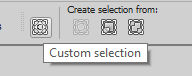
and set the following settings.
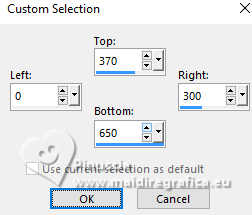
Selections>Promote Selection to Layer.
17. Effects>Plugins>Mehdi - Sorting Tiles.
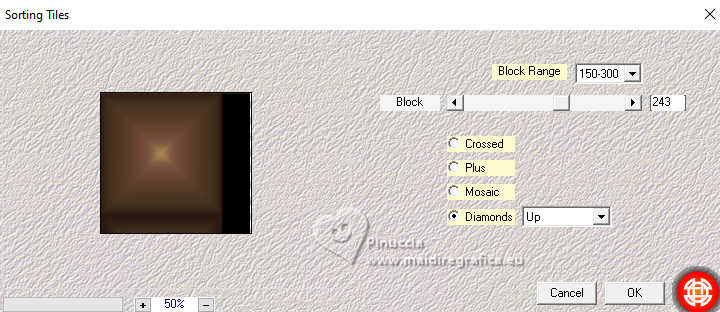
Selections>Select None.
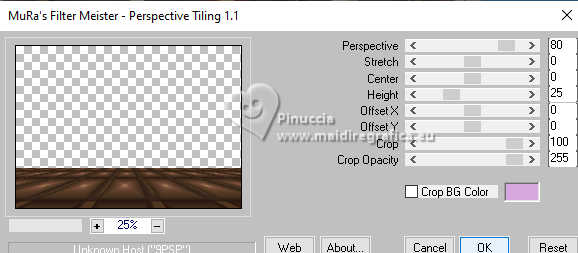
18. Effects>Plugins>Mura's Meister - Perspective Tiling.
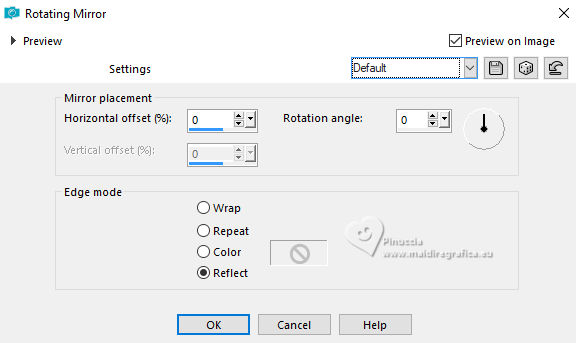
19. Effects>Reflection Effects>Rotating Mirror, default settings.
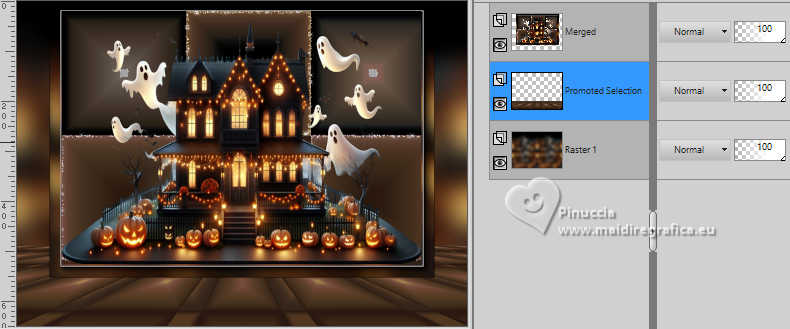
We have this
20. Activate your top layer.
Open the tube Criss 6471 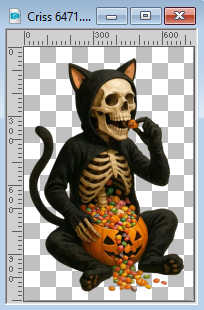
Edit>Copy.
Go back to your work and go to Edit>Paste as new layer.
Image>Resize, to 30%, resize all layers not checked.
Move  the tube at the bottom left. the tube at the bottom left.
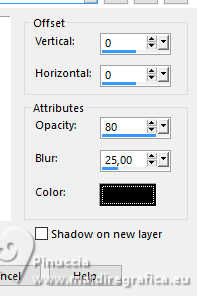
21. Effects>3DEffects>Drop Shadow, color #000000.
22. Open Tube aigenbycaz38 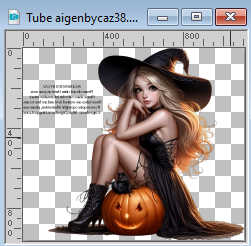
Erase the watermark and go to Edit>Copy.
Go back to your work and go to Edit>Paste as new layer.
Image>Resize, to 40%, resize all layers not checked.
Move the tube at the bottom right.
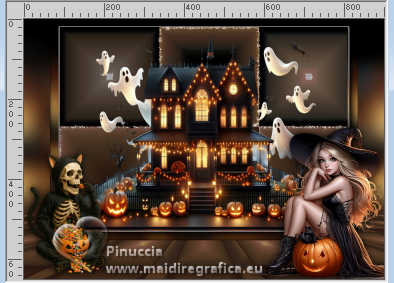
23. Effects>3D Effects>Drop Shadow, last settings.
Adjust>Sharpness>Sharpen.
24. Open hallow43-wodart-coly 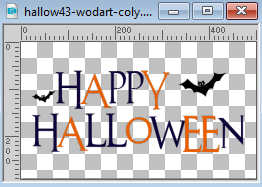
Edit>Copy.
Go back to your work and go to Edit>Paste as new layer.
Image>Resize, to 50%, resize all layers not checked.
Move the tube down in the center.
25. Effects>3D Effects>Drop Shadow, color #000000.
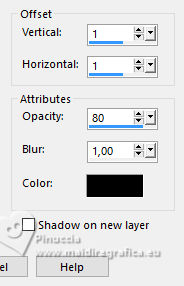
26. Activate your bottom layer, Raster 1.
Adjust>Add/Remove Noise>Add Noise.
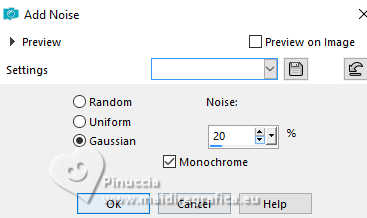
27. Layers>Merge>Merge All.
28. Image>Add Borders, 2 pixels, symmetric, color #000000.
Image>Add Borders, 50 pixels, symmetric, color #761f01.
29. Activate your Magic Wand Tool 
and click on the last border to select it.
30. Layers>New Raster Layer.
Open Halloween0004 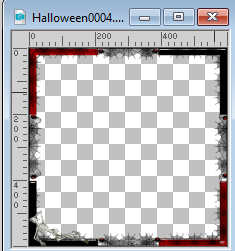
Edit>Copy.
Go back to your work and go to Edit>Paste into Selection.
31. Selections>Invert.
Effects>3D Effects>Drop Shadow, color #000000.
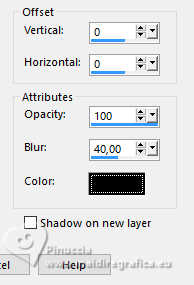
Edit>Repeat Drop Shadow.
Selections>Select None.
32. Sign your work and save as jpg.

If you have problems or doubts, or you find a not worked link, or only for tell me that you enjoyed this tutorial, write to me.
7 October 2026

|