|
TAG PINUCCIA 2026



Thank you Nines for this lovely birthday present
This tutorial was translated with PSPX9 and PSP2020, but it can also be made using other versions of PSP.
Since version PSP X4, Image>Mirror was replaced with Image>Flip Horizontal,
and Image>Flip with Image>Flip Vertical, there are some variables.
In versions X5 and X6, the functions have been improved by making available the Objects menu.
In the latest version X7 command Image>Mirror and Image>Flip returned, but with new differences.
See my schedule here
 French translation here French translation here
 Your versions here Your versions here
For this tutorial, you will need:

Scrap elements Gallentines Days
(you find here the links to the material authors' sites)

consult, if necessary, my filter section here
Mura's Meister - Perspective Tiling here
Alien Skin Eye Candy 5 Impact - Perspective Shadow here

You can change Blend Modes according to your colors.

1. Open a new transparent image 950 x 650 pixels.
2. Selections>Select All.
3. Open the background image Background 007 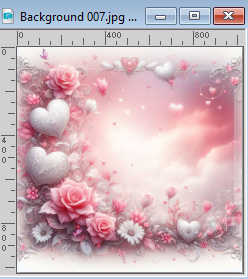
Edit>Copy.
Minimize the image.
Go back to your work and go to Edit>Paste into Selection.
Selections>Select None.
4. Effects>Image Effects>Seamless Tiling, default settings.

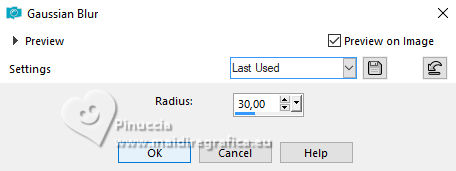
5. Adjust>Blur>Gaussian Blur - radius 30
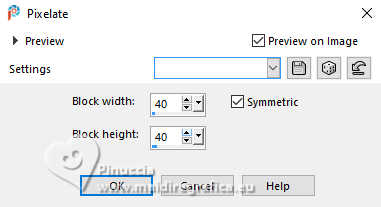
6. Effects>Distortion Effects>Pixelate
7. Effects>Edge Effects>Enhance More.
8. Layers>Duplicate.
9. Effects>Plugins>Mura's Meister - Perspective Tiling.
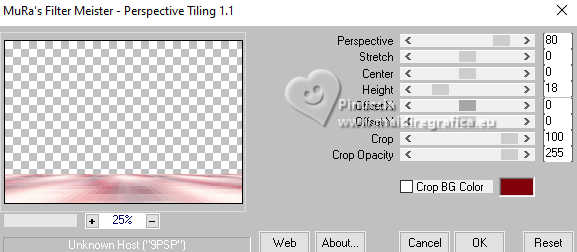
10. Activate your Magic Wand Tool  , tolerance and feather 20 , tolerance and feather 20

Click in the transparent part to select it.
Press 4 times CANC on the keyboard 
Selections>Select None.
11. Open Element_166 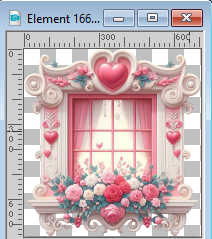
Edit>Copy.
Go back to your work and go to Edit>Paste as new layer.
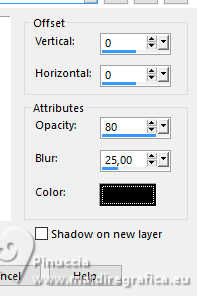
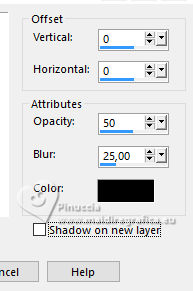
12. Effects>3D Effec>Drop Shadow, color #000000.
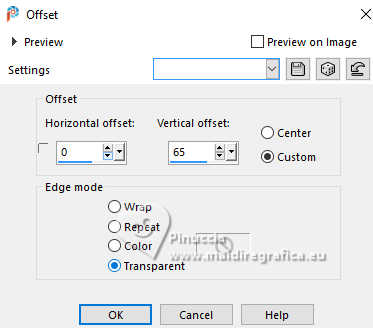
13. Effects>Image Effects>Offset.
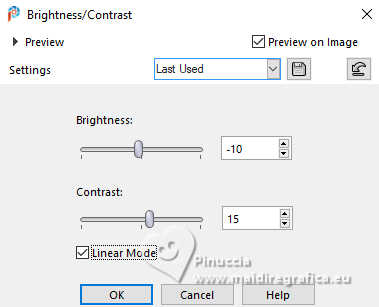
14. Adjust>Brightness and Contrast
15. Open Element_225 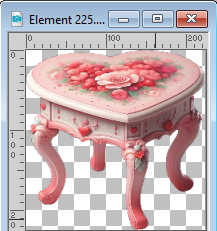
Edit>Copy.
Go back to your work and go to Edit>Paste as new layer.
Move  the tube at the bottom right. the tube at the bottom right.
16. Effects>3D Effects>Drop Shadow, color #000000.
17. Open Element_289 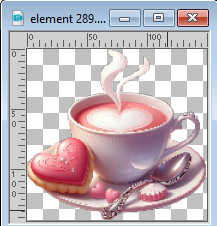
Edit>Copy.
Go back to your work and go to Edit>Paste as new layer.
Move the tube on the table, see my example.
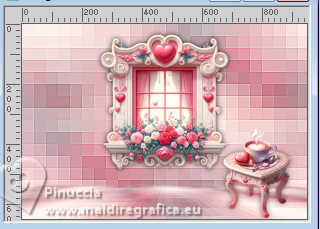
18. Adjust>Brightness and Contrast, same settings.
19. Open Element_148
Edit>Copy.
Go back to your work and go to Edit>Paste as new layer.
Move the tube at the upper left.
20. Layers>Duplicate.
Image>Mirror>Mirror Horizontal.
21. Open the tube 020 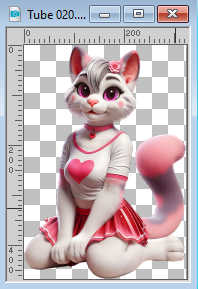
Edit>Copy.
Go back to your work and go to Edit>Paste as new layer.
Image>Mirror>Mirror Horizontal.
Move the tube to the left side.
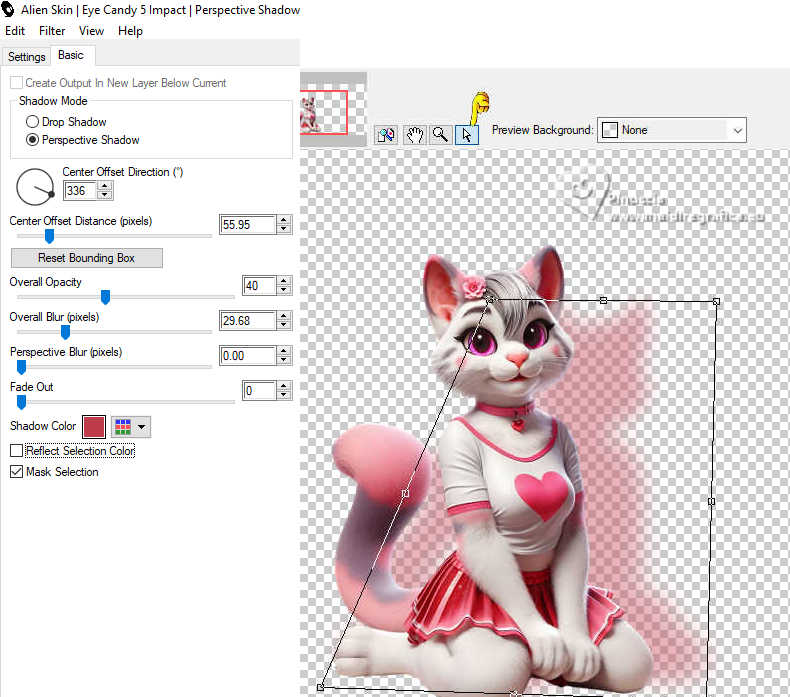
22. Effects>Plugins>Alien Skin Eye Candy 5 Impact - Perspective Shadow, color #bf3c4a.
Use the nodes to adapt correctly the shadow to your tube.
23. Adjust>Brightness and Contrast, same settings
24. Layers>Merge>Merge All.
25. Image>Add Borders, 2 pixels, symmetric, color #c02a45.
Image>Add Borders, 40 pixels, symmetric, color #ffffff.
26. Activate your Magic Wand Tool , tolerance and feather 0,
and click in the white border to select it.
27. Activate again your background image Background 007 and go to Edit>Copy.
Go back to your work and go to Edit>Paste into Selection.
Selections>Invert.
28. Effects>3D Effects>Drop Shadow, color #000000.
Selections>Select None.
29. Open work-ac 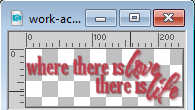
Edit>Copy.
Go back to your work and go to Edit>Paste as new layer.
Move the text down or to your liking.
30. Signer votre travail sur un nouveau calque.
Ajouter les watermarks de l'auteur et du traducteur.
Calques>Fusionner>Tous et enrgistrer en jpg.
For the tube of this version thanks Additive Pleasures.
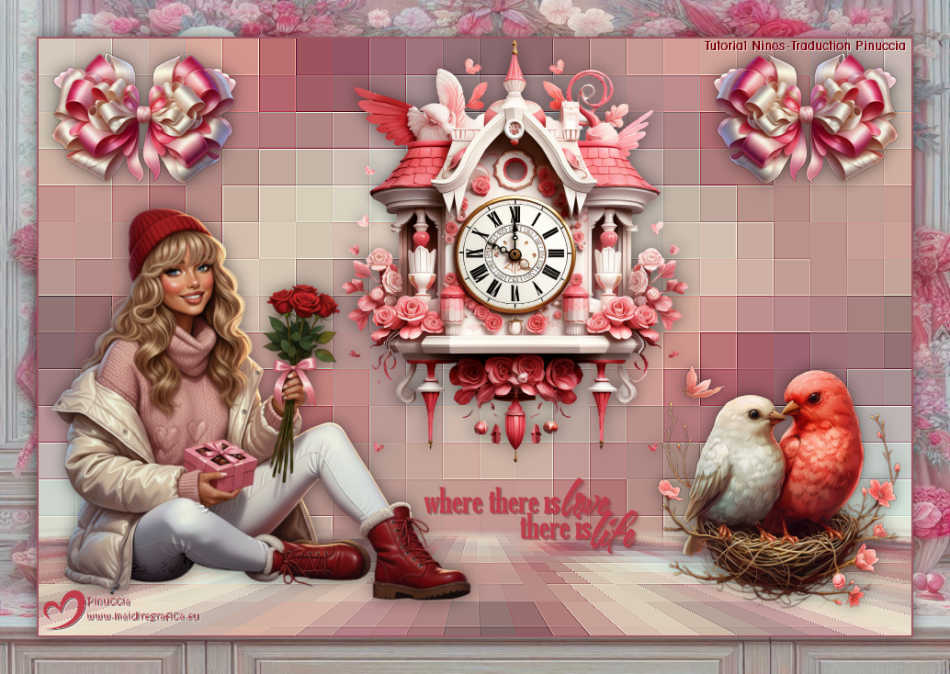
For the tube of this version thanks Aprilshareables


If you have problems or doubts, or you find a not worked link, or only for tell me that you enjoyed this tutorial, write to me.
6 Février 2026

|