|
TAG VALENTIN 2026

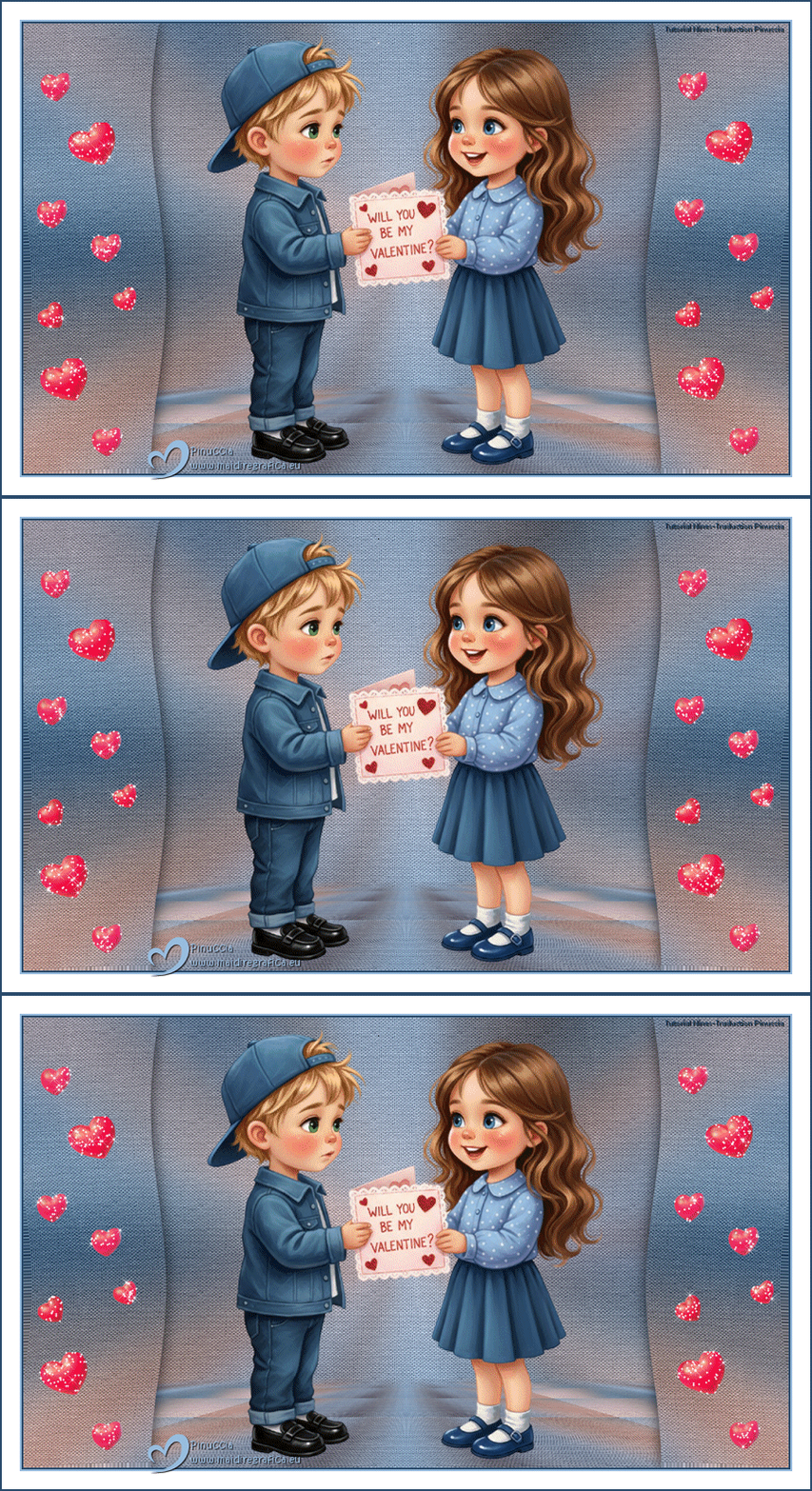
This tutorial was translated with PSPX9 and PSP2020, but it can also be made using other versions of PSP.
Since version PSP X4, Image>Mirror was replaced with Image>Flip Horizontal,
and Image>Flip with Image>Flip Vertical, there are some variables.
In versions X5 and X6, the functions have been improved by making available the Objects menu.
In the latest version X7 command Image>Mirror and Image>Flip returned, but with new differences.
See my schedule here
 French translation here French translation here
 Your versions here Your versions here
For this tutorial, you will need:

Material by Nines
(you find here the links to the material authors' sites)

consult, if necessary, my filter section here
Filters Unlimited 2.0 here
Mura's Meister - Perspective Tiling here
Alien Skin Xenofex 2 - Constellation here
Animation Shop here

You can change Blend Modes according to your colors.
In the newest versions of PSP, you don't find the foreground/background gradient (Corel_06_029).
You can use the gradients of the older versions.
The Gradient of CorelX here

1. Open a new transparent image 850 x 500 pixels.
2. Set your foreground color to #9abcde,
and your background color to #2b4d6c.
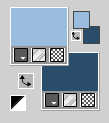
Set your foreground color to a Foreground/Background Gradient, style Linear.
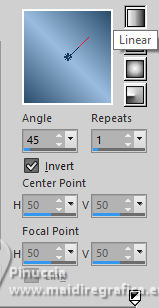
Flood Fill  the transparent image with your Gradient. the transparent image with your Gradient.
3. Selections>Select All.
Open the tube ai erotoo1-val Will you be my val2 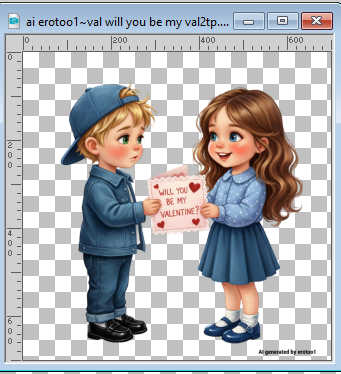
Erase the watermark and go to Edit>Copy.
Go back to your work and go to Edit>Paste into Selection.
Selections>Select None.
4. Effects>Image Effects>Seamless Tiling, default settings.

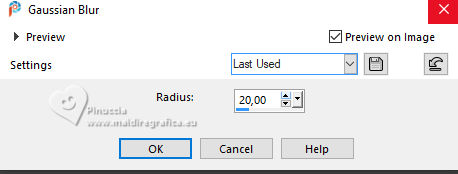
5. Adjust>Blur>Gaussian Blur, radius 20.
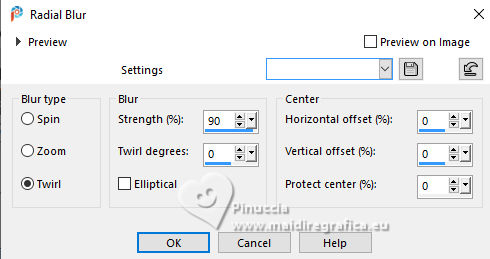
6. Adjust>Blur>Radial Blur
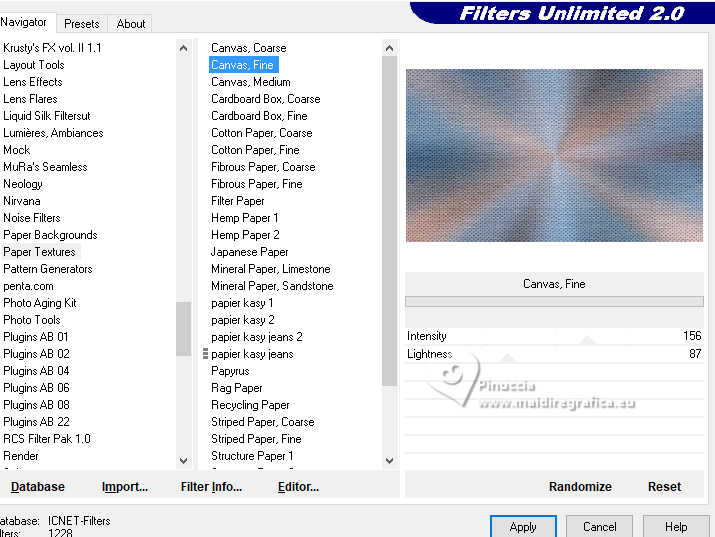
7. Effects>Plugins>Filters Unlimited 2.0 - Paper Texture - Canvas Fine, par défaut.
8. Activate your Selection Tool 
(no matter the type of selection, because with the custom selection your always get a rectangle)
clic on the Custom Selection 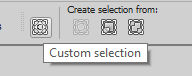
and set the following settings.
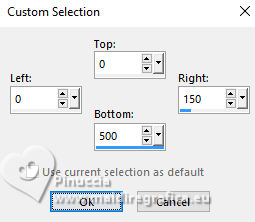
9. Selections>Promote Selection to Layer.
Selections>Select None.
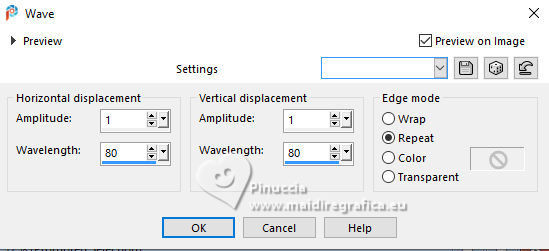
10. Effects>Distortion Effects>Wave.
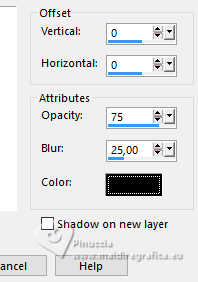
11. Effects>3D Effects>Drop Shadow, color #000000.
12. Layers>Duplicate.
Image>Mirror>Mirror Horizontal.
13. Activate your bottom layer, Raster 1.
Custom Selection
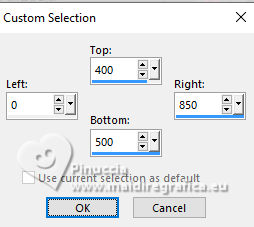
14. Selections>Promote Selection to Layer.
Keep selected.
15. Effects>Plugins>Mura's Meister - Perspective Tiling.
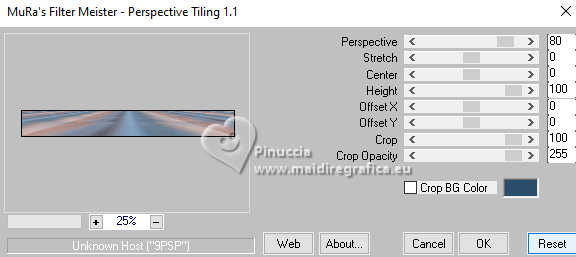
16. Effects>Reflection Effects>Rotating Mirror.
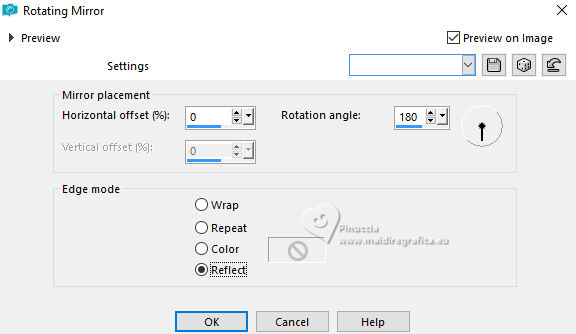
Selections>Select None.
17. Activate your Magic Wand Tool magique 

and click in the transparent zone to select it
Press 4 times CANC on the keyboard 
Selections>Select None.
don't forget to set again the Feather of your Magic Wand Tool to 0
18. The tube ai erotoo1-val Will you be my val2 is still in memory:
Edit>Paste as new layer.
Image>Resize, to 80%, resize all layers not checked.
Keep it in the center.
19. Effects>3D Effects>Drop Shadow, color #000000.
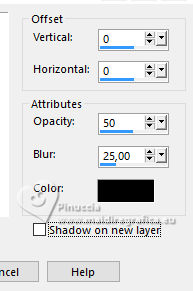
20. Image>Add Borders, 2 pixels, symmetric, background #2b4d6c.
Image>Add Borders, 2 pixels, symmetric, foreground color #9abcde.
Image>Add Borders, 20 pixels, symmetric, color #ffffff.
Image>Add Borders, 2 pixels, symmetric, background color #2b4d6c.
21. Sign your work on a new layer.
Add the author and translator watermarks.
Layers>Merge>Merge visible.
22. Open the tube Adorno corazones 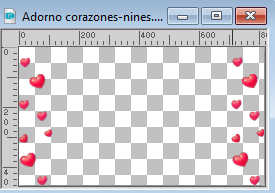
Edit>Copy.
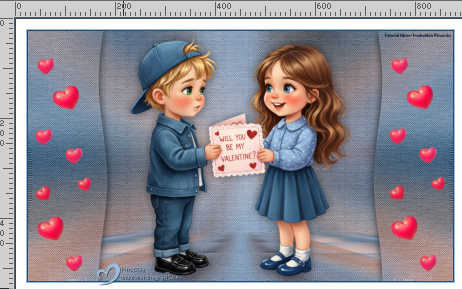
Go back to your work and go to Edit>Paste as new layer.
Don't move it.
23. Selections>Selectionner tout.
Selections>Float.
Selections>Defloat.
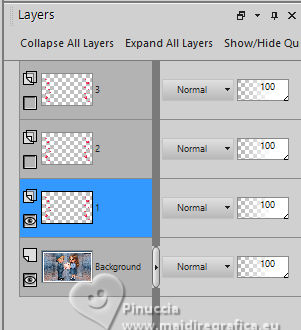
24. Layers>Duplicate - 2 times - to have 3 identical layers.
Rename these layers 1, 2, 3.
Activate the layer 1
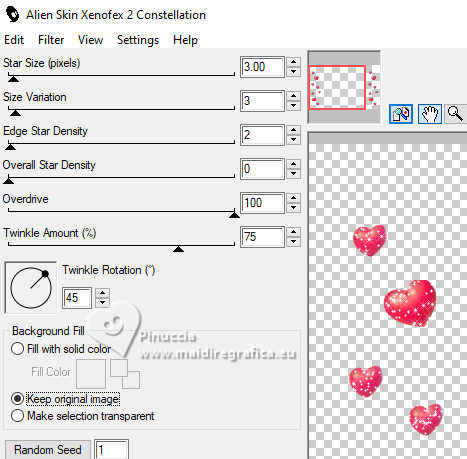
25. Effects>Plugins>Alien Skin Xenofex 2 - Constellation
26. Activate the layer 2
Repeat Effects>Plugins>Alien Skin Xenofex 2 - Constellation, cliquer sur Random Seed et ok
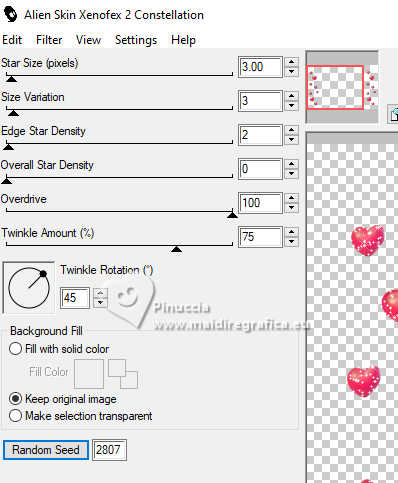
Close this layer
27. Activate the layer 3
Repeat Effects>Plugins>Alien Skin Xenofex 2 - Constellation, cliquer sur Random Seed et ok
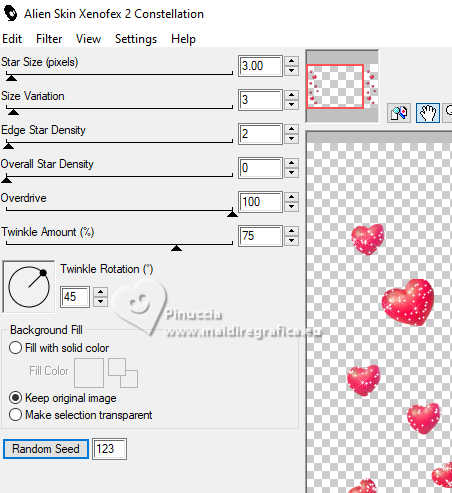
Close this layer.
Stay always on your bottom layer.
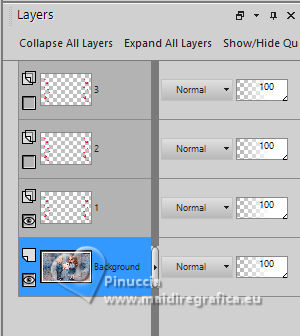
Animation
1. Edit>Copy Special
Open Animation Shop and go to Edit>Paste>Paste as new image.
2. Go back to PSP.
Close the layer 1 and open the layer 2.
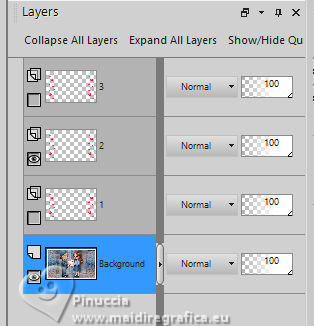
Edit>Copy Special>Copy Merged
Go back to Animation Shop and go to Edit>Paste>Paste after the current frame.
3. Go back to PSP.
Close the layer 2 and open the layer 3
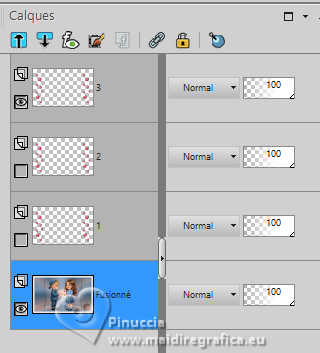
Edit>Copy Special>Copy Merged.
In Animation Shop and go to Edit>Paste>Paste after the current frame.
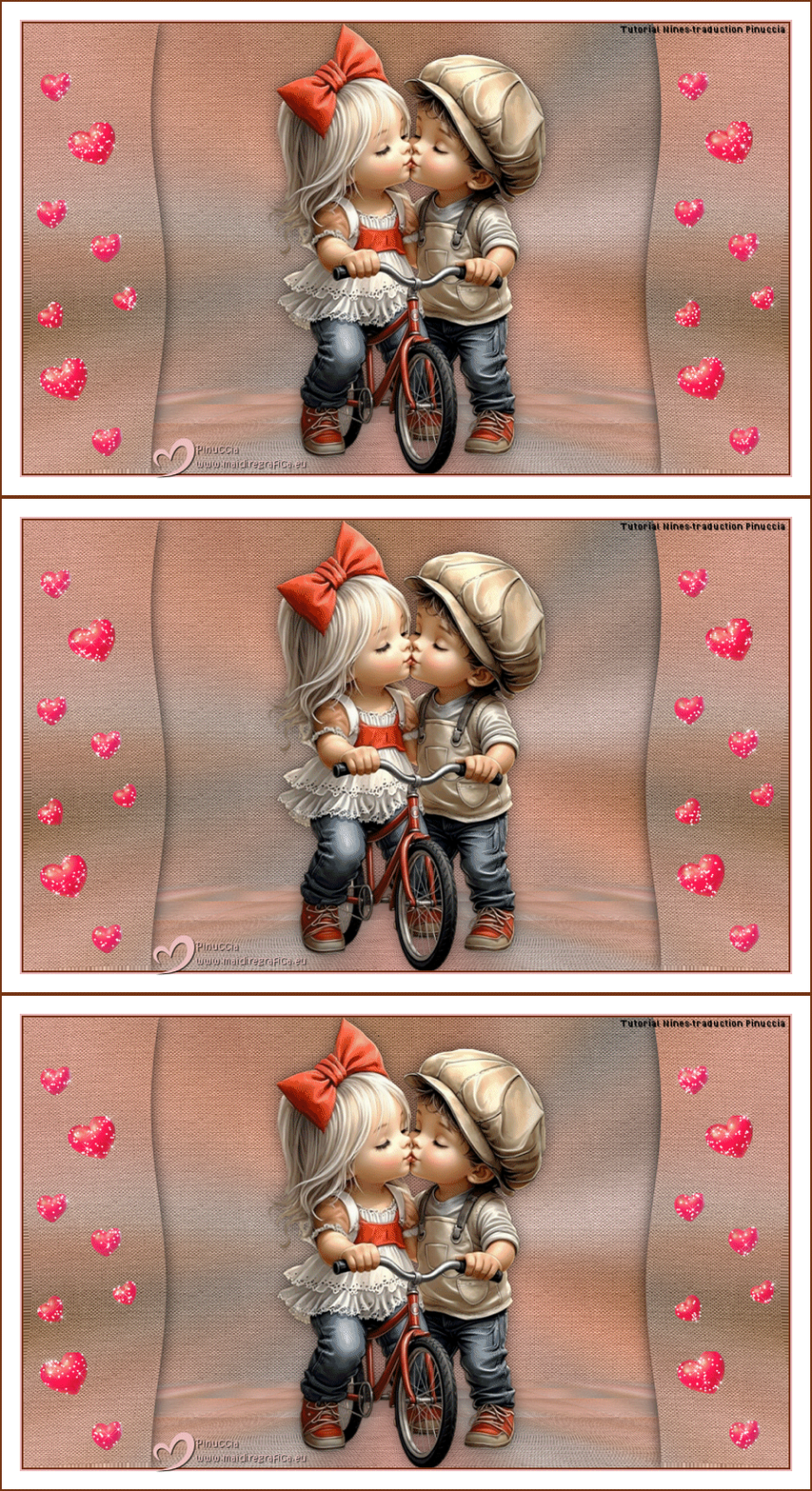
And you have an animation composed by 3 frames.
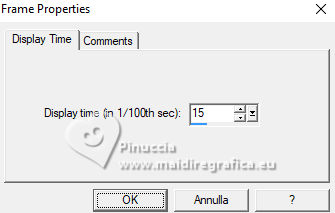
4. Selections>Select All.
Animation>Frame Propierties and set the delay time to 15.
5. Animation>Resize animation - to 90%
6. Check the animation by clicking on View Animation 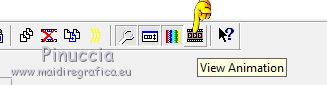
and save as a gif.
 Your versions here Your versions here

If you have problems or doubts, or you find a not worked link, or only for tell me that you enjoyed this tutorial, write to me.
17 January 2025

|