|
REFLECTED  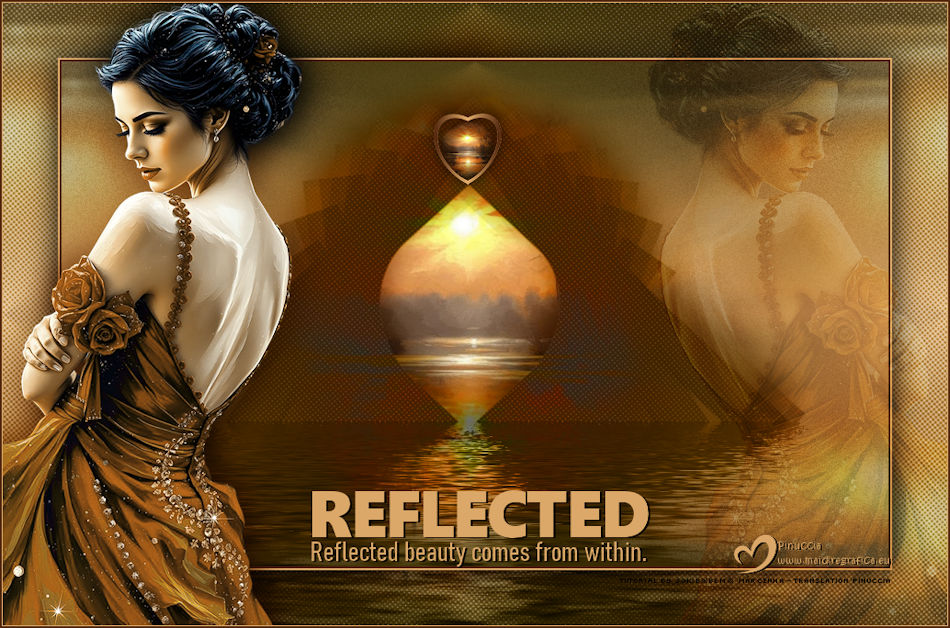
This tutorial. written and translated with PSP2020, but it can also be made using other versions of PSP.
For this tutorial, you will need:  (The links of the tubemakers here). Plugins consult, if necessary, my filter section here Filters Unlimited 2.0 here Mura's Seamless - Shift at Zigzag here Mura's Meister - Copies here Flaming Pear - Flood here Filters Mura's Seamless can be used alone or imported into Filters Unlimited. (How do, you see here) If a plugin supplied appears with this icon  it must necessarily be imported into Unlimited it must necessarily be imported into Unlimited You can change Blend Modes according to your colors. In the newest versions of PSP, you don't find the foreground/background gradient (Corel_06_029). You can use the gradients of the older versions. The Gradient of CorelX here  1. Choose 3 colors from your misted. For me: Set your foreground color to #4c4211, and your background color to #dba869. 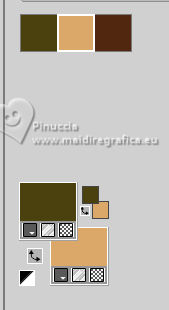 extra color: #522810 Set your foreground color to a Foreground/Background Gradient, style Linear. 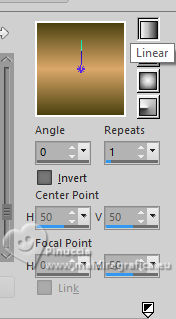 2. Open a new transparent image 900 x 550 pixels. Flood Fill  the transparent image with your Gradient. the transparent image with your Gradient.3. Layers>New Raster Layer. Selections>Select All. 4. Open your landscape misted 198PaisagemByPqnaAlice 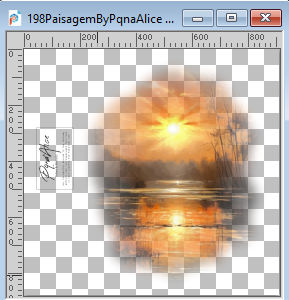 Erase the watermark and go to Edit>Copy. Go back to your work and go to Edit>Paste Into Selection. Selections>Select None. 5. Adjust>Blur>Radial Blur. 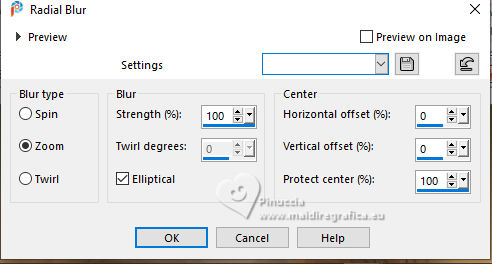 6. Effects>Image Effects>Seamless Tiling, default settings.  7. Adjust>Add/Remove Noise>Add Noise. 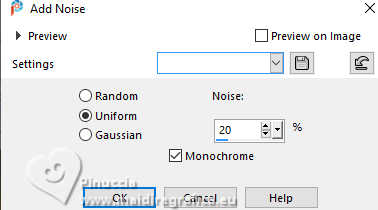 8. Reduce the opacity of this layer to 50%. Layers>New Raster Layer. Set your foreground color to color 3 #522810. Flood Fill the layer with the color 3.9. Layers>New Mask layer>From image Open the menu under the source window and you'll see all the files open. Select the mask maskcameron249.  Layers>Merge>Merge Group. 10. Selections>Load/Save Selection>Load Selection from Disk. Look for and load the seletion Reflected_Sel1   Press CANC on the keyboard   Selections>Select None. 11. Layers>Duplicate. Image>Mirror>Mirror Vertical (Image>Flip). Layers>Merge>Merge Down. We have this  12. Image>Free Rotate - 90 degrees to right.  Activate your Crop Tool  Click on Merged Opaque  now click on Apply  13. Effects>Distortion Effects>Warp  14. Image>Resize, to 90%, resize all layers not checked. Effects>Plugins>Mura's Meister - Copies  15. Effects>Artistic Effects>Halftone - foreground color  16. Effects>3D Effects>Drop Shadow, color black #000000.  17. Effects>Plugins>Flaming Pear - Flood.  18. Change the Blend Mode of this layer to Luminance (legacy). Activate the layer Raster 2.  19. Your landscape misted is still in memory: Edit>Paste as new layer. Image>Resize, if necessary - for the provided tube 67%, resize all layers not checked. Adjust>Sharpness>Sharpen. Place  the tube in the center of the effect. the tube in the center of the effect.20. Activate again your top layer, Group of Raster 3. Layers>New Raster Layer. Selections>Load/Save Selection>Load Selection from Disk. Look for and load the seletion Reflected_Sel2  Keep the color 3 as foreground color 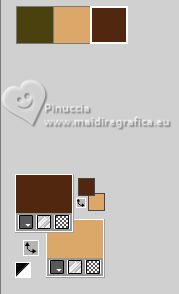 Set your foreground color to a Foreground/Background Gradient, style Linear.  Flood Fill the selection with your Gradient.21. Selections>Modify>Contract - 10 pixels. Press CANC on the keyboard. Selections>Select None. Effects>Plugins>Mura's Seamless - Shift at Zigzag  22. Image>Resize, to 40%, resize all layers not checked. Adjust>Sharpness>Sharpen. Activate your Magic Wand Tool  , tolerance and feather 0, , tolerance and feather 0,and click in the heart to select it.  23. Your landscape misted is still in memory: Edit>Paste into Selection. Adjust>Sharpness>Sharpen. Selections>Select None. Pick Tool  Position X: 405,00 - Position Y: 56,00.  Effects>3D Effects>Drop Shadow, color black #000000.  We have this  24. Edit>Copy Special>Copy Merged. Image>Add Borders, 2 pixels, symmetric, color 3 (now foreground color). Image>Add Borders, 2 pixels, symmetric, background color. Selections>Select All. 25. Image>Add Borders, 60 pixels, symmetric, whatever color. Selections>Invert. Edit>Paste Into Selection. 26. Effects>Artistic Effects>Halftone, foreground color. Selections>Invert. Effects>3D Effects>Drop Shadow, color black #000000.  Selections>Select None. 27. Open your main tube 1438MulherByPqnaAlice  Erase the watermark and go to Edit>Copy. Go back to your work and go to Edit>Paste as New Layer. Image>Resize, if necessary - for the provided tube to 54%, resize all layers not checked. Adjust>Sharpness>Sharpen. Move the tube to the left side.28. Layers>Duplicate. Activate the layer Raster 2. Adjust>Blur>Gaussian Blur - radius 20  Layers>Properties>General>Blend Mode: Multiply - Opacity: 100% 29. Activate the layer Copy of Raster 2. Layers>Duplicate. Image>Mirror>Mirror Horizontal. Layers>Properties>General>Blend Mode: Soft Light - Opacity: 50% We have this  30. Apri Titulo_WordArt_byPqnaAlice  Choose and activate the layer of your language. Edit>Copy. Go back to your work and go to Edit>Paste as New Layer. Colorize with a color at your choice. Place the tube to your liking.Effects>3D Effects>Drop Shadow, color black #000000.  31. Image>Add Borders, 1 pixel, symmetric, background color. Image>Add Borders, 2 pixels, symmetric, color 3. 32. Sign your work and save as jpg. Version with my tubes created with images from Pinterest.    Your versions. Thanks Your versions. Thanks Baby  Baby  Aria   If you have problems or doubts, or you find a not worked link, or only for tell me that you enjoyed this tutorial, write to me. 30 August 2025 |