|
GLOW  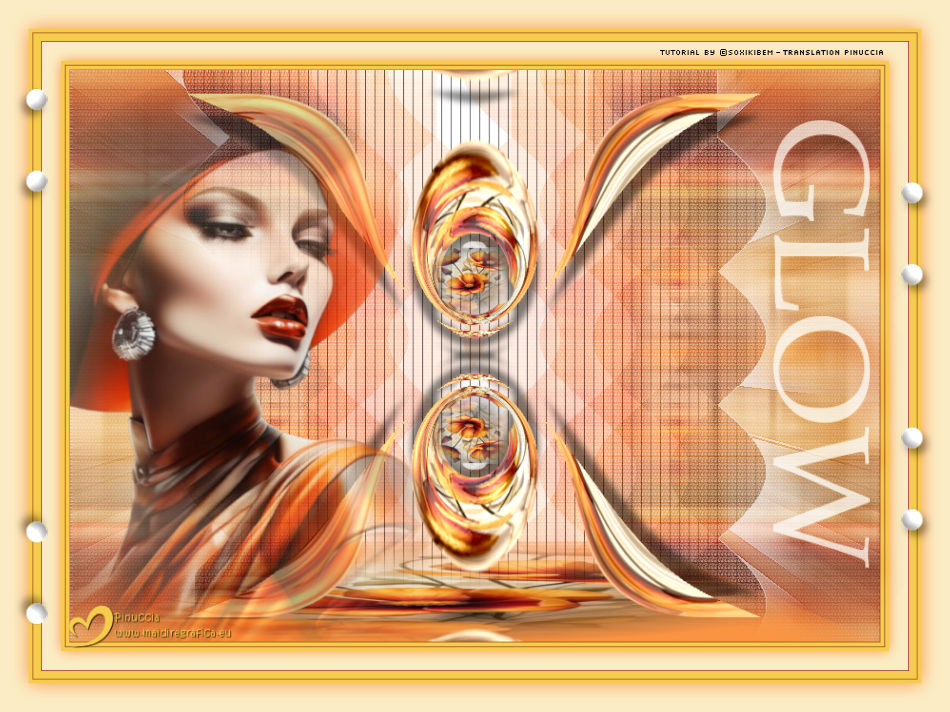
 Shining comes naturally. Effortless, fearless. Just light, charm, and attitude. Because true glow comes from within.
This tutorial was written with Psp2022 and translated with PspX2020, but it can also be made using other versions of PSP.
For this tutorial, you will need:  (The links of the tubemakers here).  consult, if necessary, my filter section here Filters Unlimited 2.0 here &<Bkg Designer sf10IV> - Lightburst (to import in Unlimited) here &<Bkg Designer sf10I> - Cruncher (to import in Unlimited) here Alien Skin Eye Candy 5 Impact - Glass here AP Lines - Lines SilverLining here Kiwi's Oelfilter - 3,5 Promille here Mehdi - Weaver here Simple - Top Left Mirror here Filters Kiwi and Simple can be used alone or imported into Filters Unlimited. (How do, you see here) If a plugin supplied appears with this icon  it must necessarily be imported into Unlimited it must necessarily be imported into UnlimitedYou can also follow the video tutorial created by Soxikibem   You can change Blend Modes according to your colors. In the newest versions of PSP, you don't find the foreground/background gradient (Corel_06_029). You can use the gradients of the older versions. The Gradient of CorelX here  Copy the preset in the Presets Folder Copy the selections in the Selections Folder. 1. Choose 4 colors to work 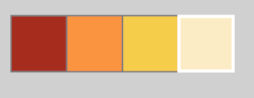 Foreground: #a62e1e Background: #fa9442 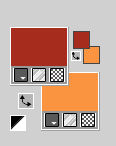 Color 3: #f6cc4c Color 4: #fbecc5 Set your foreground color to a Foreground/Background Gradient, style Linear. 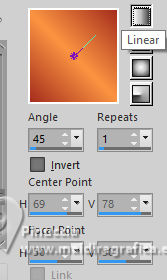 2. Open a new transparent image 850 x 600 pixels. Flood Fill  the transparent image with your Gradient. the transparent image with your Gradient.3. Selections>Select All. Open the misted 214FlorbyPqnaAlice 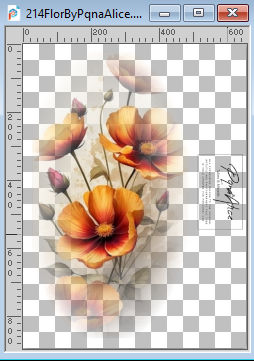 Erase the watermark and go to Edit>Copy. Go back to your work and go to Edit>Paste into Selections. Selections>Select None. 4. Effects>Image Effects>Seamless Tiling, default settings  Effects>Plugins>Mehdi - Weaver 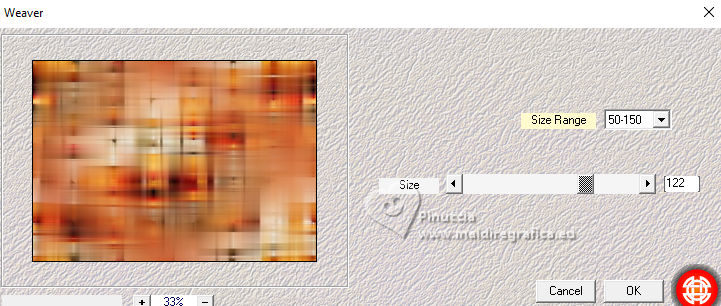 5. Effects>Plugins>Filters Unlimited 2.0 - &<Bkg Designer sf10I> - Cruncher. 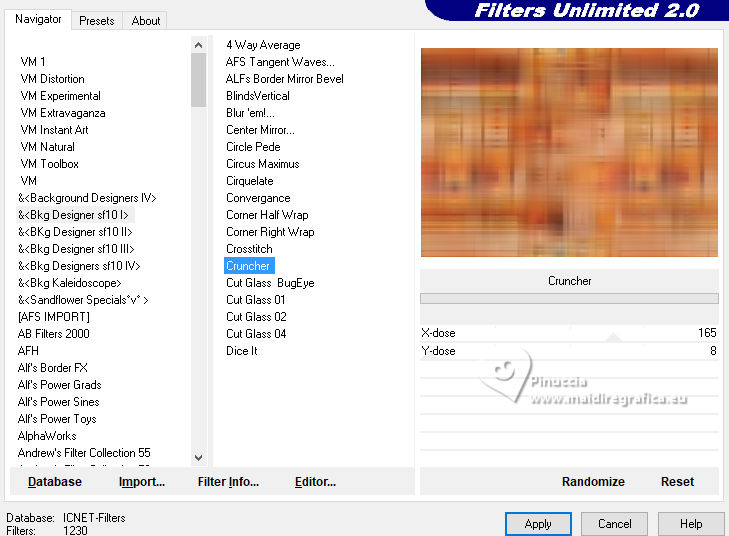 6. Effects>Plugins>Simple - Top Left Mirror. 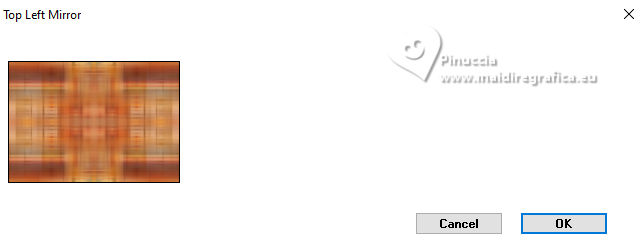 Adjust>Sharpness>High Pass Sharpen. 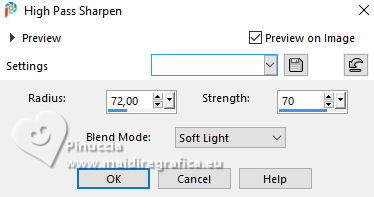 7. Layers>New Raster Layer. Activate your Selection Tool  (no matter the type of selection, because with the custom selection your always get a rectangle) clic on the Custom Selection  and set the following settings. 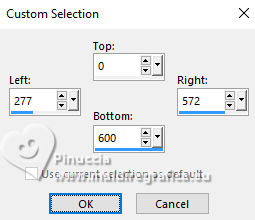 Set your background color to white. 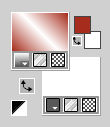 Flood fill the selection with color white.Selections>Select None. 8. Effects>Plugins>Filters Unlimited 2.0 - &<Bkg Designer sf10I> - Cruncher.  9. Effects>Distortion Effects>Wave.  10. Effects>Plugins>Filters Unlimited 2.0 - &<Bkg Designer sf10I> - Cruncher.  11. Effects>Plugins>AP [Lines] - Lines SilverLining.  12. Activate your Magic Wand Tool  , tolerance and feather 0, , tolerance and feather 0,and click in the right and left transparent zones to select them.  Activate the layer Raster 1. Selections>Promote Selection to Layer. Effects>Plugins>Filters Unlimited 2.0 - &<Bkg Designer sf10IV> - Lighburst, default settings.  Selections>Select None. Layers>Properties: Opacity 70%. Effects>Edge Effects>Enhance. 13. Activate the layer Raster 1. Effects>Plugins>AP [Lines] - Lines SilverLining.  14. Effects>User Defined Filter - Fake Canvas.  15. Activate your top layer, Raster2. Layers>New Raster Layer. Selections>Load/Save Selections>Load Selection From Disk. Look for and load the selection 299_Xiki1  Set again your background color to ##fa9442. Flood Fill the selection with your background color.Edit>Paste into Selection - your misted is still in memory  Layers>Duplicate. Effects>Plugins>Kiwi's Oelfilter - 3,5 Promille  Selections>Modify>Contract - 25 pixels. Selections>Invert. Press CANC on the keyboard  Be careful, don't use the Edit>Cut command, so as not to lose the misted file from your memory, which you will still need. Selections>Select None. 16. Effects>Distortion Effects>Warp. 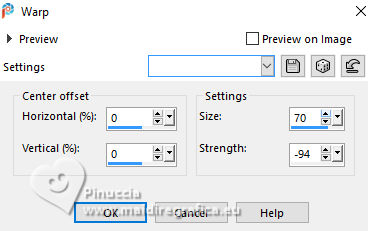 Effects>3D Effects>Drop Shadow, color black 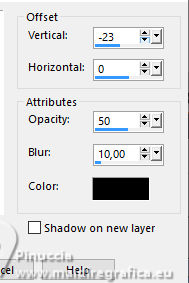 Layers>Duplicate. Image>Mirror>Mirror Vertical (Image>Flip). 17. Activate the layer Raster 3. 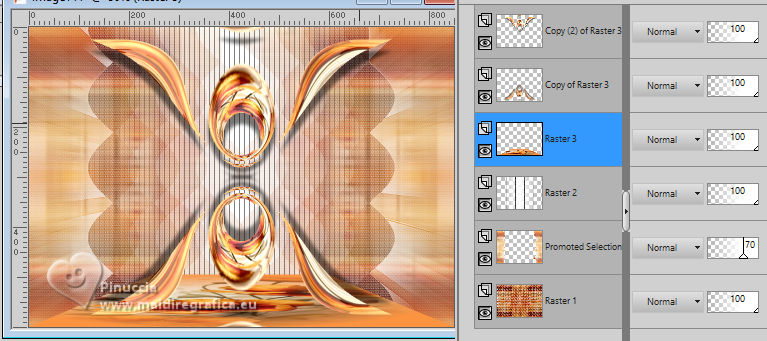 Activate your Magic Wand Tool , tolerance 0, feather 50, and click in the transparent part to select it. Press 3 times CANC on the keyboard. Selections>Select None. 18. Activate your top layer (Copy (2) of Raster 3) 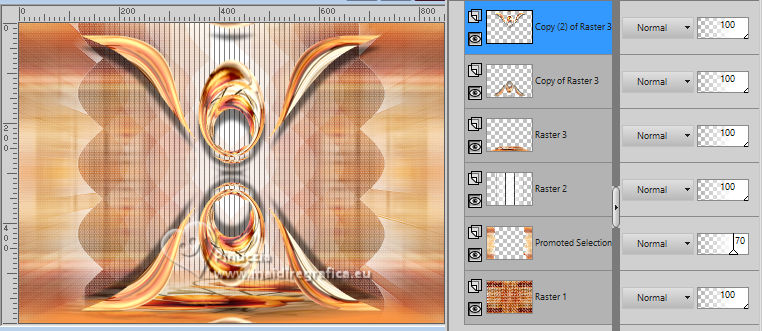 Layers>New Raster Layer. Selections>Load/Save Selections>Load Selection From Disk. Look for and load the selection 299_Xiki2 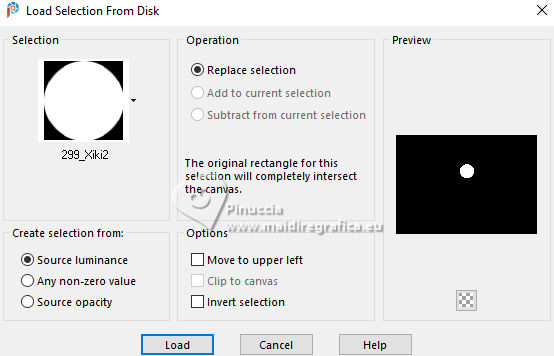 Edit>Paste into Selection - your misted is always in memory. Adjust>Sharpness>Sharpen. Effects>Plugins>Alien Skin Eye Candy 5 Impact - Glass. 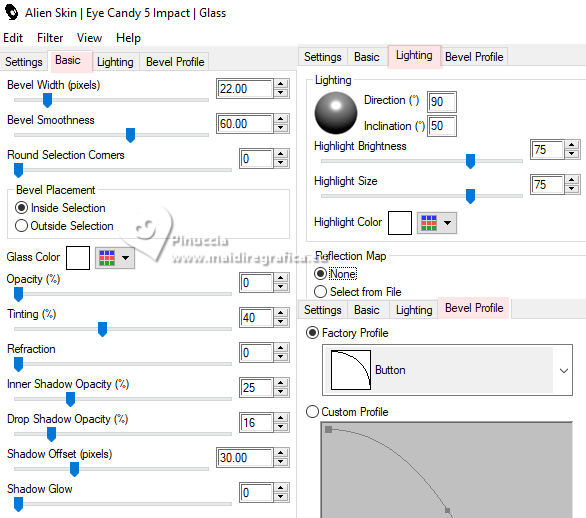 Selections>Select None. 19. Layers>Duplicate. Image>Mirror>Mirror Vertical (Image>Flip) Layers>Merge>Merge Down. Activate the layer Raster 2 and change the Blend Mode of this layer to Luminance (Legacy). 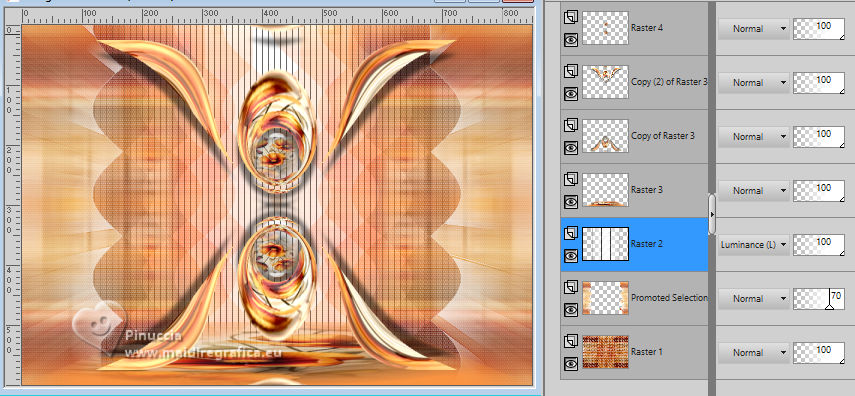 20. Image>Add Borders, 1 pixel, symmetric, foreground color. Image>Add Borders, 4 pixels, symmetric, color 3 #f6cc4c Image>Add Borders, 1 pixel, symmetric, foreground color. Image>Add Borders, 4 pixels, symmetric, color 3 #f6cc4c Selections>Select All Image>Add Borders, 20 pixels, symmetric, color 4: #fbecc5 Effects>3D Effects>Drop Shadow, background color. 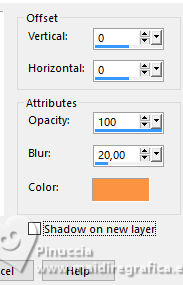 Selections>Select None. 21. Image>Add Borders, 1 pixel, symmetric, foreground color. Image>Add Borders, 8 pixels, symmetric, color 3 #f6cc4c Image>Add Borders, 1 pixel, symmetric, foreground color. Image>Add Borders, 4 pixels, symmetric, color 3 #f6cc4c Selections>Select All Image>Add Borders, 30 pixels, symmetric, color 4: #fbecc5 Effects>3D Effects>Drop Shadow, background color. 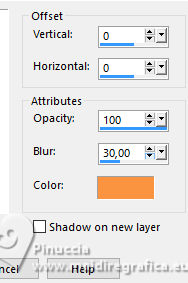 Selections>Select None. 22. Open the woman's tube 1291MulherByPqnaAlice  Erase the watermark and go to Edit>Copy. Go back to your work and go to Edit>Paste a new Layer. Move  the tube to the left. the tube to the left.Apply the effect you like better. 23. Open TituloGlow_Xiki  Erase the watermark and go to Edit>Copy. Go back to your work and go to Edit>Paste a New Layer. Pick Tool  Pick Tool: Position X: 791,00 - Position Y: 108,00.  Layers>Properties: Blend Mode Soft Light. Layers>Duplicate. 24. Open DecorGlow_Xiki  Edit>Copy. Go back to your work and go to Edit>Paste a New Layer. Pick Tool Pick Tool: Position X: 13,00 - Position Y: 90,00.  Author's note: if necessary, move this layer under the tube's layer; In the second version, I moved it so that the decor wouldn't be on top of the tube. 25. Image>Add Borders, 5 pixels, symmetric, foreground color. 26. Open Credit-Tutorial_bySoxikibem  Choose a layer and go to Edit>Copy. Go back to your work and go to Edit>Paste as new layer. Don't forget your translator's watermark. Sign your work on a new layer. Layers>Merge>Merge All and save as jpg. Version with my tubes from Pinterest images   Your versions. Thanks 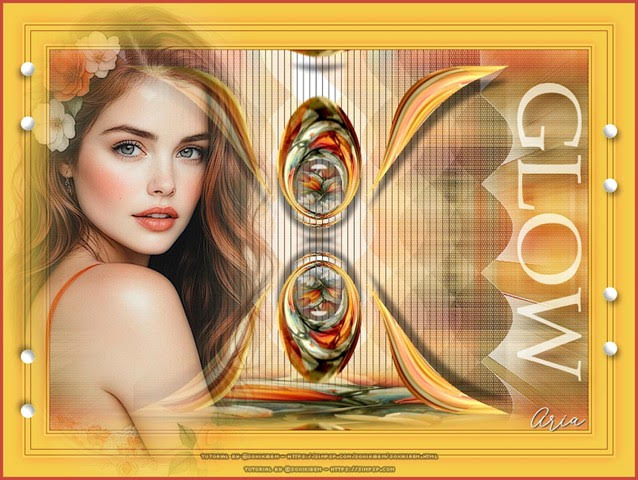 Aria 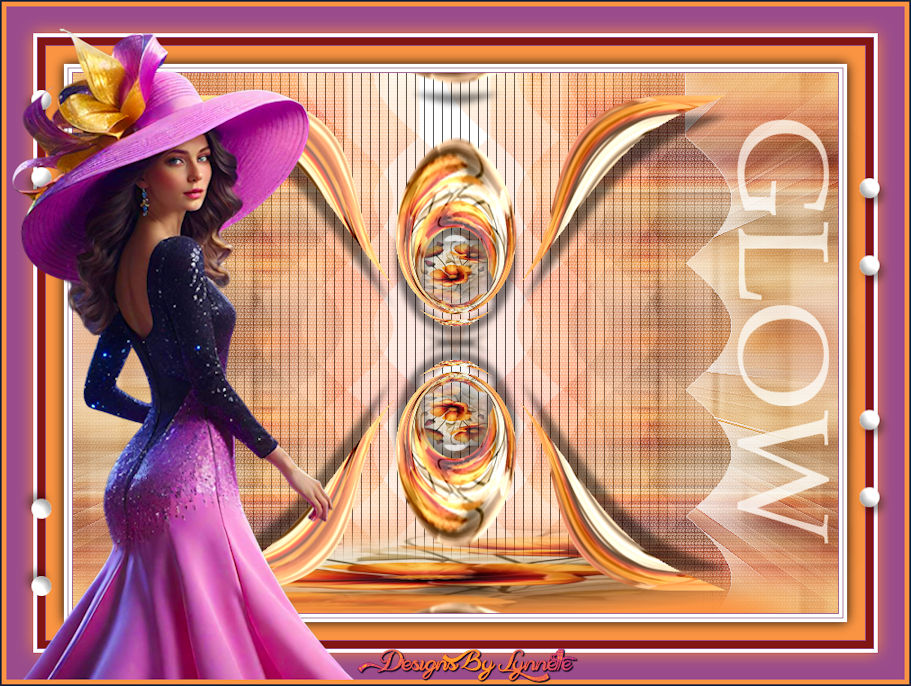 Lynnette 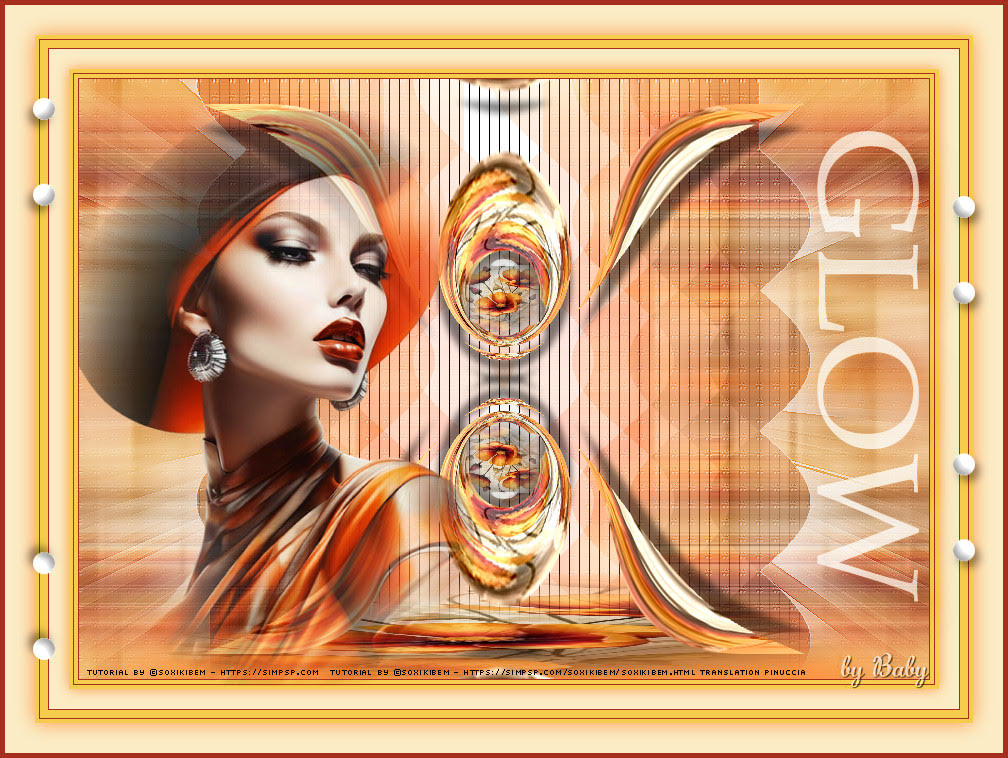 Baby 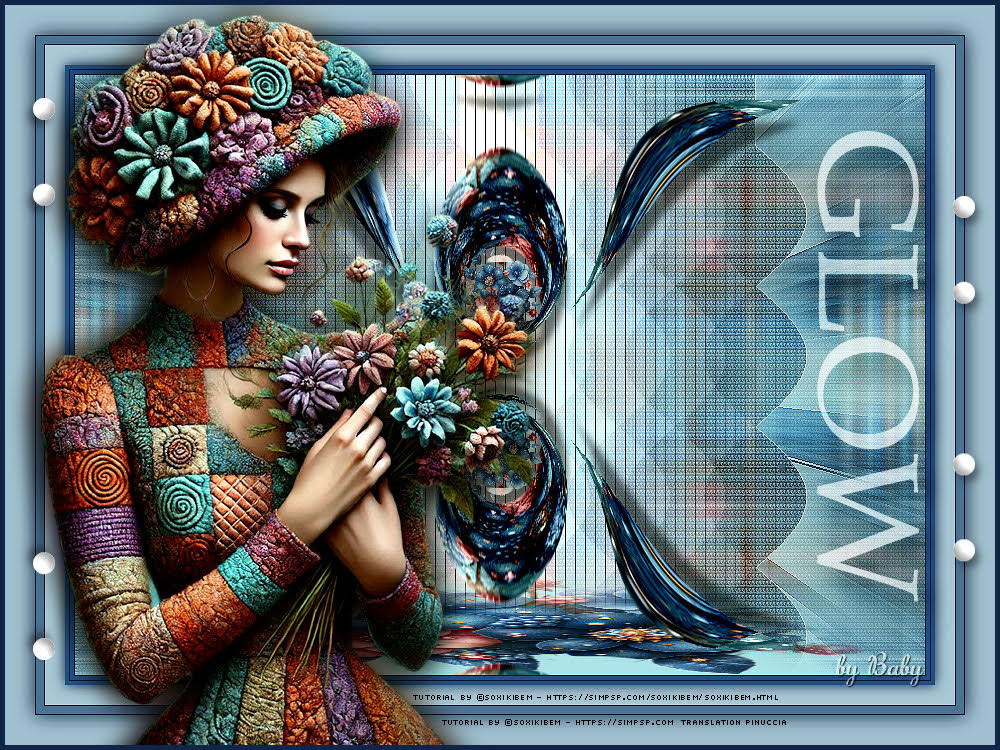 Baby  If you have problems or doubts, or you find a not worked link, or only for tell me that you enjoyed this tutorial, write to me. 15 January 2026 |