|
TRACES OF LIGHT  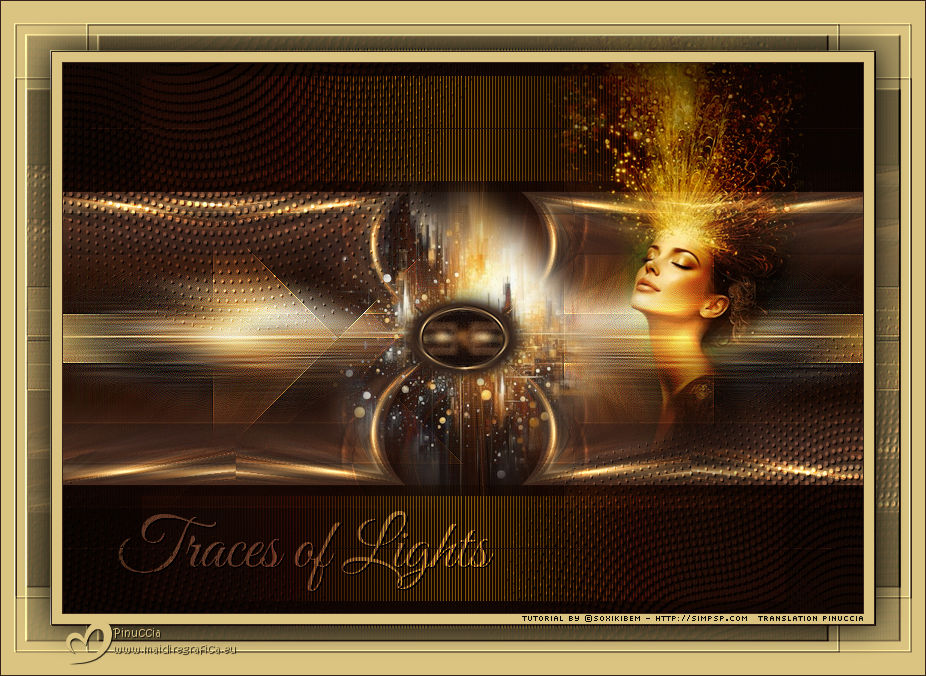
 Between shadows and light, time whispers forgotten secrets. In every gentle breeze, an echo of lost memories dances in the silence. The past and present intertwine in ethereal murmurs, guiding hearts that still dream.
This tutorial was written with Psp2022 and translated with PspX2020, but it can also be made using other versions of PSP.
For this tutorial, you will need:  Thanks for the tubes PqnaAlice and for the mask Narah. (The links of the tubemakers here).  consult, if necessary, my filter section here Filters Unlimited 2.0 here &<Bkg Kaleidoscope> - 4QFlipZBottomL (to import in Unlimited) here It&64;lian Editors Effect - Effetto Fantasma here Mehdi - Sorting Tiles here Mock - Windo here Mura's Meister - Perspective Tiling here Simple - Pizza Slice Mirror here Filters Mock and Simple can be used alone or imported into Filters Unlimited. (How do, you see here) If a plugin supplied appears with this icon  it must necessarily be imported into Unlimited it must necessarily be imported into UnlimitedVIDEO LESSON If you prefer to watch the video on YouTube, click the link below here  You can change Blend Modes according to your colors. In the newest versions of PSP, you don't find the foreground/background gradient (Corel_06_029). You can use the gradients of the older versions. The Gradient of CorelX here  Copy the preset Emboss 3 in the Presets Folder. Copy the Selections in the Selections Folder. Open the mask in PSP and minimize it with the rest of the material. 1. Choose 2 colors to work. foreground color #35221b, background color #dbc481 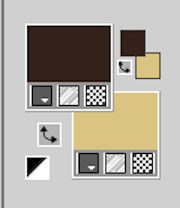 2. Open a new transparent image 800 x 550 pixels. Flood Fill  the transparent image with your foreground color. the transparent image with your foreground color.Selections>Select All. Open your landscape misted 099DiversosByPqnaAlice 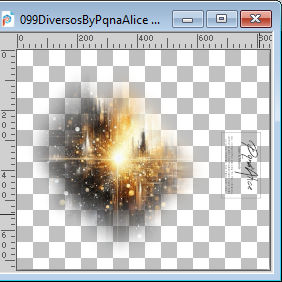 Erase the watermark and go to Edit>Copy. Go back to your work and go to Edit>Paste Into Selection. Selections>Select None. 3. Effects>Image Effects>Seamless Tiling - Side by Side 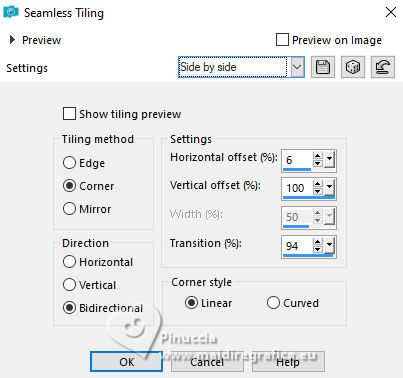 4. Adjust>Blur>Radial Blur. 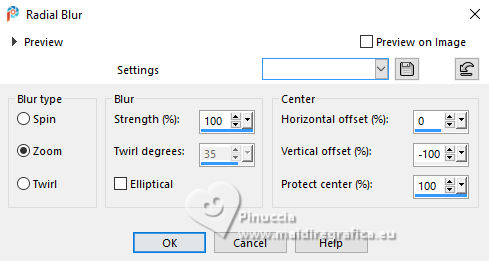 5. Effects>Edge Effects>Enhance. Edit>Repeat Enhance Edges. Layers>Duplicate. Image>Mirror>Mirror Vertical. Layers>Properties>General: Blend Mode Darken Layers>Merge>Merge Down. 6. Layers>Duplicate. Effects>Plugins>Mura's Meister - Perspective Tiling. 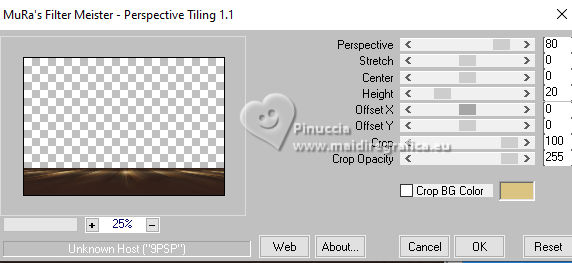 7. Objects>Align>Center in Canvas. Activate your Magic Wand Tool  tolerance 0, feather 60, tolerance 0, feather 60,and click in the bottom transparent part to select it. 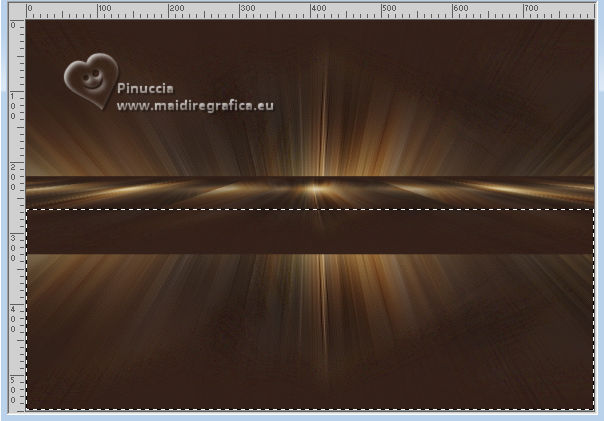 Press 5 times CANC on the keyboard  Selections>Select None. 8. Layers>Duplicate. Close the layer Copy (2) of Raster 1. Activate the layer Copy of Raster 1. 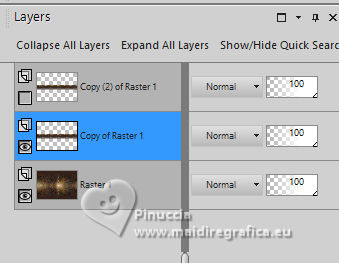 Effects>Reflection Effects>Kaleidoscoope. 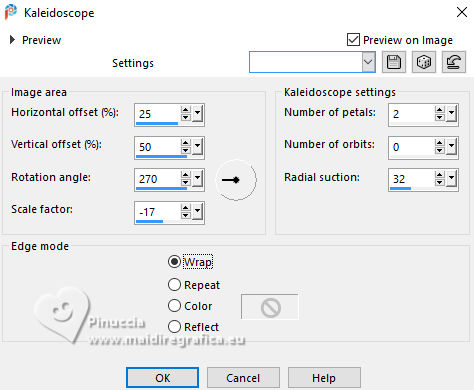 9. Layers>Duplicate. Effects>Plugins>It@lian Editors Effects - Effetto Fantasma. 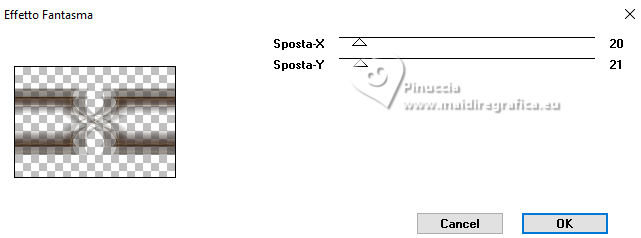 Layers>Properties>General>Blend Mode: Dodge. 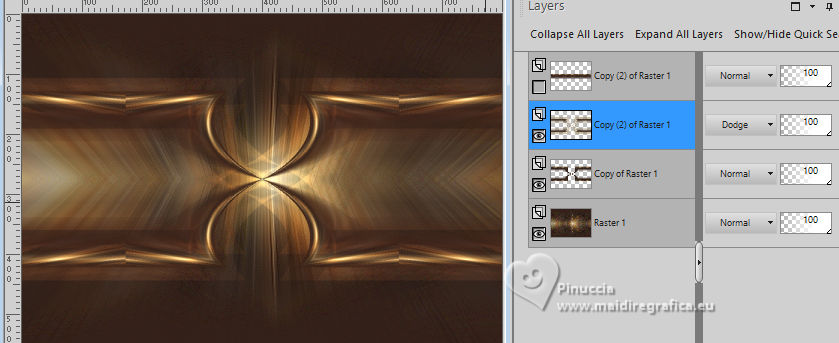 10. Effects>User Defined Filter - Select the preset Emboss 3 and ok. 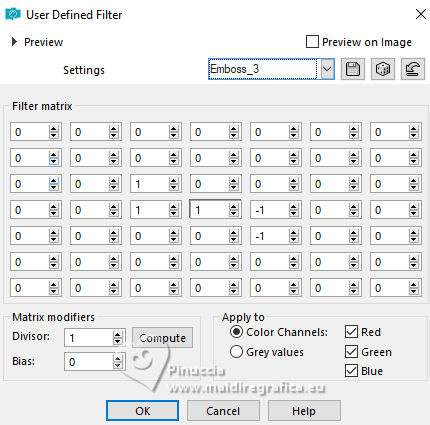 11. Activate the layer Raster 1. Layers>New Raster Layer. Selections>Load/Save Selections>Load Selection From Disk. Look for and load the selection TOL_Xiki1 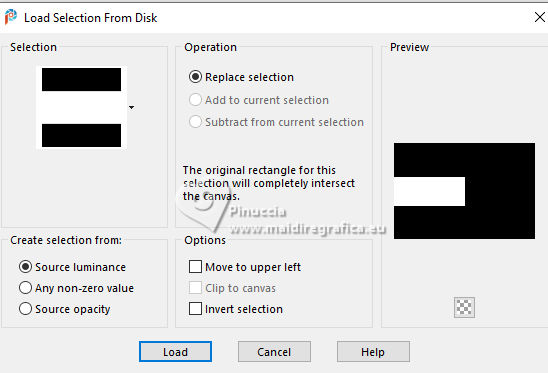 Edit>Paste Into Selection - the misted is still in memory. 12. Adjust>Blur>Motion Blur. 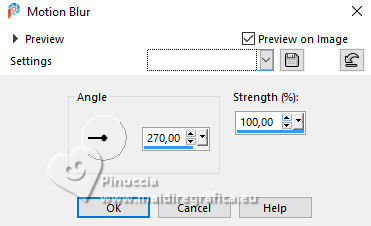 Edit>Repeat Motion Blur. Effects>Edge Effects>Enhance. Edit>Repeat Enhance Edges. Selections>Select None. Layers>Duplicate. Image>Mirror>Mirror Horizontal. Layers>Merge>Merge Down. 13. Activate the layer Raster 1. Layers>Duplicate. Effects>Plugins>Mehdi - Sorting Tiles. 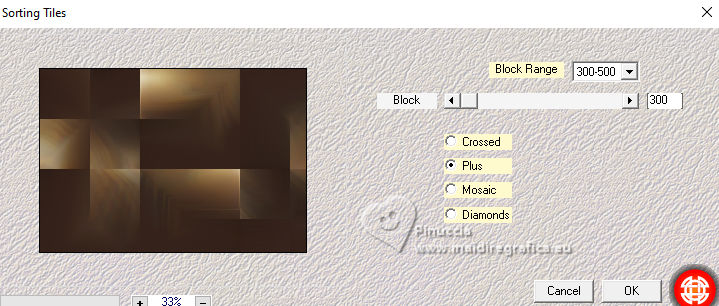 14. Effects>Plugins>Simple - Pizza Slice Mirror. Effects>Edge Effects>Enhance. Layers>Properties>General>Blend Mode: Hard Light. 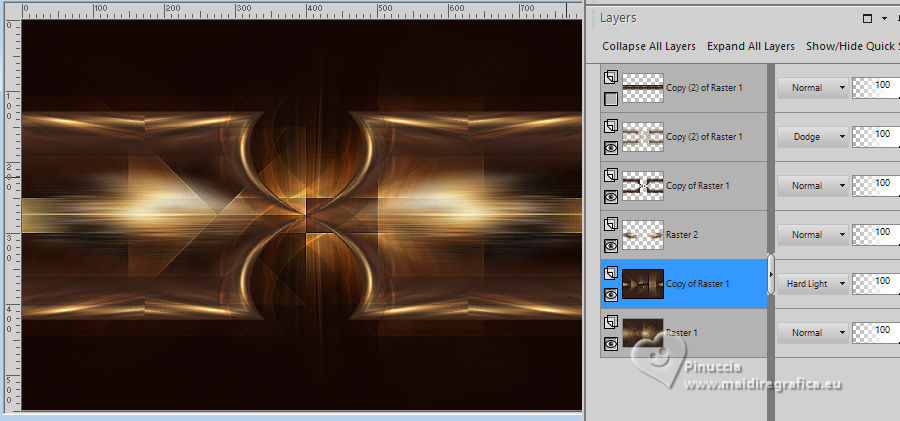 15. Edit>Copy Special>Copy Merged. Open and activate the layer Copy (2) of Raster 1. Effects>Distortion Effects>Polar Coordinates. 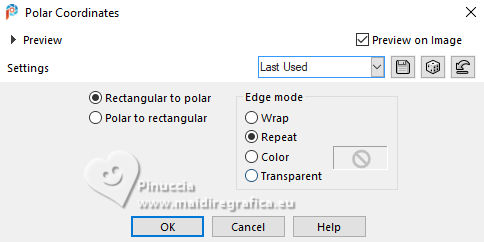 16. Activate your Magic Wand Tool , tolerance and feather 0,and click in the circle to select it. Edit>Paste Into Selection Adjust>Blur>Average - 29.  Adjust>Add/Remove Noise>Add Noise.  Selections>Select None. 17. Image>Resize, to 25%, resize all layers not checked. Adjust>Sharpness>Unsharp Mask.  Effects>3D Effects>Drop Shadow, color #000000. 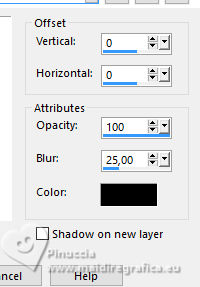 18. We have this:  19. Activate again the landscape misted 099DiversosByPqnaAlice and go to Edit>Copy. Go back to your work and go to Edit>Paste as new layer. Image>Resize, if necessary (for me to 55%). Layers>Arrange>Move Down. Layers>Properties>General>Blend Mode: Lighten or other, to your liking.  20. Layers>New Raster Layer. Selections>Load/Save Selections>Load Selection From Disk. Look for and load the selection TOL_Xiki2  Set your foreground color to a Foreground/Background Gradient, style Linear. 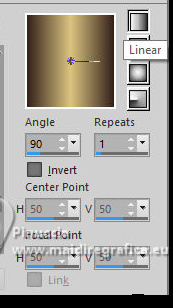 Flood Fill the selection with your Gradient.21. Effects>Plugins>Mock - Windo. 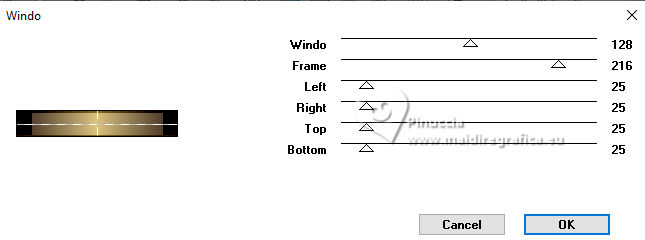 22. Effects>Texture Effects>Blinds - foreground color. 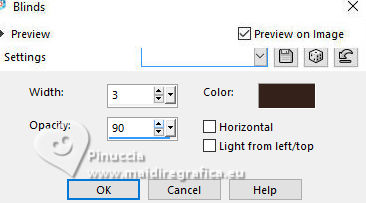 Selections>Select None. 23. Layers>Duplicate. Image>Mirror>Mirror Vertical. Layers>Merge>Merge Down. Effects>Plugins>Filters Unlimited 2.0 - &<Bkg Kaleidoscope> 4QFlipZBottomL. 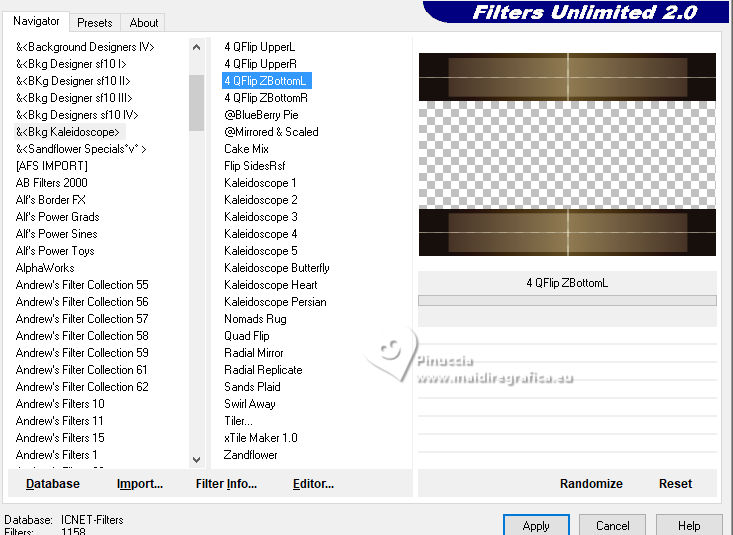 Layers>Properties>General>Blend Mode: Hard Light - Opacity 60%. 24. Layers>New Raster Layer. Set your foreground color to white #fffffff. Flood Fill the layer with the color white #ffffff.Layers>New Mask Layer>From Image. Open the menu under the source window and you'll see all the files open. Select the mask NarahsMask_1569.  Layers>Merge>Merge Group. Layers>Properties>General>Blend Mode: Overlay or other to your liking. Effects>3D Effects>Drop Shadow, colore #000000.  25. Open the woman's misted 1251MulherByPqnaAlice  Erase the watermark and go to Edit>Copy. Go back to your work and go to Edit>Paste as New Layer. Image>Resize, if necessary. Move  the tube to the right side. the tube to the right side.Effects>3D Effects>Drop Shadow, at your choice. note of the author: in my first version I used Blend Mode Hard Light 26. Open TituloTOL_Xiki  Erase the watermark and go to Edit>Copy . Go back to your work and go to Edit>Paste as New Layer. Pick Tool  Position X: 55,00 - Position Y: 448,00. 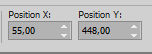 Layers>Properties>General>Blend Mode: Overlay. Layers>Duplicate. Layers>Properties>General>Blend Mode: Soft Light. 27. Image>Add Borders, 1 pixel, symmetric, foreground color. Image>Add Borders, 10 pixels, symmetric, background color. Image>Add Borders, 1 pixel, symmetric, foreground color. Selections>Select All. Image>Add Borders, 50 pixels, symmetric, background color. 28. Selections>Invert. Effects>Plugins>It@lian Editors Effect - Effetto Fantasma. 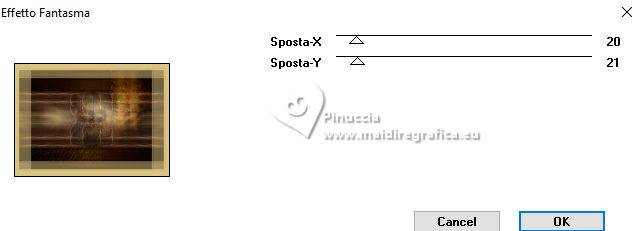 29. Effects>User Defined Filter - Emboss 3. 30. Selections>Invert. Effects>3D Effects>Drop Shadow, color #000000. 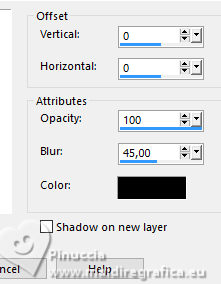 Selections>Select None. 31. Image>Add Borders - 1 pixel, symmetric, foreground color. 32. Sign your work and save as jpg. For the landscape thanks PqnaAlice; the misted woman is mine. 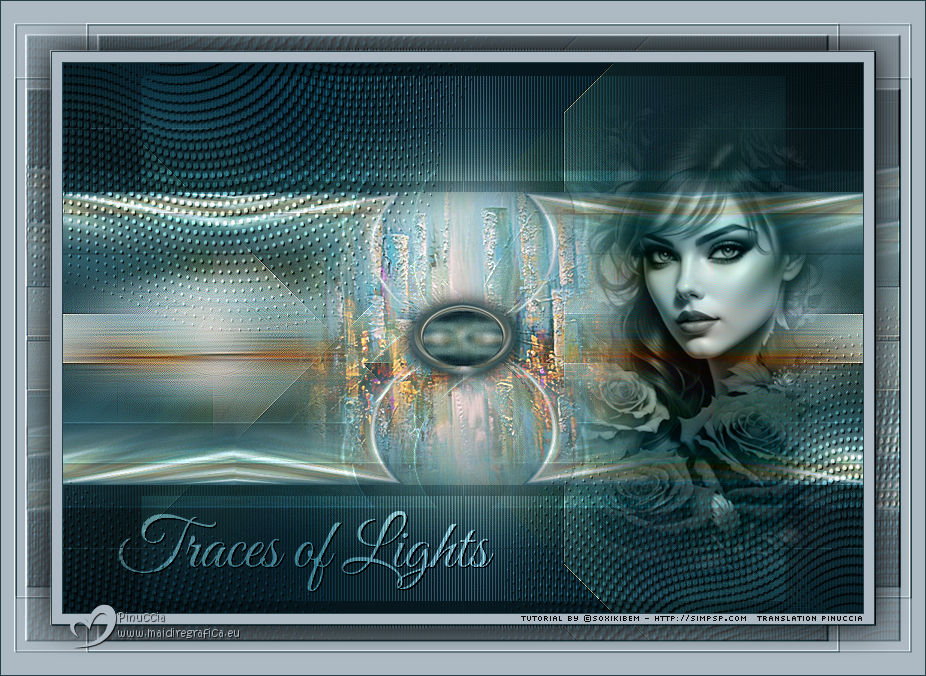  Your versions. Thanks 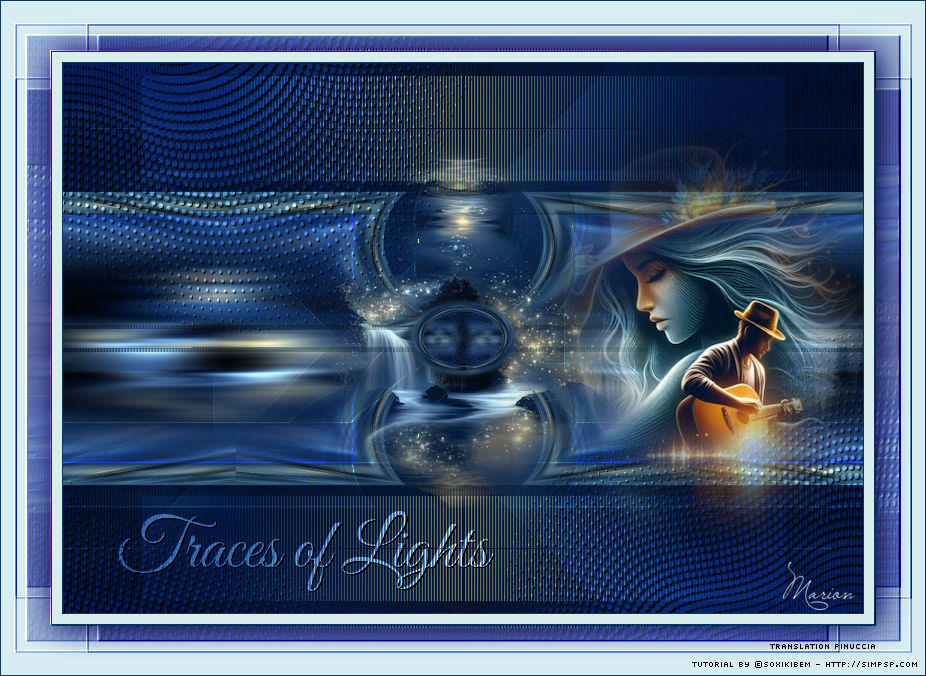 Marion  If you have problems or doubts, or you find a not worked link, or only for tell me that you enjoyed this tutorial, write to me. 18 August 2025 |




