|
WINGED ELEGANCE  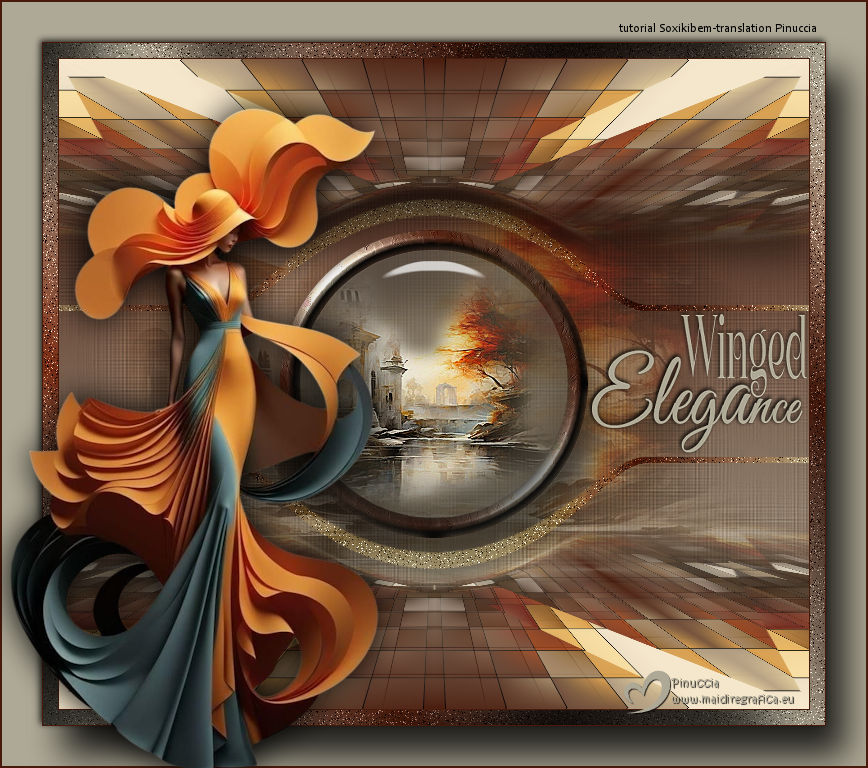
 Drifting between grace and mystery, her silhouette dances with the wind, like wings sketching poetry in the air. Each movement is a whisper of lightness, a melody of pure sophistication.
This tutorial was written with Psp2022 and translated with PspX2020, but it can also be made using other versions of PSP.
For this tutorial, you will need:  Thanks for the tubes PqnaAlice. (The links of the tubemakers here).  consult, if necessary, my filter section here Filters Unlimited 2.0 here Alien Skin Eye Candy 5 Impact - Glass here Simple - Pizza Slice Mirror here Mura's Meister - Perspective Tiling here Toadies - Plain Mosaic Blur here Graphics Plus - Cross Shadow here Filters Toadies and Graphics Plus can be used alone or imported into Filters Unlimited. (How do, you see here) If a plugin supplied appears with this icon  it must necessarily be imported into Unlimited it must necessarily be imported into Unlimited You can change Blend Modes according to your colors. In the newest versions of PSP, you don't find the foreground/background gradient (Corel_06_029). You can use the gradients of the older versions. The Gradient of CorelX here  Copy the texture TXT_031_tdstudio in the Textures Folder. Copy the Selection in the Selections Folder. 1. Choose 2 colors to work. Set your foreground color to #481a0b, and your background color to #aea996 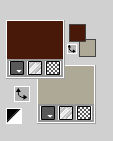 Set your foreground color to a Foreground/Background, style Linear 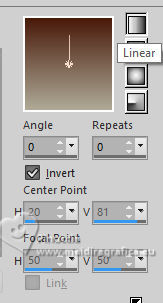 2. Open a new transparent image 750 x 650 pixels. Flood Fill  the transparent image with your Gradient. the transparent image with your Gradient.3. Layers>Duplicate. Selections>Select All. Open the landscape 179PaisagemByPqnaAlice 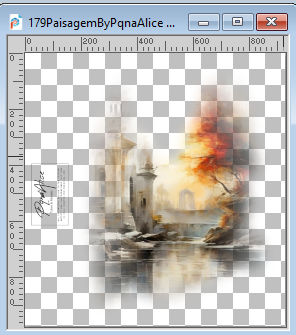 Erase the watermark and go to Edit>Copy. Go back to your work and go to Edit>Paste Into Selection. Selections>Select None. 4. Effects>Modules Externes>Toadies - Plain Mosaic Blur. 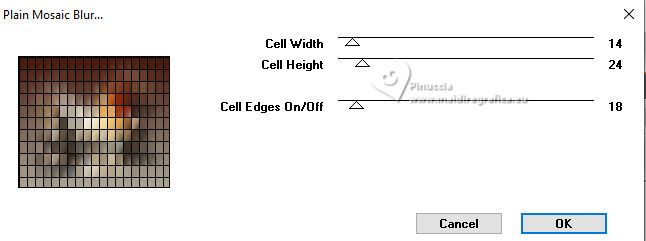 5. Effects>Image Effects>Seamless Tiling. 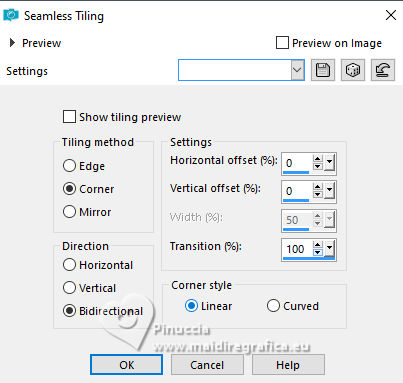 6. Effects>Modules Externes>Simple - Pizza Slice Mirror. Edit>Repeat Pizza Slice Mirror. 7. Effects>Modules Externes>Mura's Meister - Perspective Tiling. 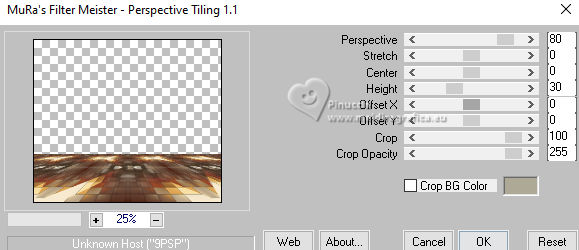 8. Activate your Magic Wand Tool  , tolerance 0, feather 70, , tolerance 0, feather 70,and click in the transparent part to select it. Press 5 times CANC on the keyboard. Selections>Select None. don't forget to set again the feather of your Magic Wand Tool to 0 Layers>Duplicate. Image>Mirror>Mirror Vertical. Layers>Merge>Merge Down. 9. Effects>Distortion Effects>Warp. 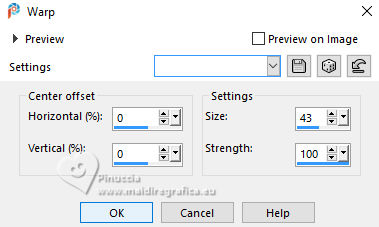 10. Effects>Reflection Effects>Rotating Mirror. 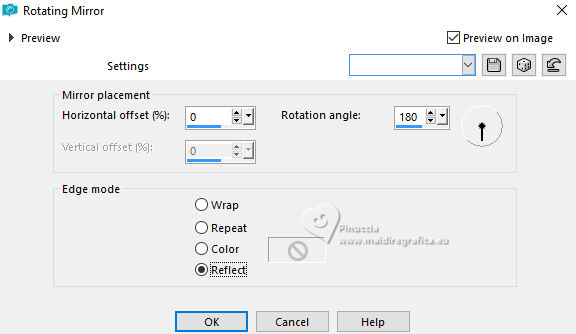 11. Effects>3D Effects>Drop Shadow. color #000000. 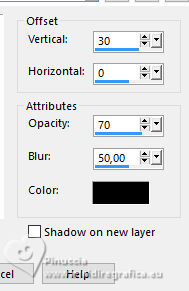 Activate the Layer Raster 1. Layers>New Raster Layer. Selections>Select All. 12. Edit>Paste Into Selection - the landscape misted is still in memory. 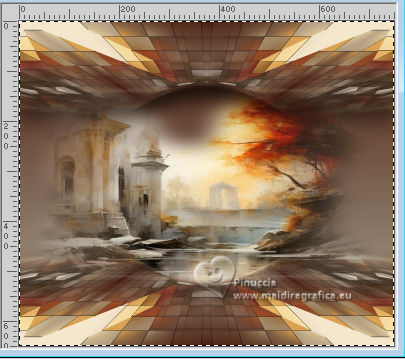 Selections>Select None. Layers>Properties>General>Blend Mode: Soft Light. 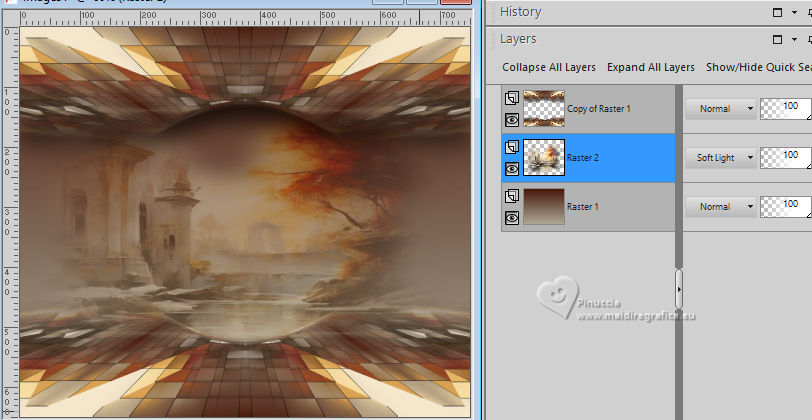 Layers>Merge>Merge Down. 13. Effects>Texture Effects>Texture - select the texture TXT_031_tdstudio. 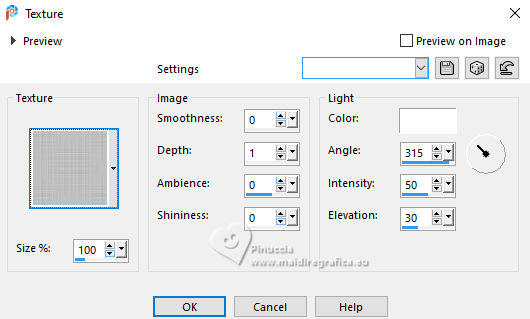 14. Adjust>Sharpness>Sharpen. Selections>Load/Save Selections>Load Selection From Disk Look for and load the selection WE_Xiki1 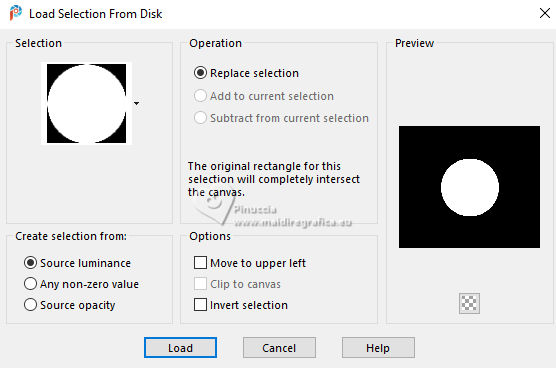 Layers>New Raster Layer. Change the Gradient's settings 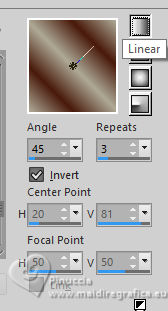 Flood Fill the selection with your Gradient.15. Selections>Modify>Contract - 20 pixels. Press CANC on the keyboard  Be careful, you still have the misted tube in memory, which you still need. Do not use Edit>Cut, because you will lose it from memory. Layers>New Raster Layer. Reduce the opacity of your Flood Fill Tool to 50%. Flood fill the selection with your background color.Set again the opacity of your Flood Fill Tool to 100. Edit>Paste into Selection - the landscape's misted is still in memory. 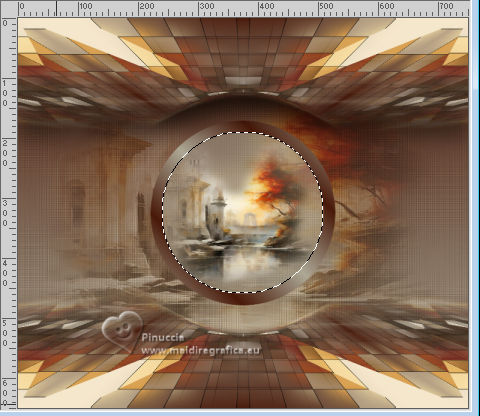 Effects>Edge Effects>Enhance. 16. Effects>Modules Externes>Alien Skin Eye Candy 5 Impact - Glass. 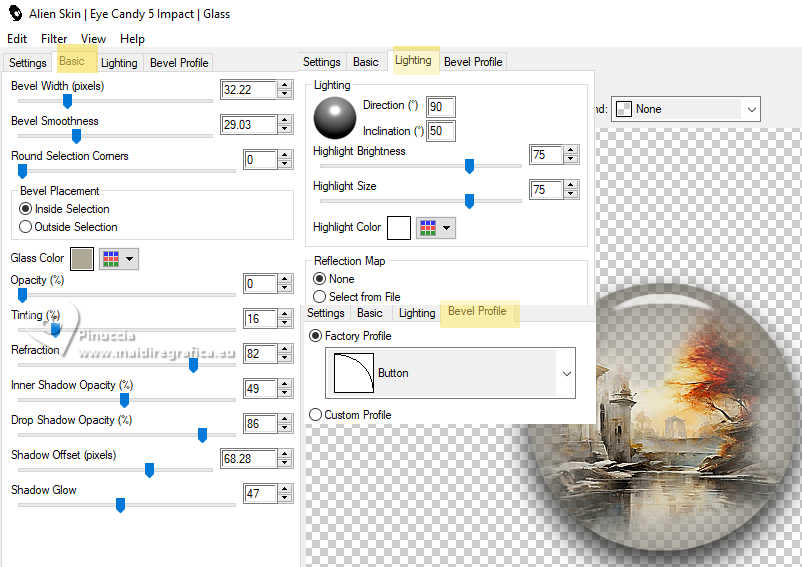 17. Selections>Select None. Activate the Layer below, Raster 2. 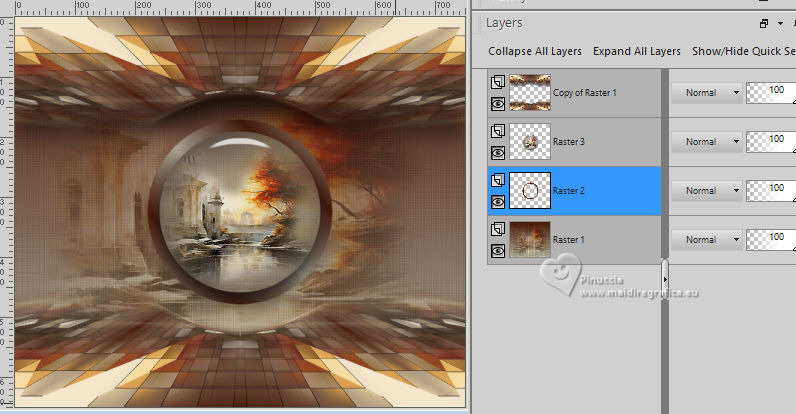 Selections>Select All. Selections>Float. Selections Defloat. 18. Effects>Art media Effects>Brush Strokes - color #505050. 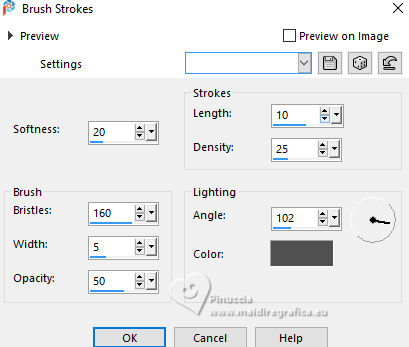 Effects>3D Effects>Inner Bevel. 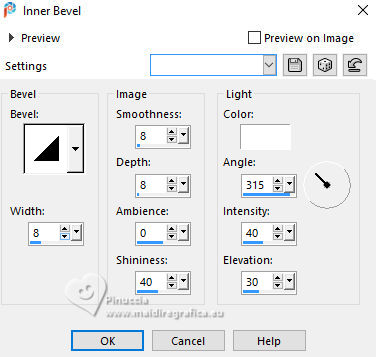 Selections>Select None. 19. Activate the layer above, Raster 3. Layers>Merge>Merge Down. Effects>3D Effects>Drop Shadow, color black. 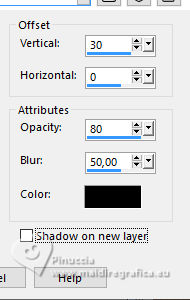 20. Layers>New Raster Layer. Selections>Load/Save Selections>Load Selection From Disk Look for and load the selection WE_Xiki2 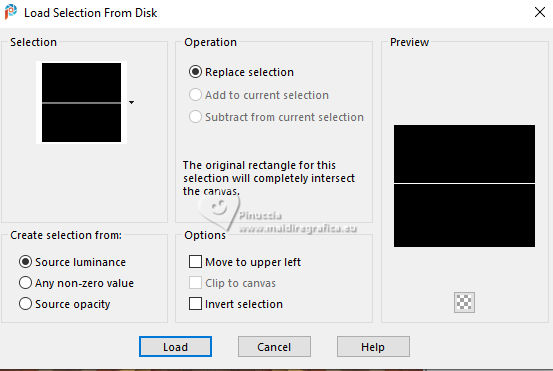 Flood Fill the selection with your last Linear Gradient.Selections>Select None. 21. Effects>Distortion Effects>Warp, same settings. Pick Tool  Position X: 0,00 - Position Y: 140,00. 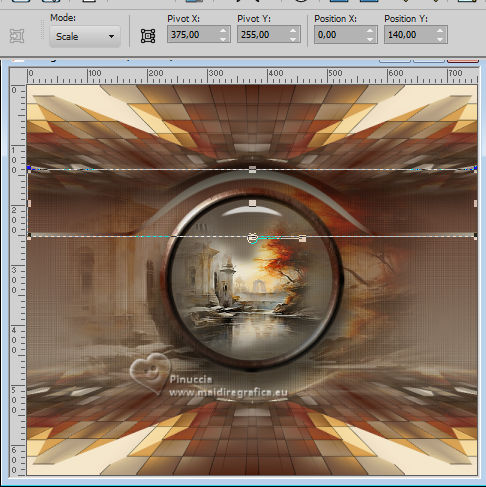 Layers>Duplicate. Image>Mirror>Mirror Vertical. Layers>Merge>Merge Down. 22. Adjust>Add/Remove Noise>Add Noise. 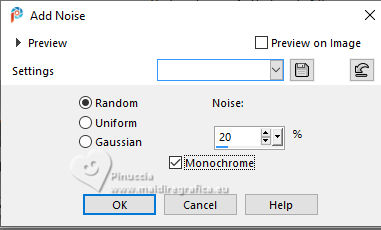 Layers>Properties>General>Blend Mode: Hard Light. 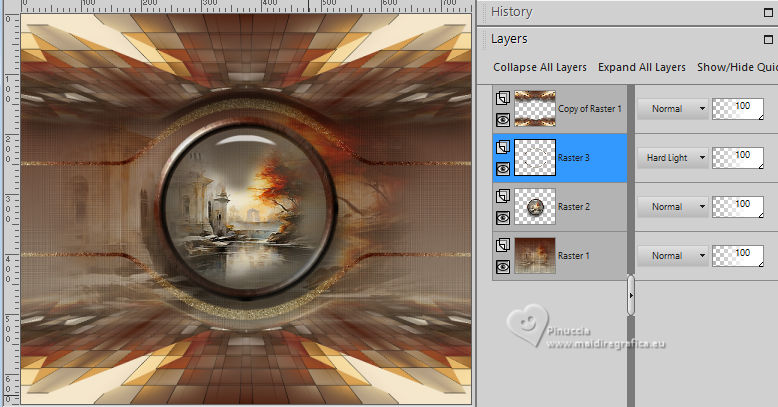 23. Image>Add Borders, 1 pixel, symmetric, foreground color. Selections>Select All. Image>Add Borders, 15 pixels, symmetric, whatever color. Selections>Invert. Flood Fill the selection with your last Linear Gradient.24. Adjust>Add/Remove Noise>Add Noise, same settings. Effects>Modules Externes>Graphics Plus - Cross Shadow, default settings.  Selections>Select None. 25. Image>Add Borders, 1 pixel, symmetric, foreground color. Selections>Select All. Image>Add Borders, 40 pixels, symmetric, background color. Effects>3D Effects>Drop Shadow, color black.  Effects>3D Effects>Drop Shadow, color black.  Selections>Select None. Image>Add Borders, 2 pixels, symmetric, foreground color. 26. Open the tube 1265MulherByPqnaAlice 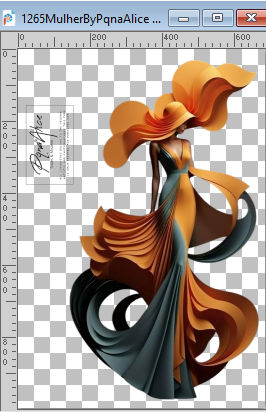 Erase the watermark and go to Edit>Copy. Go back to your work and go to Edit>Paste as New Layer. Image>Resize, if necessary, for the provided tube to 70%, resize all layers not checked. Move  the tube to the left. the tube to the left.Effects>3D Effects>Drop shadow, at your choice. 27. Open the tube TituloWE_Xiki  Erase the watermark and go to Edit>Copy. Go back to your work and go to Edit>Paste as New Layer. Move the text to your liking.28. Sign your work. Layers>Merge>Merge All and save as jpg. For the tubes of this version thanks PqnaAlice   Your versions. Thanks  Kika 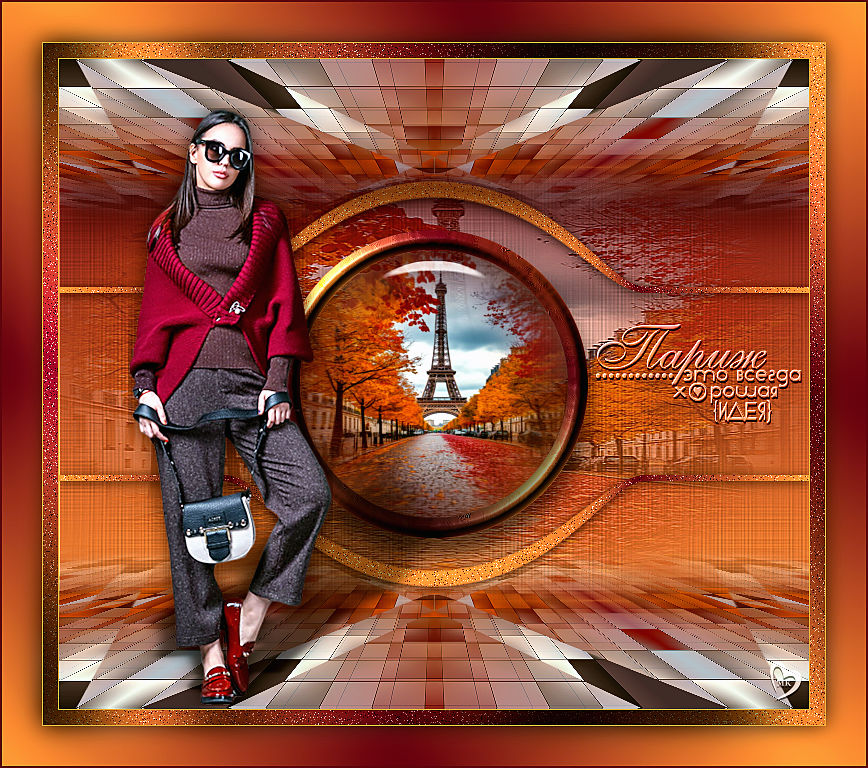 Kamelius 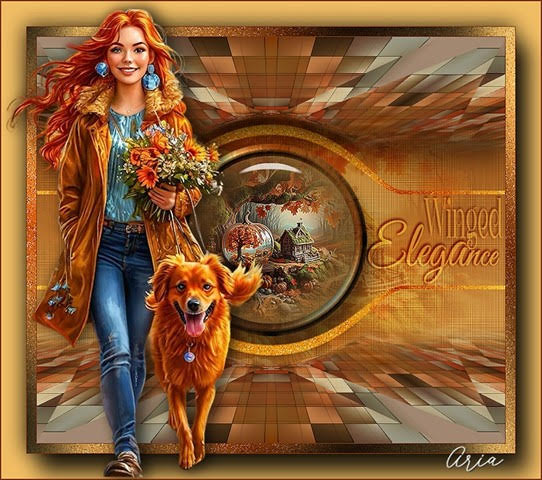 Aria  If you have problems or doubts, or you find a not worked link, or only for tell me that you enjoyed this tutorial, write to me. 24 September 2025 |




