FÉÉRIE D'AUTOMNE

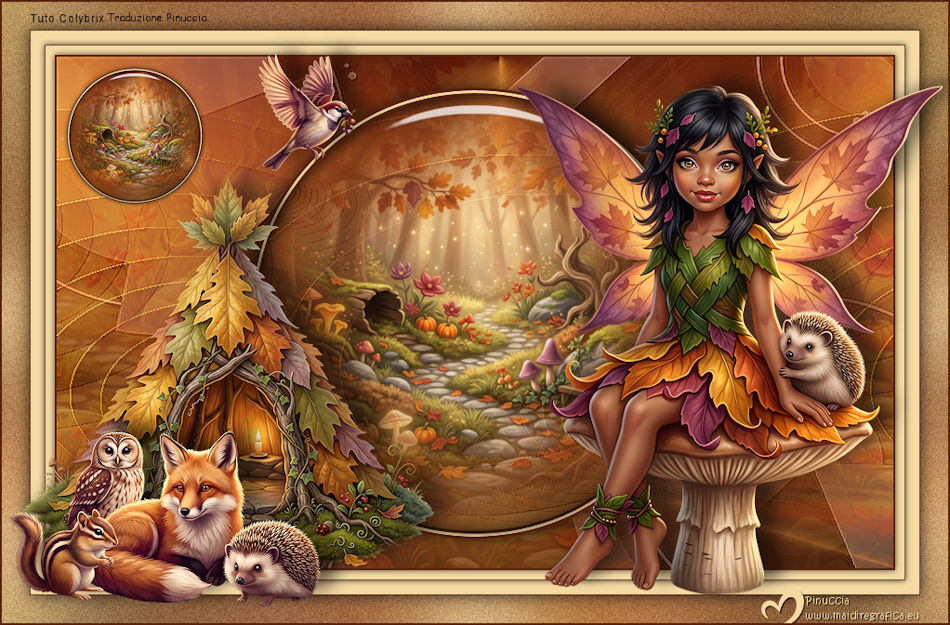
Thanks Colybrix for your invitation to translate

Clic and move the brush to follow the tutorial.

To print


|
This tutorial was translated with PSP09, but it can also be made using other versions of PSP.
Since version PSP X4, Image>Mirror was replaced with Image>Flip Horizontal,
and Image>Flip with Image>Flip Vertical, there are some variables.
In versions X5 and X6, the functions have been improved by making available the Objects menu.
In the latest version X7 command Image>Mirror and Image>Flip returned, but with new differences.
See my schedule here
 italian translation here italian translation here
 your versions here your versions here
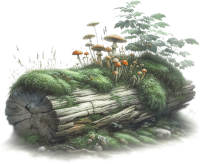
Necessary

For the mask thanks Catamini.
Tubes da scrap Autumn Forest Fairy di Addictive Pleasure
https://addictive-pleasures.blogspot.com/2026/08/autumn-forest-fairy.html
(The links of the tubemakers here).
Plugins
consult, if necessary, my filter section here
Mura's Meister - Perspective Tiling here
Alien Skin Eye Candy 5 Impact - Glass here
You can change Blend Modes according to your colors.

Copy the preset in the Presets Folder.
Open the mask in PSP and minimize it with the rest of the material.
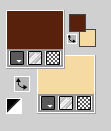
Set your foreground color to #57220e,
and your background color to #f5daa3.
1. Open Alpha Feerie d'Automne
Window>Duplicate or, on the keyboard, shift+D to make a copy.
Close the original.
The copy, that will be the basis of your work, is not empty,
but contains a selection saved to alpha channel.
Selections>Select All.
2. Open the jpg image Autumn Forest Fairy-paper9 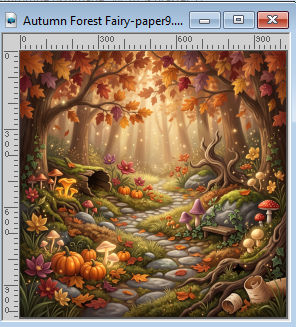
Edit>Copy.
Go back to your work and go to Edit>Paste into Selection.
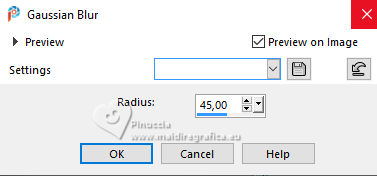
Adjust>Blur>Gaussian Blur - radius 45.
Selections>Select None.
3. Effects>Reflection Effects>Feedback.
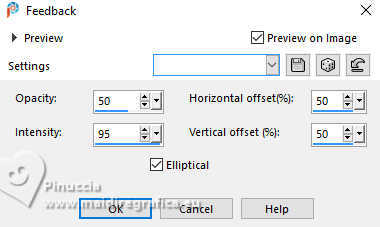
Effects>Edge Effects>Enhance.
4. Layers>Duplicate.
Image>Mirror>Mirror Horizontal.
Image>Mirror>Mirror Vertical (Image>Flip).
Change the Blend Mode of this layer to Soft Light.
Layers>Merge>Merge Down.
5. Effects>Image Effects>Seamless Tiling - Side by Side.
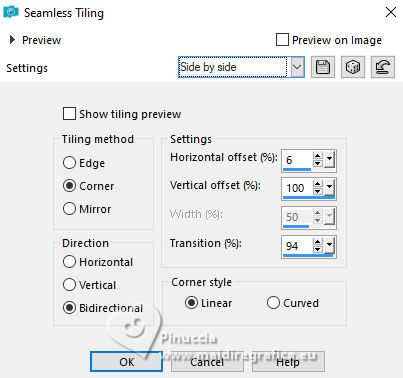
6. Effects>User Defined Filter - Emboss 3
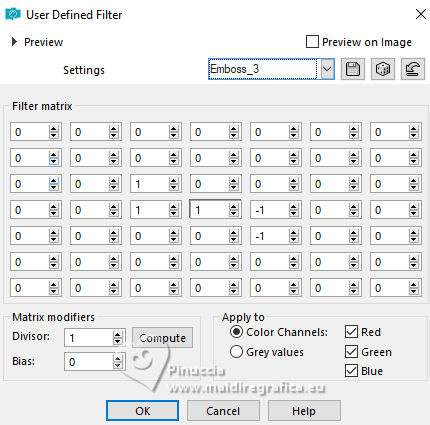
7. Set your foreground color to white.
Layers>New Raster Layer.
Flood Fill  the layer with color white. the layer with color white.
Layers>New Mask layer>From image
Open the menu under the source window and you'll see all the files open.
Select the mask Catimini_maskca10
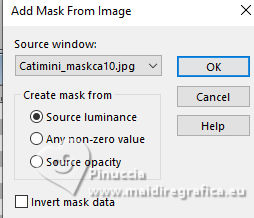
Effects>Edge Effects>Enhance.
Layers>Merge>Merge Group.
8. Change the Blend Mode of this layer to Luminance (legacy) and reduce the opacity to 50%.
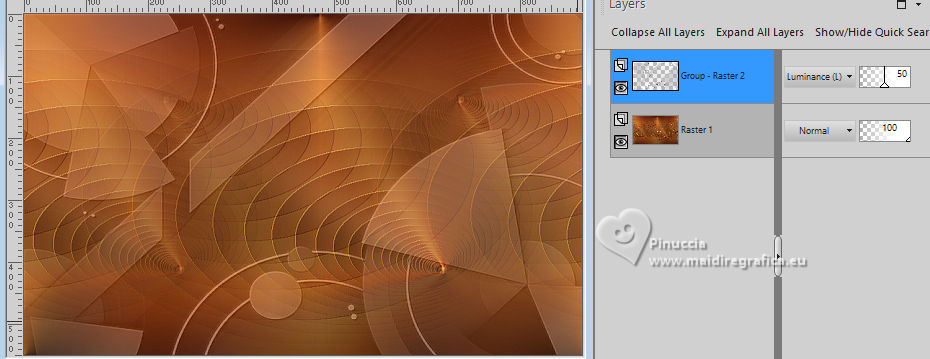
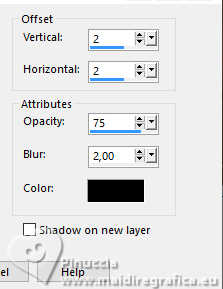
Effects>3D Effects>Drop Shadow, color black.
9. Activate your bottom layer.
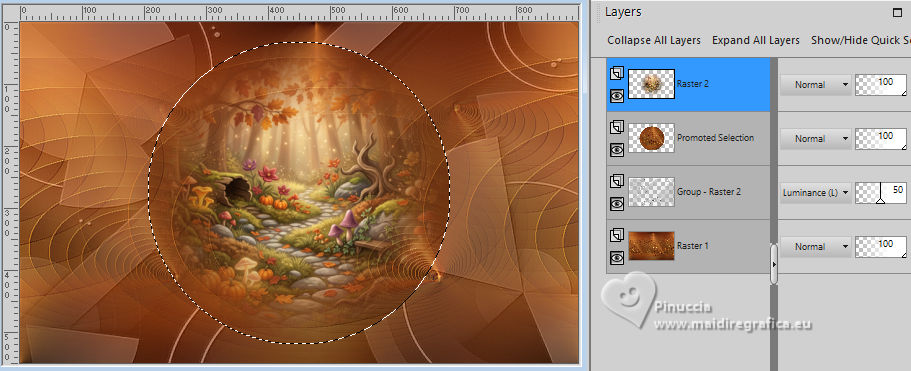
Selections>Load/Save Selection>Load Selection from Alpha Channel.
The selection sélection #1 is immediately available. You just have to click Load.
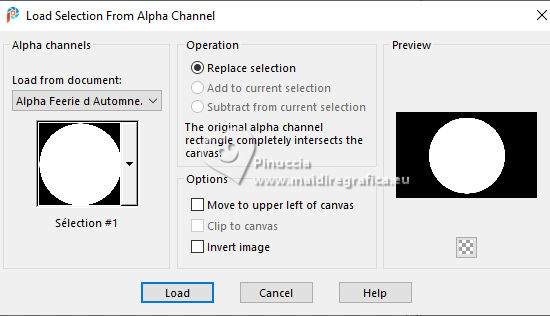
Selections>Promote Selection to Layer.
Layers>Arrange>Move Up.
10. Layers>New Raster Layer.
Open the misted (create from the jpg image with the 20-20 mask) 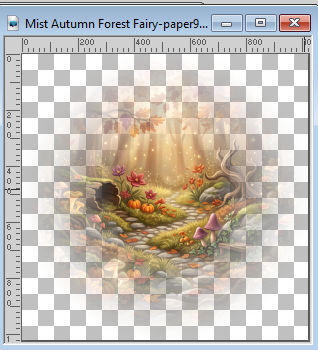
Edit>Copy.
Go back to your work and go to Edit>Paste into Selection.
11. Layers>Duplicate.
Layers>Merge>Merge Down.
Keep selected.
12. Set again your foreground color to #57220e
Layers>New Raster Layer.
Flood Fill the layer with your foreground color.
Selections>Modify>Contract - 3 pixels.
Flood Fill the selection with your background color.
Selections>Modify>Contract - 3 pixels.
Flood Fill the selection with your foreground color.
Selections>Modify>Contract - 3 pixels.
Press CANC on the keyboard 
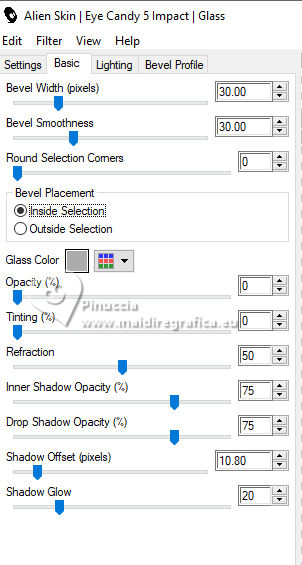
13. Effects>Plugins>Alien Skin Eye Candy 5 Impact - Glass.
Preset Clear and under Basic change Bevel Width pixels 30
14. Selections>Select None.
Layers>Merge>Merge Down - 2 times.
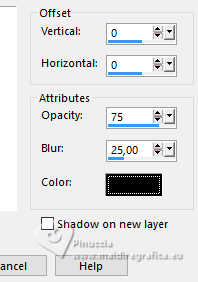
Effects>3D Effects>Drop Shadow, color black.
15. Activate your bottom layer, Raster 1.
Layers>Duplicate.
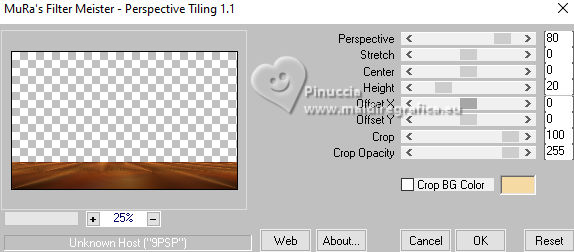
Effects>Plugins>Mura's Meister - Perspective Tiling.
16. Activate your Magic Wand Tool  , feather 50, , feather 50,
ad click in the transparent zone to select it.
Press 5 times CANC on the keyboard.
Selections>Select None.
don't forget to set again the feather of your Magic Wand Tool to 0
17. Effects>3D Effects>Drop Shadow, color black.
Edit>Paste as new layer - the landscape's misted is still in memory.
Effects>Image Effects>Seamless Tiling, last settings.
Change the Blend Mode of this layer to Soft Light.
author's note:
I didn't change the opacity of the layer, to you to decide if necessary according to your personal versions
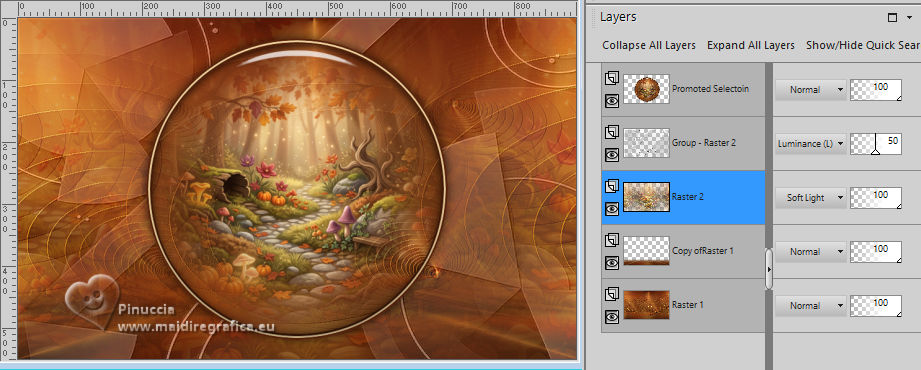
18. Activate again your top layer, the circle.
Edit>Copy.
Edit>Paste as new image, and minimize this image.
Go back to your work.
19. Image>Add Borders, 2 pixels, symmetric, foreground color.
Selections>Select All.
20. Image>Add Borders, 10 pixels, symmetric, background color.
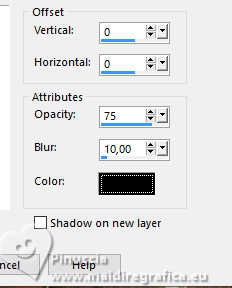
Effects>3D Effects>Drop Shadow, color black.
Selections>Select None.
21. Image>Add Borders, 1 pixel, symmetric, foreground color.
Selections>Select All.
22. Image>Add Borders, 15 pixels, symmetric, background color.
Effects>3D Effects>Drop Shadow, color black.
Selections>Select All.
23. Image>Add Borders, 1 pixel, symmetric, foreground color.
Selections>Select All.
24. Image>Add Borders, 30 pixels, symmetric, background color.
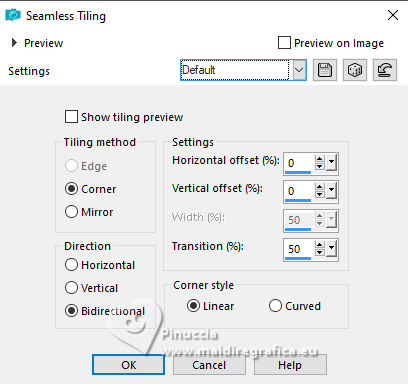
25. Effects>Image Effects>Seamless Tiling, default settings
26. Selections>Invert.
Adjust>Blur>Gaussian Blur - radius 45.
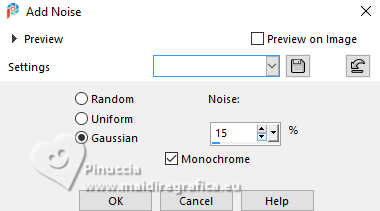
Adjust>Add/Remove Noise>Add Noise.
Selections>Invert.
Effects>3D Effects>Drop Shadow, color black.
Selections>Select None.
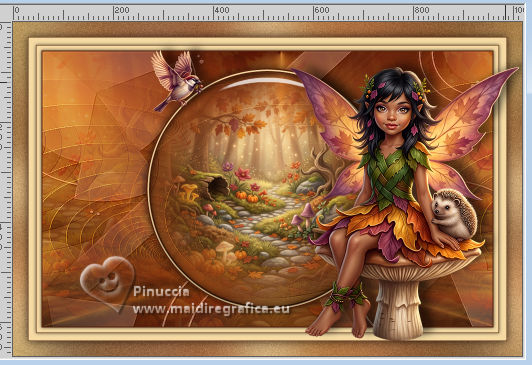
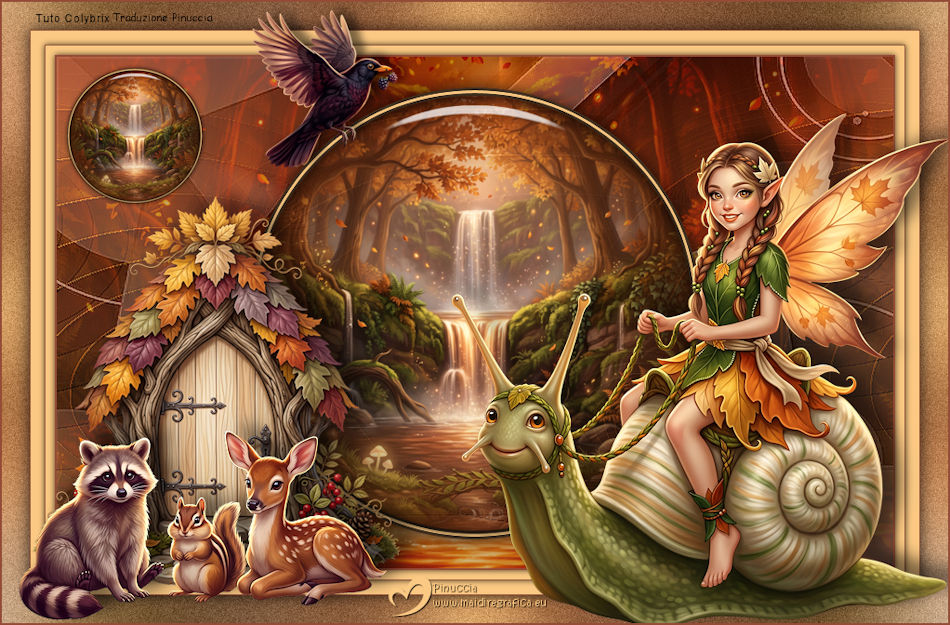
27. Decorate the image with your tubes:
For the tutorial's version:
Copy/Paste as new layer the tube Autumn Forest Fairy-tube16 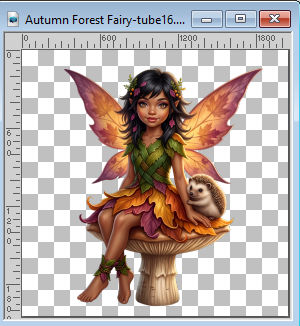
Image>Resize, to 30%, resize all layers not checked.
28. Move  the tube to the right. the tube to the right.
Adjust>Sharpness>Sharpen.
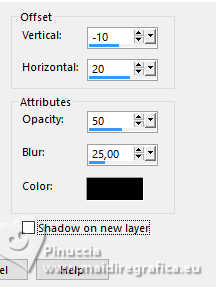
Effects>3D Effects>Drop Shadow, color black.
29. Copy/Paste as new layer the tube Autumn Forest Fairy-bird2 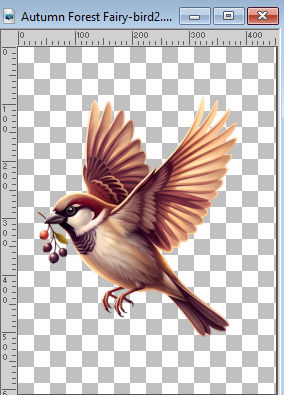
Image>Resize, to 30%, resize all layers not checked.
Image>Mirror>Mirror Horizontal.
Effects>3D Effects>Drop Shadow, color black.
Move the tube at the upper left over the circle's border.
30. Copy/Paste as new layer the tube Autumn Forest Fairy-shelter2 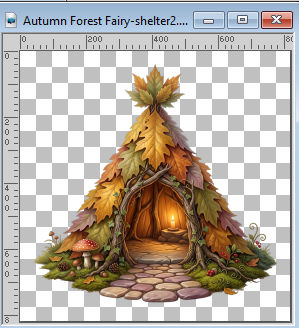
Image>Resize, to 60%, resize all layers not checked.
Adjust>Sharpness>sharpen.
Effects>3D Effects>Drop Shadow, color black.
Move the tube to the left.
31. Copy/Paste as new layer the tube Autumn Forest Fairy-animalgroup1 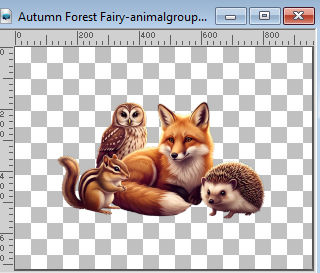
Image>Resize, to 50%, resize all layers not checked.
Adjust>Sharpness>Sharpen.
Effects>3D Effects>Drop Shadow, color black.
Move the tube at the bottom left.
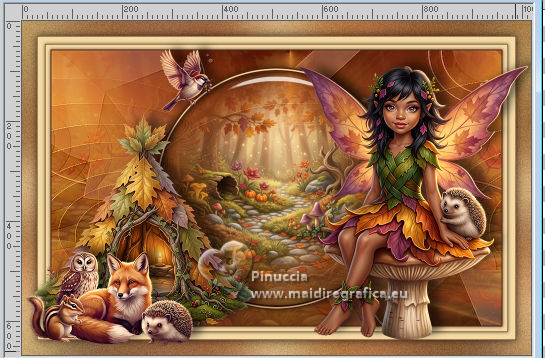
32. Activate the copy of the circle you minimized at step 18.
Image>Resize, to 30%.
Edit>Copy.
Go back to your work and go to Edit>Paste as new layer.
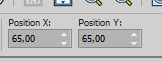
K key to activate your Pick Tool 
Position x: 65,00 - Position Y: 65,00.
Adjust>Sharpness>Sharpen.
33. Image>Add Borders, 2 pixels, symmetric, foreground color.
34. Sign your work.
If you wish (no obligation), add the author's and translator's signatures.
35. Layers>Merge>Merge All.
Image>Resize, 950 pixels width.
Save as jpg.

If you have problems or doubts, or you find a not worked link, or only for tell me that you enjoyed this tutorial, write to me.
28 Settembre 2026

|