SANDY


Thanks Carine for your invitation to translate

Clic and move the brush to follow the tutorial.

To print


|
This tutorial was translated with PSPX9 and PSP2020, but it can also be made using other versions of PSP.
Since version PSP X4, Image>Mirror was repsandyd with Image>Flip Horizontal,
and Image>Flip with Image>Flip Vertical, there are some variables.
In versions X5 and X6, the functions have been improved by making available the Objects menu.
In the latest version X7 command Image>Mirror and Image>Flip returned, but with new differences.
See my schedule here
 italian translation here italian translation here
 your versions here your versions here

Necessary

(The links of the tubemakers here).

consult, if necessary, my filter section here
Filters Unlimited 2.0 here
Filter Factory Gallery P - Frame05 here
Alien Skin Eye Candy 5 Impact - Extrude here
Simple - Top Left Mirror here
Graphics Plus - Cross Shadow here
AAA Frames - Frame Work here
Filters Factory Gallery, Simple and Graphics Plus can be used alone or imported into Filters Unlimited.
(How do, you see here)
If a plugin supplied appears with this icon  it must necessarily be imported into Unlimited it must necessarily be imported into Unlimited

You can change Blend Modes according to your colors.
In the newest versions of PSP, you don't find the foreground/background gradient (Corel_06_029).
You can use the gradients of the older versions.
The Gradient of CorelX here

Copy the Gradient in the Gradients Folder.
Copy the preset in the Presets Folder.
Open the mask in PSP and minimize it with the rest of the material.
1. Open a new transparent image 900 x 550 pixels.
2. Set your foreground color to Gradient,
and select the gradient ©IldikoKj Gradient-102, style Linear.
Please note that the name begins with the symbol "@".
Therefore, according to the rules of alphabetical order, you will find it at the beginning of the list.
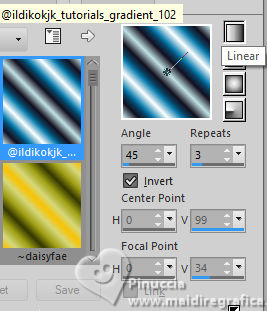
Flood Fill  the transparent image with your Gradient. the transparent image with your Gradient.
3. Layers>Duplicate.
Image>Mirror>Mirror Horizontal.
Reduce the opacity of this layer to 50%.
Layers>Merge>Merge Down.
4. Layers>Duplicate.
Effects>Plugins>Filter Factory Gallery P - Frame 05
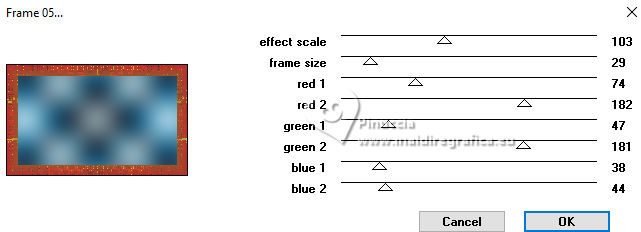
5. Change the Blend Mode of this layer to Luminance (legacy).
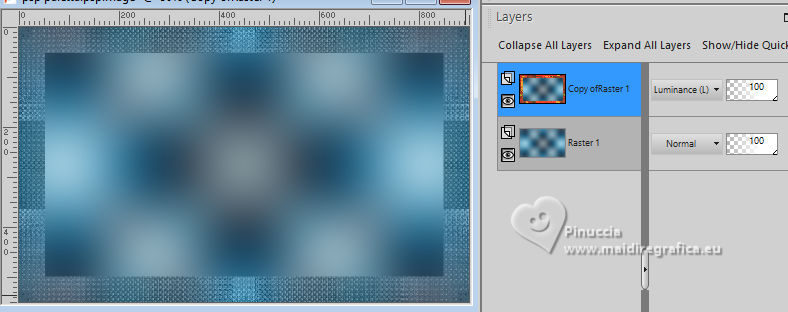
6. Effects>Image Effects>Seamless Tiling.
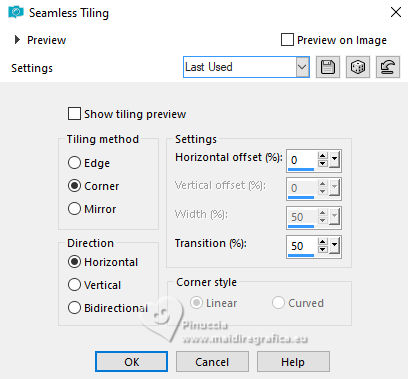
7. Activate the layer Raster 1.
Layers>Duplicate.
Layers>Arrange>Bring to Top.
8. Image>Resize, to 90%, resize all layers not checked.
Effects>Geometric Effects>Spherize.
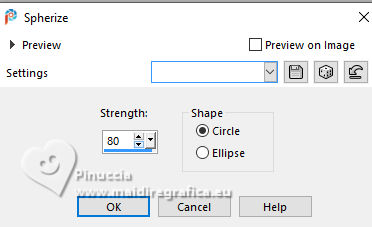
Effects>Edge Effects>Enhance More.
9. Set your foreground color to #568ca8,
and your background color to #d8e5ec.
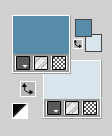
Set your foreground color to a Foreground/Background Gradient, style Sunburst.
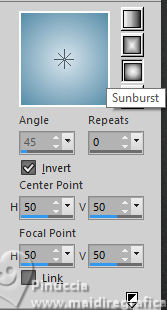
10. Activate your Selection Tool 
(no matter the type of selection, because with the custom selection your always get a rectangle)
clic on the Custom Selection 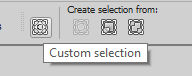
and set the following settings.
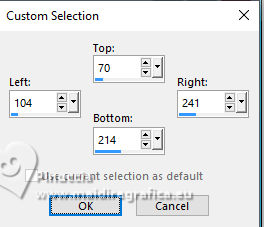
11. Layers>New Raster Layer.
Flood Fill the selection with your Gradient.
12. Adjust>Add/Remove Noise>Add Noise.
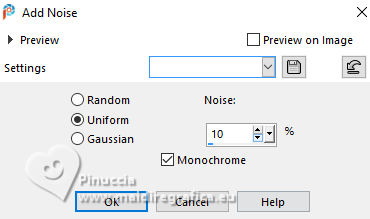
Selections>Select None.
Effects>Edge Effects>Enhance.
13. Effects>Plugins>Alien Skin Eye Candy 5 Impact - Extrude.
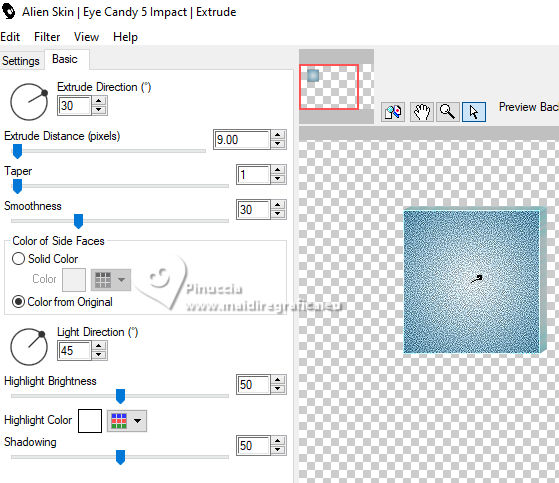
14. Layers>Duplicate.
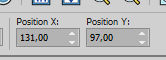
K key to activate your Pick Tool 
Position X: 131,00 - Position Y: 97,00.
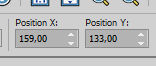
15. Livelli>Duplica.
Position X: 159,00 - Position Y: 133,00.
Layers>Merge>Merge Down - 2 times.
16. Layers>New Raster Layer.
Custom Selection
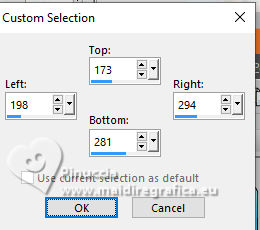
Flood Fill the selection with the Sunburst Gradient.
17. Open the tube Cristaltubes492 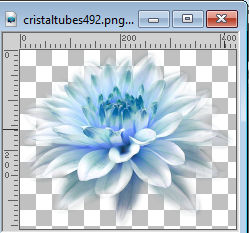
Edit>Copy.
Go back to your work and go to Edit>Paste as new layer.
18. Image>Resize, to 50%, resize all layers not checked.
Position  the tube on the selection, as below. the tube on the selection, as below.
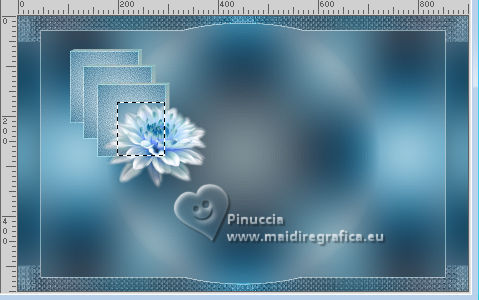
19. Selections>Invert.
Press CANC on the keyboard 
Selections>Invert.
Adjust>Sharpness>Sharpen.
20. Layers>New Raster Layer.
Set your foreground color to white #ffffff.
Flood Fill the layer with color white.
21. Selections>Modify>Contract - 2 pixels.
Press CANC on the keyboard.
Selections>Select None.
22. Layers>Merge>Merge Down - 3 times.
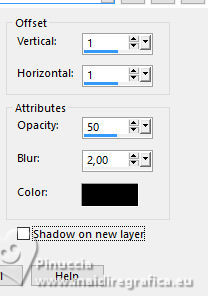
23. Effects>3D Effects>Drop Shadow, color black.
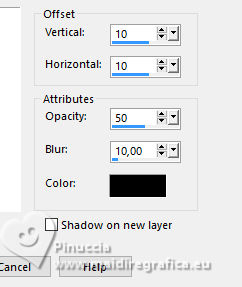
24. Effects>Plugins>Simple - Top Left Mirror.
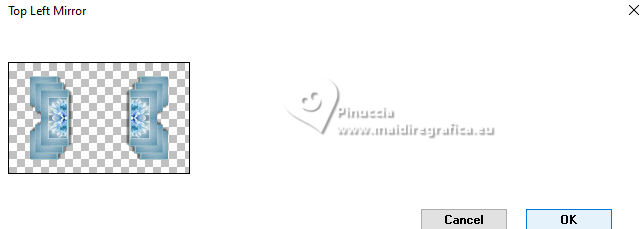
25. Activate the layer below, Copy of Raster 1.
Layers>New Raster Layer.
Flood Fill the layer with color white.
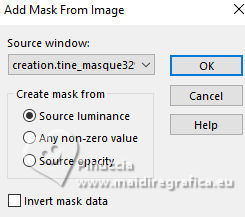
26. Layers>New Mask layer>From image
Open the menu under the source window and you'll see all the files open.
Select the mask creation.tine_masque329
Layers>Merge>Merge Group.
Effects>Edge Effects>Enhance.
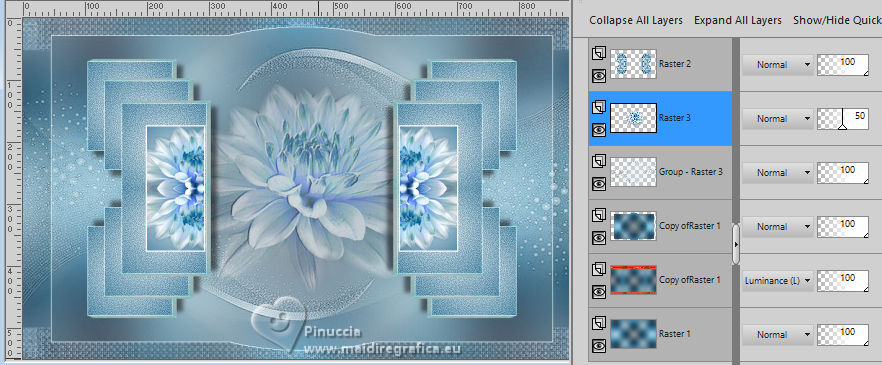
27. Edit>Paste as new layer - the tube Cristaltubes492 is still in memory.
Don't move it.
Reduce the opacity of this layer to 50%.
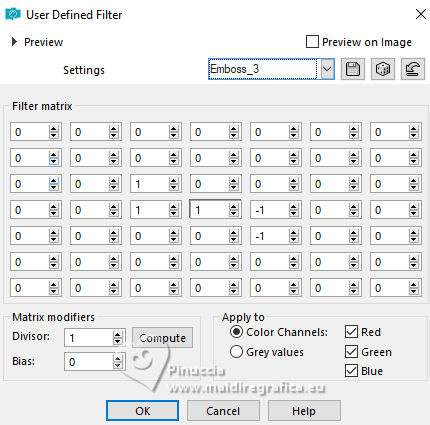
28. Effects>User Defined Filter - Emboss 3.
29. Open Deco 1 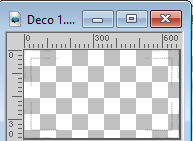
Edit>Copy.
Go back to your work and go to Edit>Paste as new layer.
Don't move it.
30. Effects>3D Effects>Drop Shadow, color black.
Layers>Arrange>Bring to Top.
31. For the borders, set again your foreground color to color 1 #568ca8.
Image>Add Borders, 2 pixels, symmetric, color white.
Image>Add Borders, 2 pixels, symmetric, foreground color.
32. Edit>Copy
33. Selections>Select All.
Image>Add Borders, 35 pixels, symmetric, color white.
Selections>Invert.
34. Edit>Paste into Selection - the image copied at step 32.
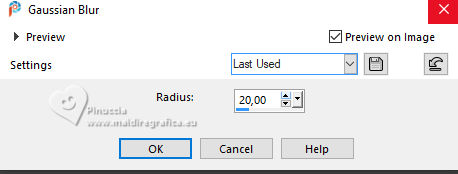
35. Adjust>Blur>Gaussian Blur - radius 20.
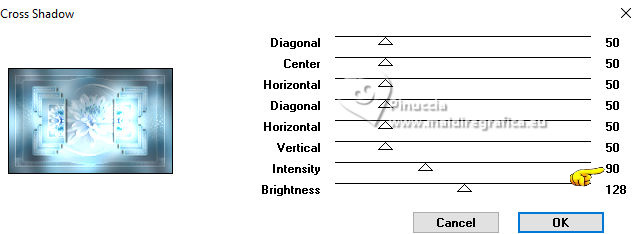
36. Effects>Plugins>Graphics Plus - Cross Shadow.
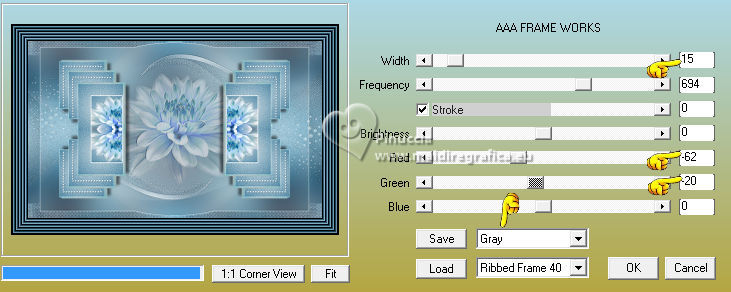
37. Effects>Plugins>AAA Frames - Frame Work.
Selections>Select None.
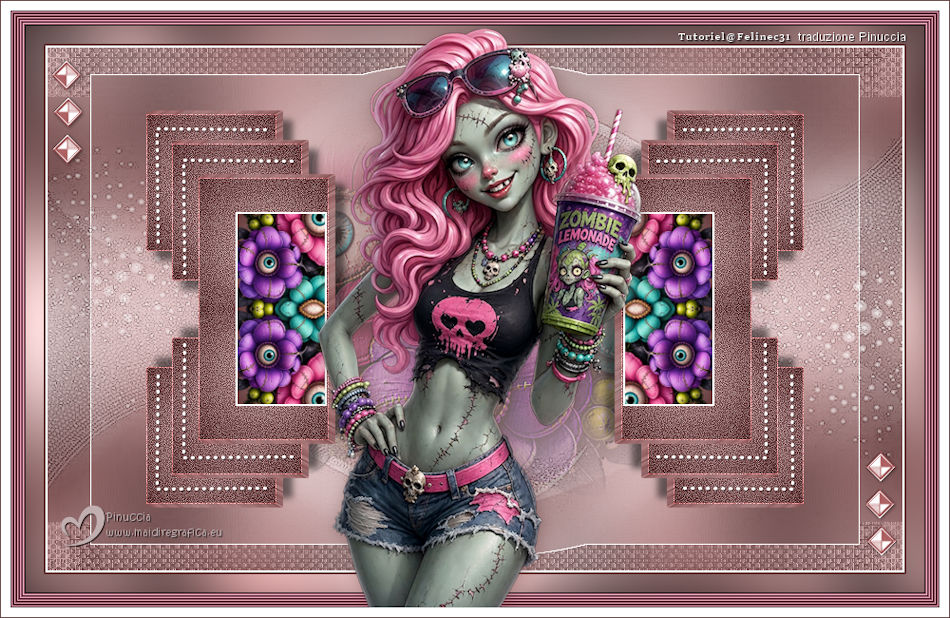
38. Open the tube Feline31@Fille-Mars17-25 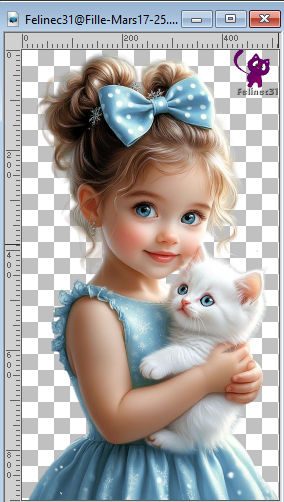
Erase the watermark and go to Edit>Copy.
Go back to your work and go to Edit>Paste as new layer.
Image>Resize, to 66%, resize all layers not checked.
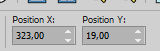
39. K key to activate your Pick Tool
Position X: 323,00 - Position Y: 19,00.
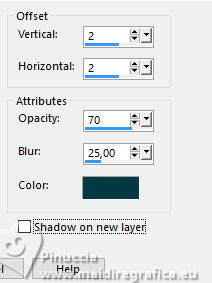
40. Effects>3D Effects>Drop Shadow, color #0c3747.
41. Open Deco 2 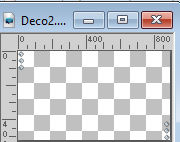
Edit>Copy.
Go back to your work and go to Edit>Paste as new layer.
It's at its place.
43. Image>Add borders, 10 pixels, symmetric, color white.
Image>Add Borders, 1 pixel, symmetric, foreground color.
44. Sign your work.
Image>Resize, 950 pixels width, resize all layers checked.
Save as jpg.
Version with scrap elements AIbytkdezigns.Thanks

If you have problems or doubts, or you find a not worked link, or only for tell me that you enjoyed this tutorial, write to me.
17 October 2026

|