|
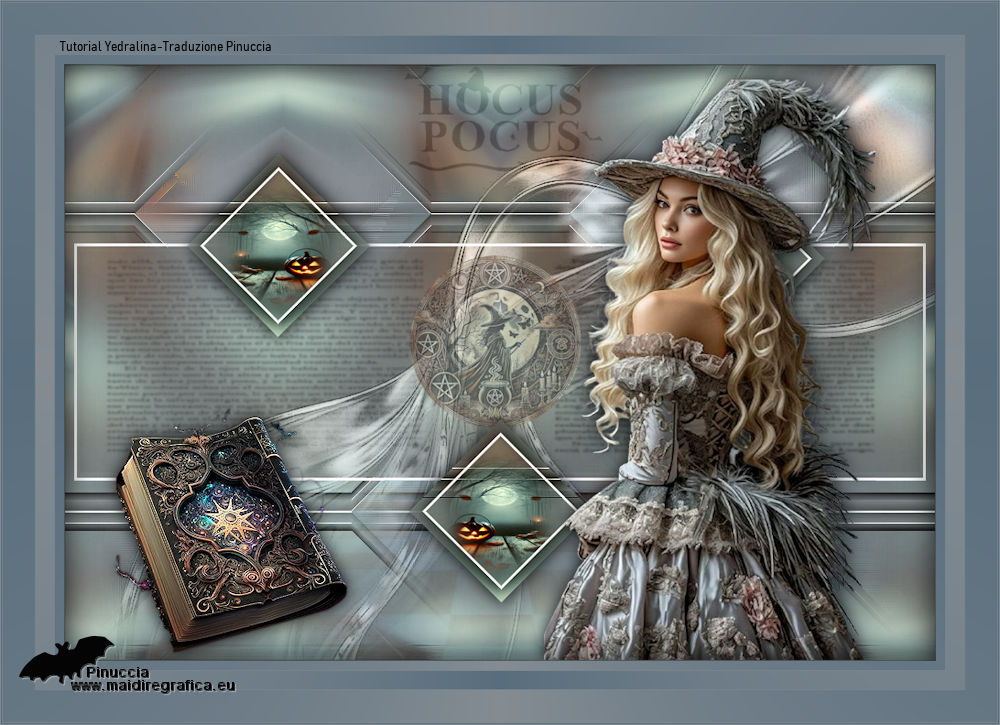
GRIMORIO

A grimoire is a book of magic, an esoteric manual, or a text on witchcraft that contains instructions for performing
rituals, preparing potions, creating talismans, and invoking or summoning supernatural entities such as angels, demons, or spirits.
Thanks Yedralina for your invitation to translate your tutorials into english
This tutorial was written with PSP2020 and translated with PSPX9, PSPX8 and PSP2020, but it can also be made using other versions of PSP.
Since version PSP X4, Image>Mirror was replaced with Image>Flip Horizontal,
and Image>Flip with Image>Flip Vertical, there are some variables.
In versions X5 and X6, the functions have been improved by making available the Objects menu.
In the latest version X7 command Image>Mirror and Image>Flip returned, but with new differences.
See my schedule here
 italian translation here italian translation here
 french translation here french translation here
 your versions here your versions here
For this tutorial, you will need:

For a mask thanks Nikita.
The rest of the material is by Yedralina.
(The links of the tubemakers here).

consult, if necessary, my filter section here
Filters Unlimited 2.0 here
Cybia - Screenworks - Point Array here
VM Toolbox - MirrorrorriM here
Simple - Zoom out and flip here
Graphics Plus - Page Curl here
Mehdi - Sorting Tiles here
AAA Frames - Foto Frame / AAA Filters - Custom here
AAA Framer here
Filtres Cybia, VM Toolbox, Simple and Graphics Plus can be used alone or imported into Filters Unlimited.
(How do, you see here)
If a plugin supplied appears with this icon  it must necessarily be imported into Unlimited it must necessarily be imported into Unlimited

In the newest versions of PSP, you don't find the foreground/background gradient (Corel_06_029).
You can use the gradients of the older versions.
The Gradient of CorelX here
You can change Blend Modes according to your colors.

Copy the preset in the Presets Folder.
Copy the selection in the Selections Folder.
Open the masks in PSP and minimize them with the rest of the material.
Colors
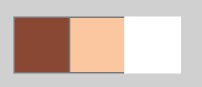
Set your foreground color to color 1 #894834,
and your background color to color 2 #fbc7a1.
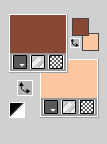
color 3 #ffffff.
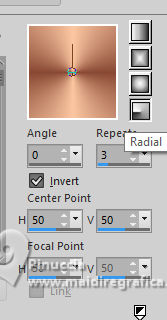
Set your foreground color to a Foreground/Background Gradient, style Radial.
1. Open a new transparent image 950 x 650 pixels.
Selections>Select All.
2. Open the misted 3908©Yedralina 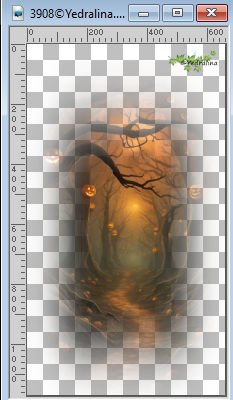
Erase the watermark and go to Edit>Copy.
Go back to your work and go to Edit>Paste into Selection.
Selections>Select None.
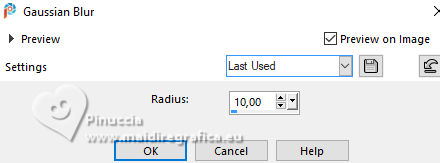
Adjust>Blur>Gaussian Blur - radius 10
Effects>Plugins>Cybia - Screenworks - Point Array
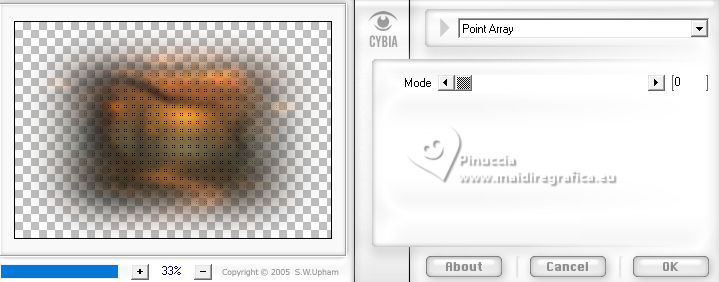
If you use the version Screenworks without window:
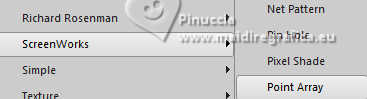
If you import it in Unlimited:
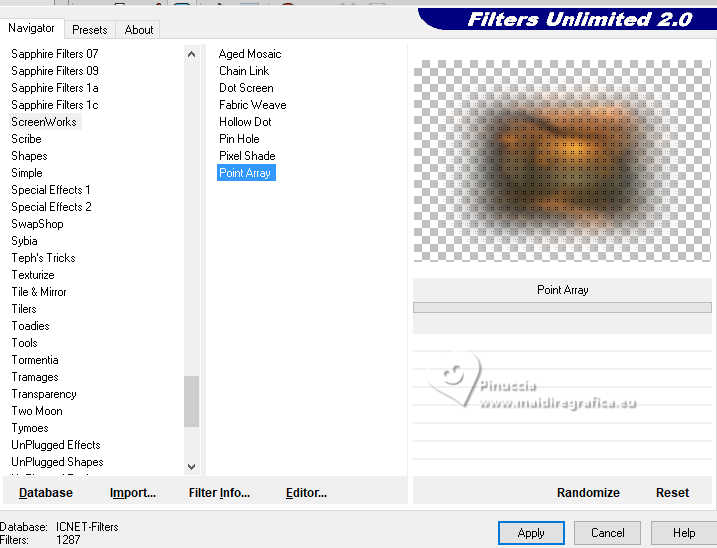
3. Effects>Image Effects>Seamless Tiling, default settings.
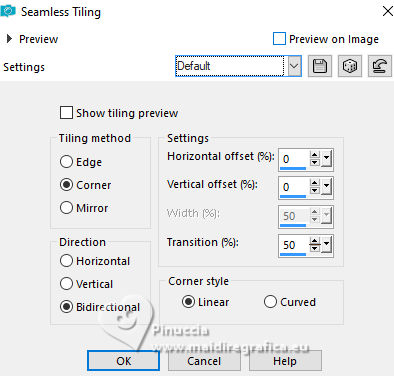
4. Effects>Plugins>Mehdi - Sorting Tiles.
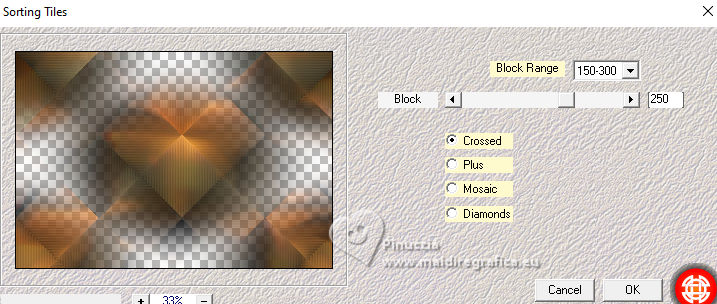
Effects>Edge Effects>Enhance.
5. Layers>New Raster Layer.
Flood Fill  the layer with your light background color. the layer with your light background color.
Layers>Arrange>Send to Bottom.
6. Activate again your top layer.
Layers>Merge>Merge Visible to New Layer.
if you are using a previous version without this command:
Edit>Copy Special>Copy Merged.
Edit>Paste as new layer
7. Adjust>Blur>Radial Blur.
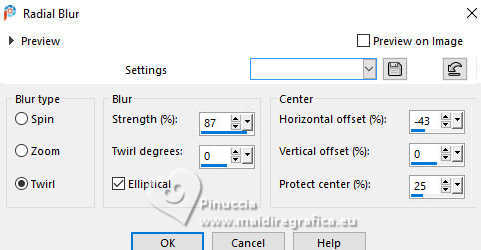
8. Effects>Plugins>Filters Unlimited 2.0 - VM Toolbox - MirrorrorriM, default settings.
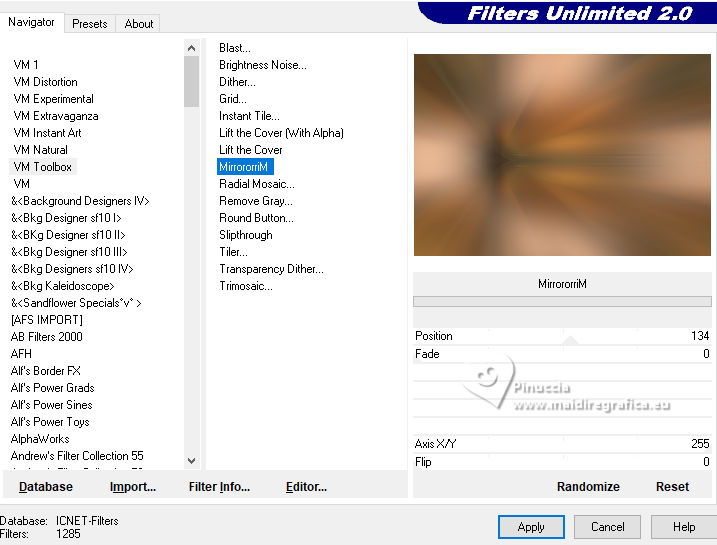
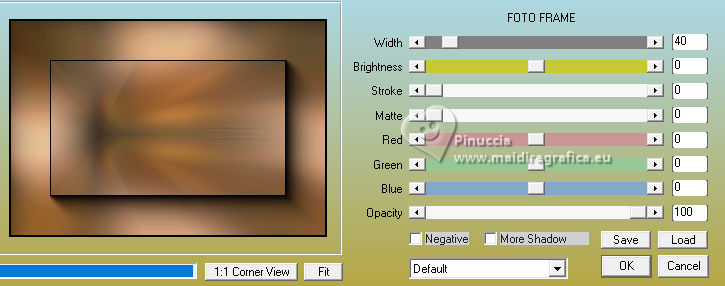
9. Effects>Plugins>AAA Frames - Foto Frame, default settings.
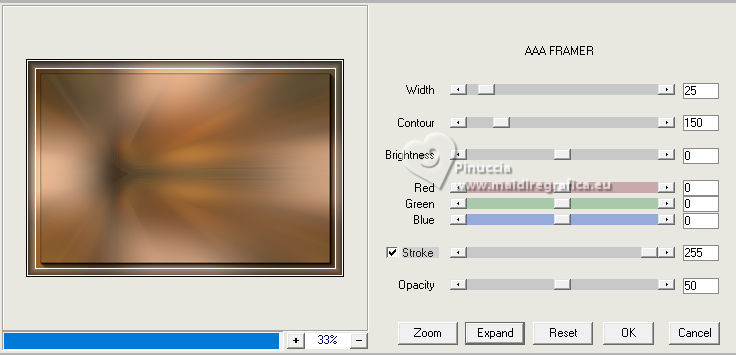
10. Effects>Plugins>AAA Filters - AAA Framer
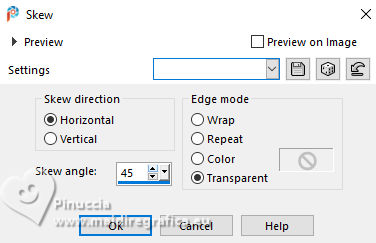
11. Effects>Geometric Effects>Skew.
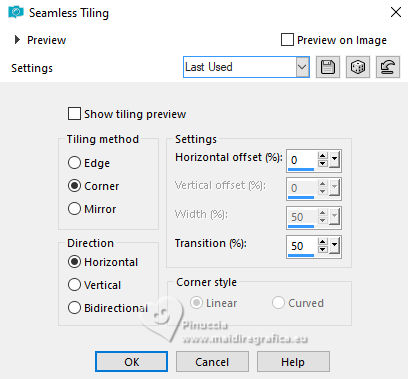
12. Effects>Image Effects>Seamless Tiling.
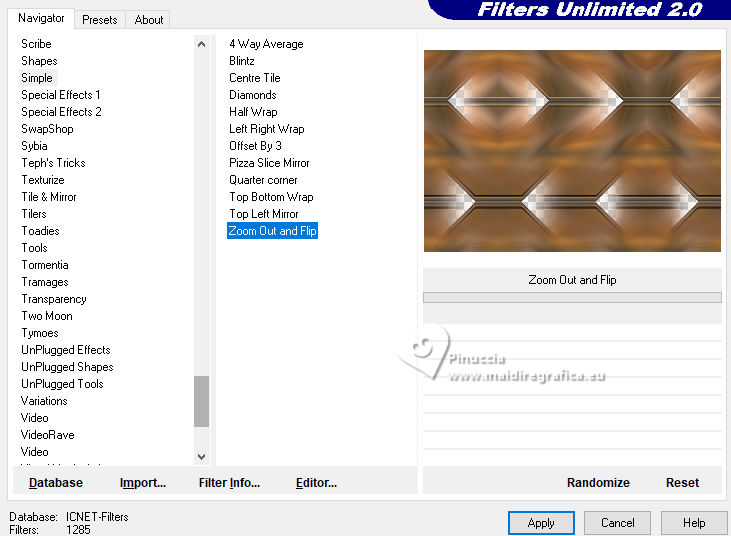
13. Effects>Plugins>Filters Unlimited 2.0 - Simple - Zoom out and flip
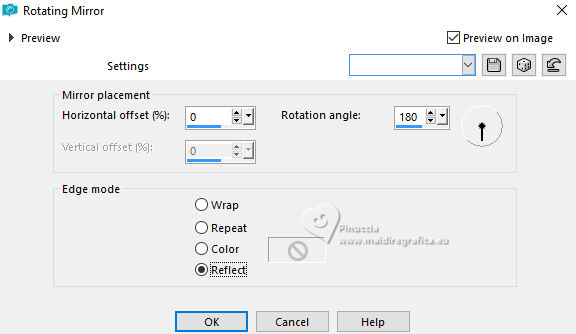
14. Effects>Reflection Effects>Rotating Mirror.
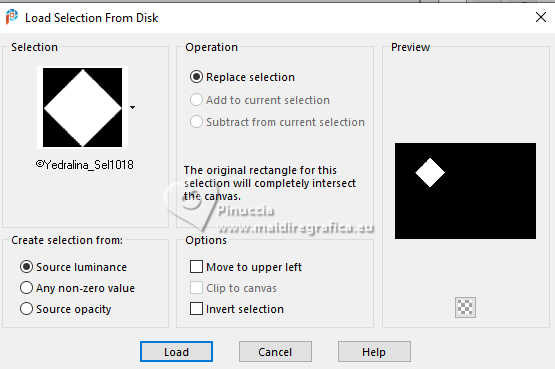
15. Selections>Load/Save Selection>Load Selection from Disk.
Look for and load the selection ©Yedralina_Sel1018
Selections>Promote Selection to Layer.
16. Selections>Modify>Contract - 10 pixels.
Selections>Promote Selection to Layer.
Set your foreground color to white.
Flood Fill the layer with color white.
17. Effects>3D Effects>Drop shadow, color black.
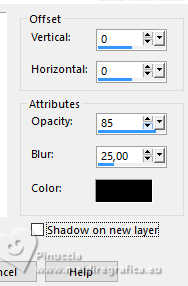
Selections>Modify>Contract - 3 pixels.
Press CANC on the keyboard 
Keep selected.
18. Layers>New Raster Layer.
Edit>Paste into Selection - the misted is still in memory.
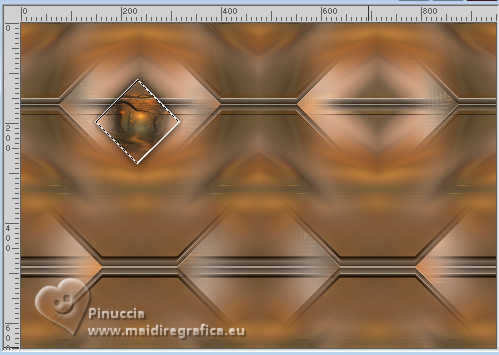
Selections>Select None.
Layers>Merge>Merge Down - 2 times.
Effects>3D Effects>Drop Shadow, last settings.
19. Effects>Plugins>AAA Filters - Custom - Landscape.
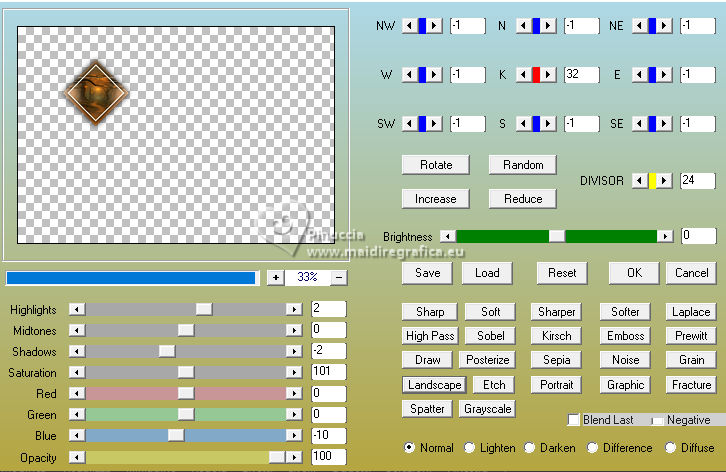
20. Layers>Duplicate.
Image>Mirror>Mirror Horizontal.
K key to activate your Pick Tool 
Position X: 614,00 - Position Y: 94,00.
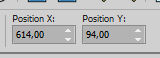
Layers>Duplicate.
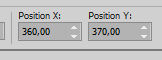
Position X: 360,00 - Position Y: 370,00.
M key to deselect the Tool.
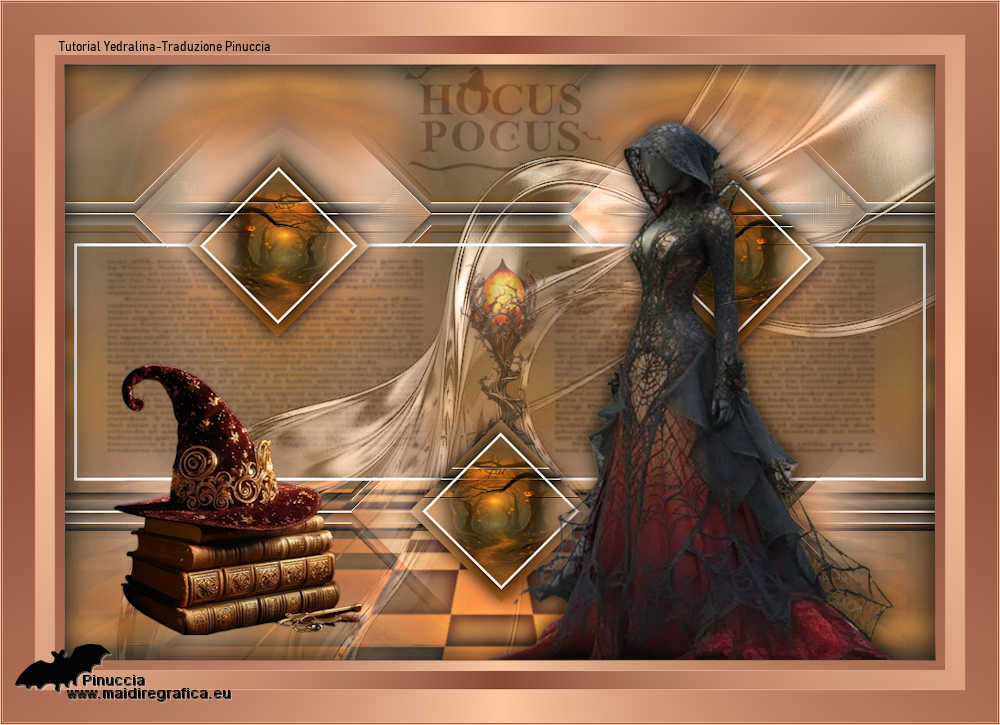
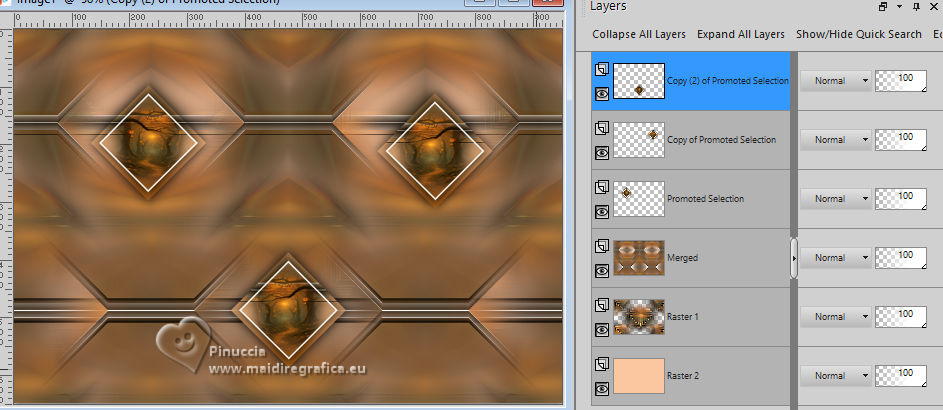
Your tag and the layers
Layers>Merge>Merge Down - 2 times.
21. Activate the layer below, Merged.
Layers>New Raster Layer.
Flood Fill the selection with your light background color.
Layers>New Mask layer>From image
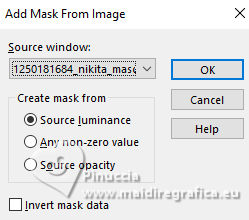
Open the menu under the source window and you'll see all the files open.
Select the mask 1250181684_nikita_masques.
Layers>Merge>Merge Group.
22. K key to activate your Pick Tool
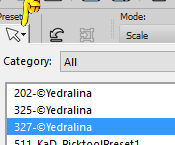
open the presets menu and select the preset 327-©Yedralina
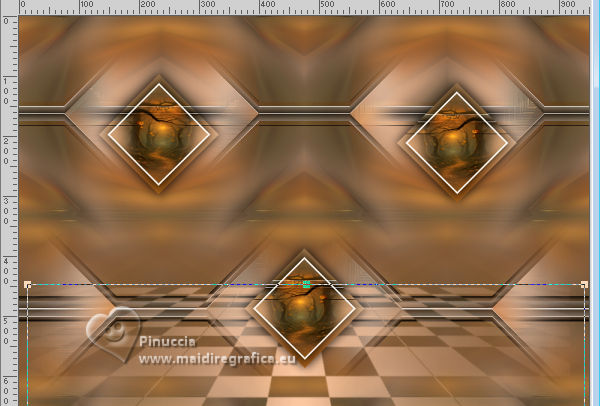
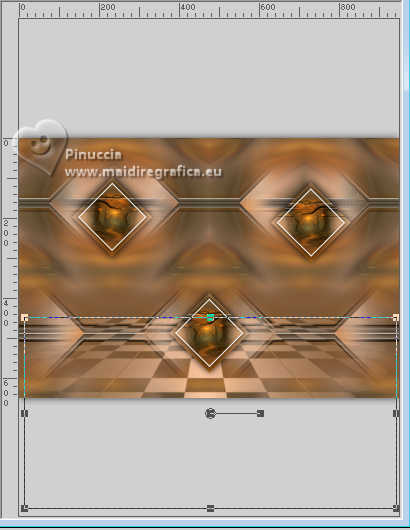
Change the Blend Mode of this layer to Overlay, or keep Normal, according to your colors.
23. Open the tube Deco00414©Yedralina 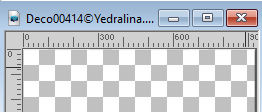
Edit>Copy.
Go back go your work and go to Edit>Paste as new layer.
Don't move it.
24. Activate your Magic Wand Tool  , tolerance and feather 0, , tolerance and feather 0,
and click in the rectangle to select it.
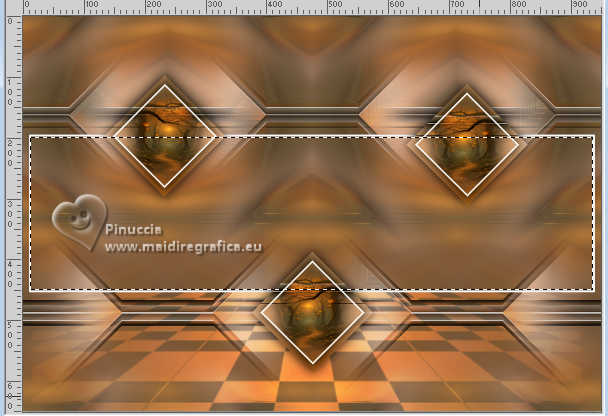
Activate the layer Merged.
Selections>Promote Selection to Layer.
Layers>Arrange>Move Up.
Adjust>Blur>Gaussian Blur - radius 25.
25. Layers>New Raster Layer.
Open the tube decoLibro de las sombras 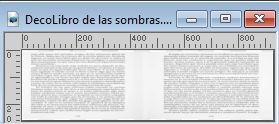
Edit>Copy.
Go back to your work and go to Edit>Paste into Seleciton.
Change the Blend mode of this layer to Multiply, or other.
Selections>Select None.
26. Layers>New Raster Layer.
Flood Fill the layer with color white.
Layers>New Mask layer>From image
Open the menu under the source window
and select the mask Masc203©Yedralina.
Layers>Merge>Merge Group.
27. Image>Mirror>Mirror horizontal.
Effects>Edge Effects>Enhance.
Change the Blend Mode of this layer to Luminance (legacy).
28. Open the tube 3966©Yedralina 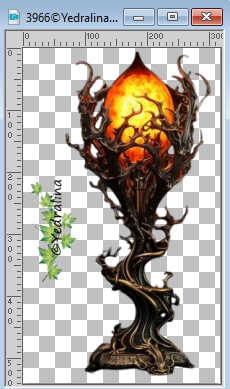
Erase the watermark and go to Edit>Copy.
Go back to your work and go to Edit>Paste as new layer.
Immagine>Ridimensiona, al 40%, tutti i livelli non selezionato.
Position X: 404,00 - Position Y: 211,00.
Reduce the opacity of this layer +/-50%.
29. Open the resized text 3923©Yedralinared 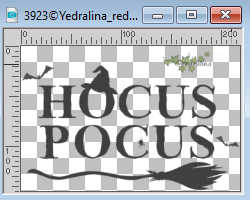
Erase the watermark and go to Edit>Copy.
Go back to your work and go to Edit>Paste as new layer.
Move it at the top, see my example:
Position X: 369,00 - Position Y: 1,00
Change the Blend Mode of this layer to Soft Light.
Activate your top layer.
30. Open the tube 3849©Yedralina 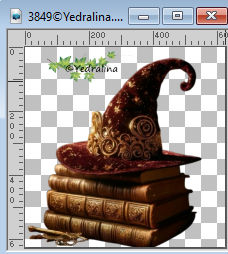
Erase the watermark and go to Edit>Copy.
Go back to your work and go to Edit>Paste as new layer.
Image>Resize, to 50%, resize all layers not checked.
Adjust>Sharpness>Sharpen.
Move it at the bottom left:
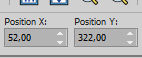
Position X: 52,00 - Position Y: 322,00
Effects>3D Effects>Drop Shadow, color black.
31. Open the tube 3821©Yedralina 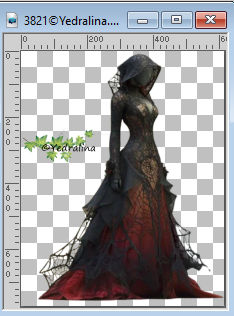
Erase the watermark and go to Edit>Copy.
Go back to your work and go to Edit>Paste as new layer.
Image>Resize, to 80%, resize all layers not checked.
Adjust>Sharpness>Sharpen.
Position  the tube to your liking. the tube to your liking.
Effects>3D Effects>Drop shadow, at your choice.
32. For the borders set again the foreground color and the gradient as at the beginning.
Color 1 foreground, color 2 background
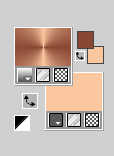
Image>Add Borders, 1 pixel, symmetric, light color.
Image>Add Borders, 10 pixels, symmetric, dark color.
Image>Add Borders, 1 pixel, symmetric, light color
Image>Add Borders, 20 pixels, symmetric, dark color.
Image>Add Borders, 1 pixel, symmetric, light color
Image>Add Borders, 35 pixels, symmetric, dark color.
Image>Add Borders, 1 pixel, symmetric, light color
Image>Add Borders, 1 pixel, symmetric, dark color.
Image>Add Borders, 1 pixel, symmetric, light color
33. Activate your Magic Wand Tool , tolerance and feather 0,
click in the 35 pixels border to select it.
Flood Fill the selection with your Gradient.
Selections>Select None.
34. Select now the 10 pixels borders with your Magic Wand Tool
Flood Fill the selection with the same gradient.
35. Again with your Magic Wand Tool select the 20 pixels borders.
Invert the colors of your Gradient
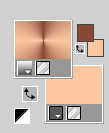
Flood Fill the selection with your Gradient.
34. Selections>Select All.
Selections>Modify>Contract - 70 pixels.
Selections>Invert.
Effects>3D Effects>Drop Shadow, color black.
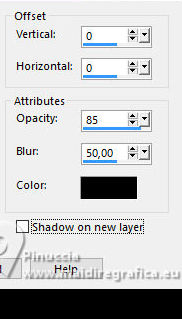
Selections>Select None.
35. Image>Resize, 1000 pixels width, resize all layers checked.
36. Sign your work on a new layer and add any necessary credits.
37. Layers>Merge>Merge All and save as jpg.
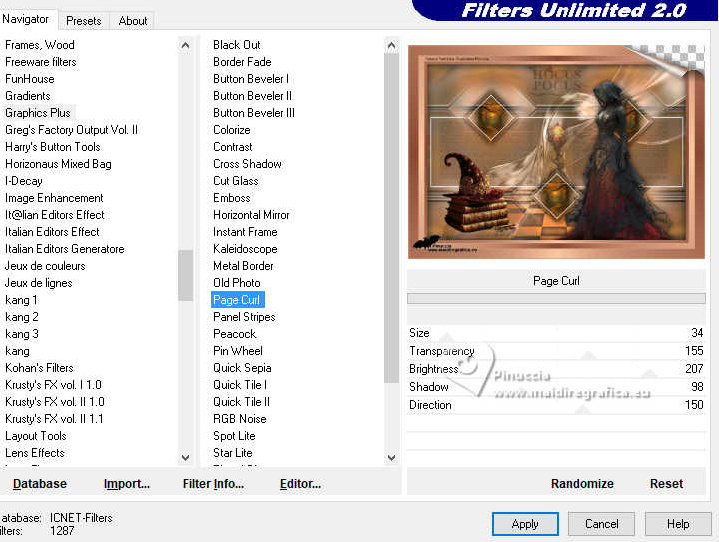
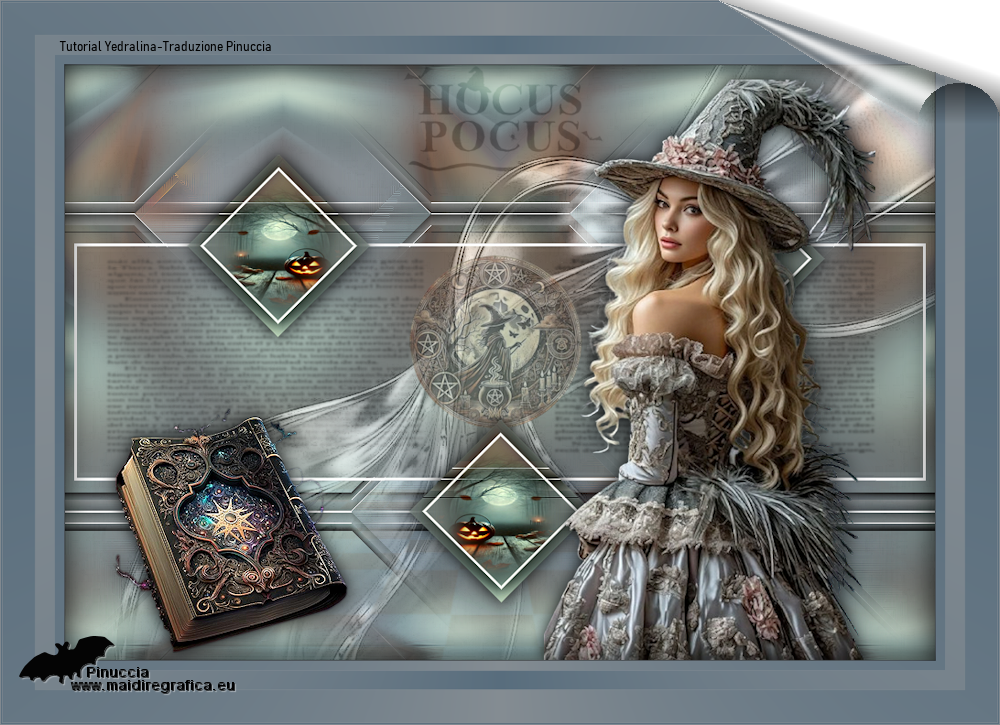
38. Optional: you can apply a page curl effect, with the plugin:
Graphics Plus>Page Curl
Attention: If you have merged the layers by flattening them:
Layers>Promote background layer.
Effects>Plugins>Filters unlimited 2.0 - Graphics Plus - Page Curl
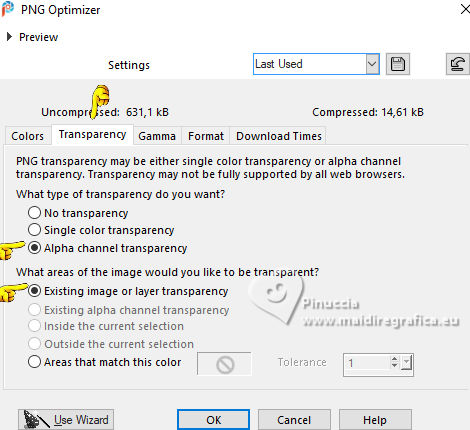
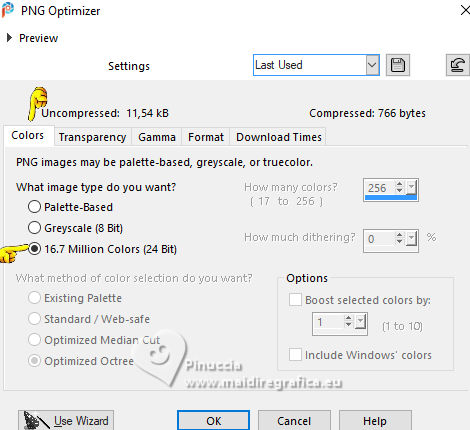
If you used this filter, save your work en png format, to keep the transparence of your background.
File>Export>PNG Optimizer:
If you have problems or doubts, or you find a not worked link, or only for tell me that you enjoyed this tutorial, write to me.
22 October 2026

|